How to Create Multi-Target AR Posters (No Code, No App)
Learn how to create a multi-target AR poster exhibition using Kivicube. Scan different posters to trigger different videos—all from one QR code, with no coding or app download required.
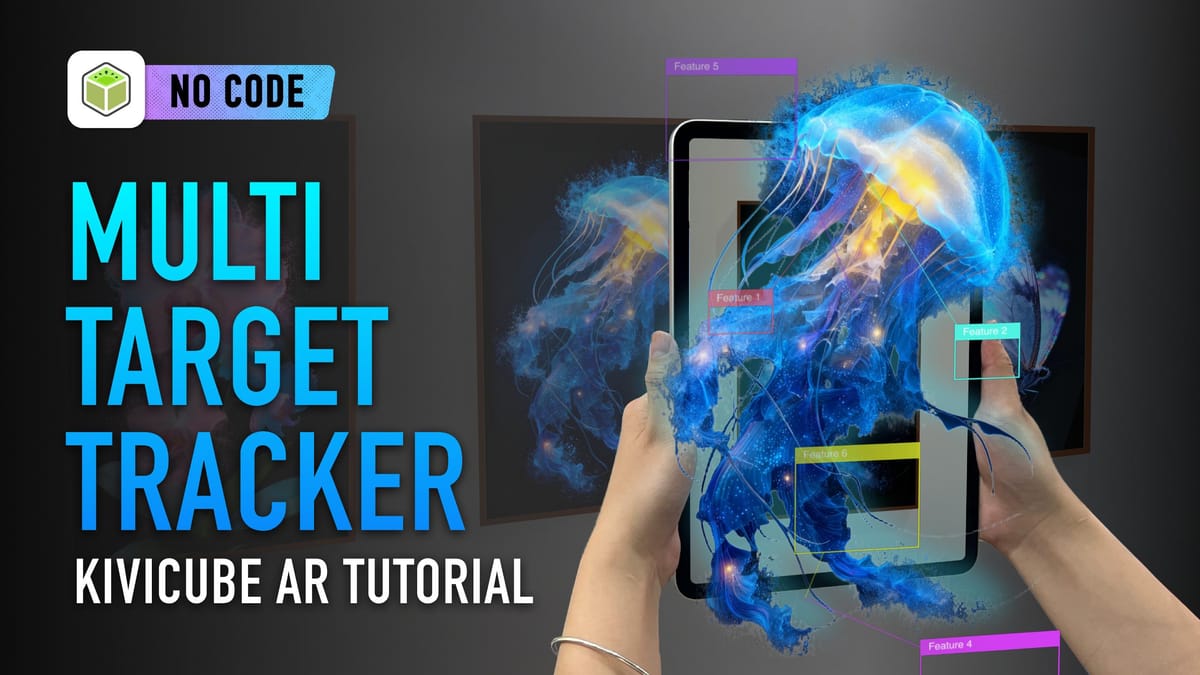
Scan Different Posters. Play Different Videos. All from One QR Code.
Augmented reality is increasingly used in exhibitions, pop-ups, and brand spaces to add motion and storytelling to physical visuals. One particularly effective format is the multi-target AR poster exhibition, where different printed images trigger different video content—while sharing a single QR code.
With Kivicube, this experience can be created without coding and without requiring users to download an app. Visitors simply scan and explore.
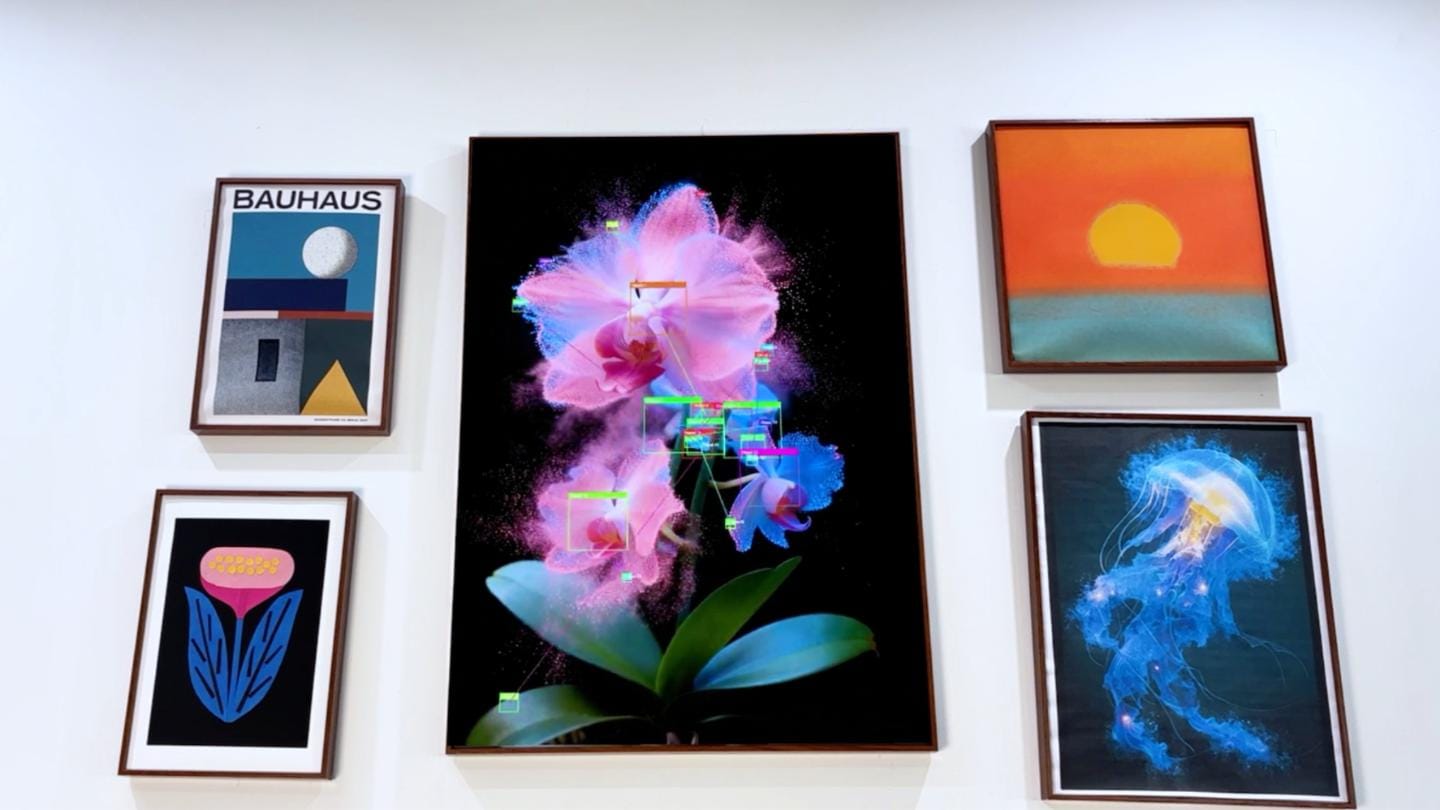
What is multi-target AR?
Multi-target AR allows multiple images to be recognized within one AR experience. Each image acts as its own trigger and displays its corresponding digital content.
In Kivicube, this is achieved through Collections. A Collection groups multiple AR scenes together. As long as the scenes are placed inside the same Collection, they can all be accessed through one QR code or link. Users can scan any image in the set and instantly view its associated AR content.
This structure makes multi-target AR especially suitable for exhibitions and installations, where audiences naturally move between different visuals.
Create a Multi-Target AR Posters with Kivicube
For those who prefer a visual walkthrough, we’ve prepared a short tutorial video that demonstrates the full process of creating a multi-target AR poster exhibition in Kivicube—from setting up a Collection to previewing the final experience.
Watch the tutorial video here below, or continue reading below for the step-by-step written guide.
Step-by-Step Guide: Building a Multi-Target AR Poster
Preparing your assets
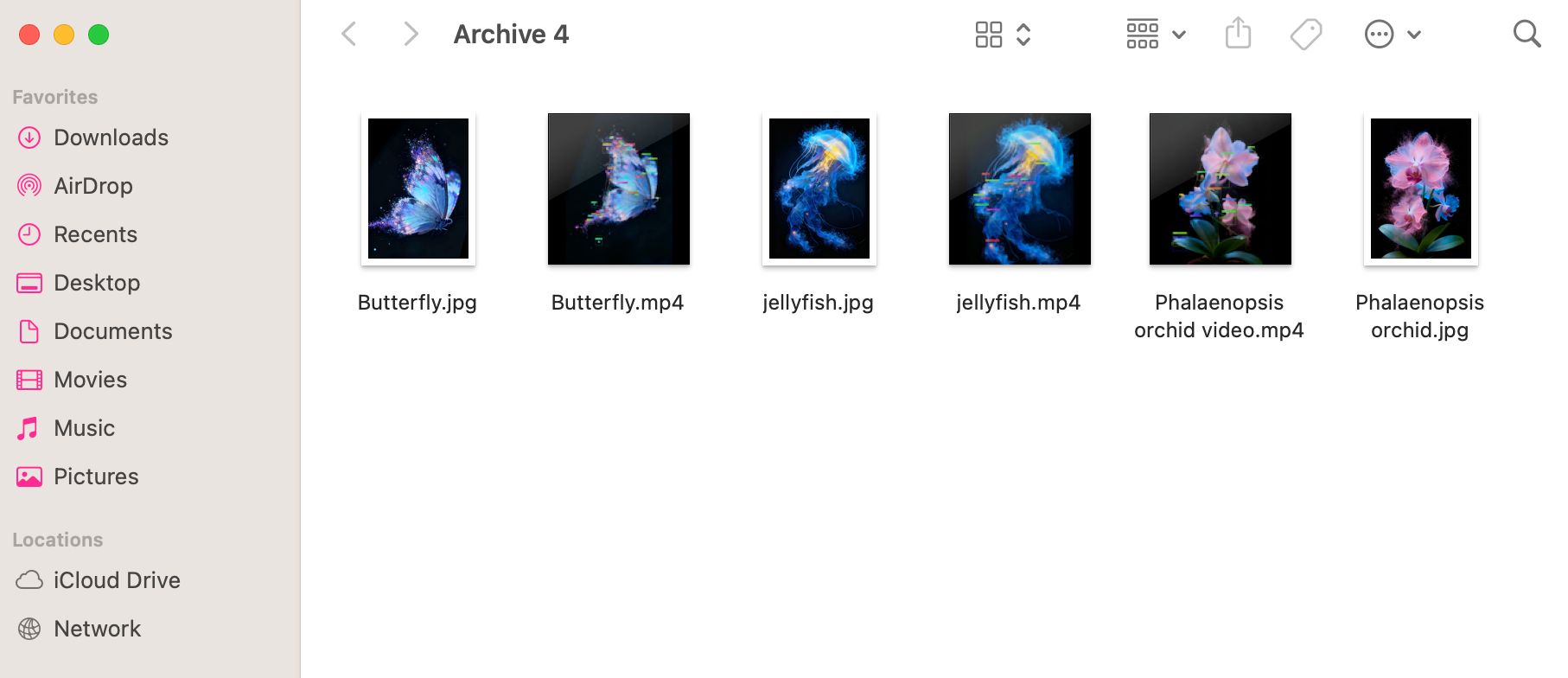
Before starting, prepare:
✅ The images you want to use as AR targets (such as posters or artworks)
✅ The videos that will play on each image
Each image–video pair will become one AR scene.
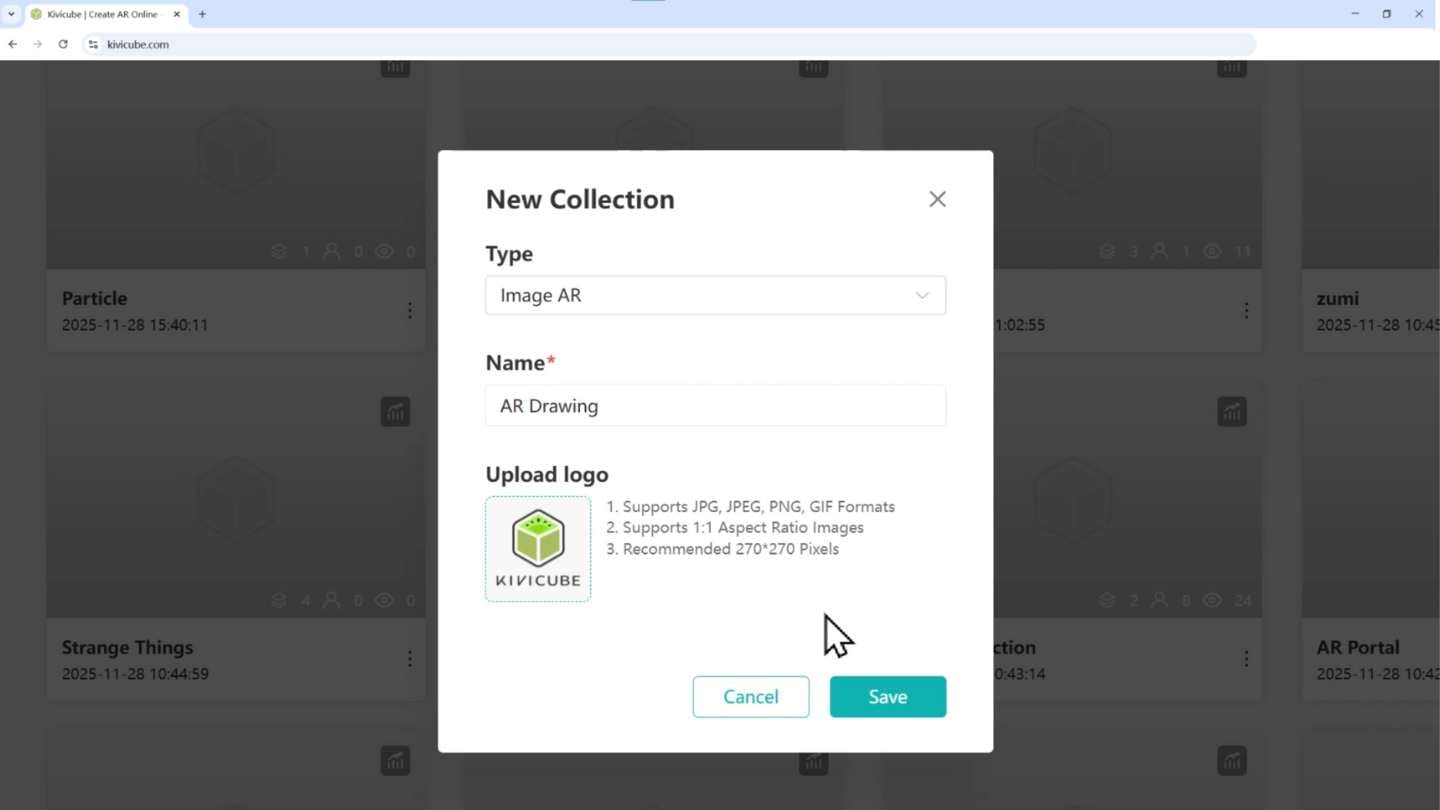
Step 1: Create a Collection
From the Kivicube dashboard, click New Collection and give it a name. A cover image can be added if needed.

After saving, the Collection will appear under My Collections.
This Collection will serve as the container for all scenes in your multi-target AR experience.
Step 2: Create your first AR scene
Open the Collection and select New Scene.
Name the scene and upload the image you want to use as the tracker.
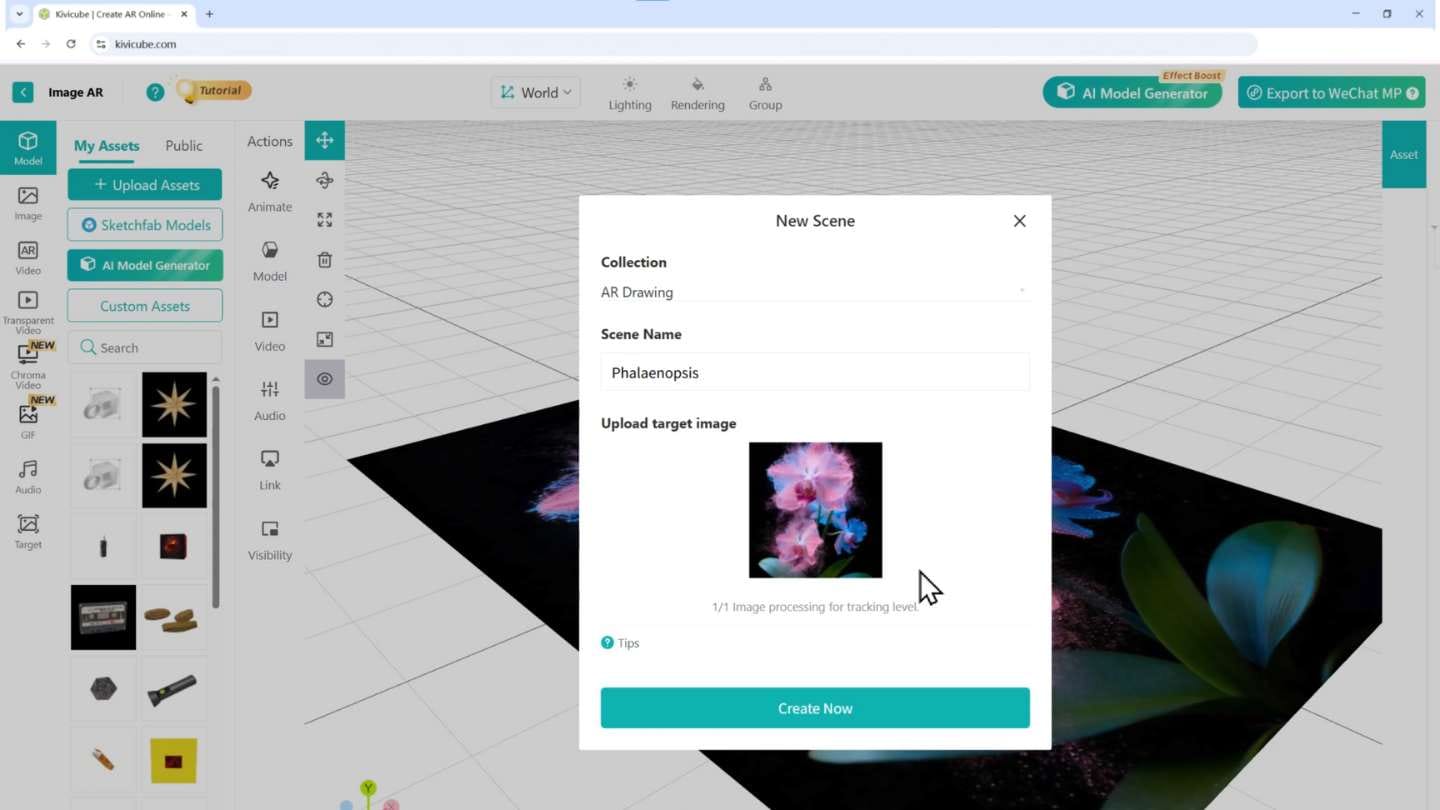
Once uploaded, you will enter the scene editor.
This image is what the camera will recognize when users scan the poster.
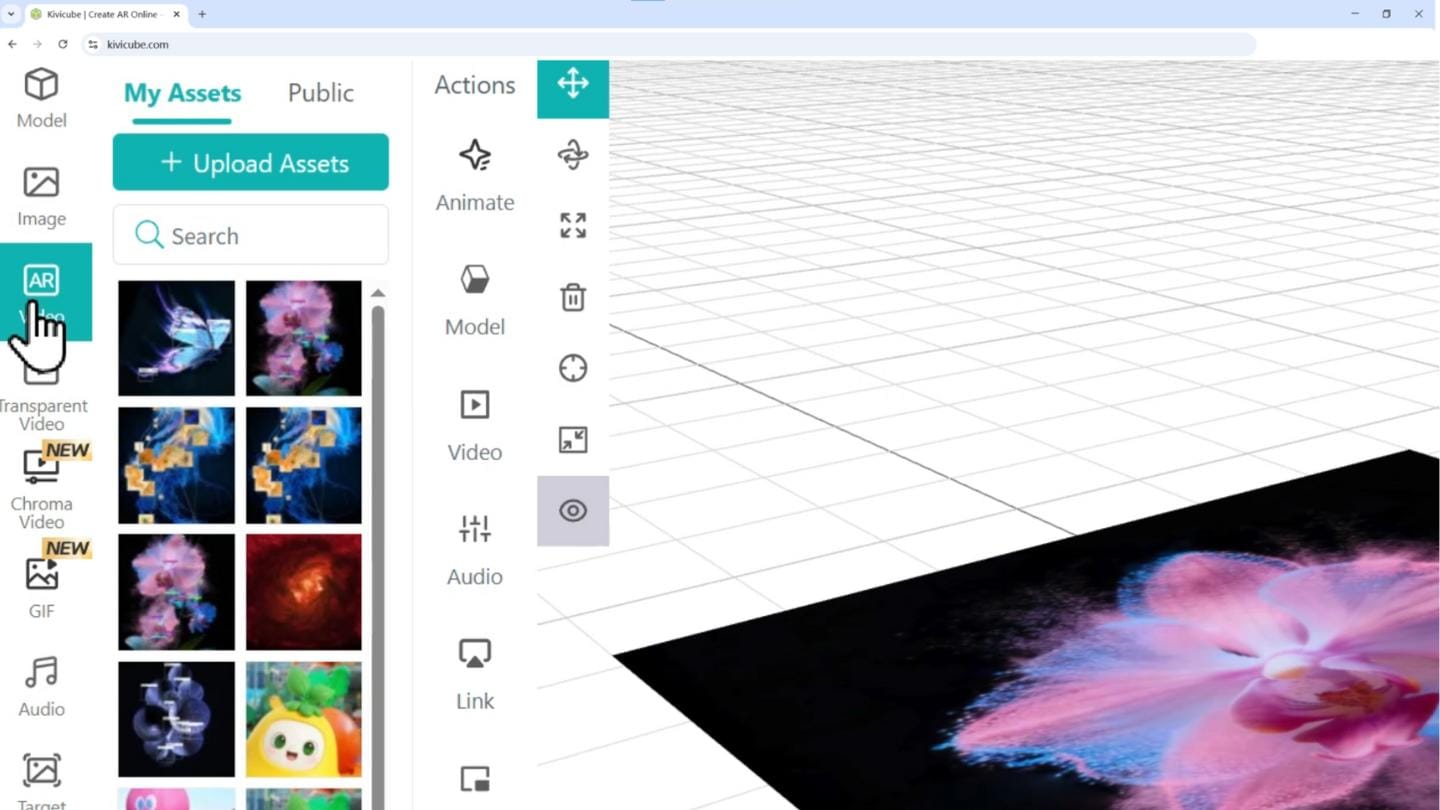
Step 3: Add and align the video
In the scene editor, upload your video from the Video panel and place it onto the scene.
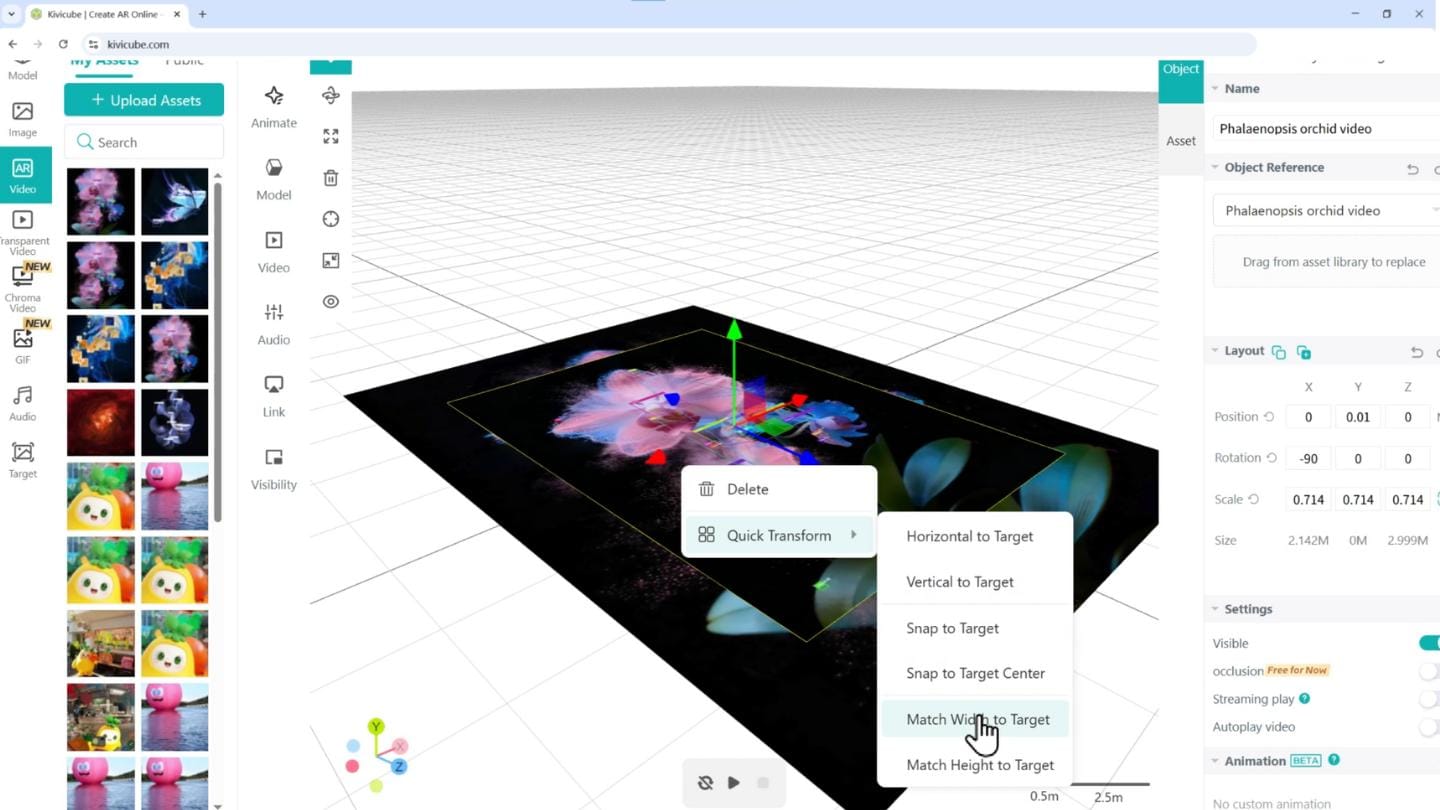
To quickly align the video with the target image, use Quick Transform.
With one right click, you can match the video’s width or height to the image, ensuring accurate positioning without manual resizing.
Step 4: Configure video playback
To create a smooth, hands-free experience, enable the following options in the video settings:
● Streaming Play
● Autoplay Video
● Loop
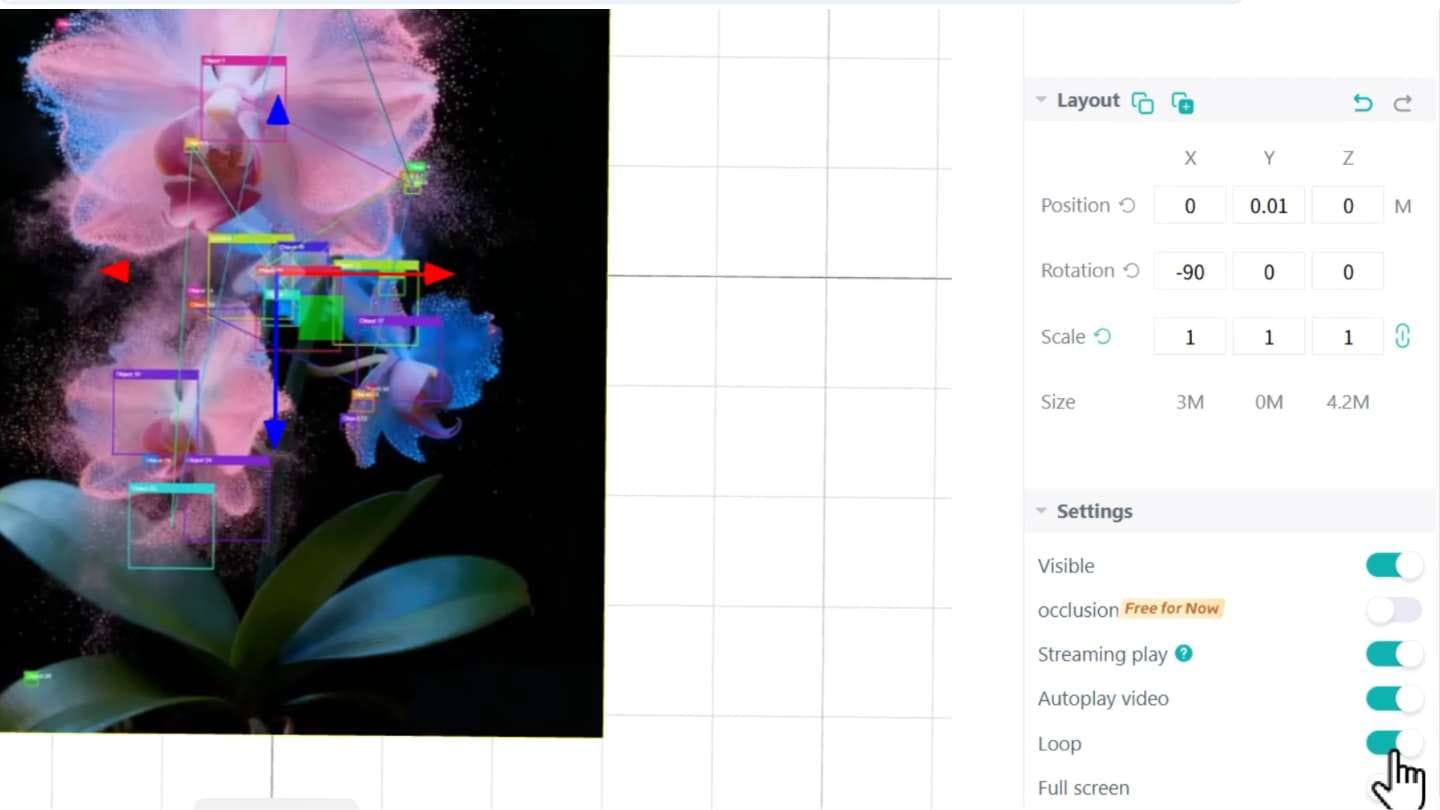
With these settings enabled, the video will play automatically and loop continuously once the image is recognized.
For a more seamless visual transition, it is recommended to match the first frame of the video to the target image.
Step 5: Duplicate scenes for faster setup
To add more posters to the exhibition, duplicate an existing scene and replace the image and video assets. This approach significantly speeds up production while keeping the layout and settings consistent.
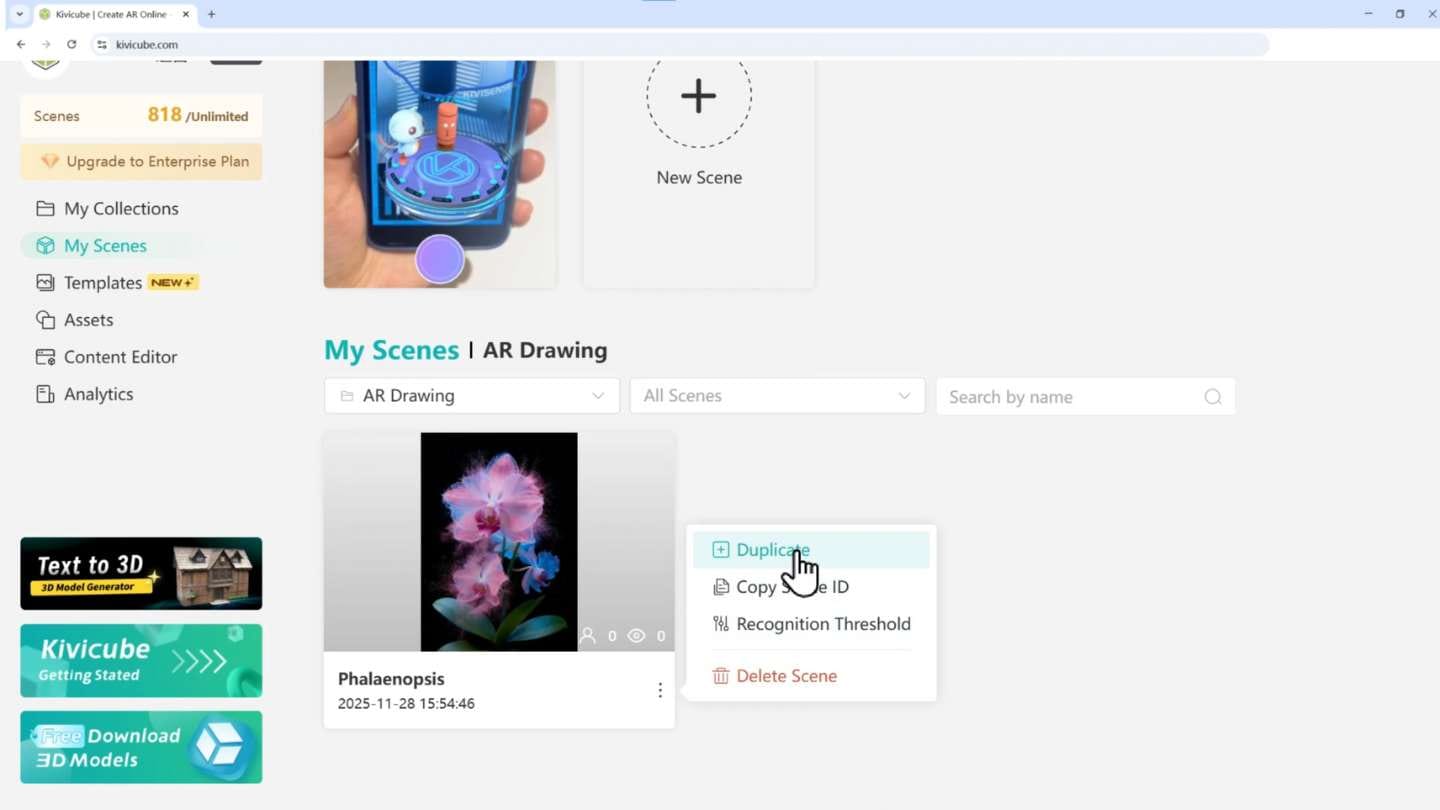
Repeat this process until all images and videos are added to the Collection.

Previewing the multi-target experience
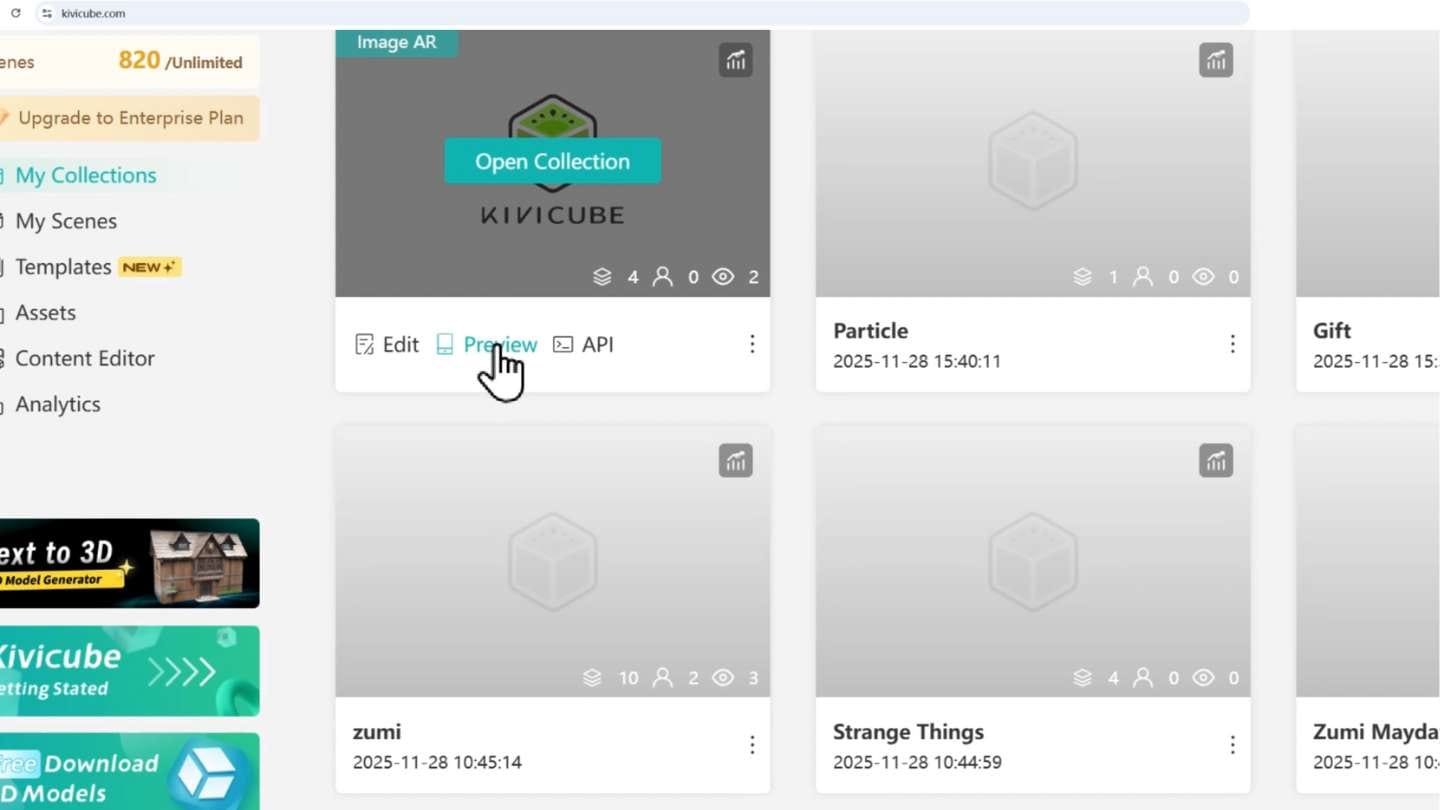
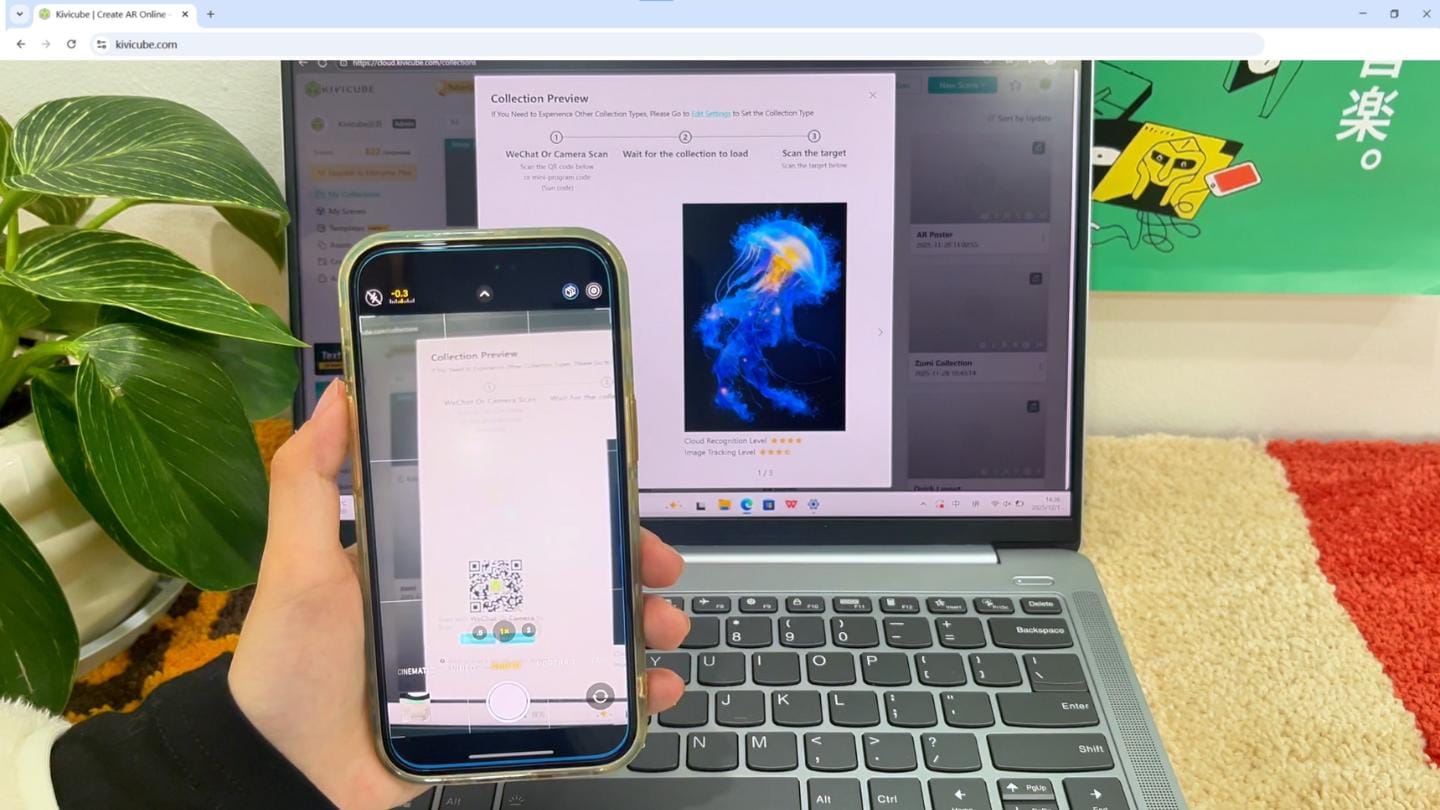
Return to My Collections, hover over the Collection, and click Preview to generate the QR code.
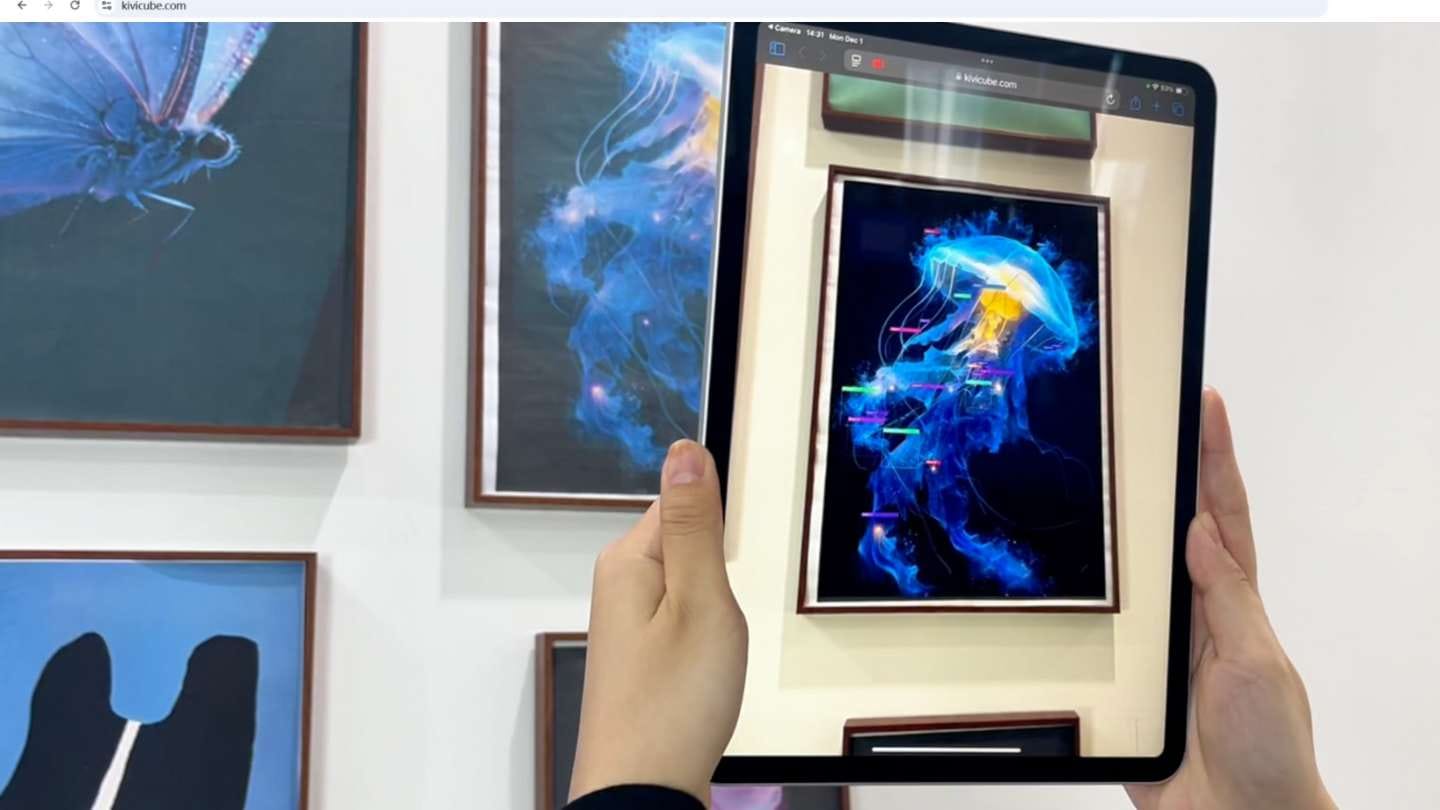
Once scanned, users can point their camera at any of the images in the exhibition. Each image will trigger its corresponding AR scene, all within the same experience.
No additional setup or navigation is required.
Use cases for multi-target AR posters
Multi-target AR poster exhibitions are well suited for:
✅ Art and design exhibitions
✅ Brand activations and pop-up events
✅ Museums and cultural spaces
✅ Product storytelling and campaigns
By combining multiple targets with a single access point, this format keeps interaction simple while allowing rich, varied content.
Get started with Kivicube
Multi-target AR experiences can be created quickly using Kivicube’s no-code editor. Whether you are building an exhibition or experimenting with interactive visuals, Collections provide a flexible foundation for multi-image AR projects.
Start creating your own multi-target AR experience with Kivicube and explore how digital content can extend physical spaces.