How to Make an AR Business Card Without Coding – 2026 WebAR Guide
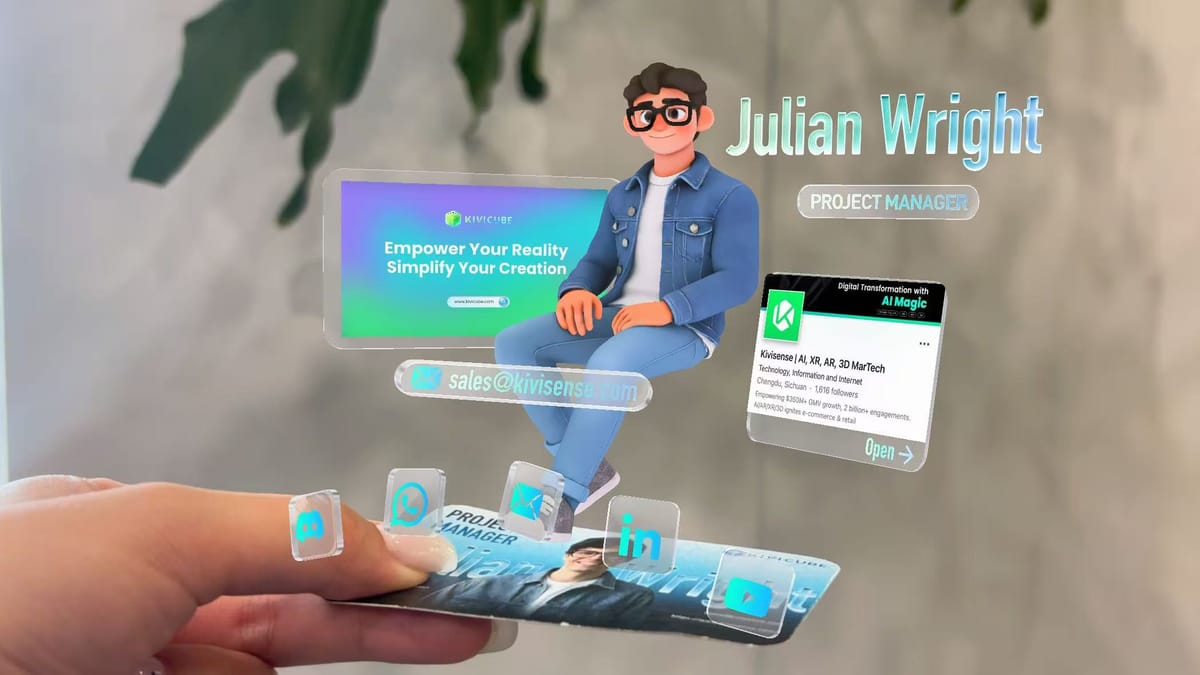
Business cards are meant to help people remember you—but in a digital world, most paper cards are quickly forgotten.
In this step-by-step AR business card tutorial, you'll learn how to turn a traditional business card into an interactive WebAR experience using Kivicube, a no-code augmented reality platform. No app downloads, no programming skills—just scan and interact.
By the end of this guide, you'll have your own AR business card that works instantly on mobile browsers. Before we start building, let's quickly look at why AR business cards are worth creating—and what makes them more effective than traditional cards.
Key Benefits of AR Business Cards
Here's why more professionals and brands are switching to AR cards:
Instantly more memorable
Most business cards still rely on static text and images. An AR business card, on the other hand, adds motion and interaction—making it far more eye - catching - and easier to remember.
More functionality, more possibilities
Modern AR business cards go beyond visual effects. You can:
- Play a company intro video
- Link directly to your website or portfolio
- Enable one-tap phone calls or contact actions
- Guide users to social media or booking pages
Your card becomes a real communication bridge between you and your audience.
Stronger brand credibility
By presenting more information in an interactive way, AR business cards help build trust and professionalism—supporting stronger brand perception and higher conversion potential.
How to Create an AR Business Card (No Code Required)
Now the big question: How do you create your own AR business card without any technical background?
To learn more advanced workflows, tips, and creative ideas, be sure to check out our video tutorial, where we share in-depth tutorials and real-world examples.
Create your own AR business card—watch the full video
If you prefer a step-by-step reference, we’ve also included a detailed written guide below.
With Kivicube’s no-code AR platform, the process is simple. Here’s a quick breakdown:
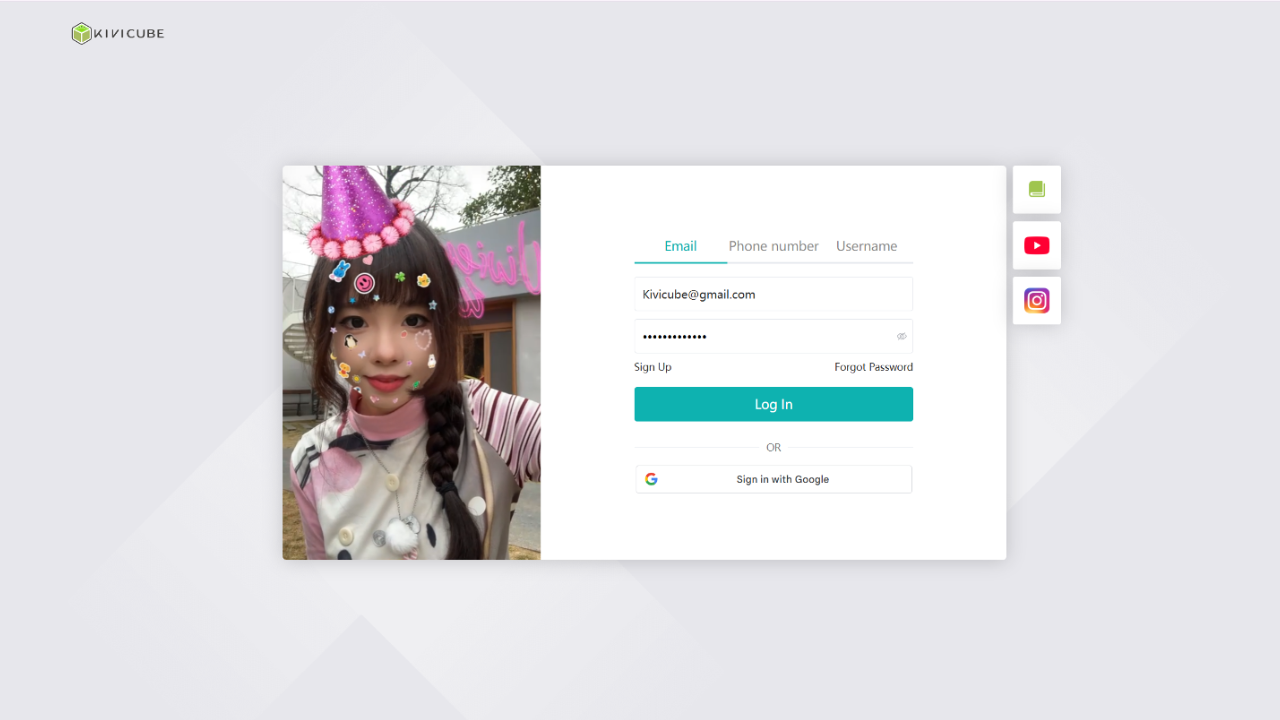
Step 1 Visit Kivicube and register for a free account
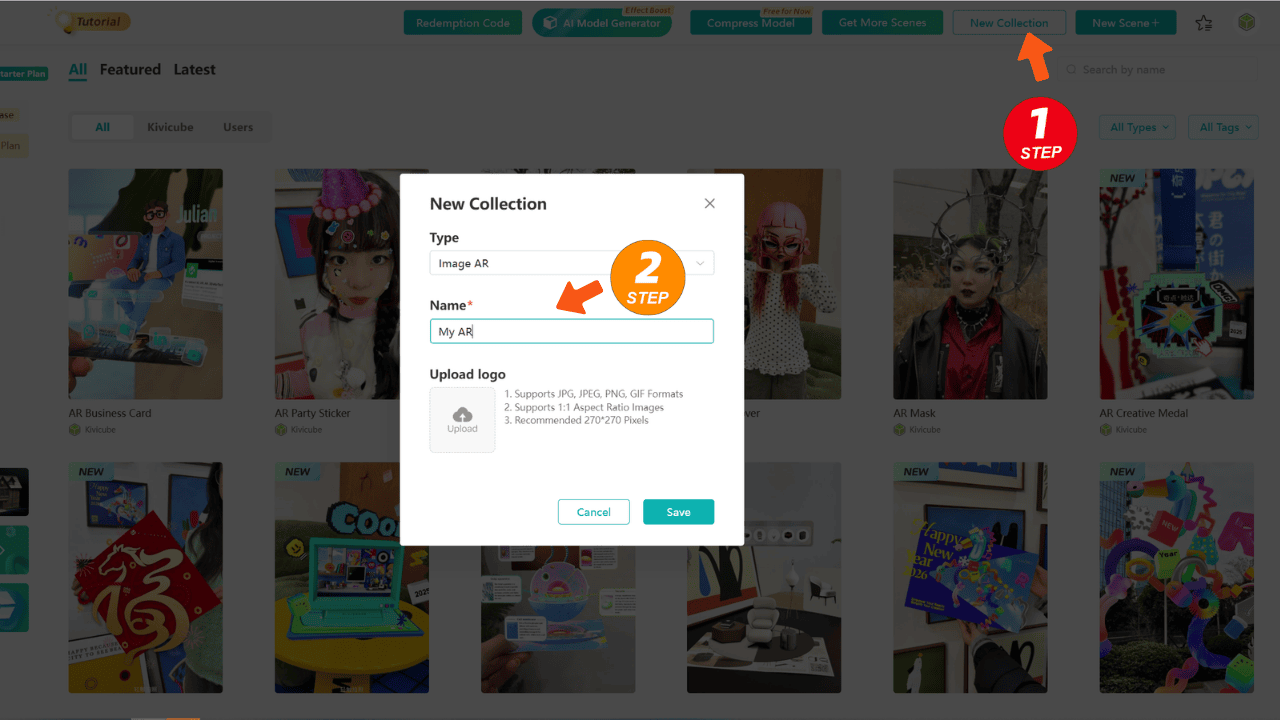
Step 2 Click New Collection and create an Image AR collection
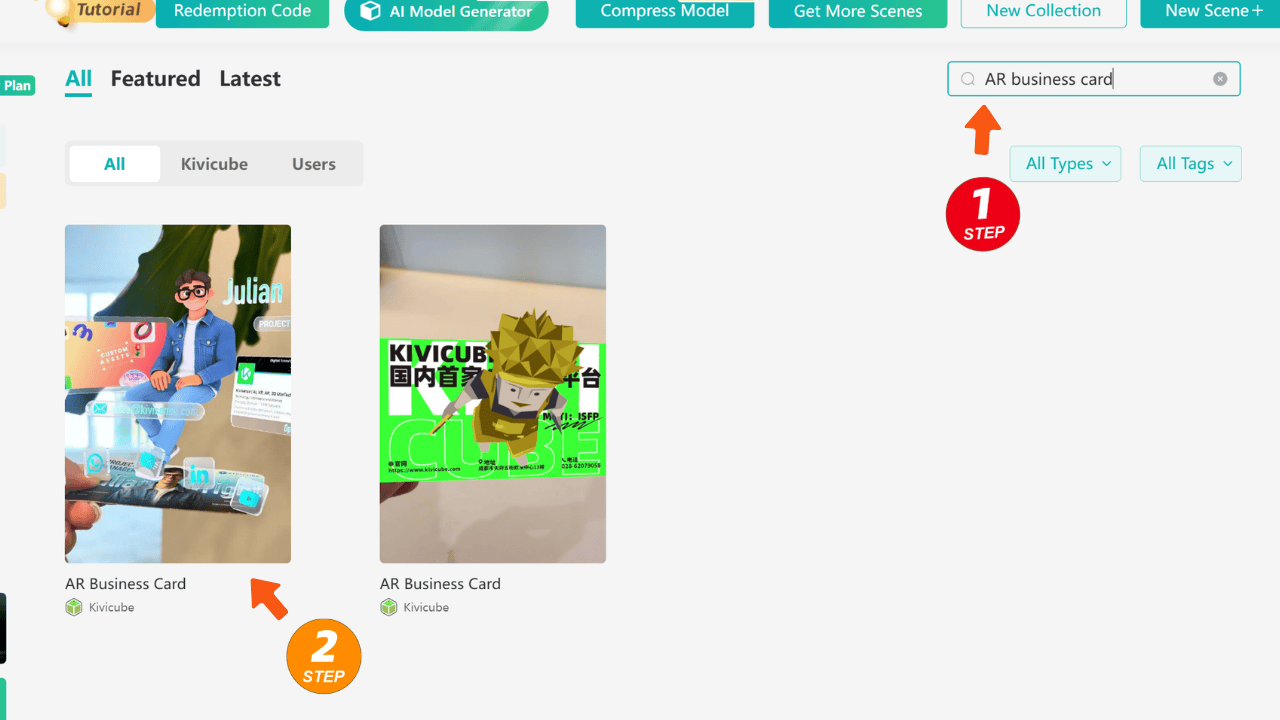
Step 3 In the template library, search for "AR business card"
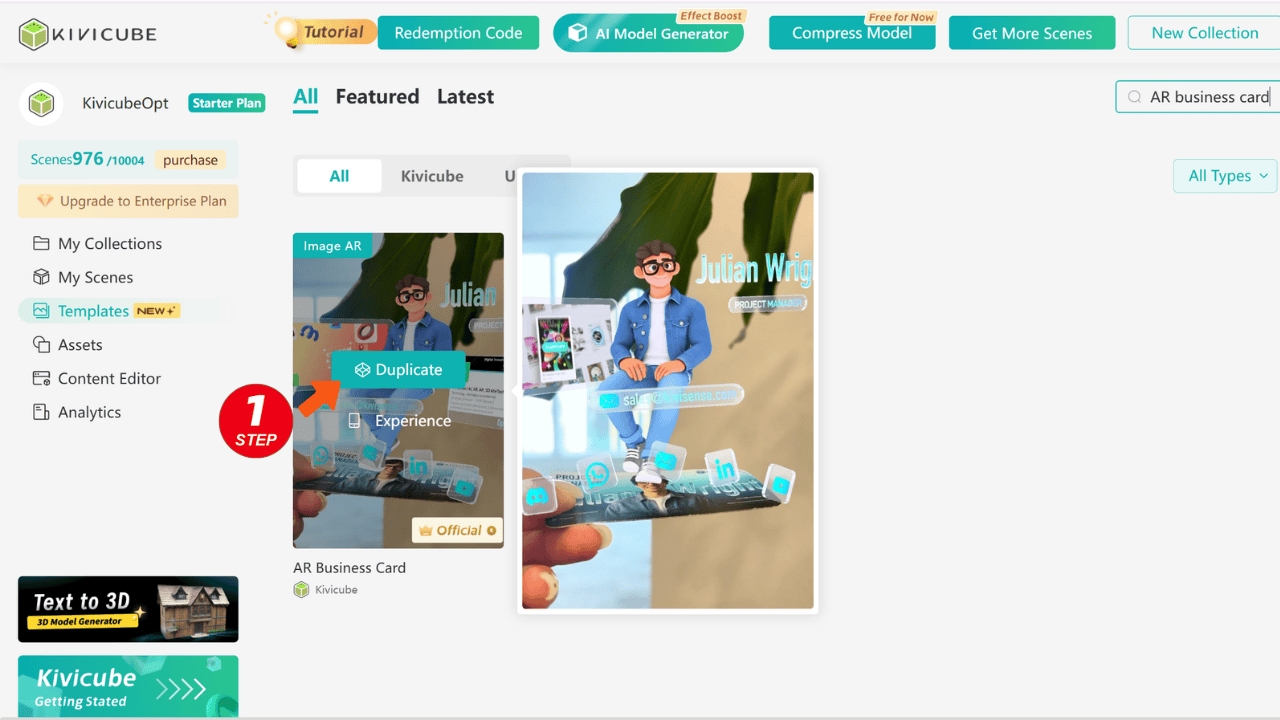
Step 4 Click Duplicate to create your own version of the template
Step 5 Go to My Scenes and click Edit to enter the editor
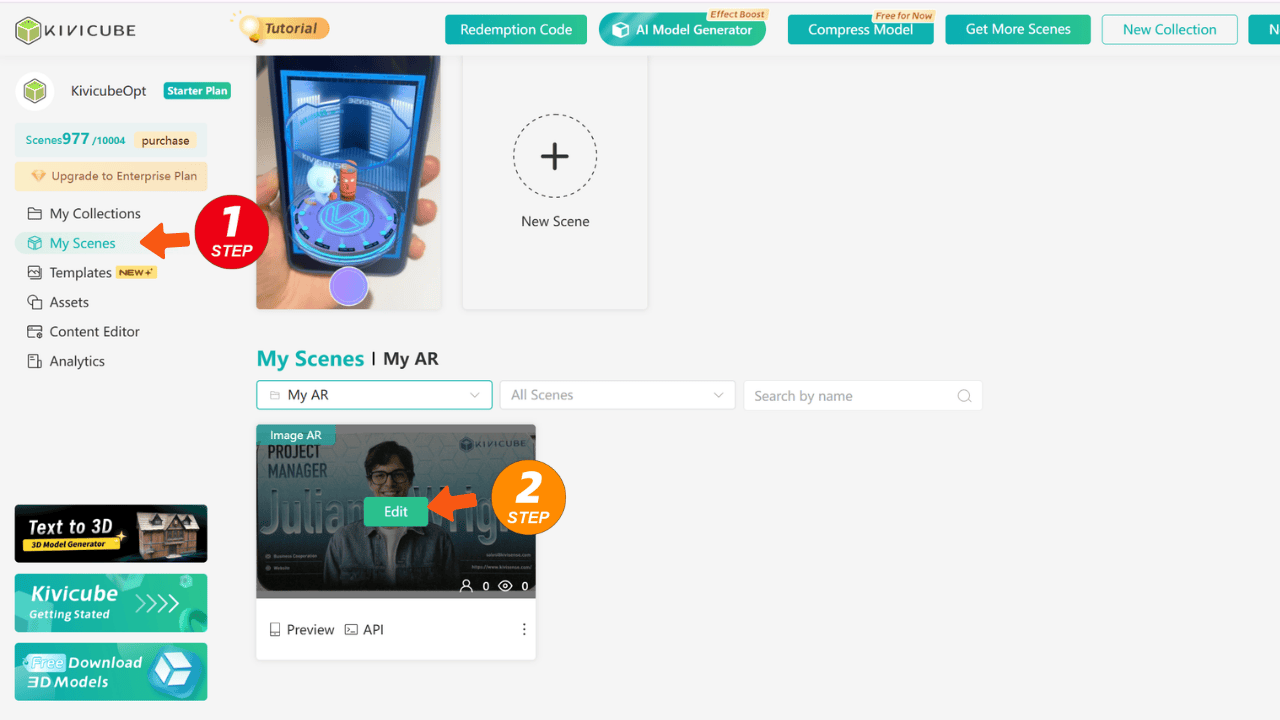
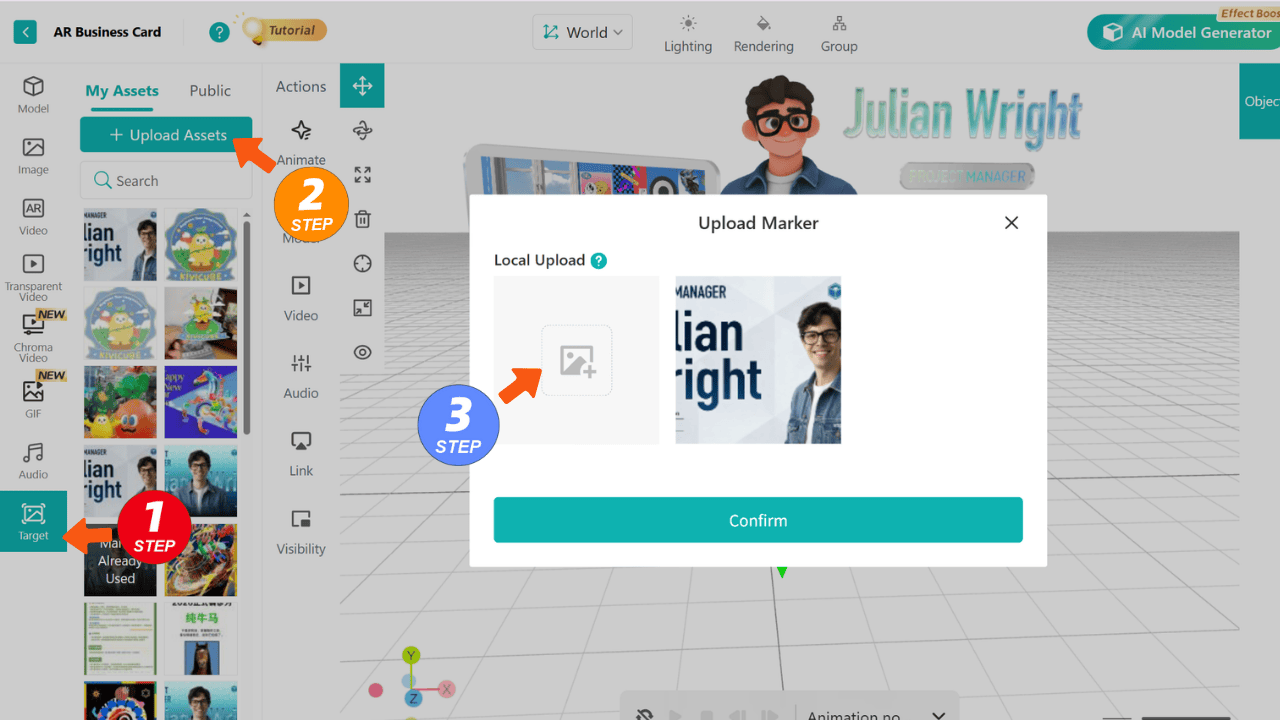
Step 6 Select Target Image from the asset types and upload your business card image and drag it into the editor to replace the default target image
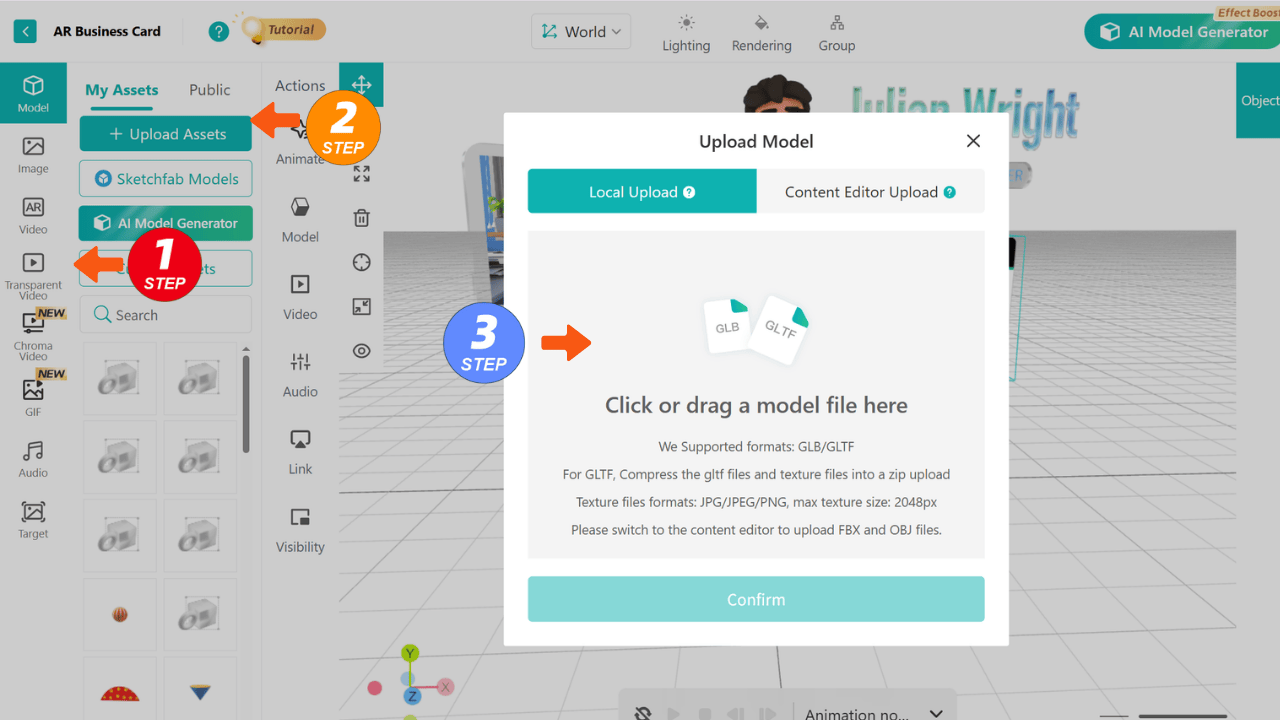
Step 7 Upload your own assets—images, videos, or 3D models—into the Asset Library
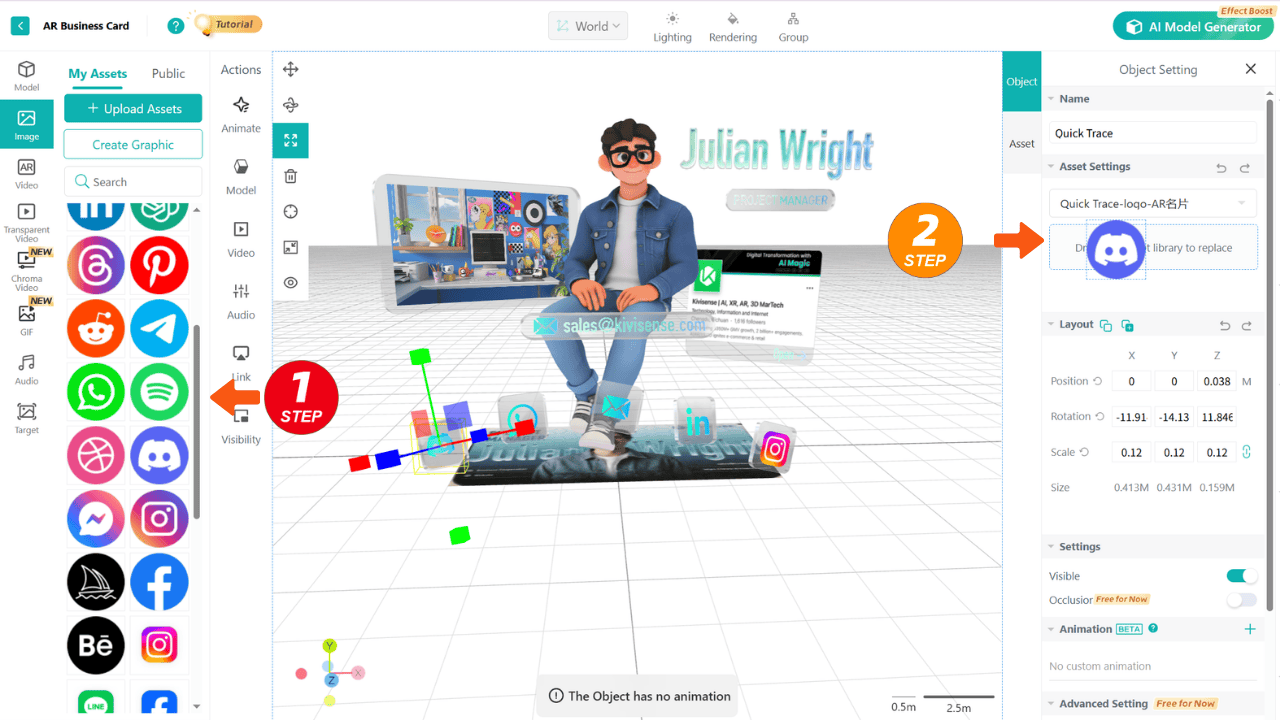
Step 8 Select elements in the template and drag your assets into the object reference area to replace them (Note: replacements currently support the same asset type, such as video-to-video or model-to-model)
Step 9 Once assets are replaced, your AR business card is ready! No app download needed. Just scan the card and experience the AR instantly via browser
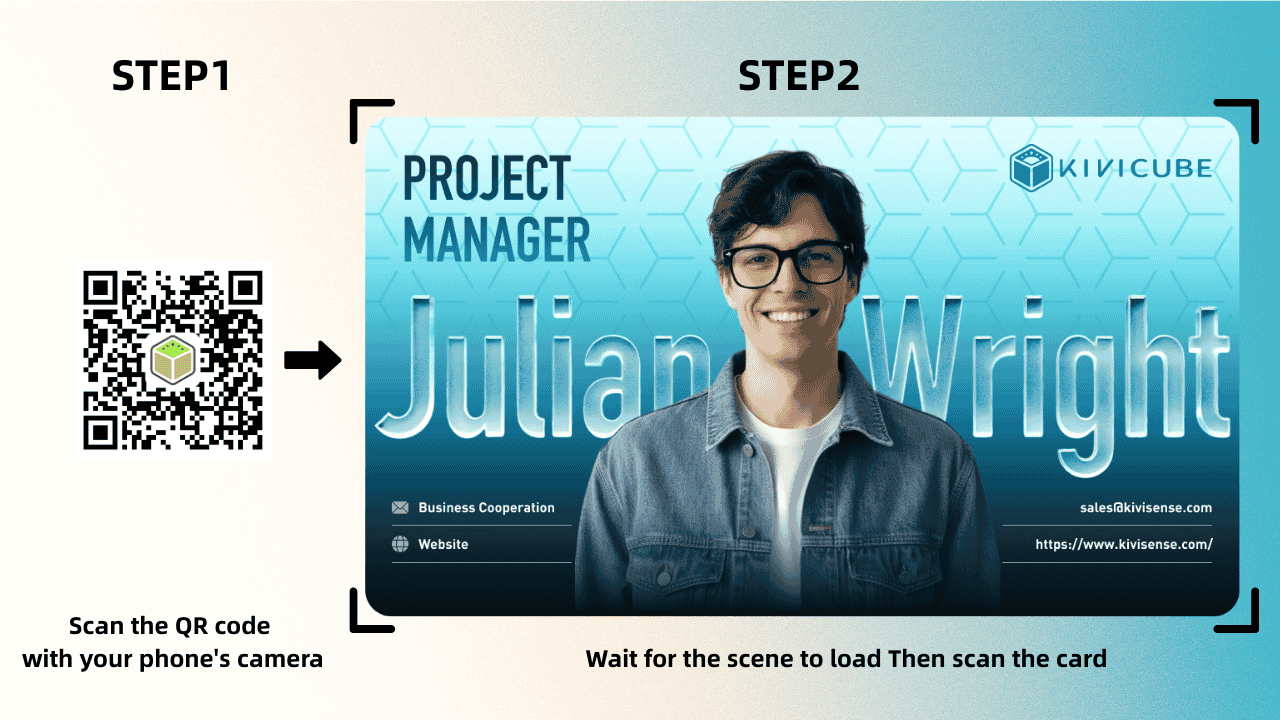
If templates don't fully meet your needs, you can also create an AR business card from scratch using Kivicube's visual editor.
Start Creating Your First AR Business Card Today
If you're ready to stand out, now's the perfect time to try it yourself.
👉 Sign up for free on Kivicube, a powerful no-code WebAR augmented reality platform, and start building your first AR business card today.
Make your next introduction unforgettable.