How to Convert a 2D Image to a 3D Model with AI
In this guide, we'll show you how to convert 2D images to 3D models with AI, tips for getting better results, and common use cases for 3D models.
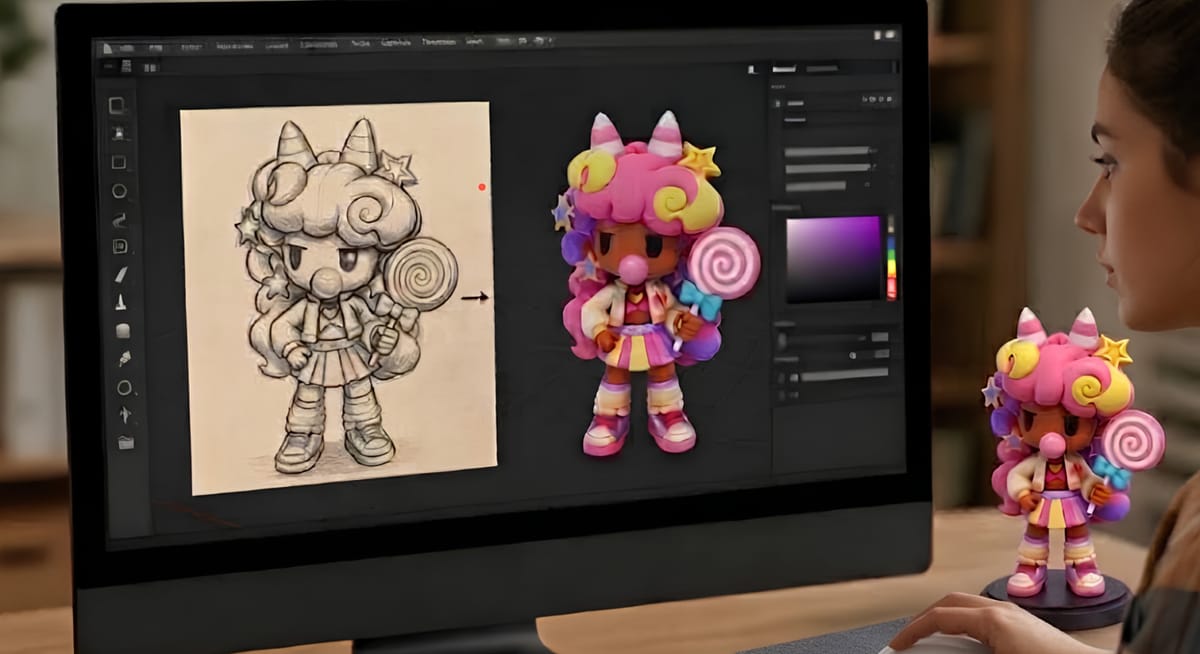
Ever wondered how easy it would be to create a 3D model from an image with just one click? For creators working in areas such as game development, AR, and animation, AI-powered tools can make it much easier to generate 3D models from images in seconds.
In this tutorial, we'll show you how to convert a 2D image to a 3D model, share tips for getting better results, and explore how these models are used across different industries. Get ready to make your own 3D models with ease!
2 Methods to Convert 2D Images to 3D Models
How to convert 2D images to 3D models? Generally, there are 2 ways to create a 3D model from an image. One is to create the model manually with 3D modeling software, while the other is to work with AI image-to-3D model generators.
Method 1. Manually Modeling with 3D Software Like Blender
The first method is to use software like Blender to create a 3D model from scratch. This gives you greater control over the final model. However, it is not an easy task for beginners because of the long learning process. For those who don’t understand what 3D modeling is and how meshes, vertices, textures, and other components work, it may take time to figure everything out. The process can take several hours or even days.
For simple objects, manual modeling may be worth considering. But for complex subjects, the process becomes much more demanding.
Method 2. Use AI Image-to-3D Generators
AI-powered image-to-3D generators provide a more convenient approach to transforming 2D images into 3D models. Rather than manually creating a 3D model, people can simply upload images as source material for the AI to analyze.
This procedure usually takes only a few steps: uploading an image, letting the AI model generator analyze it, waiting for the 3D model to be generated, and viewing the output. Some tools even automatically generate textures, so you don't need to texture the model manually.
This solution is a lot more beginner-friendly, as there's no need to learn specialized software for modeling or spend time tweaking each part of a mesh manually.
How to Convert a 2D Image to a 3D Model with AI
So what is the workflow for turning 2D images into 3D models? Here are the detailed steps to do it with the Kivi AI model generator.
Step 1. Prepare Clear 2D Images
Choose a high-resolution image with a clear subject for the AI to analyze.
Step 2. Upload the 2D Image
In the AI model generator, click "Image to 3D" and upload you image.
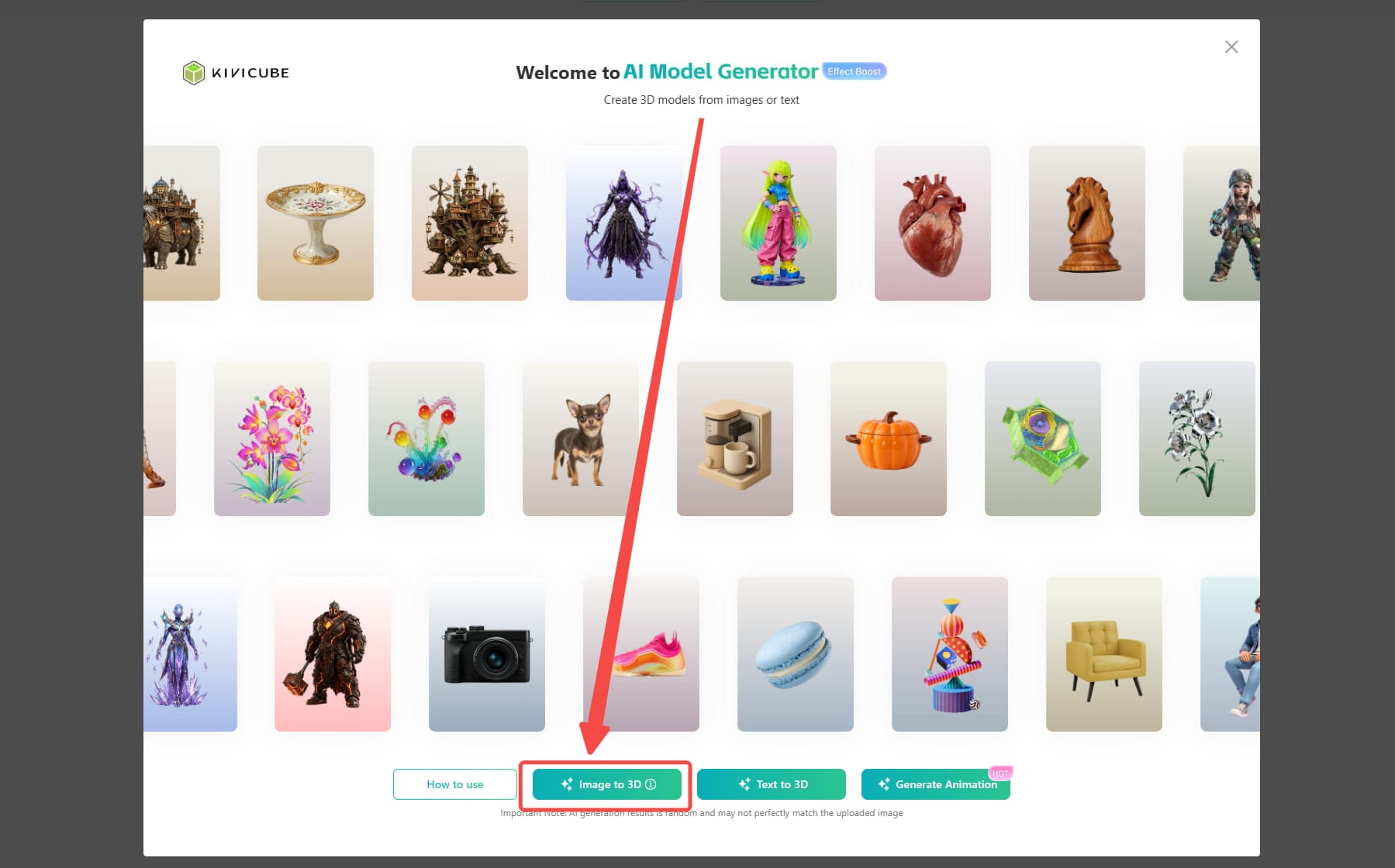
Note: Since a single image cannot show all sides of an object, the generated model may contain estimated details in areas not visible in the uploaded image.
Step 3. Choose the AI Generation Settings
In the interface, choose AI mode and add a name for your project. For greater accuracy, you can turn on the “Multi view” function and add more images (left, back, and right). Select the polygon count according to your needs. Then enable PBR when you need more realistic lighting and shading in the final model.
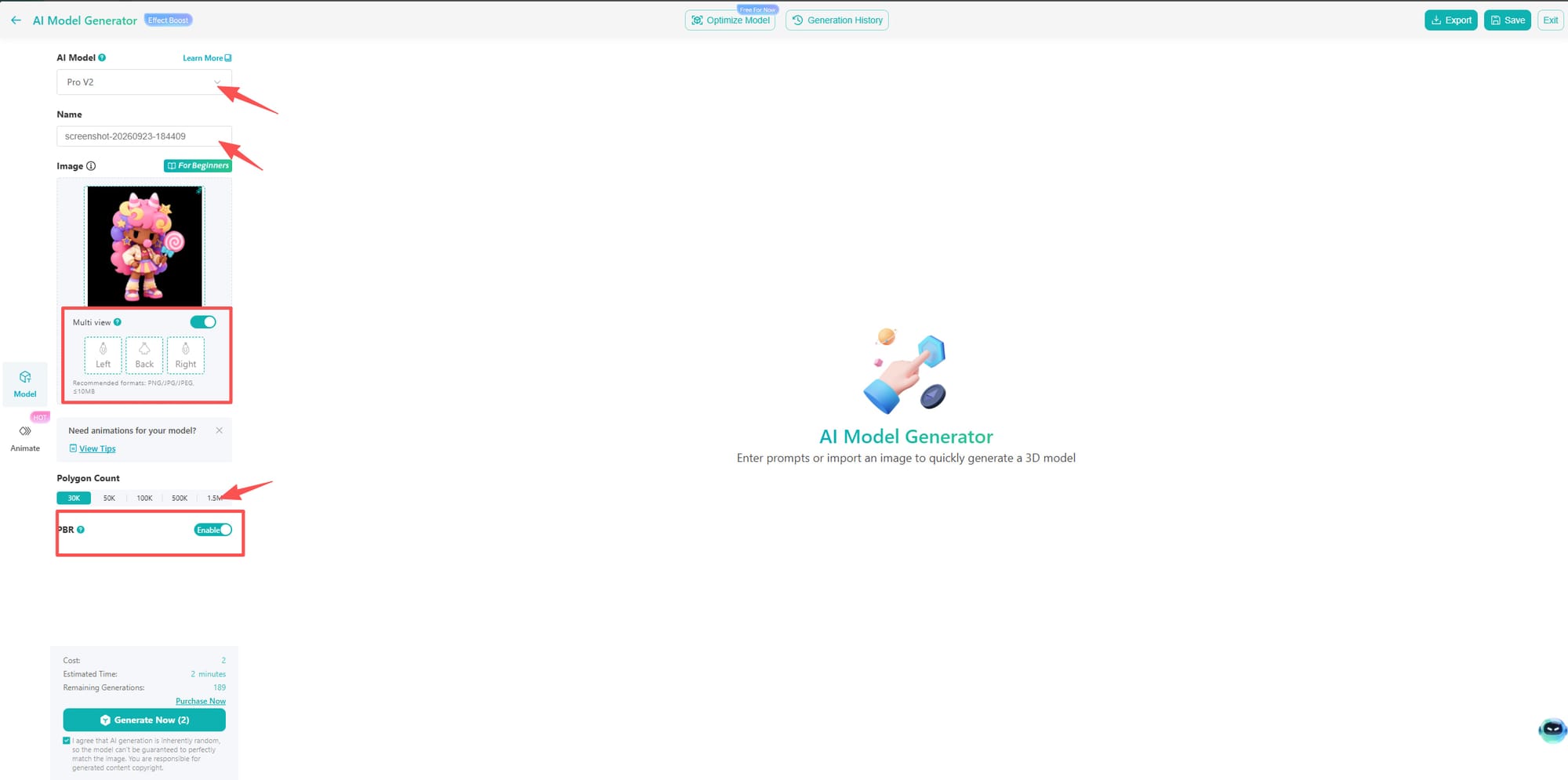
Step 4. Generate the 3D Model.
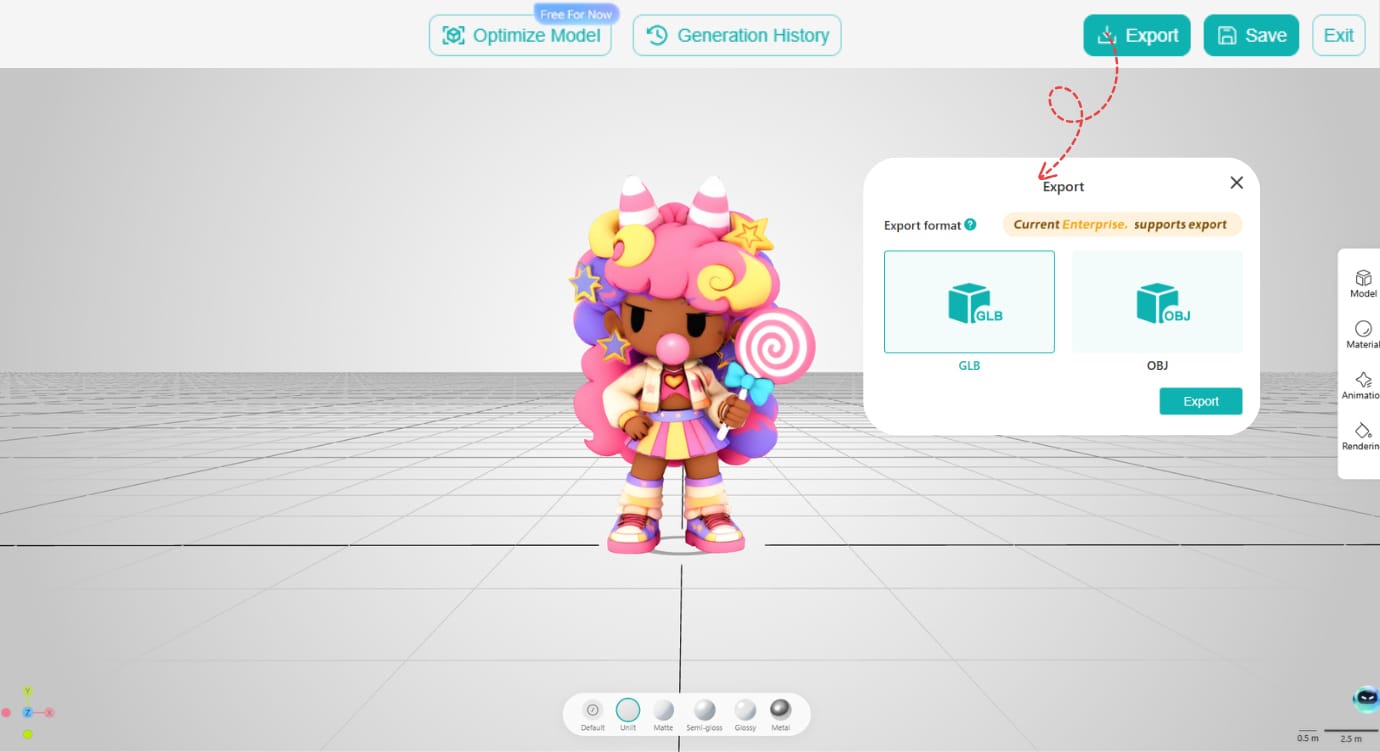
Click “Generate Now” to convert the 2D image to a 3D model in seconds. Then you can hit "Export" and choose the export format suitable for your projects.
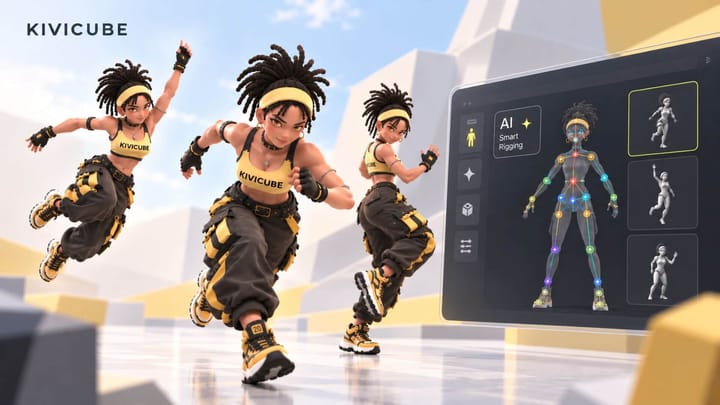
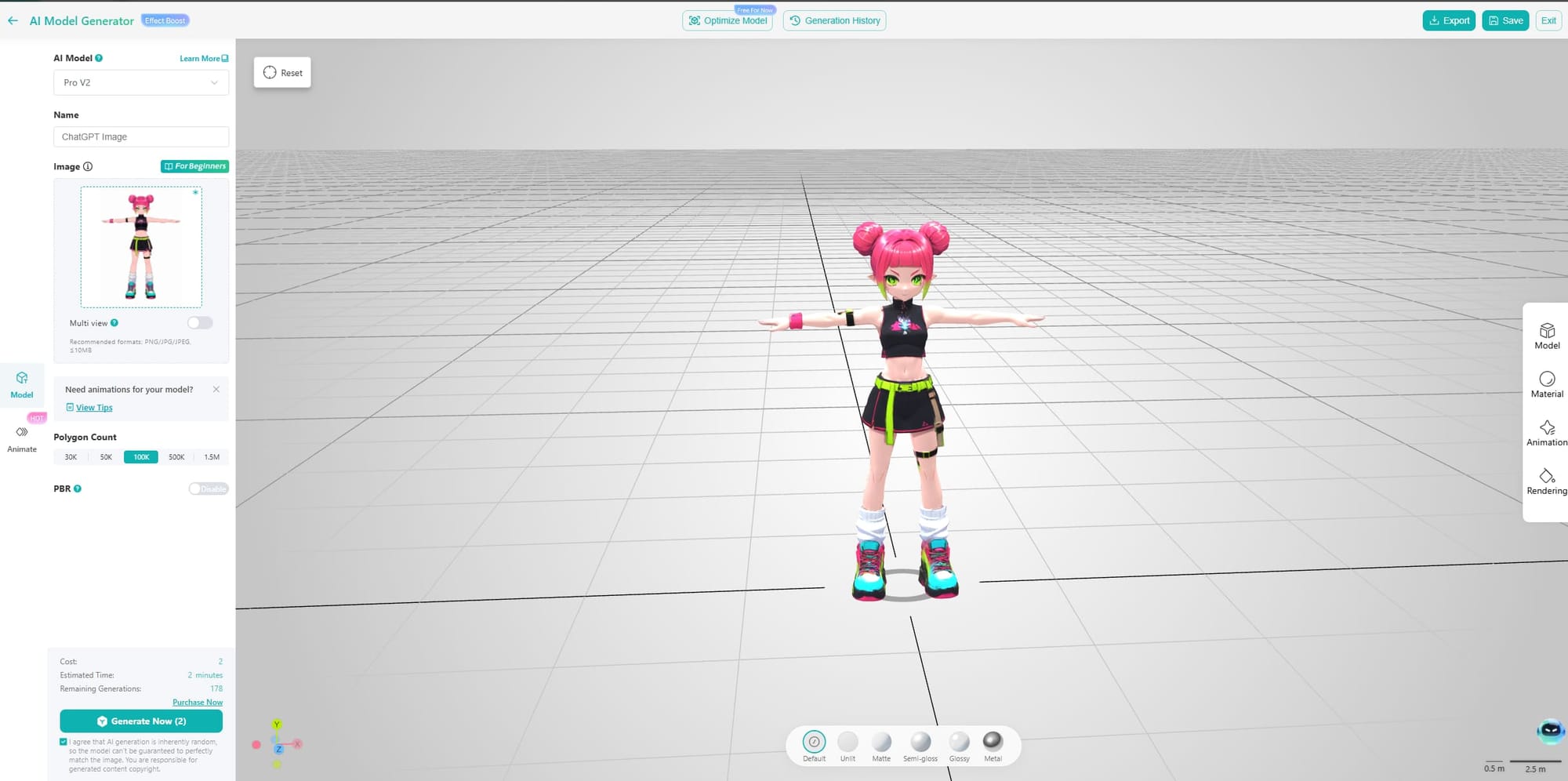
Note: Kivicube also supports 3D model animation with 600+ pre-made motions. If you plan to animate a character, upload an image with the character’s arms outstretched (T pose) for better results.
Tips to Get Better AI 3D Models from Images
If you want to create better 3D models with AI, then the following tips may be helpful.
Tip 1. Figure out what images work well for 2D-to-3D conversion
Before converting a 2D image to a 3D model, think about how you plan to use the 3D model. For example, product images are a good starting point for 3D product visualization, while character images, furniture, and packaging can work well for AR experiences, games, and other creative projects.
Tip 2. Use multiple views for complex objects
To help the AI algorithm better analyze your images and output a more accurate 3D model, especially for complicated objects, you should upload multi-view images for reference. For example, when you upload images from the front, back, left, and right to the Kivi AI model generator, it will get more information about the shape and hidden details, which can improve the generated model.
Tip 3. Generate Several Versions
Since AI-generated models can vary depending on the object's shape, texture, and proportions, it's worth generating several versions and choosing the one that works best for your needs.
Tip 4. Use a More Detailed Prompt When Available
If the AI model generator you select allows you to add text prompts alongside the image reference, describe any details that may not be obvious from the images, such as material, color, shape, and style.
Tip 5. Check the Model Before Exporting
After the 3D model is generated, previewing the result is an important step before exporting. By checking the details of the generated 3D model, you can catch obvious problems, such as incorrect shapes, textures, proportions, or missing details.
Tip 6. Refine the Model for Its Final Use After Generation
If parts of the 3D model don't meet your requirements, you can refine them with 3D editing tools. For example, after you convert a 2D image into a 3D model with Kivicube, the model is imported directly into the content editor, where you can make further adjustments for your specific use case.
Tip 7. Choose the Right Output Format
Before downloading the 3D model, don’t forget to consider where you will use it and which file format is most suitable. For example, GLB is a widely used format for WebAR projects.
Tip 8. Test the Model in the Target Environment
Although models look fine in the generator, they may behave differently in real-world use cases, such as AR scenes and games. Therefore, it’s effective to test the details, such as scale, materials, and lighting, of the models in the environment where they will actually be used.
Kivicube: An All-in-One Solution Covers the Full 3D Workflow
Known for its simple WebAR creation workflow, Kivicube also offers AI-powered asset generation, including image-to-3D and text-to-3D model generation. What’s more, it supports the full workflow. From generating 3D models from text and 2D images to refining and exporting them in different formats, Kivicube covers the main steps of the workflow in one platform.
Key Features:
Multiple 3D Model Generation: It not only converts 2D images to 3D models, but also generates 3D models from text prompts. Users can easily turn creative ideas into 3D models with detailed descriptions.
Single and Multi-View Support: This AI model generator supports uploading images from different views, including left, back, and right, giving the AI more visual information to analyze and use when generating 3D models.
High-Precision Rendering and Texture Fidelity: It can closely reproduce visual details from the reference image, such as materials and textures, generating 3D models with sharp edges and shapes.
Structure and Color Accuracy: The image-to-3D model generator analyzes visual details in the reference images to preserve key aspects of the object's color and structure.
Diverse Polygon Count Options: Users can choose from several polygon-count options, including 30K, 50K, 100K, 1.5M, and more, depending on their project requirements. They can choose the appropriate level of model detail to achieve a balance between visual quality and model performance.
Flexible 3D Model Compatibility: The generated AI 3D model will be exported in GLB and OBJ formats. This makes the models suitable for different workflows, including AR, game development, and film and animation.
AI 3D Model Use Cases Across Industries
AI-generated 3D models have many practical uses across creative and digital industries. Here are some common applications across industries.
- AR Scene Creation
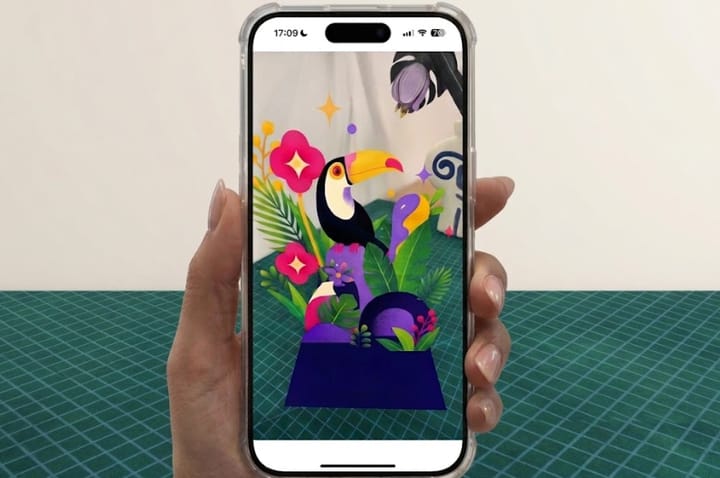
2D image to 3D model AI can be used for building interactive AR experiences. Creators can add them to AR scenes as virtual characters, products, decorations, or other interactive elements to create more engaging AR experiences. For example, illustrators use Kivicube to convert elements from an illustration into 3D models and add them to an AR scene.
- E-commerce
Sellers can also turn product images into interactive 3D models and display them on online stores with AI model generators. Customers can rotate, zoom, and explore products from different angles before buying. This gives customers a more interactive way to explore product details before making a purchase.
- Gaming
Game developers can use image-to-3D tools to turn concept art, character sketches, and object references into 3D assets. This can reduce the amount of manual modeling required during early-stage development.
- Film & Animation
An image-to-3D model converter is a useful tool for film and animation professionals. With faster 2D-to-3D conversion, they can create 3D assets from concept art and illustrations. Thus, it is possible to convert characters, props or any objects from 2D images into 3D models.
- Architecture
The 2D image-to-3D model converter can also be helpful for architecture. With it, any architectural sketch, floor plan or images of buildings can be transformed into 3D models. Such models can also be used as a basis for presentations and visualization.
FAQs about 2D Images to 3D Models
What is a 2D image to 3D model AI generator?
An AI image-to-3D generator analyzes visual information in a reference image, such as shape, depth, and texture, and uses it to generate a 3D model.
Why convert 2D to 3D models?
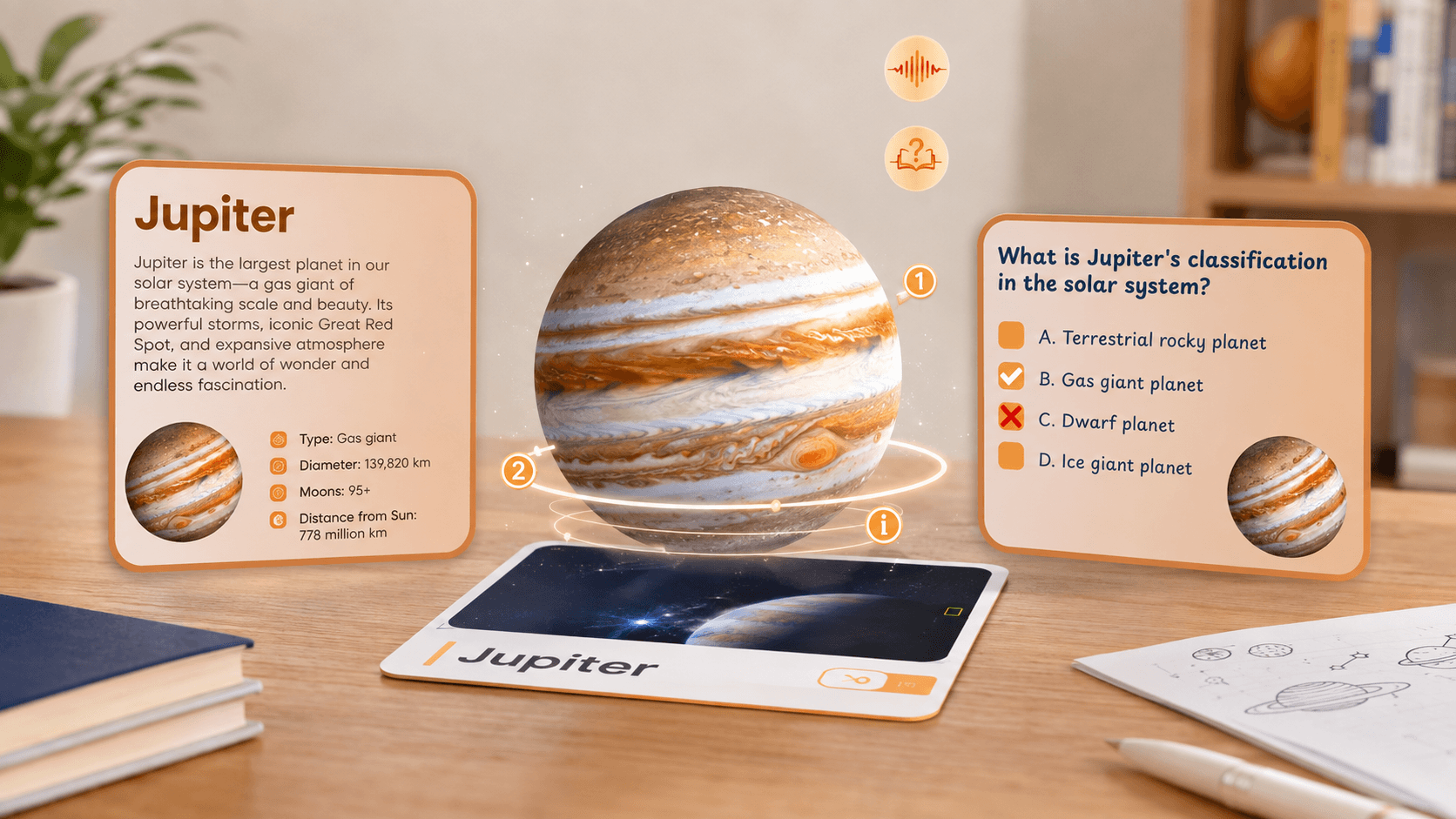
A 2D image represents an object from a fixed viewpoint, while a 3D model contains spatial information that allows the object to be viewed from different angles. Therefore, 3D models are more practical in applications such as augmented reality (AR), WebAR, e-commerce, and interactive marketing. For example, WebAR lets users see the 3D model in the real-world environment, while e-commerce sites can use 3D product models for more detailed product exploration.
How accurate are AI-generated 3D models?
The precision varies depending on the quality of the input image, the complexity of the object to be rendered, and the AI model generators used. Input images that are clear and have discernible forms tend to result in better precision.
Which AI is best for making 3D models?
There are multiple AI tools for converting 2D images to 3D models free online, and each has its own strengths. If you want to turn your images into 3D models and create AR scenes with them, then Kivicube can be one option worth considering. And if you want a 3D model for 3D printing, Tripo AI may be more suitable for you.
Conclusion
There are two main methods to get 3D models from images: creating the model manually or using an AI-powered tool. For most beginners, the AI-powered approach can be much simpler. In this guide, we focused on the simpler approach: using AI to turn images into 3D models. We also shared tips for getting better results and explored common applications across different industries. If you want to turn images into 3D models, you can try Kivicube to explore the workflow for yourself.