Bring Your Storybooks to Life: A Step-by-Step AR Interactive Book Tutorial
Explore the 7 best AR storybooks and learn how to turn your storybook into an interactive AR experience with this detailed Kivicube WebAR platform tutorial. No coding required.
In recent years, the combination of augmented reality technology and storytelling has emerged as a powerful method to stimulate children’s imagination with interesting experiences. Are you seeking engaging augmented reality storybooks to spark your child's interest in reading?
In this post, we’ll show you 7 must-read AR storybooks with fun interactions. Also, if you want your storybook to come alive, you can learn how to make it with Kivicube.
What Is an Augmented Reality Storybook?
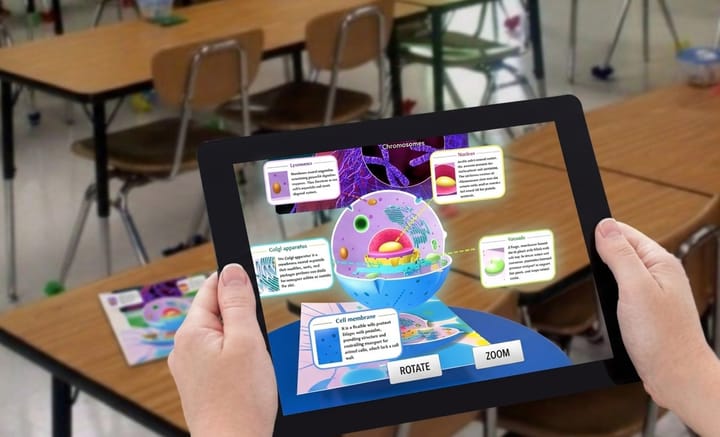
An augmented reality storybook uses WebAR technology to overlay animation, sound, and interactive elements onto printed pages, allowing readers to scan images and experience digital storytelling directly in their mobile browser. No app download required.
Why Are AR Storybooks Required?
Before we dive into the how-to, it is of vital importance to understand why augmented reality storybooks are becoming such an important format. AR can turn static books into immersive portals that enhance engagement, deepen comprehension, and make storytelling more interactive.
Therefore, to meet the growing demand for more engaging and interactive reading experiences, AR storybooks are becoming an increasingly valuable format.
If you want a broader look at how AR is reshaping reading across genres, from children’s picture books to science and art, then check out this post:
 summer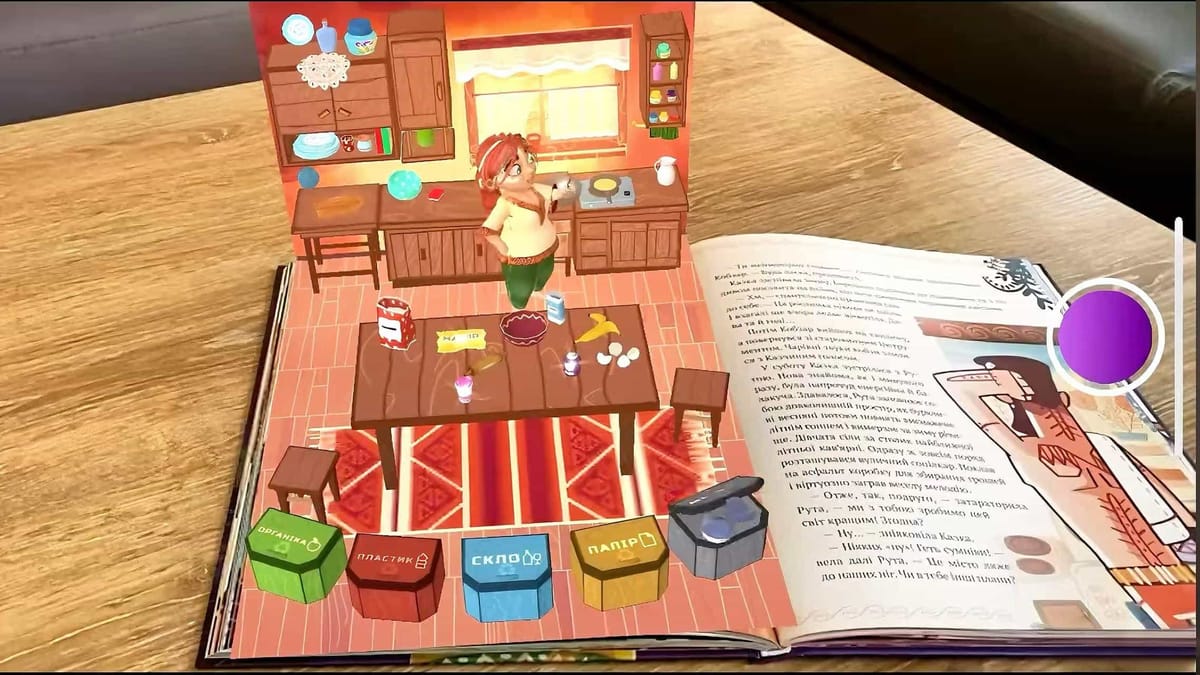
7 Augmented Reality Storybooks Recommended for Your Child
Looking for engaging AR storybooks for your child? Here are some of the best AR storybooks you can try for your child.
1. Jack Hunter: The French Connection

Jack Hunter: The French Connection is an adventure story by Martin King that follows 12-year-old Jack as he becomes caught up in a robbery involving Russian gangsters, stolen jewels, historical secrets, and a famous movie star. The AR storytelling book combines traditional reading with digital content, including images, sounds, clues, and interactive games. Readers can scan images in the book with a mobile device, explore digital environments, and solve puzzles alongside Jack as the story unfolds.
2. Color Alive Series
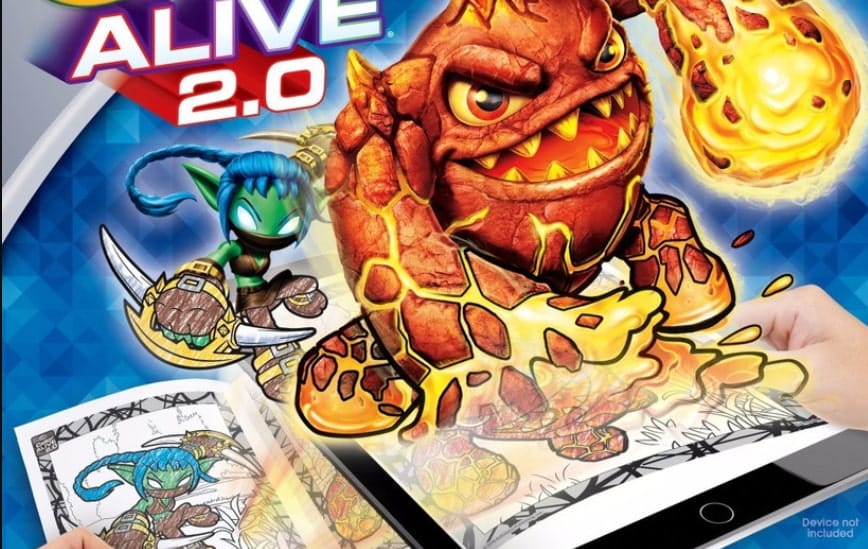
When reading the Color Alive Series by Crayola, children can color characters such as dragons, fairies, Minions, and superheroes, then scan their finished pages with the companion app. The colored characters appear as animated 3D figures on the screen, bringing children's artwork to life and adding an interactive element to the coloring experience.
3. Monsters Have Manners
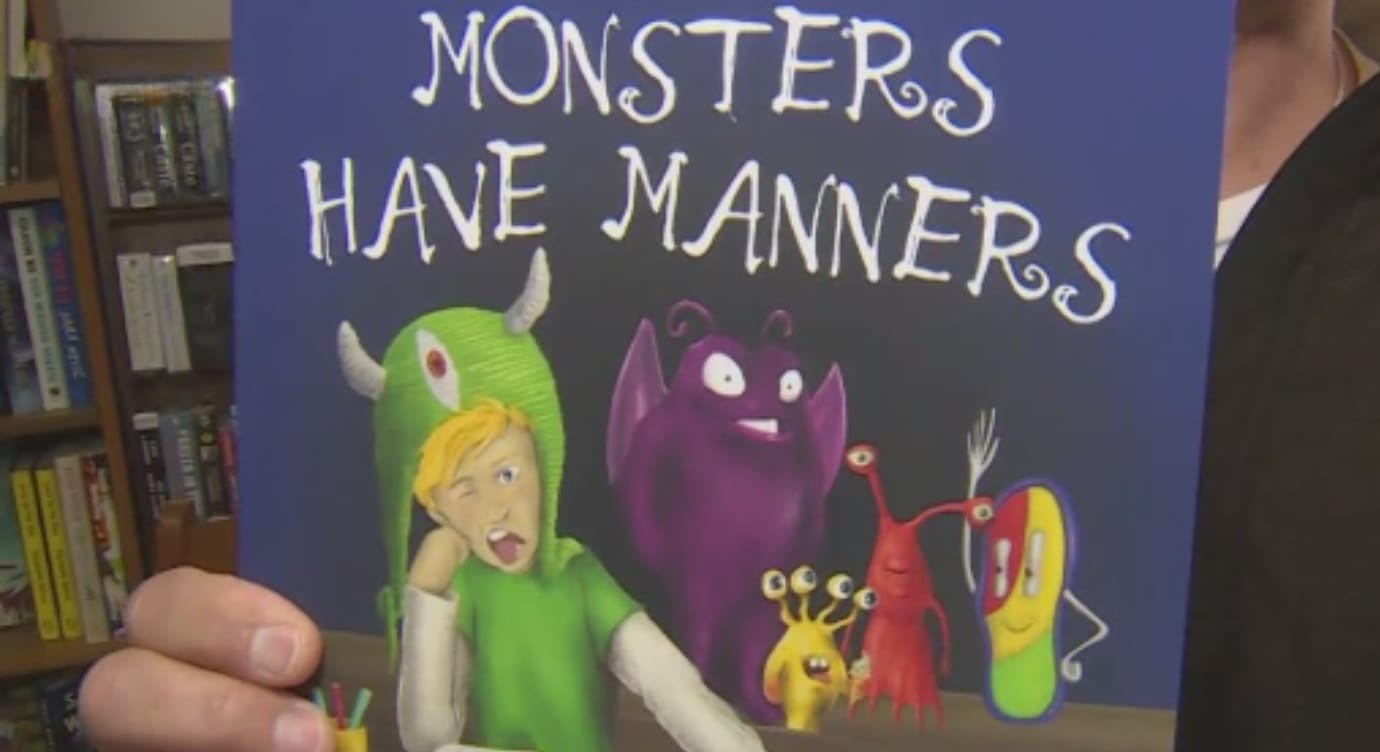
Monsters Have Manners by Jeff Kubiak is an interactive AR reading book that teaches young readers about kindness, respect, and good manners. The story follows River, a boy who loves monsters but struggles with his own “monster manners.” When the monsters from his drawings visit him, he learns an important lesson. The book also features AR coloring pages that bring the monsters to life.
4. Peter O'Meter
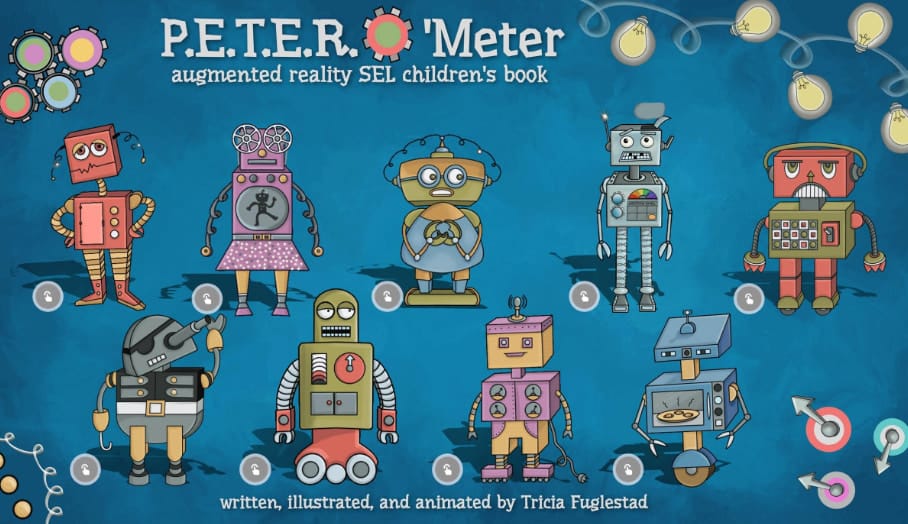
Peter O'Meter by Tricia Fuglestad is an interactive AR storybook about a young robot who struggles to manage his emotions. Readers can follow Peter through his retro-futuristic world and help him identify different feelings. With the Quiver app, the illustrations come to life in 3D, allowing children to interact with Peter, explore his emotions, and make decisions as the story unfolds.
5. Luna's Adventure
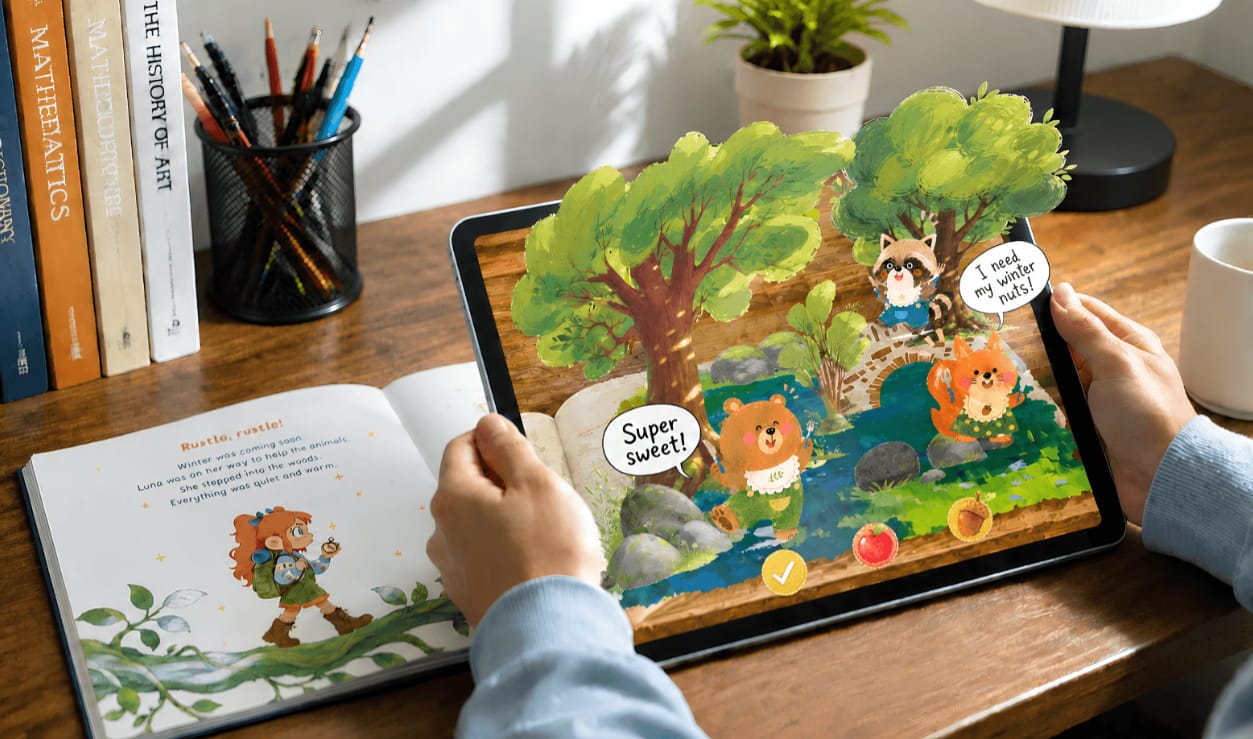
Created by Kivicube, Luna's Adventure is an interactive AR storybook that takes children into a magical forest. Readers follow Luna as she helps bears, squirrels, and raccoons prepare for winter by following clues throughout the story. Through a camera scan, the story comes to life with interactive AR elements that children can explore by tapping and dragging.
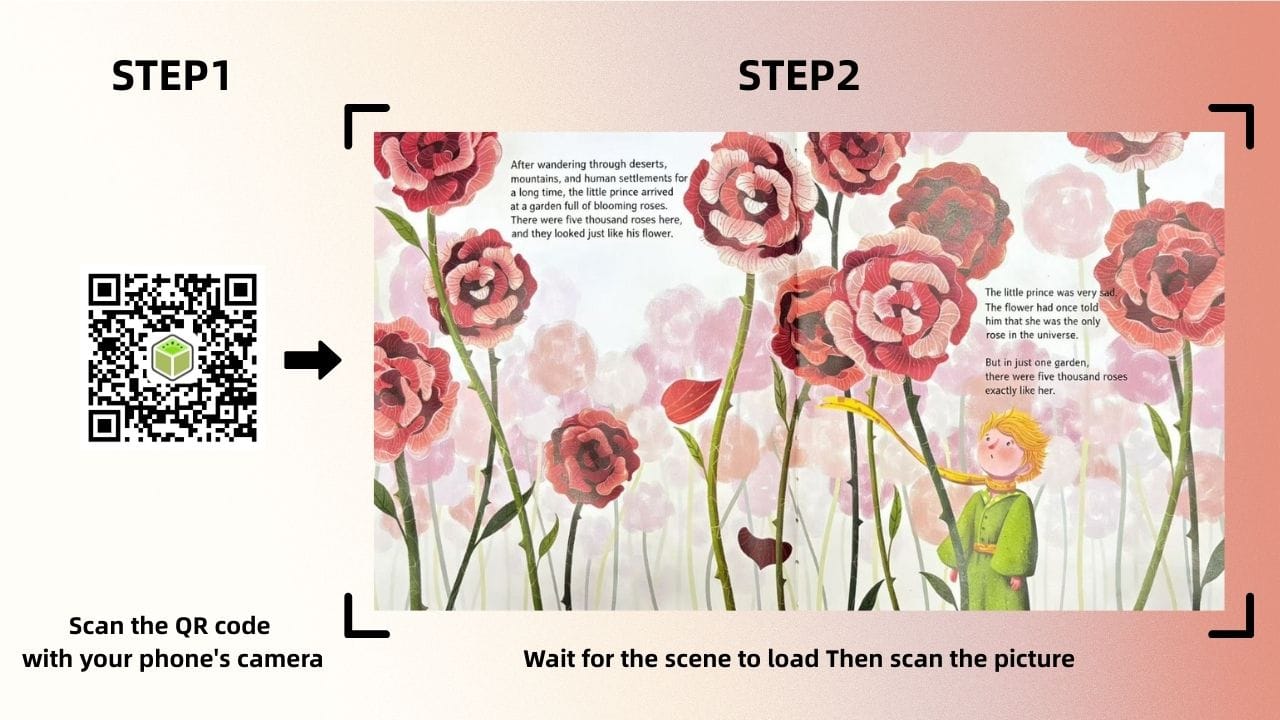
You can also try to read the augmented reality storybook by scanning the QR code and the target image:
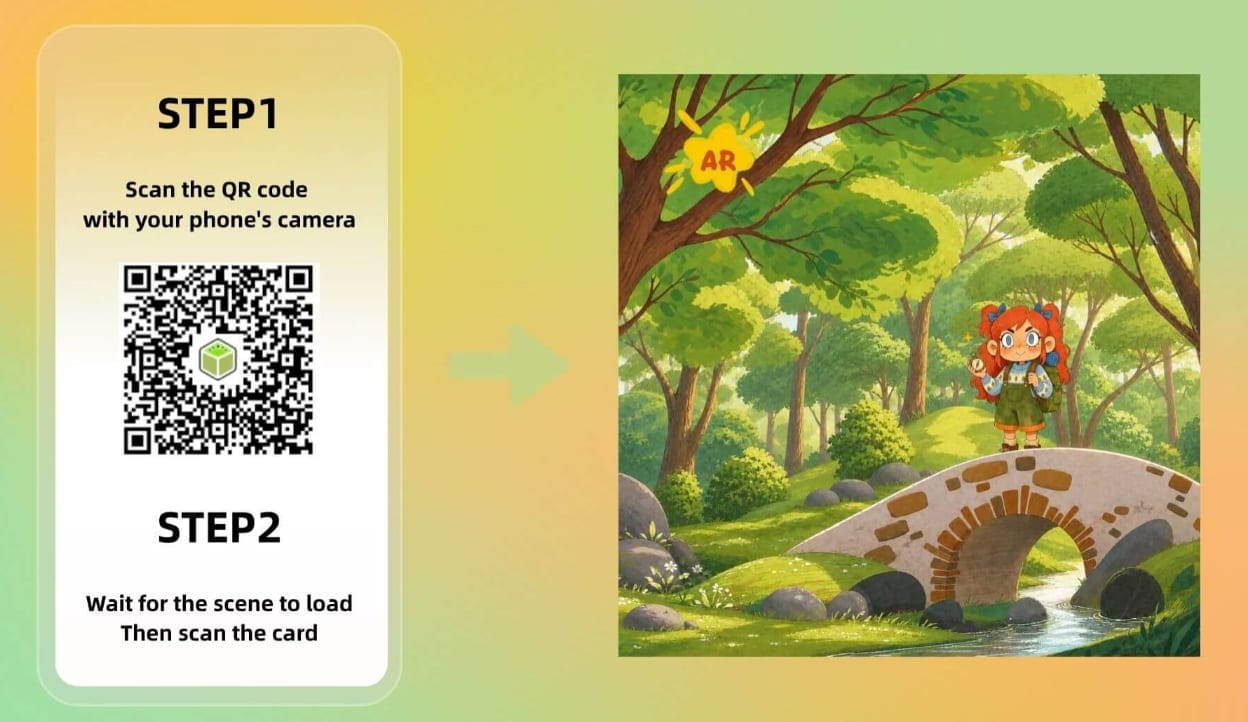
6. Tom Swift Inventors' Academy
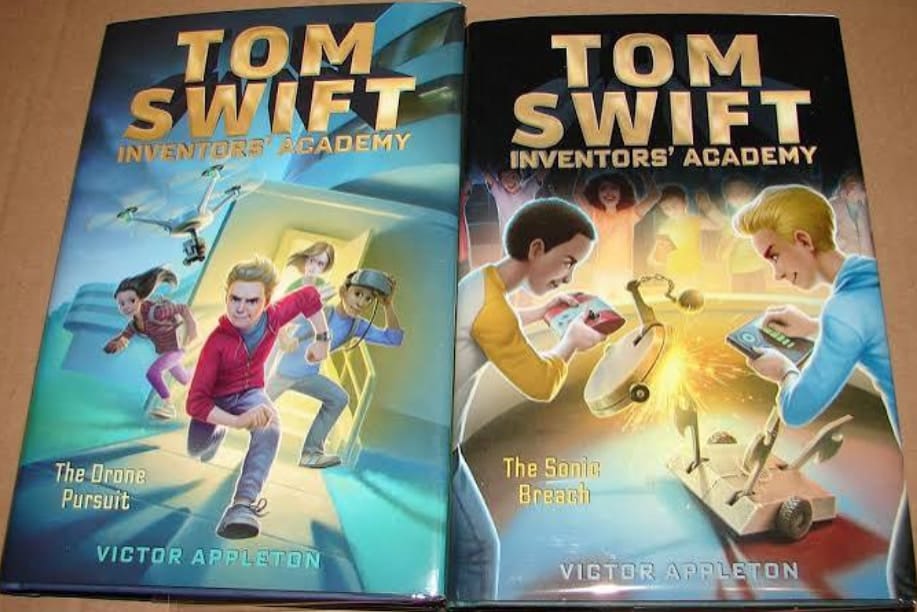
Tom Swift Inventors' Academy: Augmented Reality by Victor Appleton follows Tom and his friends at the Swift Academy of Science and Technology. In this sixth book, they investigate a reality show surrounding the school's Invention Olympics and uncover a suspicious scheme. The story also features an AR-themed adventure involving smartphone-based interactive elements.
7. Space Race: The Story of Space Exploration to the Moon and Beyond
Space Race: The Story of Space Exploration to the Moon and Beyond by Ben Hubbard takes young readers on a journey through the history of space exploration, from the first rockets and Moon landing to the International Space Station, Mars, and beyond. Its AR app adds NASA videos and 3D spacecraft models, including the Apollo Lunar Module and Curiosity Rover.
Two Ways to Build Your Augmented Reality Reading Experience
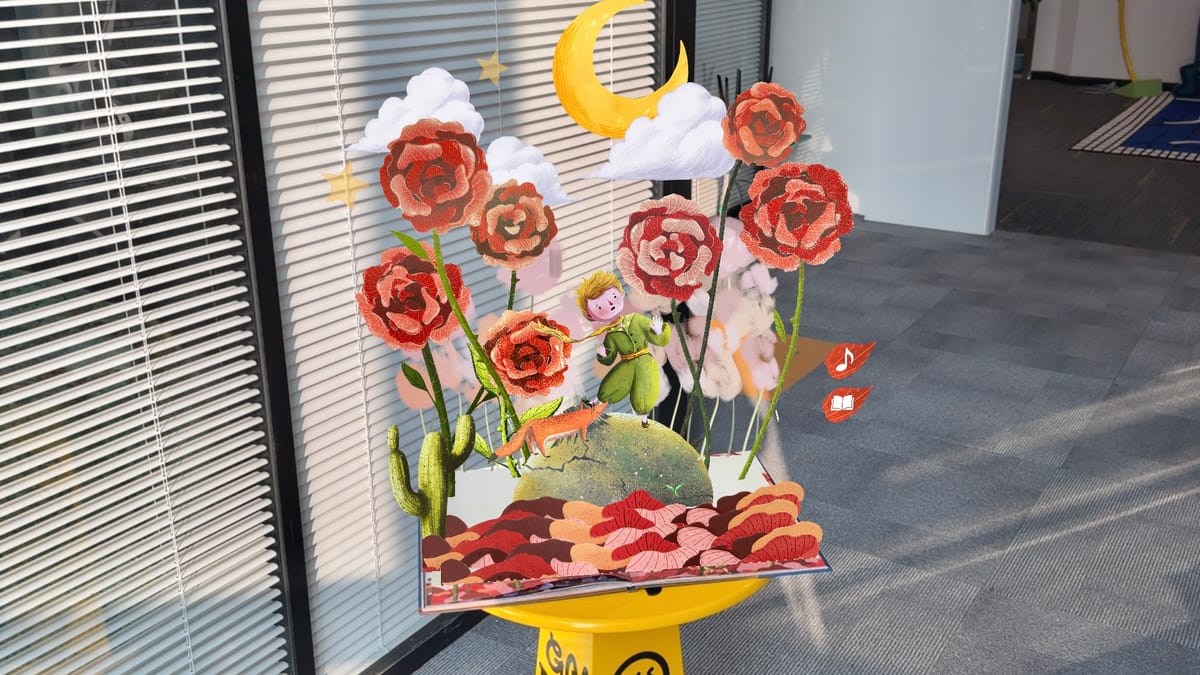
Do you want to make your own augmented reality storybooks? In this tutorial, we’ll show you how to use Kivicube, a powerful WebAR platform, to turn a classic book like The Little Prince into a fully immersive AR storybook—all without writing a single line of code. Whether you want to quickly reuse a template or start completely from scratch, this guide will get you there.
Before diving in, here’s a quick overview of the two main approaches so you can pick the one that fits your workflow:
The Quickest Way: Turn Your Storybook into AR with a Kivicube Template
Kivicube’s templates are a standout feature—they let you build on the work of experienced creators, reusing pre-set interactions and animation logic instantly.
Prepare & Find a Template
- Log in to Kivicube and enter your dashboard.
- If it’s your first time, create a Collection (a folder to manage your AR scenes).
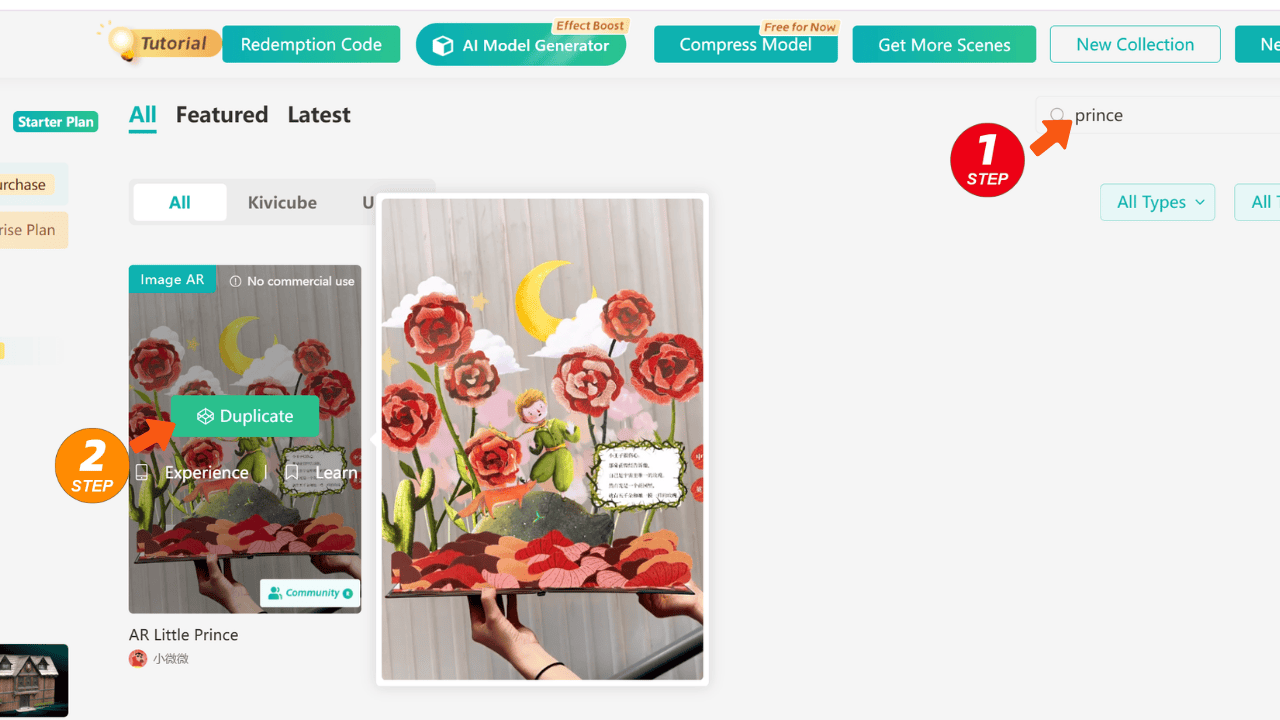
- Use the search bar in the top-right corner and type "Prince" to find the Little Prince AR storybook template.
- Click Duplicate to copy it into your Collection, then name your new scene.
Replace Key Content
- Enter the Kivicube scene editor after duplicating the template.
- In the Target panel on the right, upload your own storybook page as the target image, then drag it onto the grid editor.
Pro tip: Keep your phone parallel to the page, avoid glare or heavy bends for the best AR recognition.
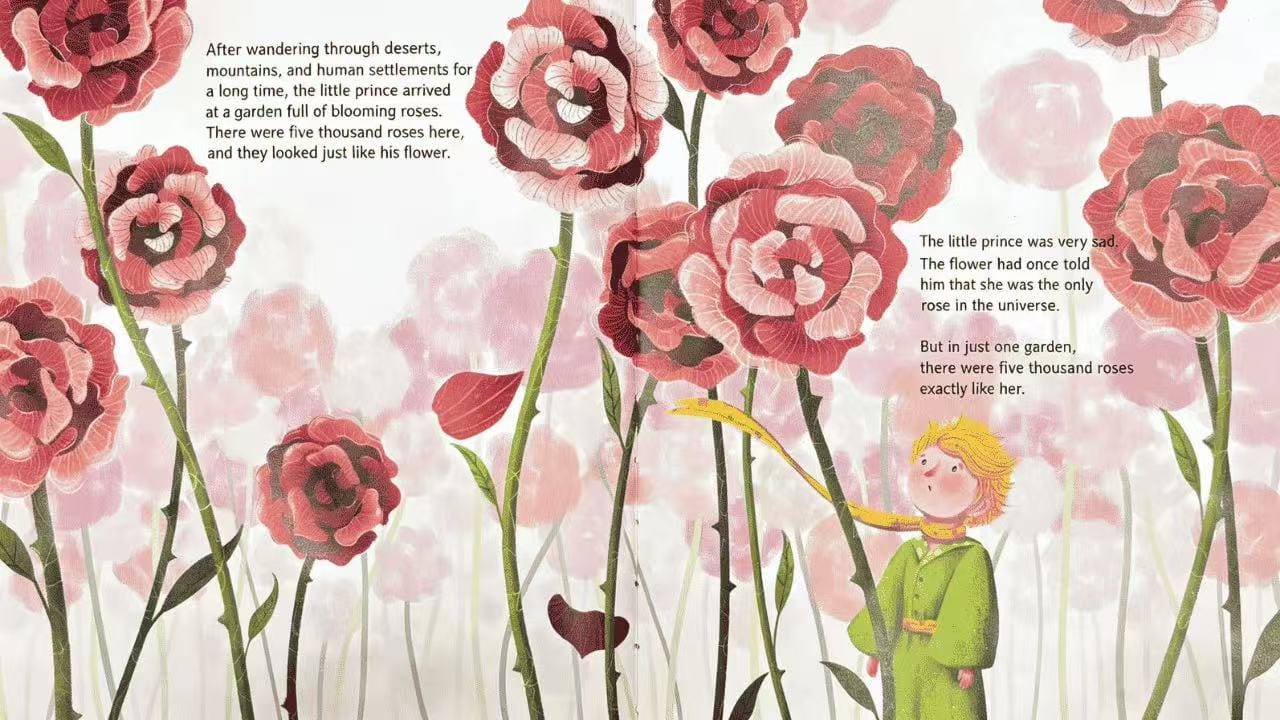
If you want your AR storybook to have more stable and reliable tracking, especially for a smoother augmented reality reading experience, you can check out Kivicube’s detailed docs on how to create a strong and stable AR image target.
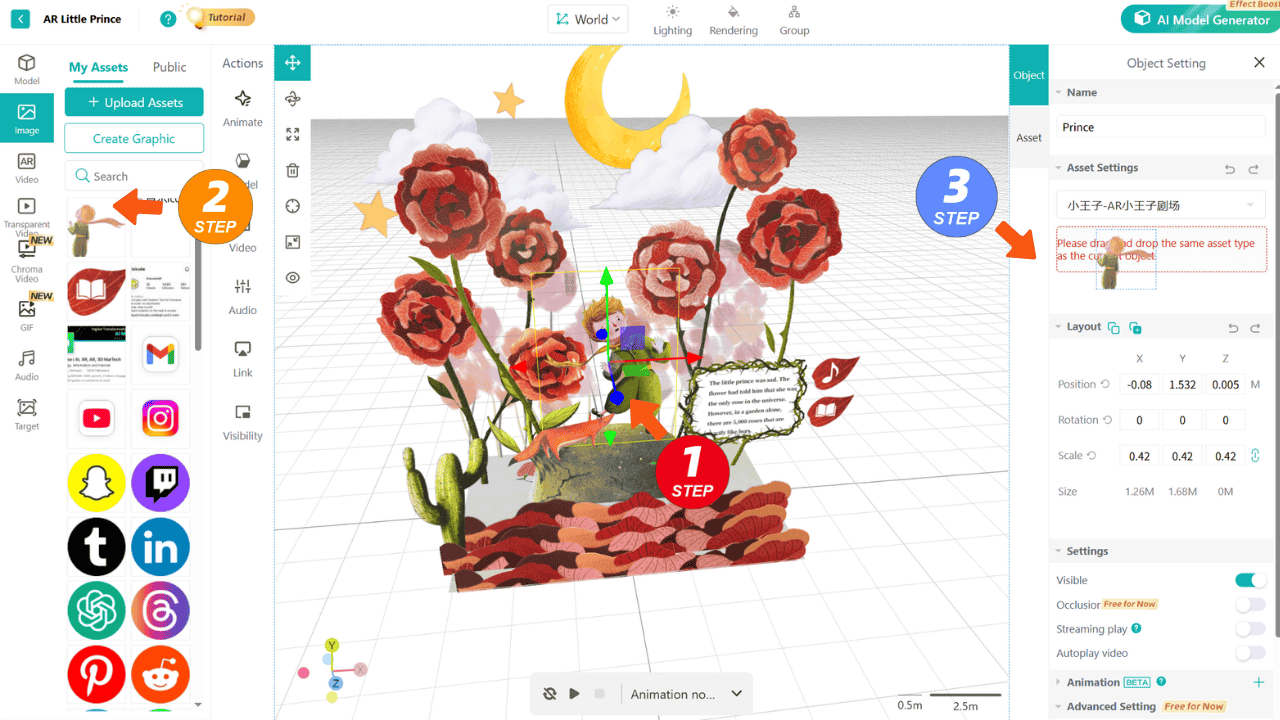
- Replace other assets in the scene: all animated elements like the Little Prince or the rose are from the template.
- Simply select the asset you want to replace and drag in your prepared image, video, or 3D model. Kivicube currently supports direct replacement of the same asset type (image for image, video for video).
Publish & Experience
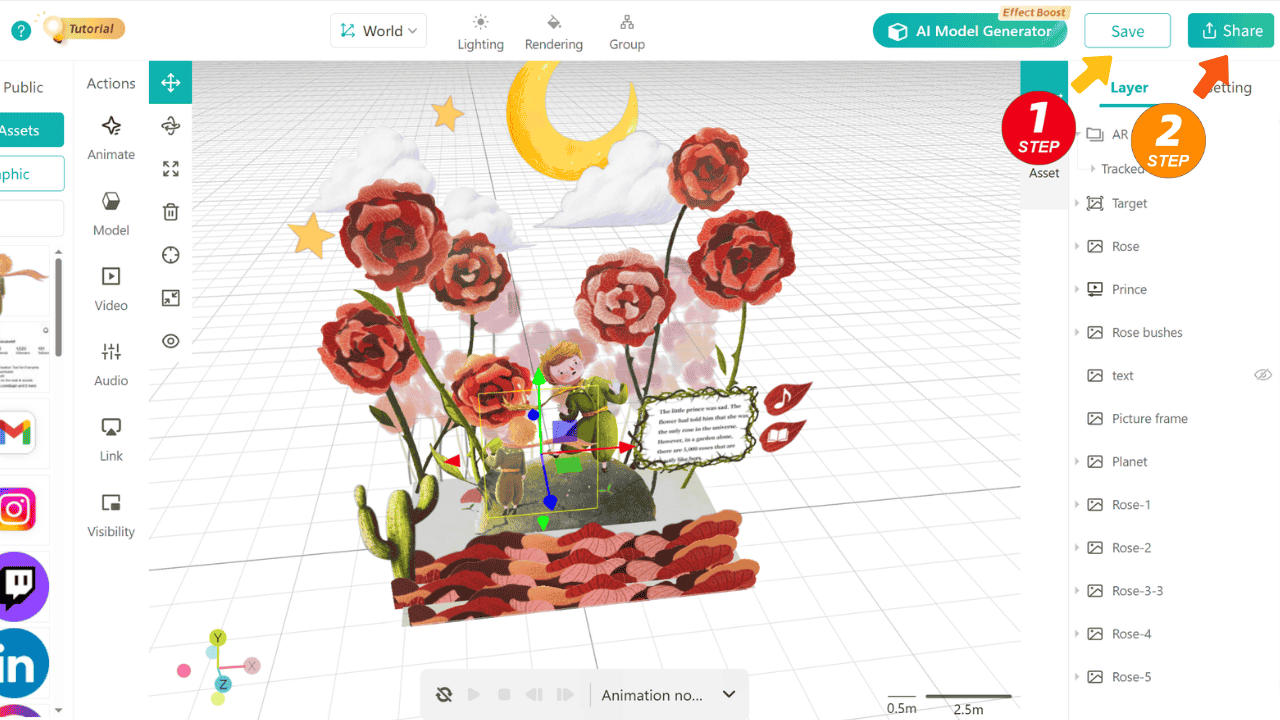
- Once everything is replaced, click Save, then Share → Web.
- A QR code will be generated—scan it with your phone and watch your AR interactive storybook come to life instantly.
The Creative Way: Start from Scratch to Fully Customize Your AR Storybook
If you want complete control over every detail, building from scratch is the way to go. It also helps you understand the WebAR platform creation logic.
Step 1: Create a Scene & Prepare Assets
- In your Collection, click New Scene +, select Image AR, name it, and upload your target image. This opens a blank editor.
- Prepare assets: export characters, backgrounds, and other elements from Procreate or Photoshop as PNGs (transparent background). For 3D models, export as GLB.
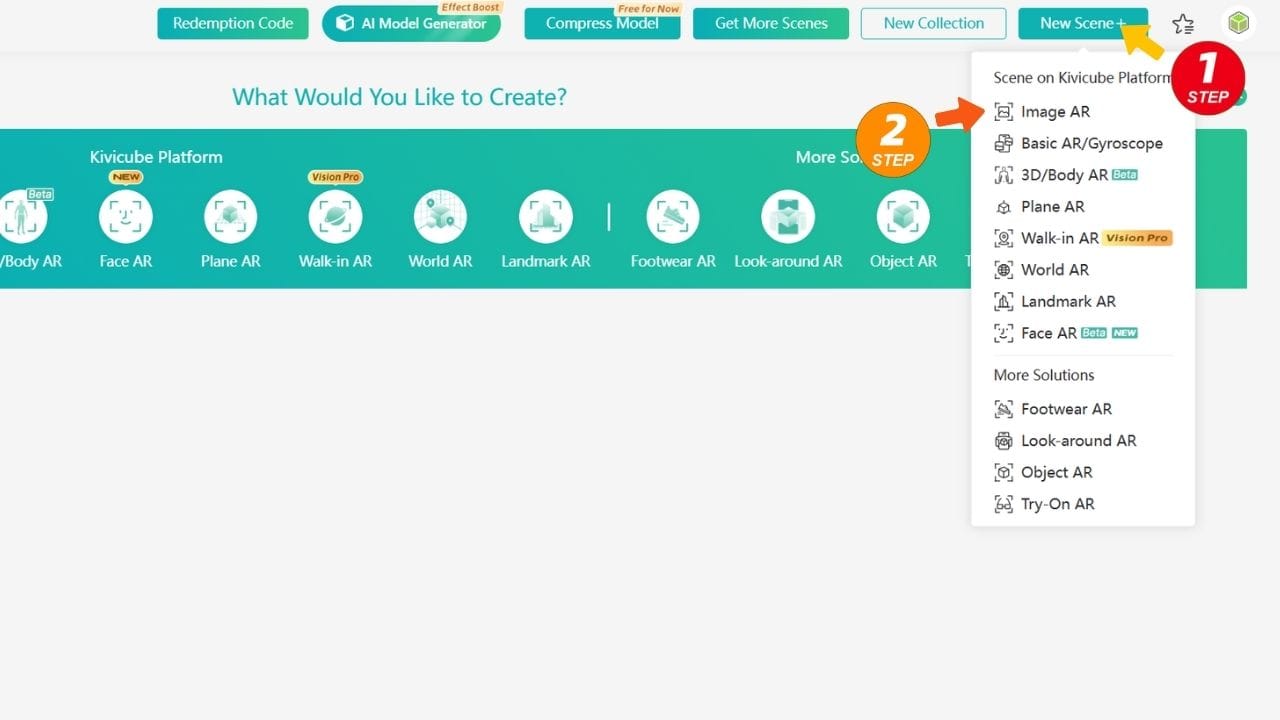
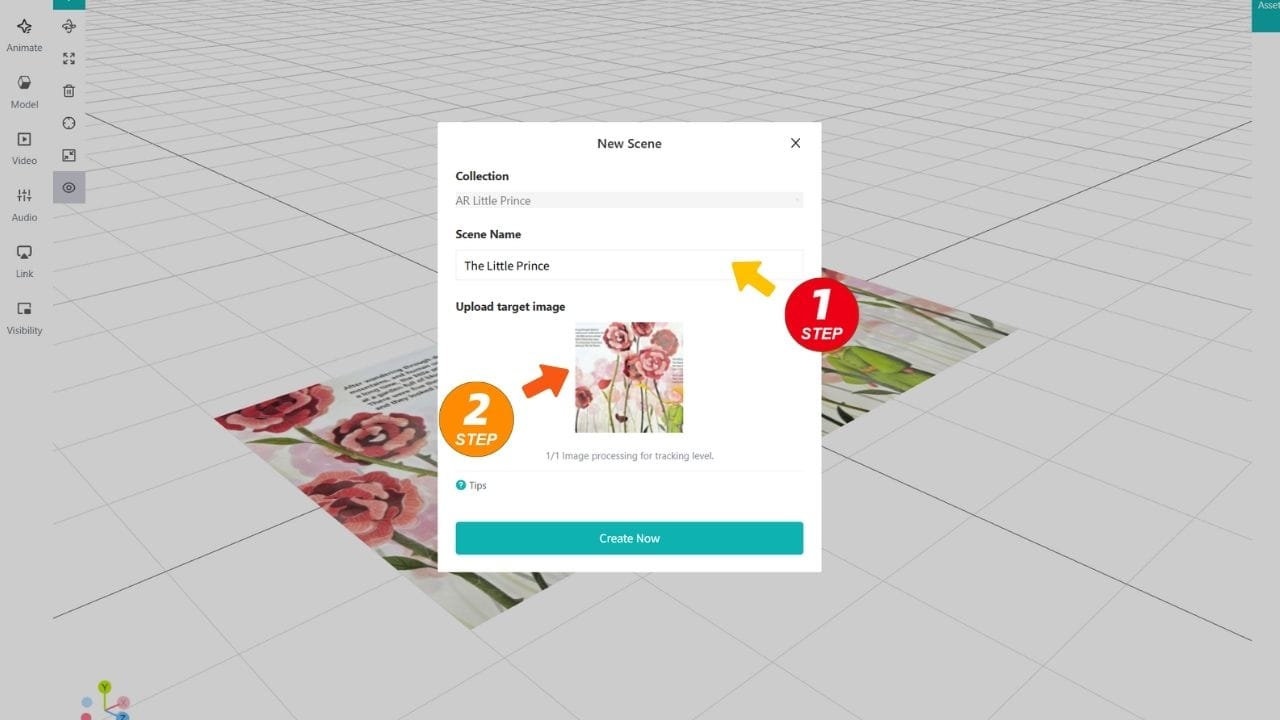
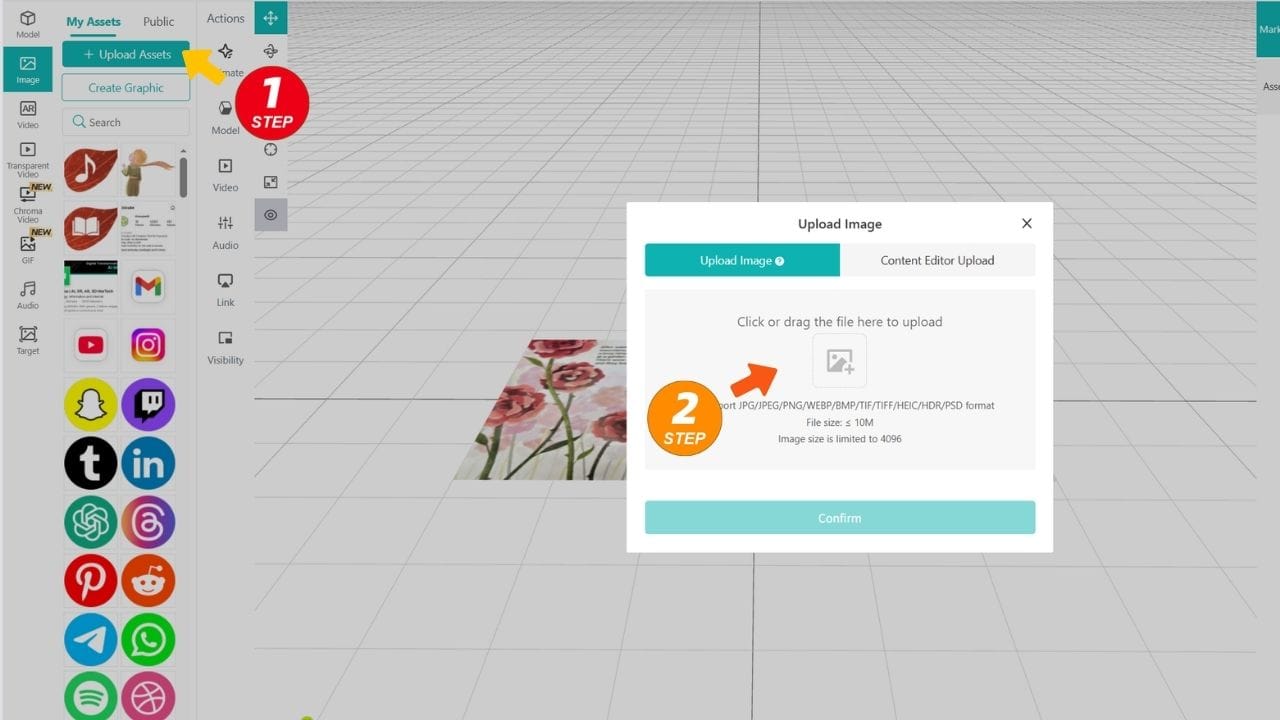
Step 2: Upload & Arrange Assets
- Click Image on the left panel and upload your files.
- Drag each asset onto the grid editor and use the transform tools or coordinates panel to adjust position, size, and rotation.
- Layer management tip: To prevent images from overlapping in 3D space, enable Alpha Clip for your PNGs and set Opacity Cutoff to 70. Rotate your view to verify. Note: semi-transparent gradient images may not work well with this.
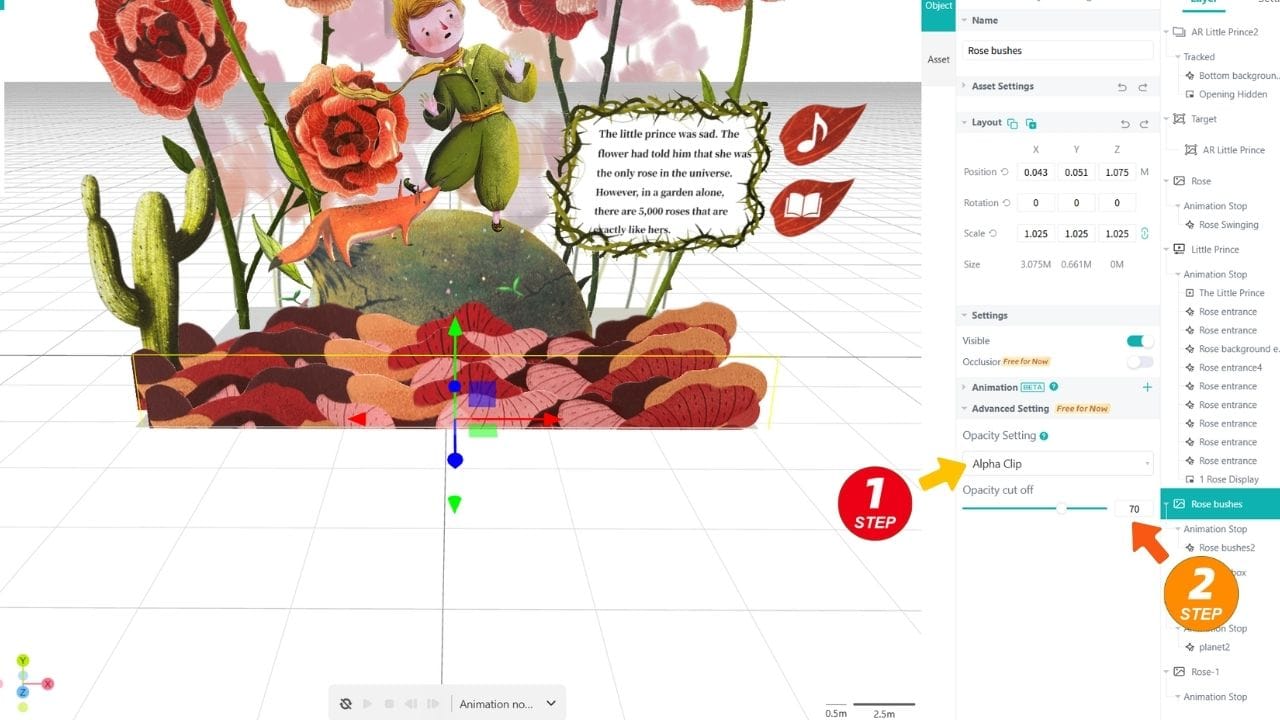
Step 3: Animate Your Assets
Static layout is just the start—animation brings augmented reality reading to life.
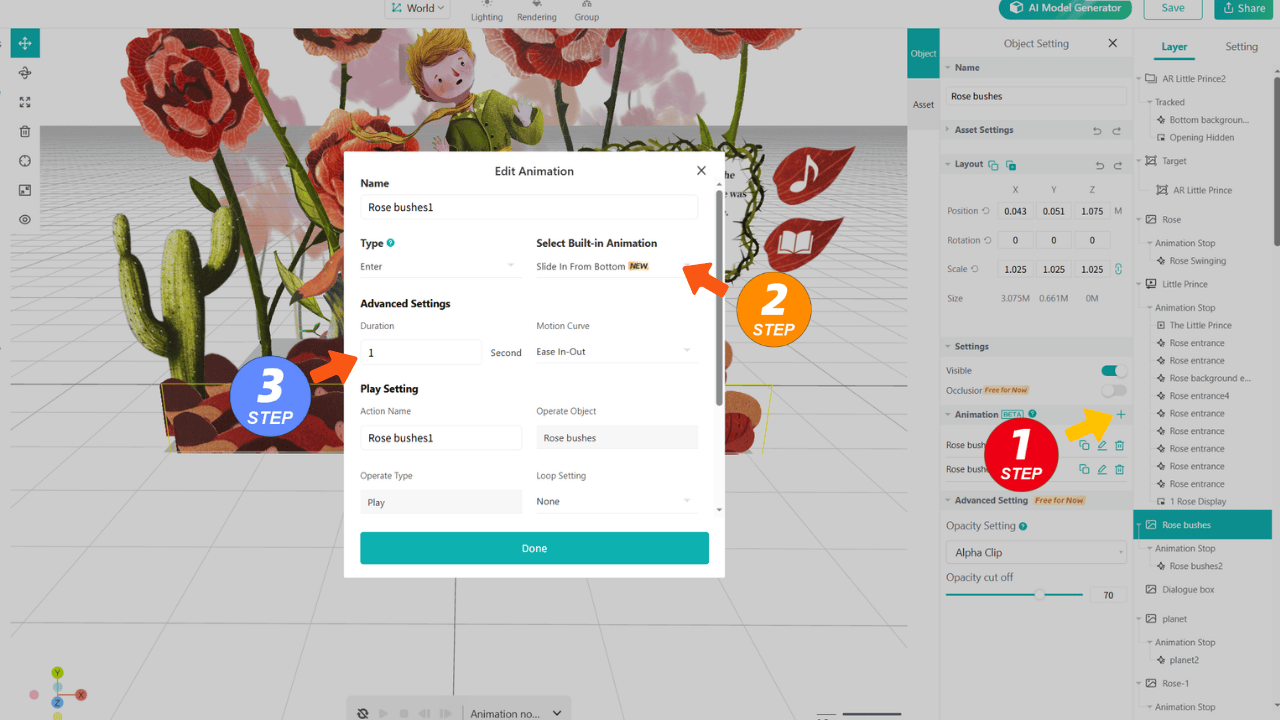
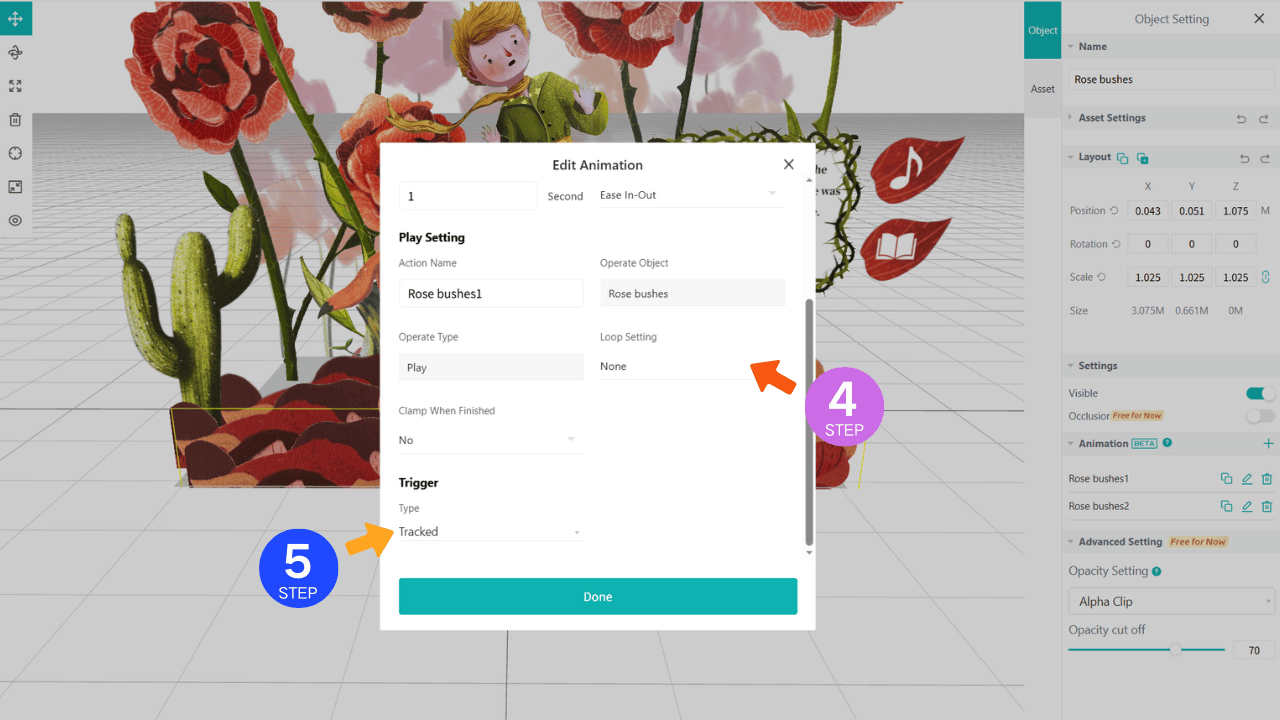
- Entry Animation: Select the rose bush, click Animation → +, choose an entrance animation (e.g., Slide In From Bottom), and set Trigger When recognition image is detected.
- Sequential Animation: Make roses bloom layer by layer by setting different durations (1s, 1.2s, 1.4s) for each layer.
- Looping Animation: Add a second animation (Emphasize → Float Up-Down) and enable Infinite Loop, triggered after the entry animation. Now the roses are floating gracefully after appearing.
Step 4: Control Story Pace with Visibility
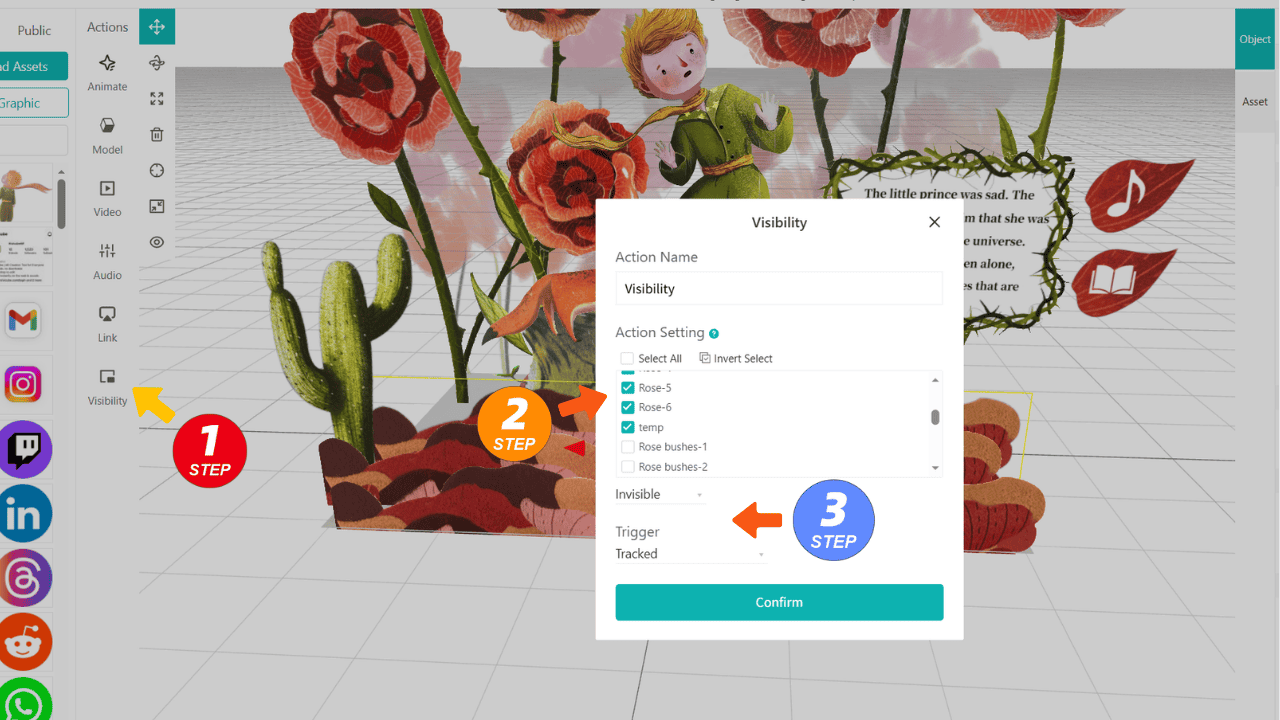
Kivicube shows all assets by default. To control the order:
- Set all assets except the rose bush to Invisible, with Trigger as Tracked. Only the rose shows at first.
- Then, make the Little Prince and background Visible, triggered after the rose bush entry animation.
- This creates a simple narrative sequence for your AR storybook.
Step 5: Add Interactivity
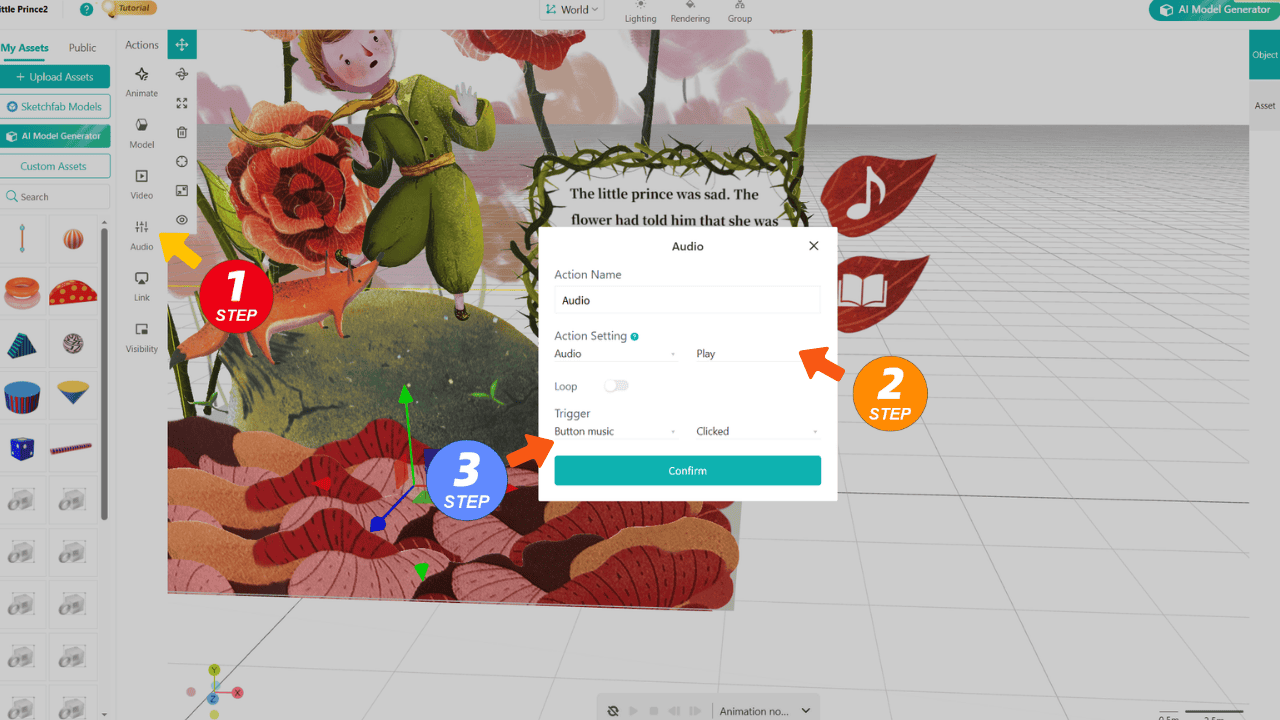
- Pop-up dialogue: Place a book icon button and a hidden text popup. Set the text popup to Visible when the button is clicked.
- Background audio: Upload a Little Prince narration clip. Set its Action Trigger to play when the music icon is tapped.
Step 6: Final Publishing
- Click Save → Share → Web to generate the experience link.
- Scan it with your phone—your hand-crafted, fully animated, and interactive AR storybook world appears vividly before your eyes!
If you’d like to take this a step further into educational content, we also have a complete step-by-step guide to turning science books, zoo guides, and animal encyclopedias into interactive AR learning experiences:
 Leonie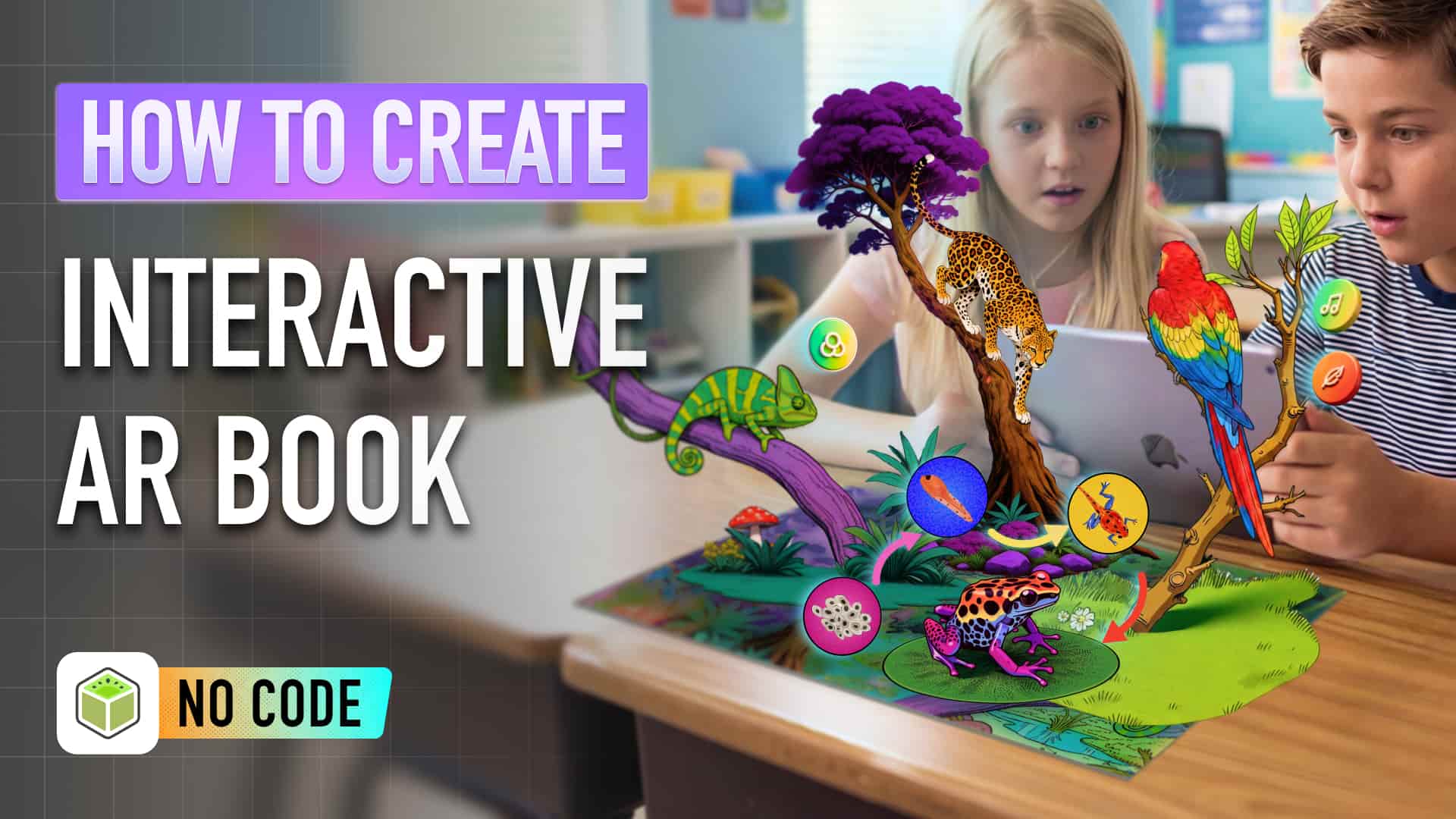
How to Turn Any Book into Interactive AR Learning with WebAR (No-Code)
Summary
Interested in making reading more engaging for your child? In this article, we not only recommended 7 popular augmented reality storybooks for children but also showed you how to create your own AR storybook with a simple step-by-step tutorial.
By following this tutorial, you’ve learned two core ways to create an interactive AR storybook using Kivicube, a leading WebAR platform.
- Quick Template Method: Perfect for rapid testing and reusing professional interaction logic.
- From-Scratch Method: Gives you complete creative control, perfect for detailed augmented reality reading experiences.
Now it’s your turn—bring your story off the page and into a rich, immersive AR world using Kivicube. Let your creativity and stories step into a new dimension!
Augmented Reality Storybook FAQs
How do AR storybooks work?
Most AR storybooks use a mobile app or WebAR experience to recognize images or pages in the book. Once recognized, digital content appears on the screen and is displayed alongside the physical book.
What devices do I need to read an AR storybook?
Most AR experiences run on standard smartphones or tablets with a camera and an internet connection. Therefore, you just need a phone or tablet for AR storybook reading.
Do I always need an app?
There're two kinds of AR storybooks: one based on app AR, while one works with WebAR technology. If you read WebAR storybooks such as Luna's Adventure created by Kivicube, then you can read them directly in a mobile web browser by scanning a QR code without a separate app.