English
Appearance
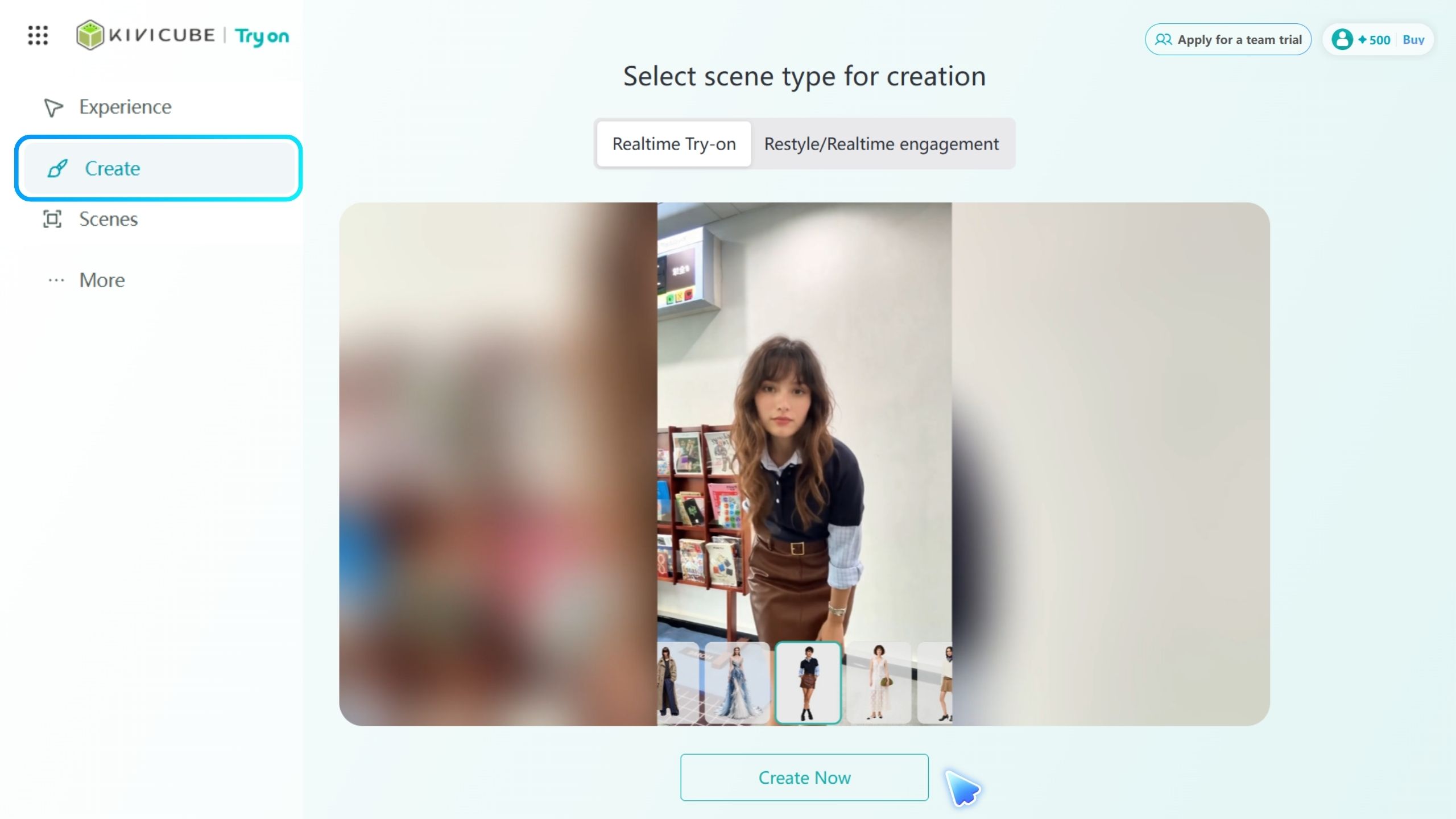
Go to Create, select the experience type that suits your needs, then click Create Now.
The editor has four main areas: the top toolbar, the Works panel on the left, the Preview area in the center, and the Settings panel on the right.
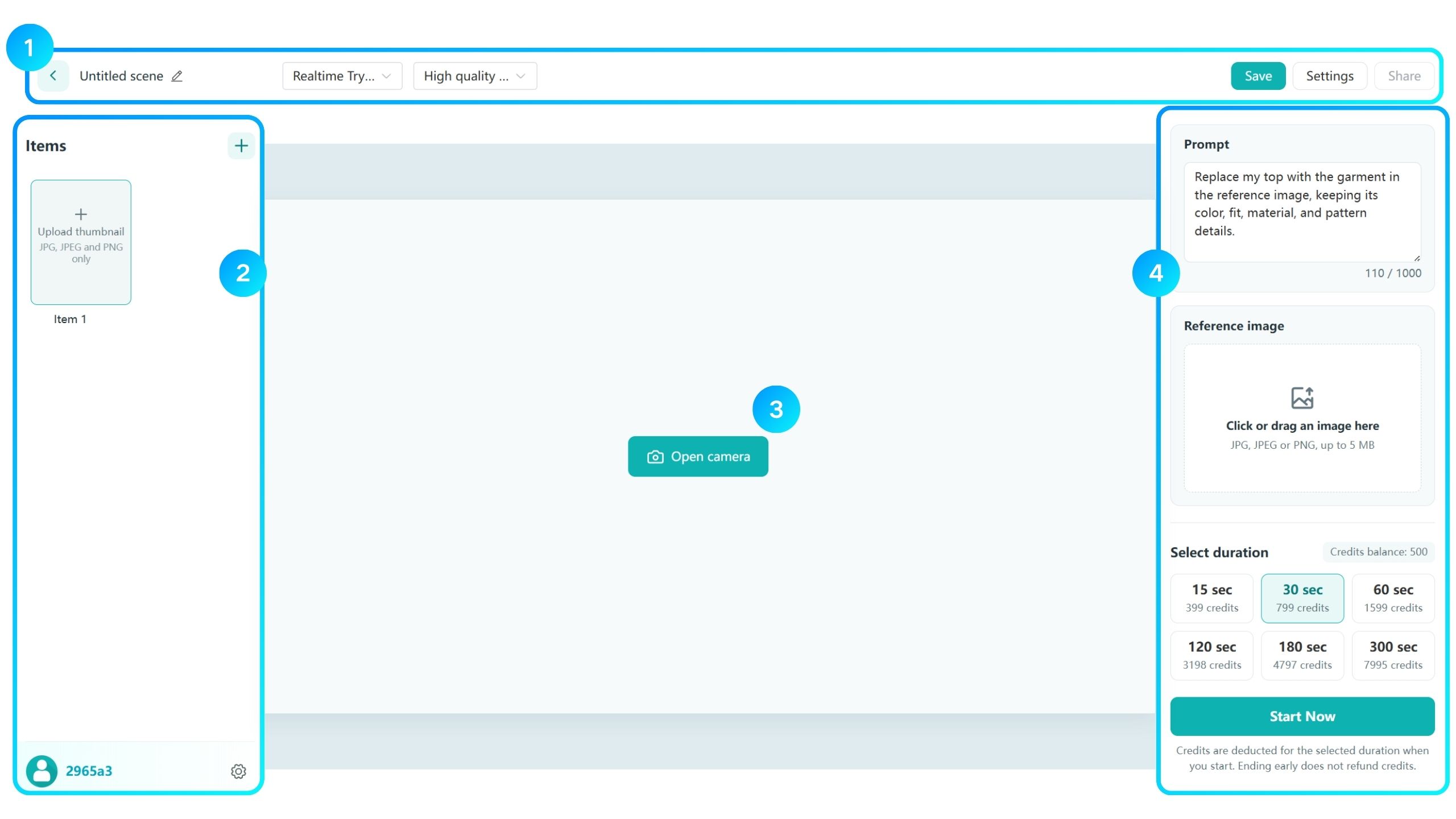
Top Toolbar: View and edit the scene name, choose the experience type and generation mode, and access save, settings, and share options.
Works Panel: Add and manage works in the current scene.
Preview Area: Enable the camera to preview Live Try-On or Live Interaction effects.
Settings Panel: Enter prompts, upload reference images, select the experience duration, and start the experience.
Once you've configured your experience, enable the camera to preview the results in real time.
When you enter the editor, a work is created automatically. In Live Try-On, a scene is the entry point to an experience, while a work is an individual try-on or interaction that users can switch between within the scene.
Scene: Created when you click Create. Each scene has its own experience link.
Work: An individual try-on or interaction within a scene. A scene can contain multiple works, but all works must be of the same type.
For example, you can add dresses in different styles or colors to the same dress try-on scene. Users can open a single link or scan one QR code to switch between dresses without re-entering the experience.
The platform offers two generation modes for different needs, each with a different credit cost. Choose the mode that best fits your desired results and credit budget.
High quality commercial: Best for experiences that require high-quality try-on results, detailed clothing textures, and a polished overall look.
Budget-friendly: Uses fewer credits and is ideal for fun, entertainment-focused experiences.
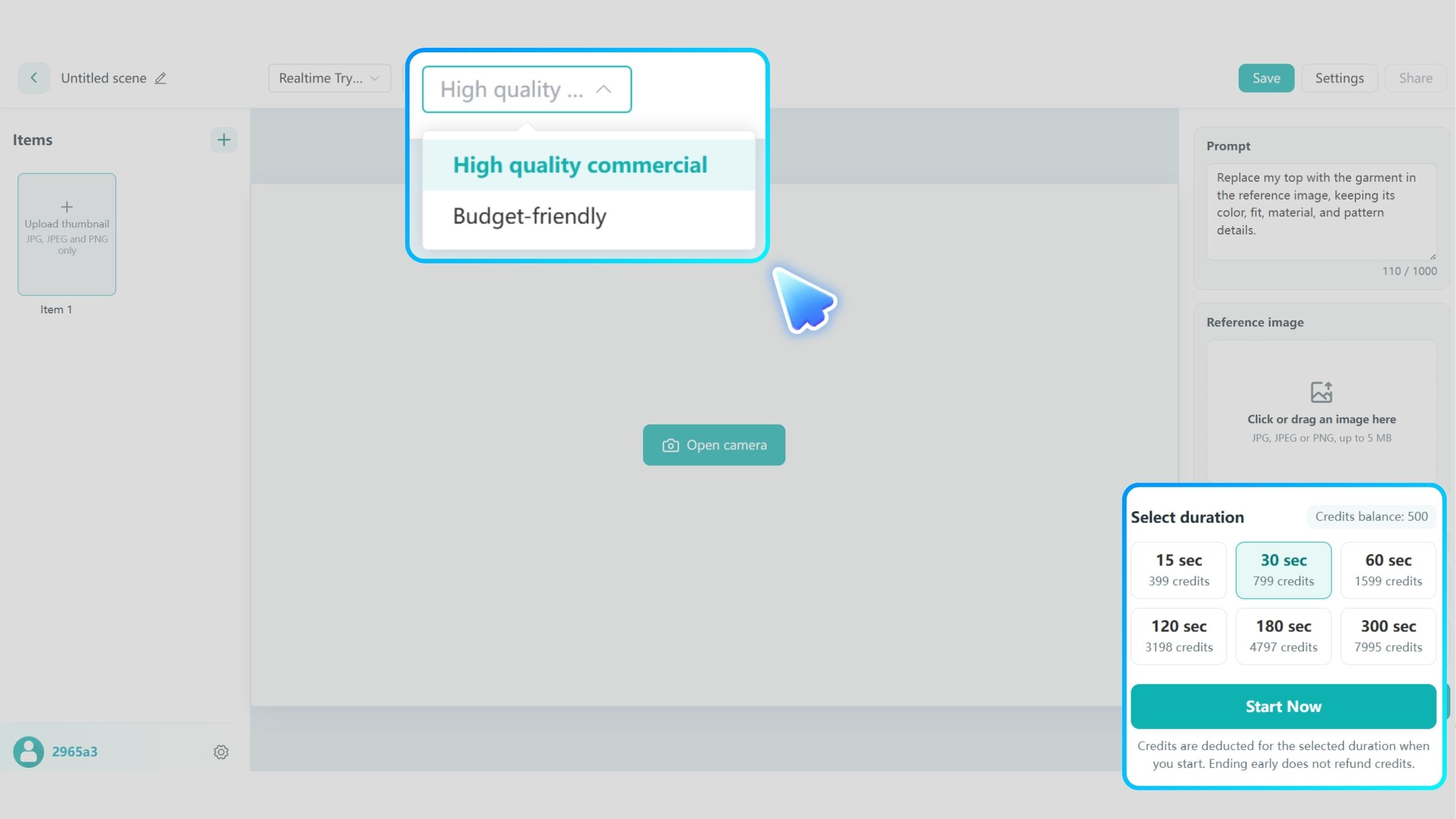
Credit Costs by Generation Mode
| Experience Duration | High quality commercial | Budget-friendly |
|---|---|---|
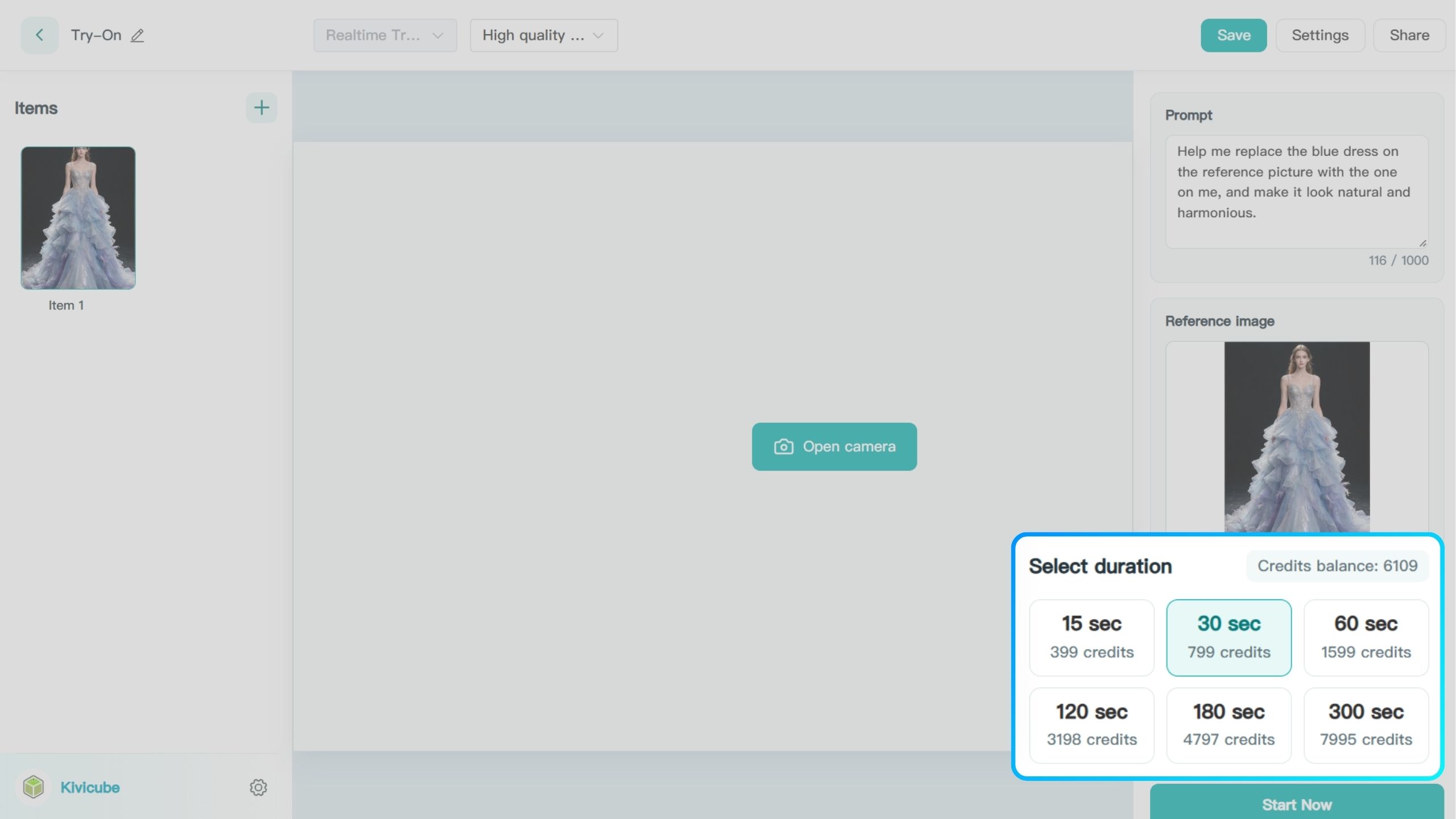
| 15 seconds | 399 credits | 40 credits |
| 30 seconds | 799 credits | 80 credits |
| 60 seconds | 1,599 credits | 160 credits |
| 120 seconds | 3,198 credits | 320 credits |
| 180 seconds | 4,797 credits | 480 credits |
| 300 seconds | 7,995 credits | 800 credits |
After selecting the scene type and generation mode, you can start creating your experience. The workflows for Live Try-On and Live Interaction are largely the same. The main difference is prompt content.
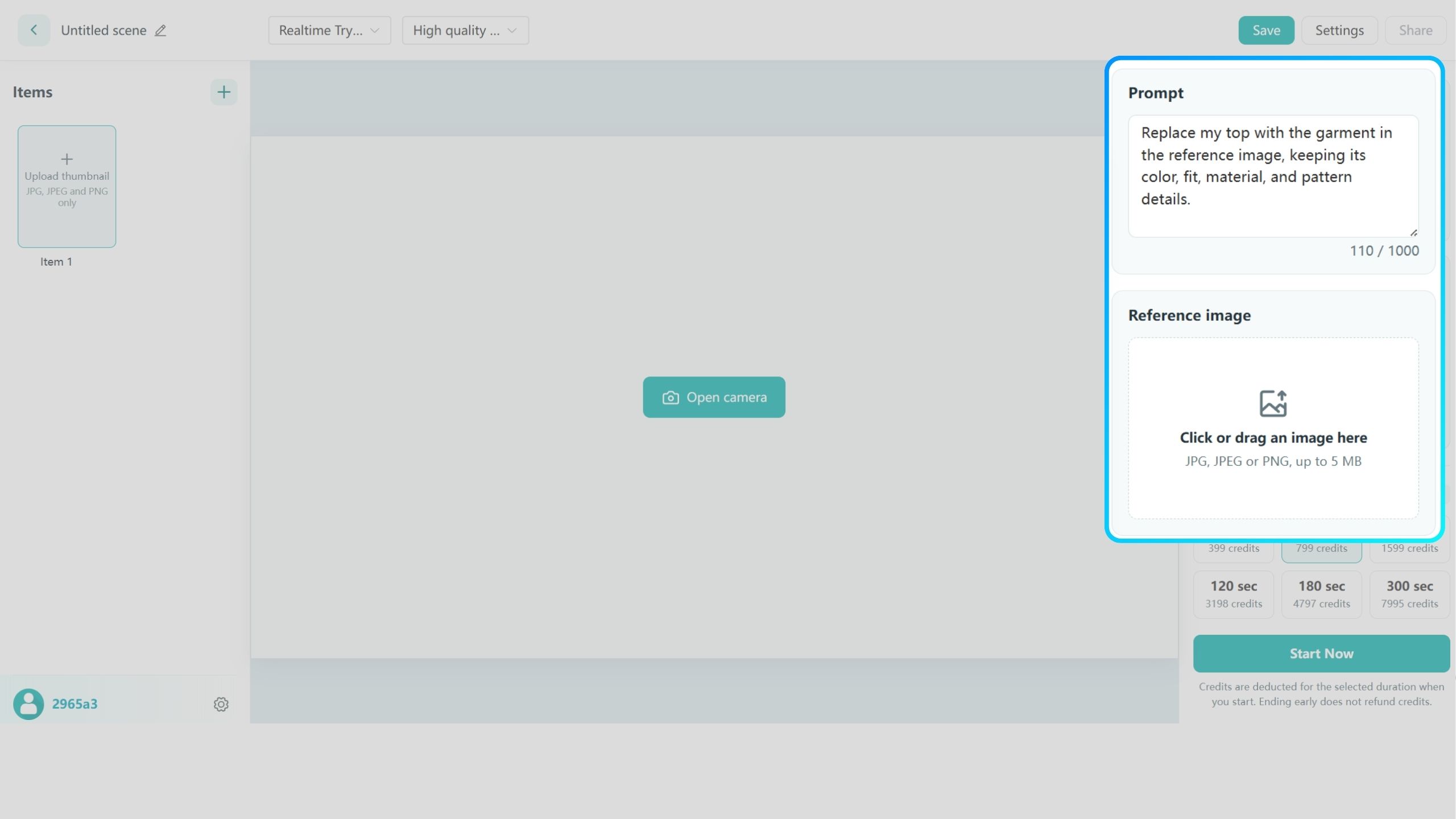
Prompts can contain up to 1,000 characters. For Live Interaction in High quality commercial mode, the limit is 256 characters. Add details as needed to get results that better match your expectations.
Upload an image in the Reference Image section. Supported formats are JPG, JPEG, and PNG, with a maximum file size of 5 MB.
Select the experience duration, then click Start Live Experience and allow camera access when prompted to preview your experience.
Note
The selected duration applies to the entire scene and is shared by all works.
Credits are deducted based on the selected duration once the experience starts. No refunds are given for ending early. Choose a suitable duration based on your needs and the number of works in the scene.
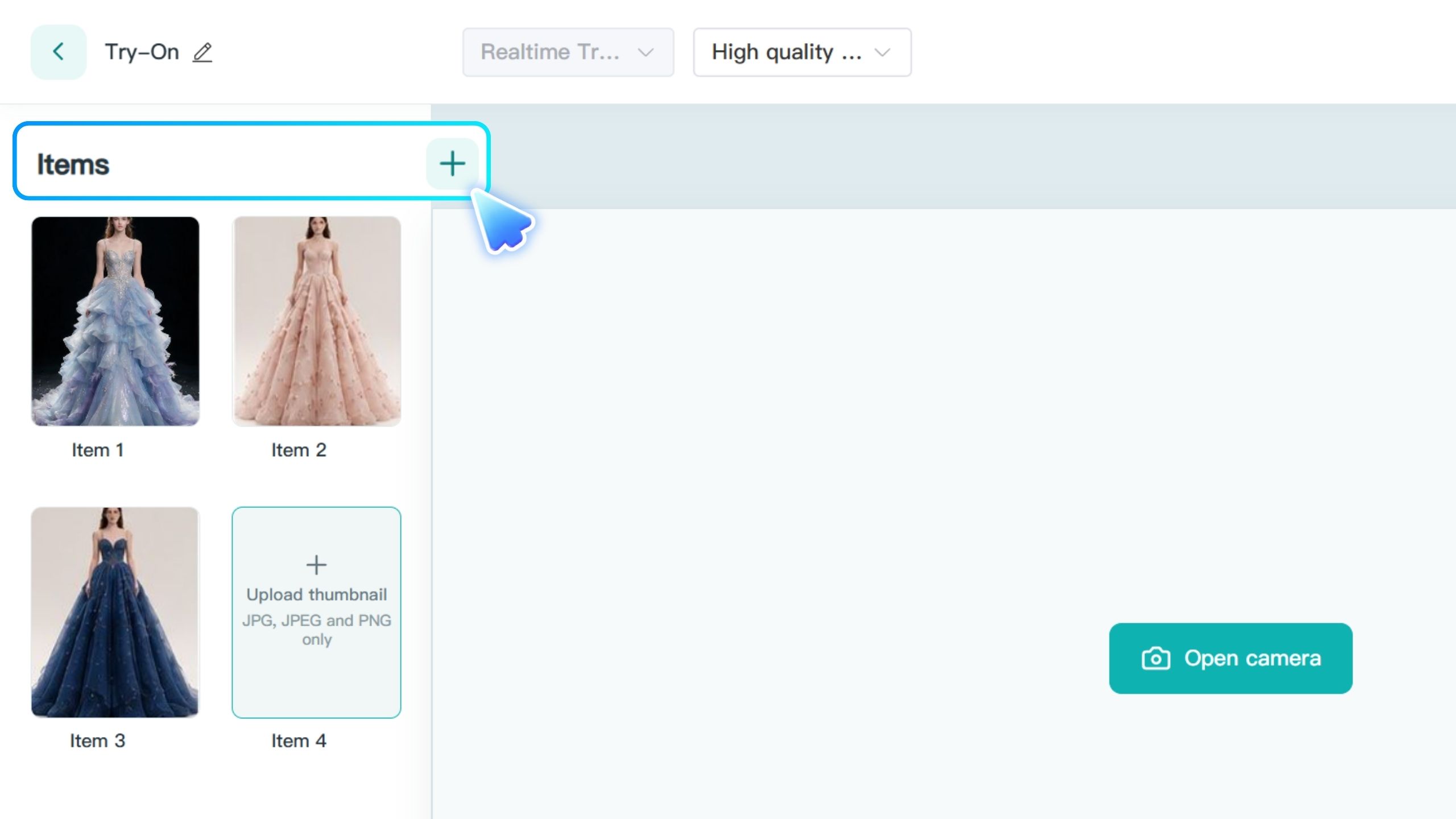
In the Works panel on the left side of the editor, click the + button in the upper-right corner to add a new work to the current scene. Upload a reference image and enter a prompt to create a new try-on or interaction experience.
Click any work in the list to switch to it and view or edit its prompt and reference image.
Note
Adding a new work does not create a new scene. All works in the current scene share the same experience link.
Click Upload Thumbnail on a work card to upload an image. The thumbnail appears in the experience interface, helping users identify and switch between different works.
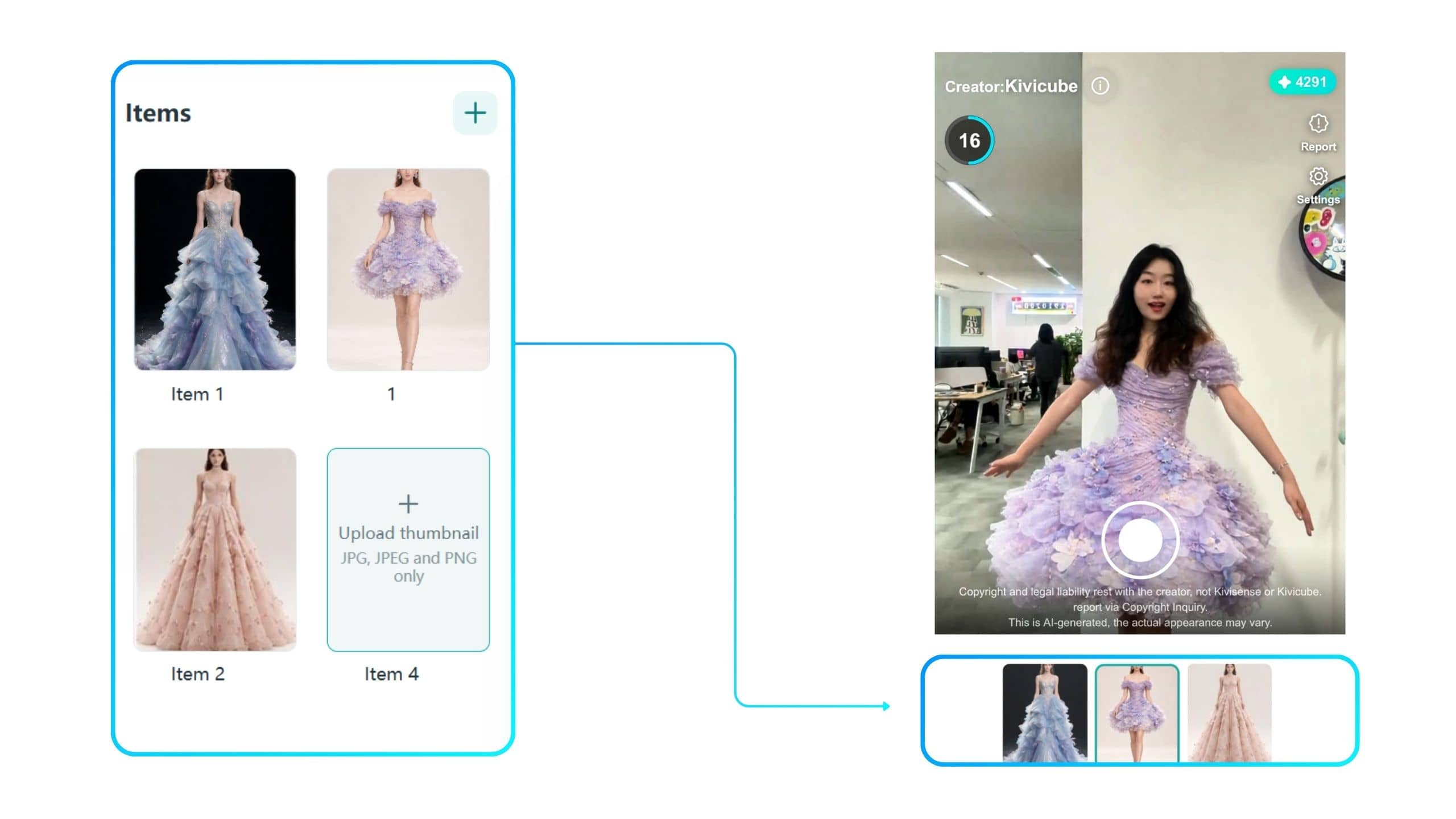
Hover over a work card, then click and hold the drag icon in the upper-left corner to move it. The order in the editor is synced to the experience interface, where works are displayed from left to right by default (1, 2, 3, 4, 5, 6).
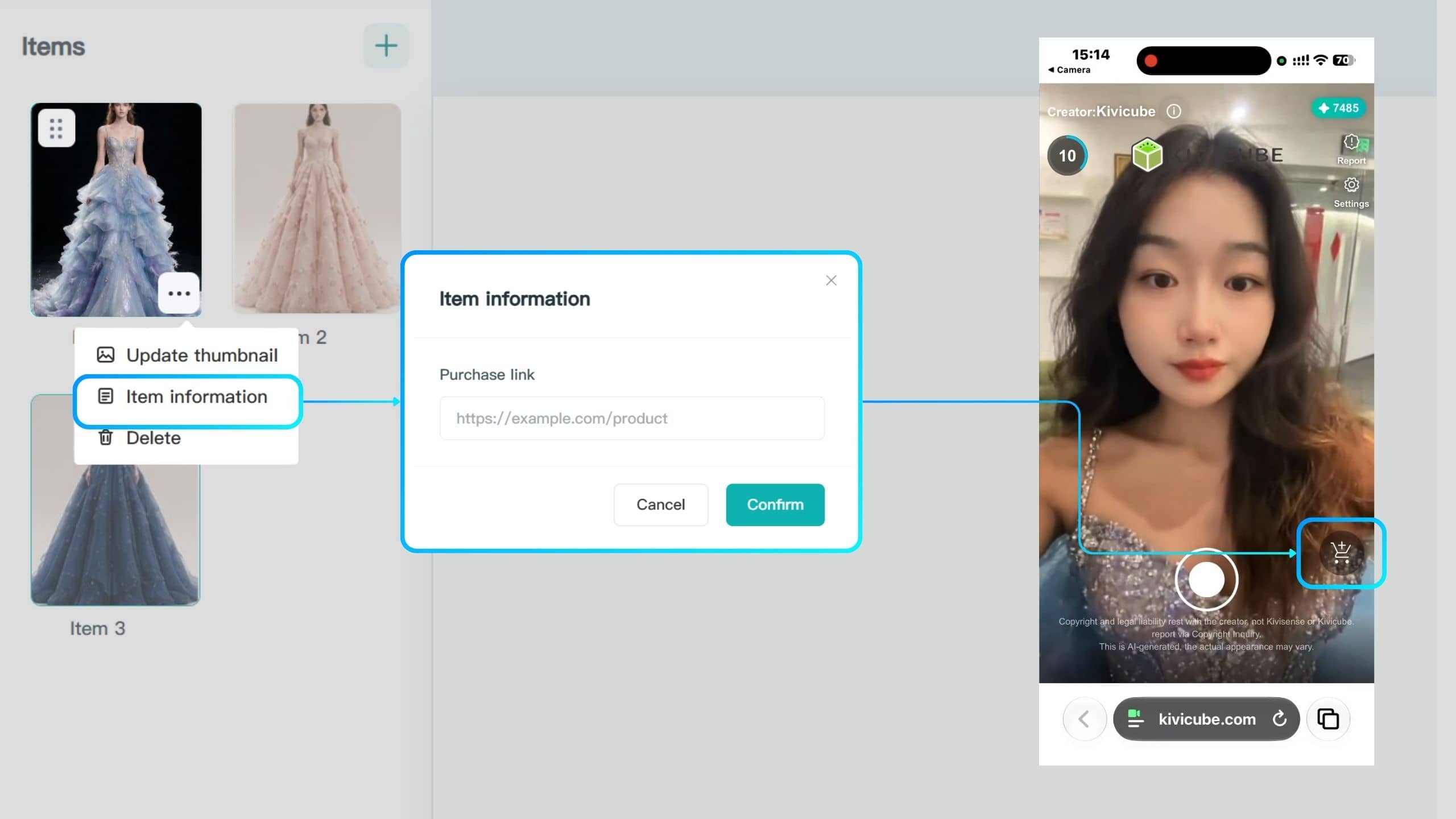
Hover over a work card and click the ⋯ icon in the bottom-right corner to add an add-to-cart link.
After trying on a style they like, users can click the corresponding button to visit the product page, learn more, or complete their purchase. This creates a seamless connection between the try-on experience and shopping.
In addition to prompts, reference images, and experience duration, you can configure other scene details by clicking Settings in the top-right corner.
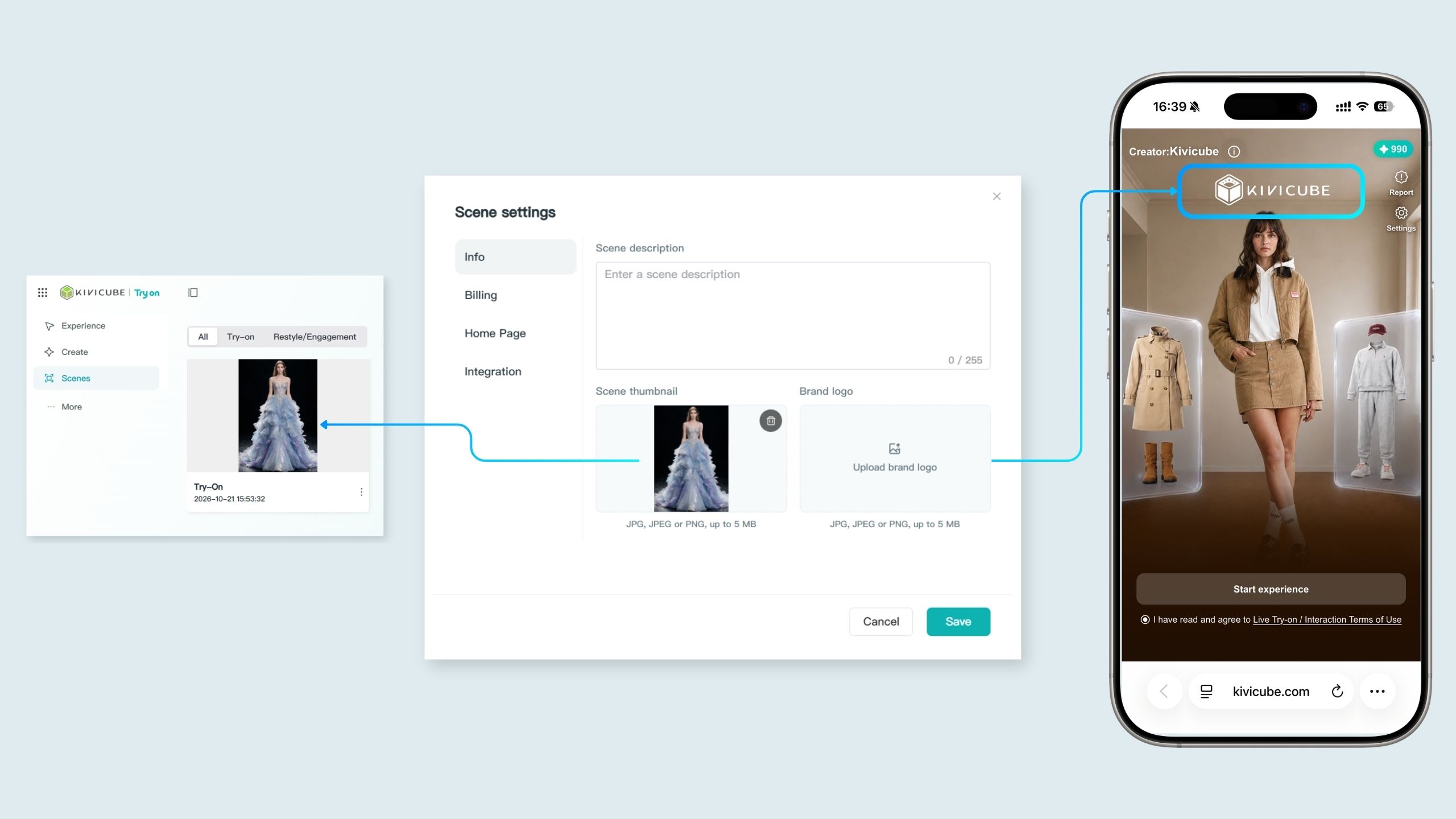
Scene Description: Enter a description of the scene, up to 255 characters.
Scene Thumbnail: Upload a thumbnail to represent the scene.
Brand Logo: Upload your brand logo to display your brand identity.
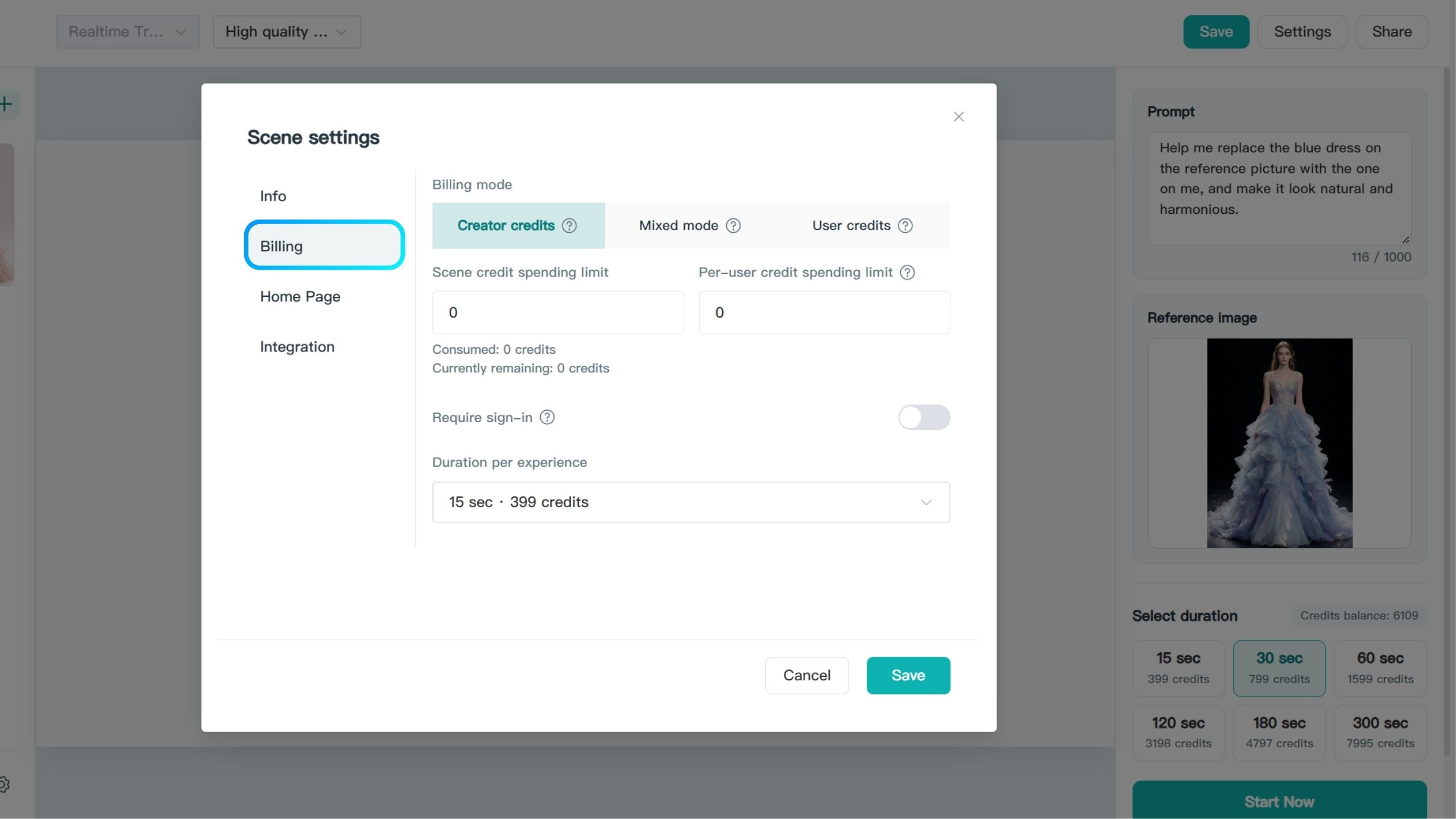
Choose a billing mode for the current scene based on your business needs to manage credit usage flexibly.
You can also click here to submit your requirements and contact us about the Advanced API. It offers more granular controls over content and permissions, helping you manage credit usage and improve security.
The platform offers three billing modes.
All credits consumed during an experience are paid by the creator.
You can set a total credit usage limit for the scene and a separate limit for each user. Once a user reaches their limit, they can no longer continue the experience.
Suitable for: Brands, merchants, and event organizers who want to offer free experiences to users.
Use cases: Online stores, e-commerce apps, product promotions, and marketing campaigns.
Credits are deducted from the creator's balance first. Once the creator's allocated credits are used up, subsequent experiences are charged to the user.
You can set the number of credits you are willing to cover based on your budget and control the scene's credit costs.
Suitable for: Individual creators who want to balance user experience with monetization. Enable Hybrid Mode to earn a share of the revenue and generate more income from your creations.
Users pay for all credits consumed during each experience. They can choose the duration of each session and pay the corresponding number of credits.
Suitable Users and Use Cases
Individual creators: Share experiences with the public while having users cover their own credit costs, reducing the creator's expenses.
Offline businesses: Ideal for self-service experiences using in-store kiosks or all-in-one machines. This helps reduce credit loss if experience links are leaked.
With Creator Credits Only and Hybrid Mode, creators set a fixed duration for each experience. Users cannot change it.
With Experience User Credits Only, creators can set the default duration selected when users enter the experience interface. Users can change it as needed.
Credit costs vary by experience duration, so choose a duration that suits your needs. Once you've finished, click Save to apply the billing settings to the current scene.
Customize the content shown on the experience landing page, such as the cover image or video, to help users understand what to expect before starting the experience.
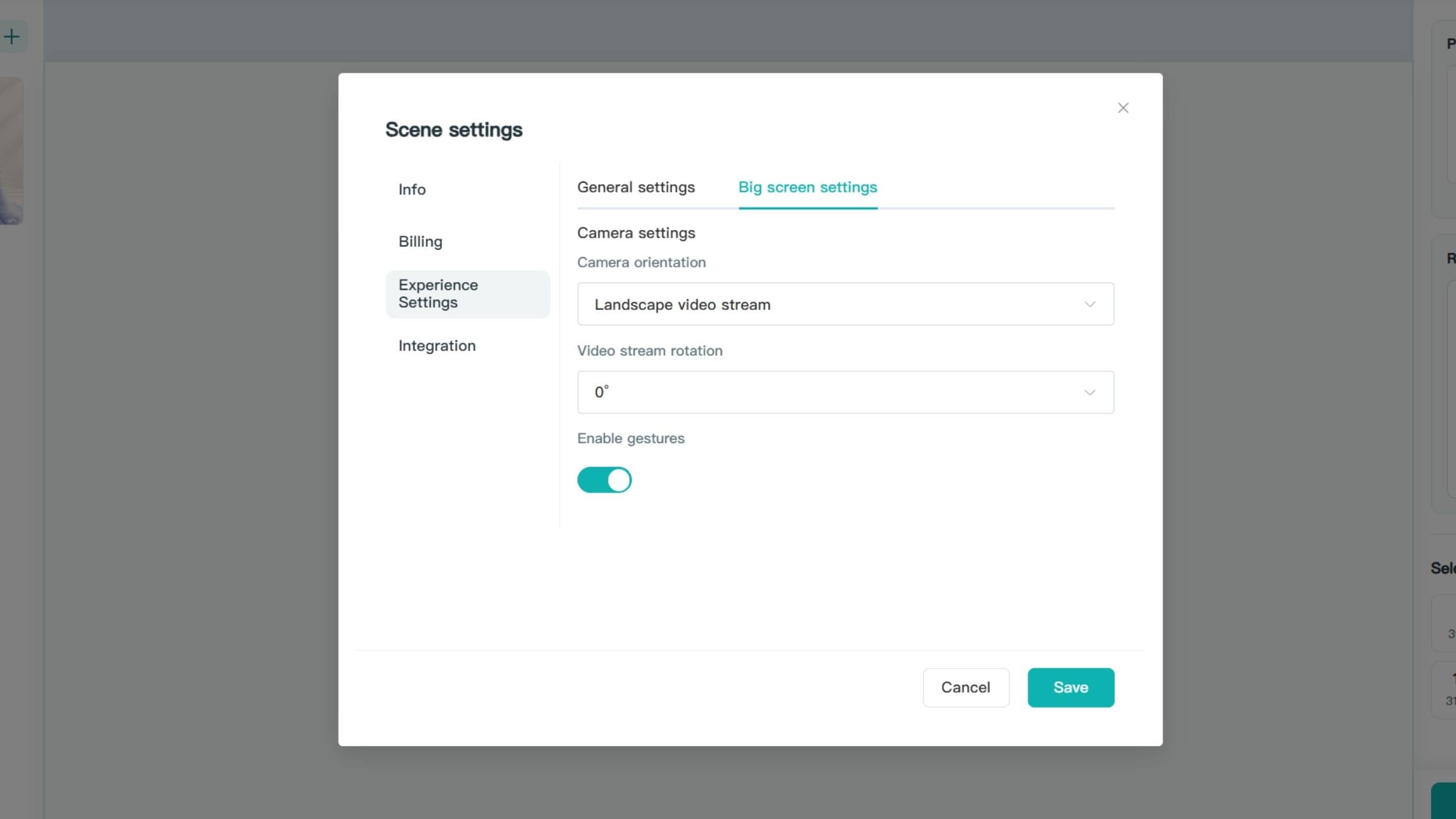
For in-store large-screen experiences, we recommend using portrait orientation and positioning the camera vertically. Then, set the camera orientation to portrait in the large-screen settings.
If the display is fixed in landscape orientation, adjust the video stream rotation angle to fit the screen.
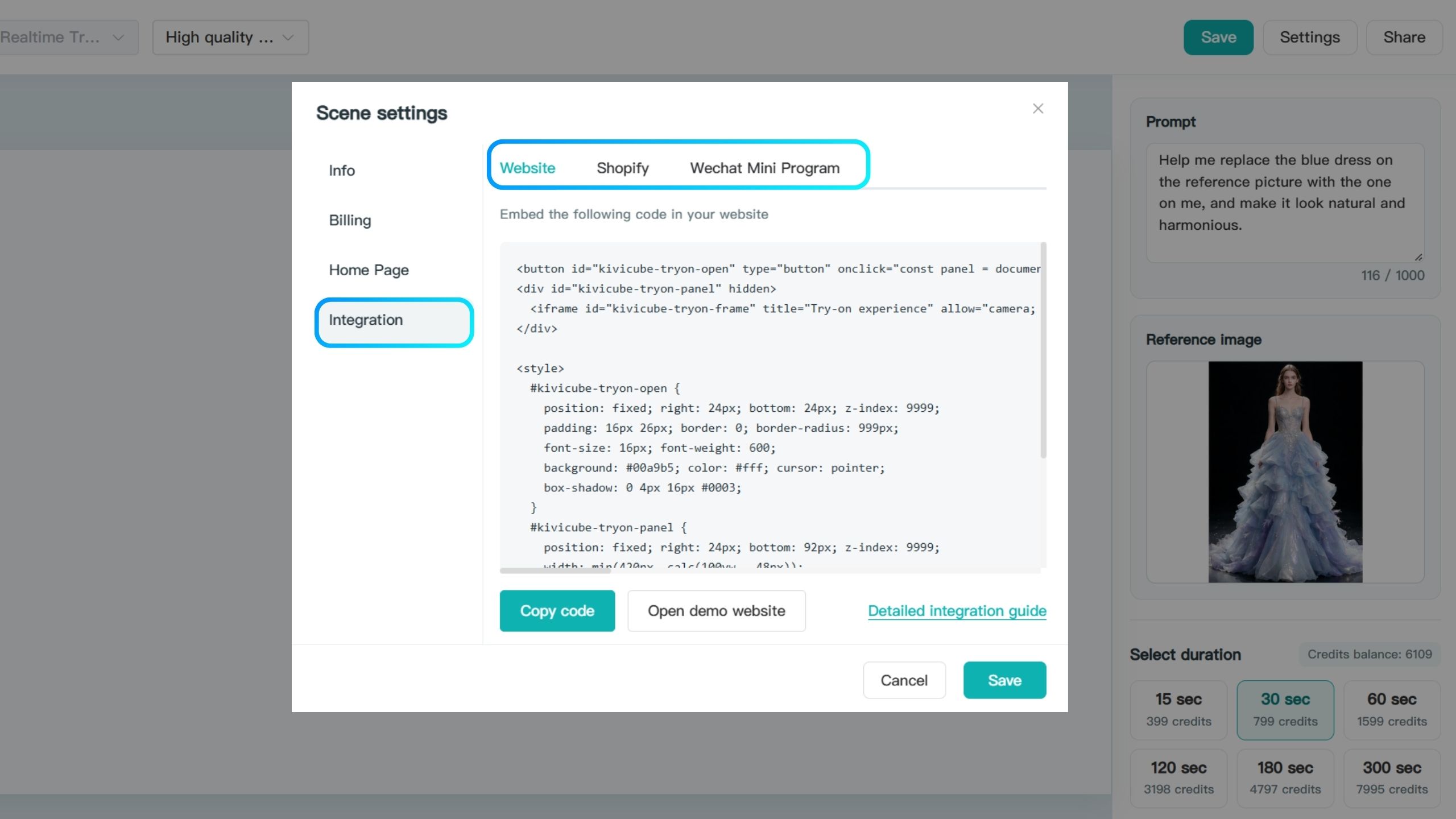
Whether you're expanding into international markets or serving customers locally, you can integrate Kivicube experiences into your website, Shopify store, or mini program to make your creations accessible to more users.
Both Live Try-On and Live Interaction can fit seamlessly into your content and business workflows, helping boost user engagement and create more opportunities for interaction and conversion.
Click here to view the integration guide.
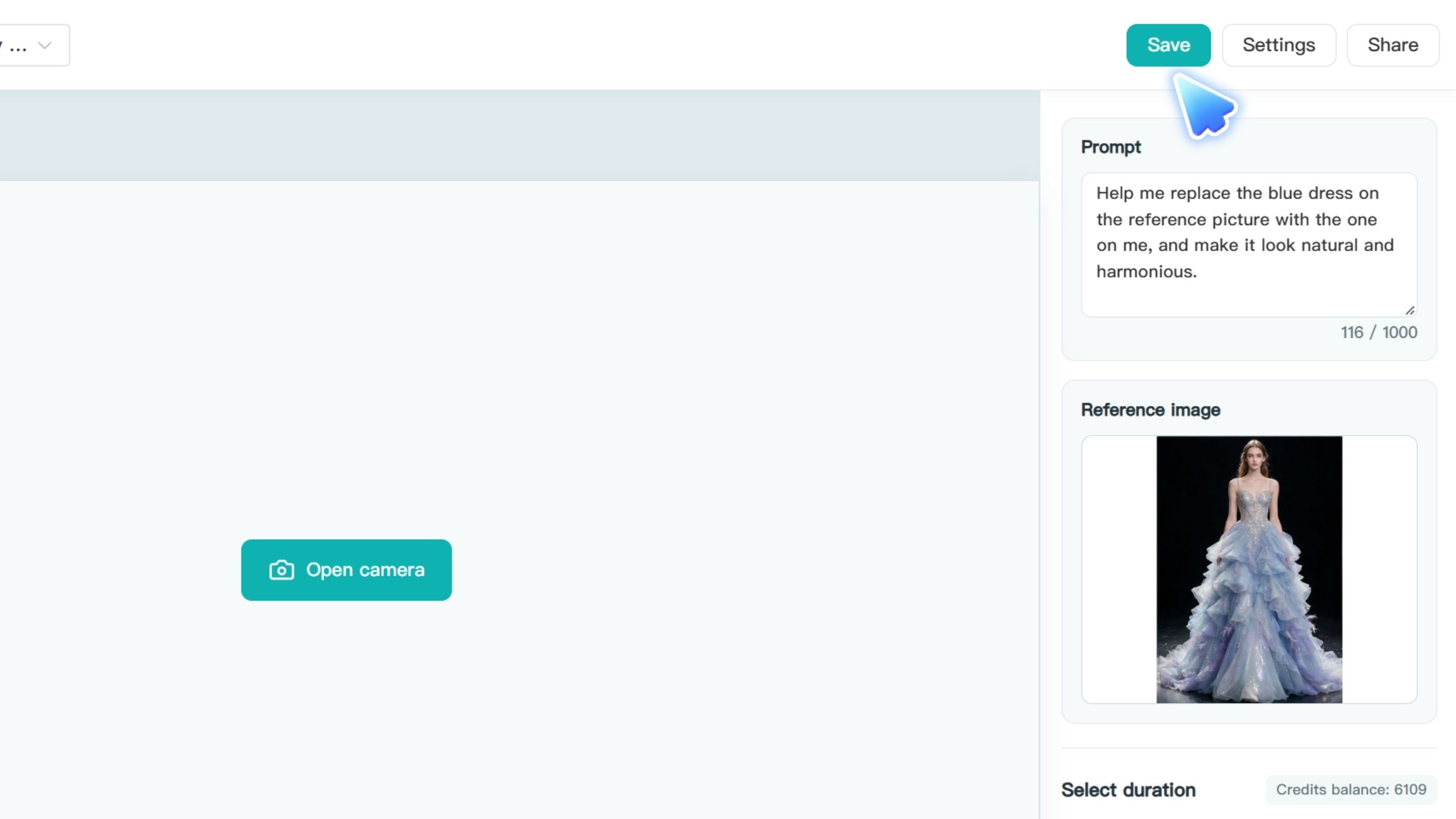
During creation, click Save in the top-right corner regularly to save your current scene. This allows you to continue editing and managing it later.