English
Appearance
Integrate your scenes into your website, Shopify store, or WeChat Mini Program so users can easily discover and experience your creations through familiar channels. Whether you're expanding your business, showcasing products, or sharing creative content, integration helps you reach more users, boost engagement, and create more opportunities for interaction and conversion.
For more advanced development options, click here.
Choose the integration method that fits your needs and follow the tutorial to complete the setup.
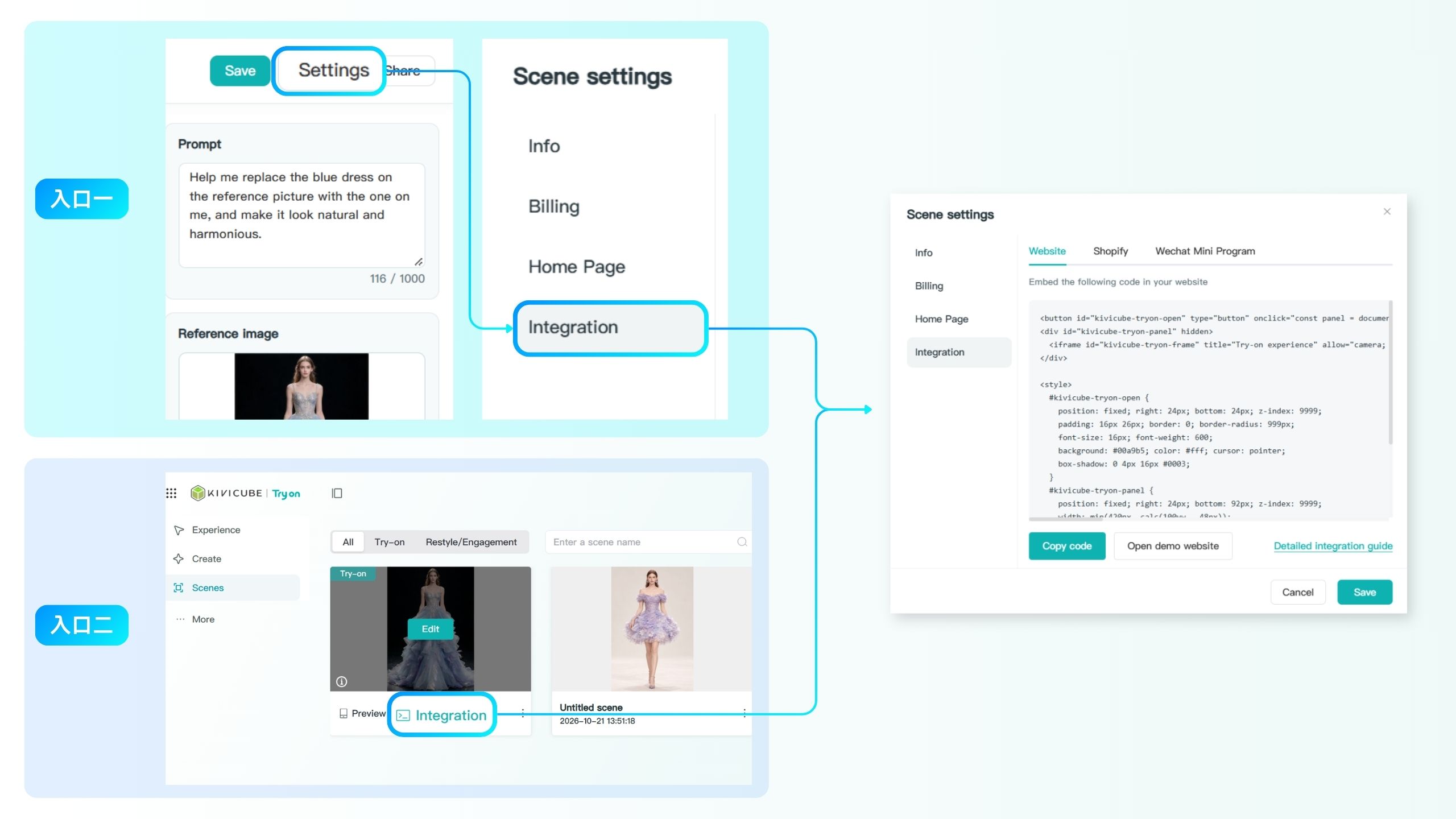
You can access Developer & Integration in two ways:
Option 1: Open the target scene, click Settings in the top-right corner, and select Integrate with Your App.
Option 2: Go to Scenes, find the target scene, and click Developer & Integration below the scene card.
On the integration page, select your desired channel and click Copy Code to get the integration code.
Integrate Kivicube experiences into your Shopify store so visitors can launch Live Try-On or Live Interaction directly from your store pages.
The following steps cover basic integration. For more advanced integration options, click here to learn more.
Copy the complete integration code for Shopify.
Log in to your Shopify admin and go to Online Store > Themes.
Find your current theme and click More actions ( ... ) on the right.
Select Edit code.
In the file list on the left, find the layout folder and open theme.liquid.
Locate the closing </body> tag at the end of the file.
Paste the complete integration code before the </body> tag. Keep the existing code and closing tag intact. Do not overwrite or remove other content.
Click Save.
Open your Shopify store and check that the experience entry appears correctly. Click it to make sure the experience opens as expected. Follow the on-screen instructions to grant camera access and complete a test session.
Note
We recommend duplicating your current theme as a backup before editing its code, so you can restore it if anything goes wrong.
Adding the code to theme.liquid typically displays the experience entry on pages that use this layout. To show it only on specific pages, adjust the code placement based on your theme structure.
If you're not familiar with theme code, we recommend asking a developer to help with the integration.
Embed Kivicube experiences into your website so visitors can access Live Try-On or Live Interaction without leaving the current page.
Copy the full web integration code.
Log in to your website's admin dashboard and find a place to add custom HTML code. Paste the copied code there.
If your website allows you to edit the page source, you can also add the code to the relevant HTML page. We recommend placing it before the closing </body> tag.
Save the code and publish your website. To use the experience on multiple pages, you can add the code to the relevant shared page templates, depending on your website structure.
Open your published website and check that the experience entry appears correctly. Click it to make sure the experience panel opens as expected. Follow the on-screen instructions to grant camera access and complete a test session.
Note
The steps for adding code may vary across website platforms. If you're using Shopify or a Mini Program, refer to the relevant integration guide.
Tip
The button appears in the bottom-right corner by default. To customize its style or position, click here for detailed configuration instructions.
Embed your scene experiences in a WeChat Mini Program so users can open and interact with your creations directly within the Mini Program.
Log in to the WeChat Mini Program Admin Console. Add the following domain under Business Domain and complete the required verification.
www.kivicube.com
Copy the integration code for the Mini Program.
In your WeChat Mini Program project, open the page where you want to display the experience. Paste the copied code into the corresponding WXML file.
The code uses the web-view component to open the scene's experience page. Keep the full code intact and make sure the scene URL is included.
Navigate to the configured page within your Mini Program and check that the experience loads correctly. Follow the on-screen instructions to grant camera access, then test the Live Try-On or Live Interaction effects.
Note
Make sure the business domain is configured and verified, and that the Mini Program page loads the experience correctly.
Tip
The button appears in the bottom-right corner by default. To customize its style or position, click here for detailed configuration instructions.