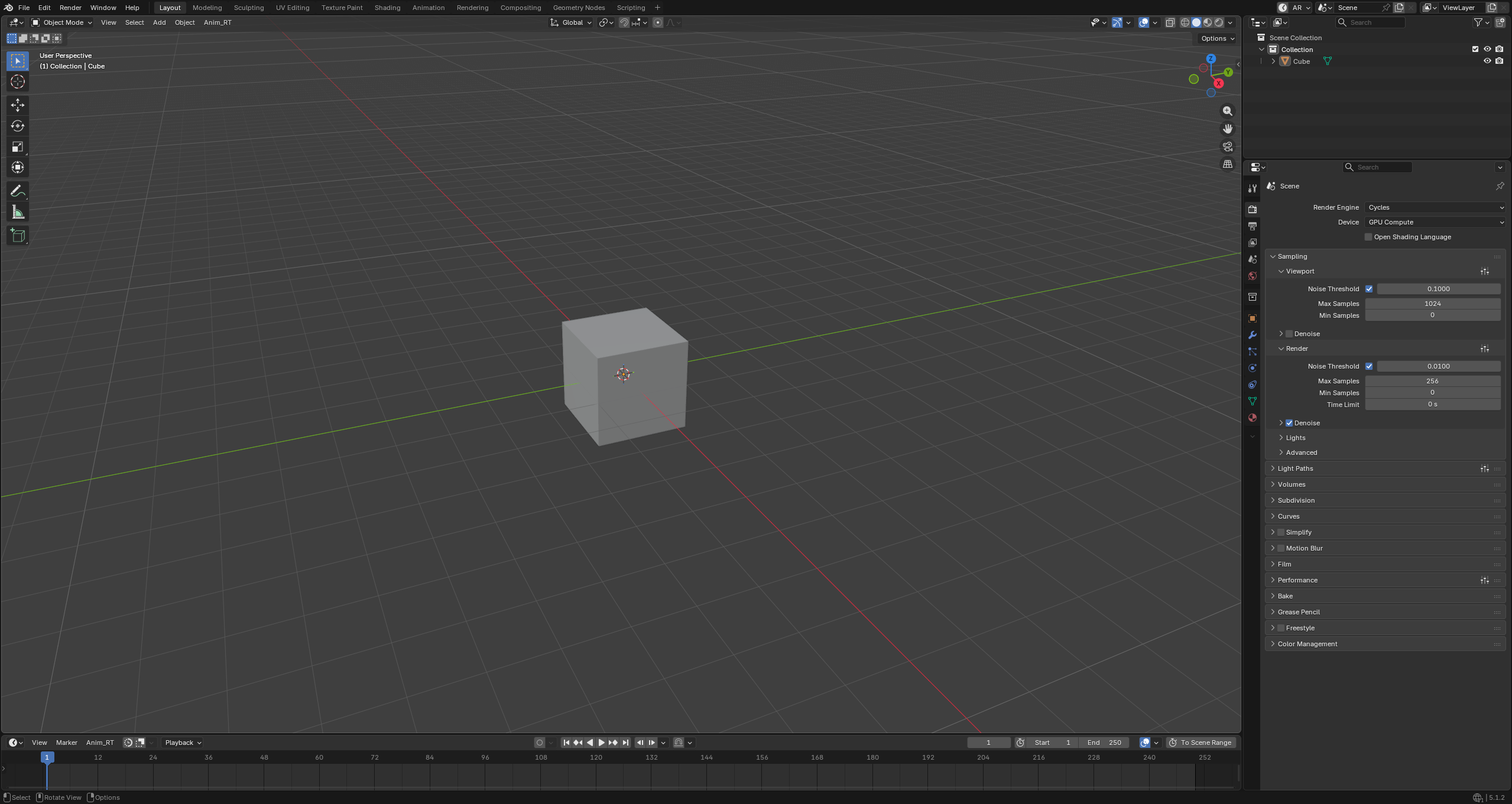
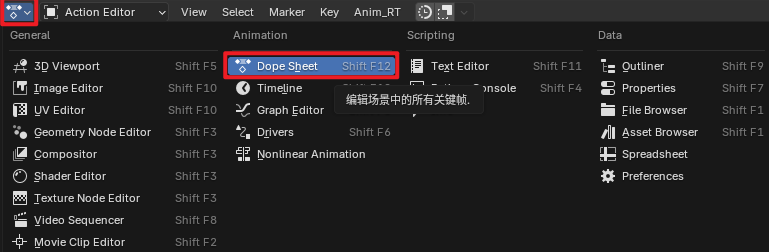
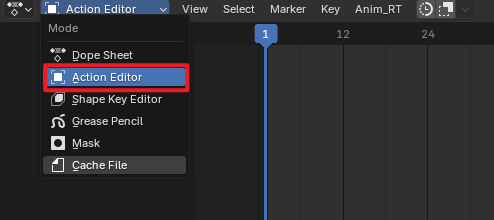
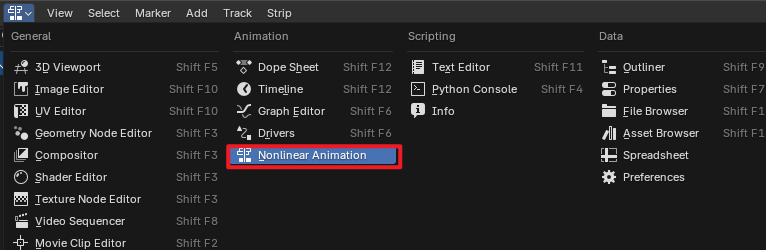
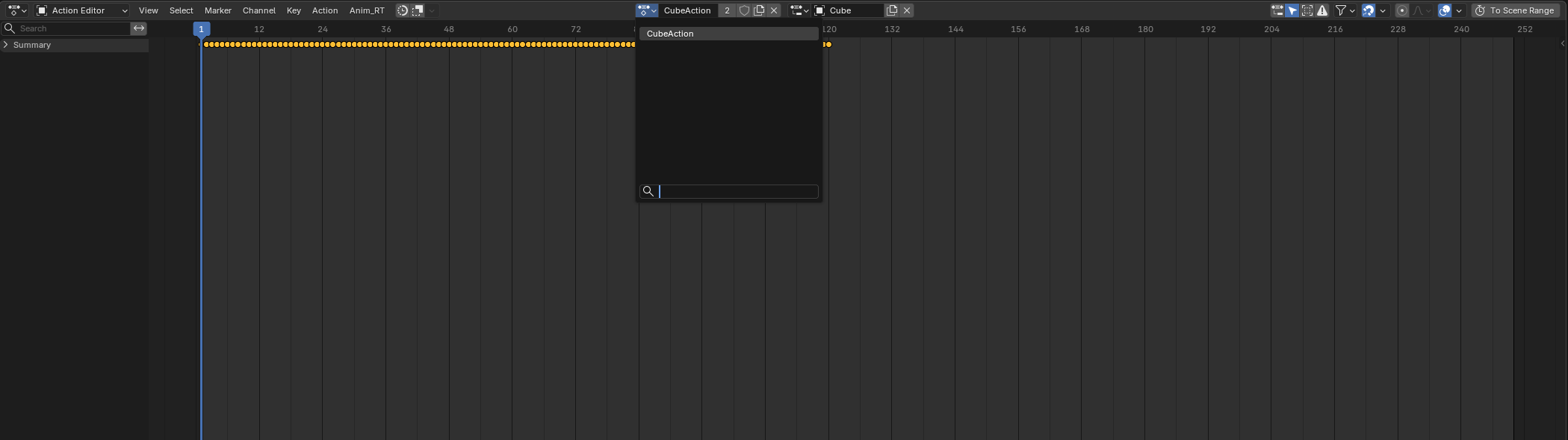
Open the Dope Sheet window and switch to the Action Editor.
Select the object, then create a new Action and animation slot.
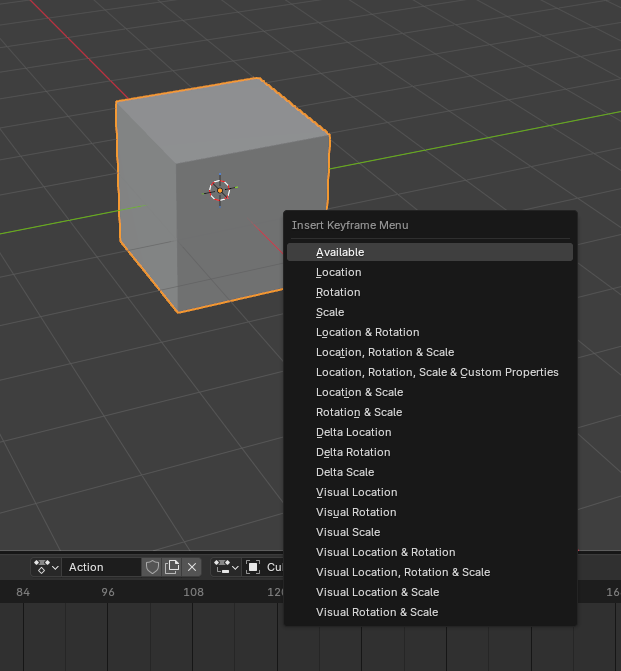
Select the object, press K in the viewport to insert a keyframe, then begin animating.
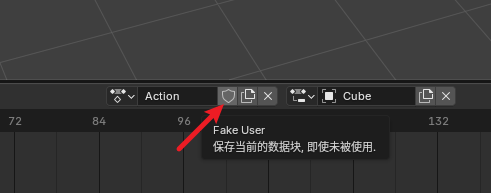
When an action is complete, click × to unlink it, then click New to start a new animation. Before closing, rename the action and click the Shield (Fake User) button to prevent data loss.
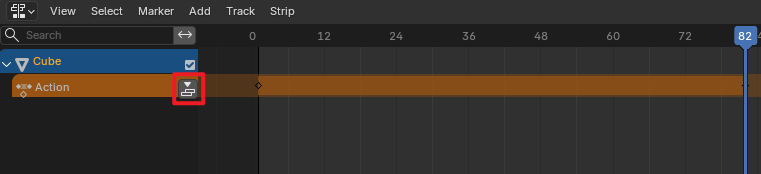
Completed actions can be pushed to an NLA track for organized export.
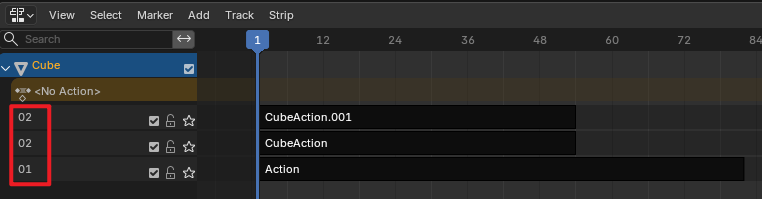
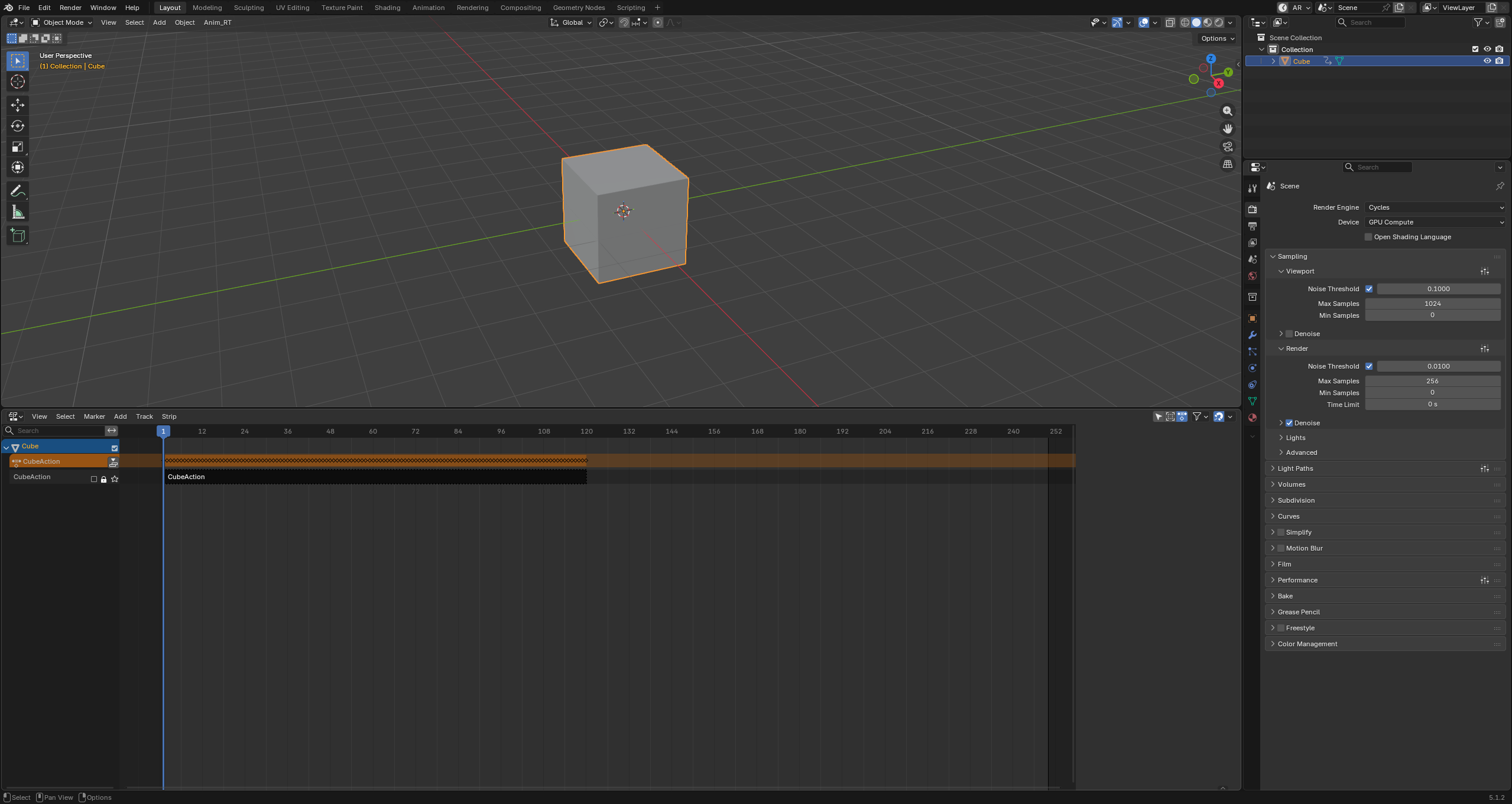
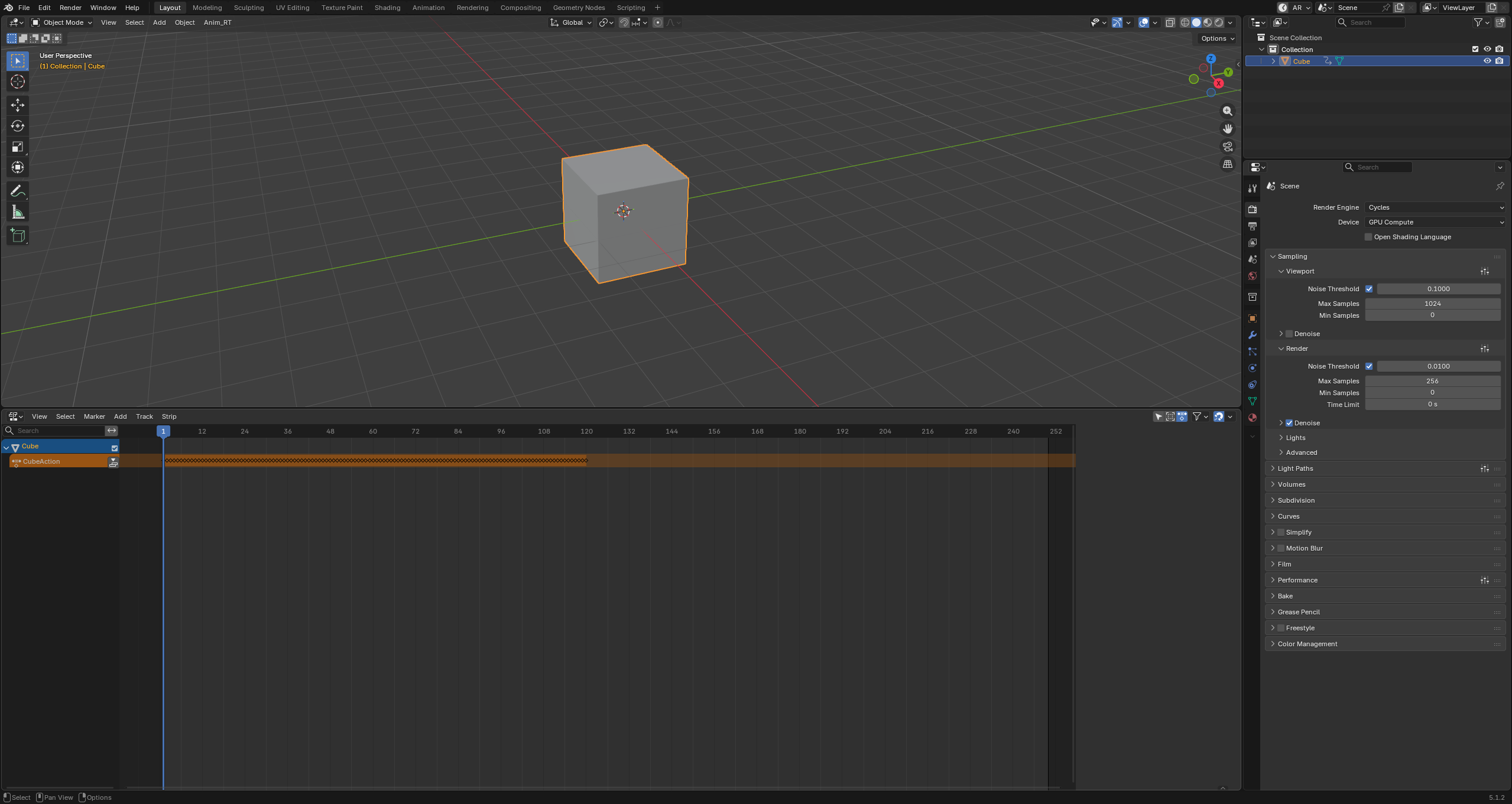
Open a new editor window and switch to the NLA Editor to see the actions that have been pushed to the NLA tracks.
You can also push the current active action to an NLA track directly from within the NLA Editor. The track displayed here reflects the currently active action.
Push all animations to their tracks and name them. Tracks with identical names will be merged into a single animation clip on export — commonly used when multiple objects share the same animation.
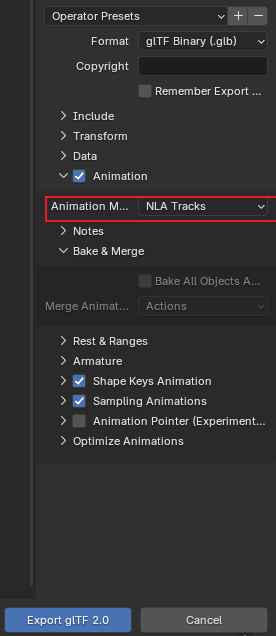
When exporting, select NLA Tracks as the Animation Mode to export all configured animation clips.
Import the model whose animation you want to split, then switch to the NLA Editor. Depending on the source file, existing NLA tracks may already be present.
Clear the existing tracks, select the correct source action, and verify the animation plays back correctly.
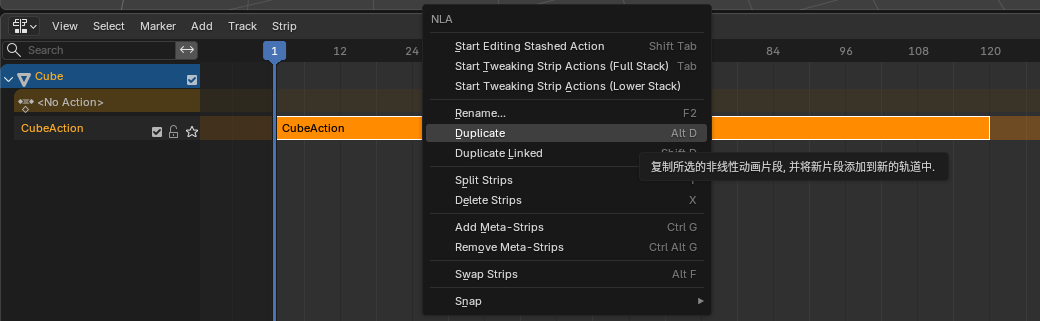
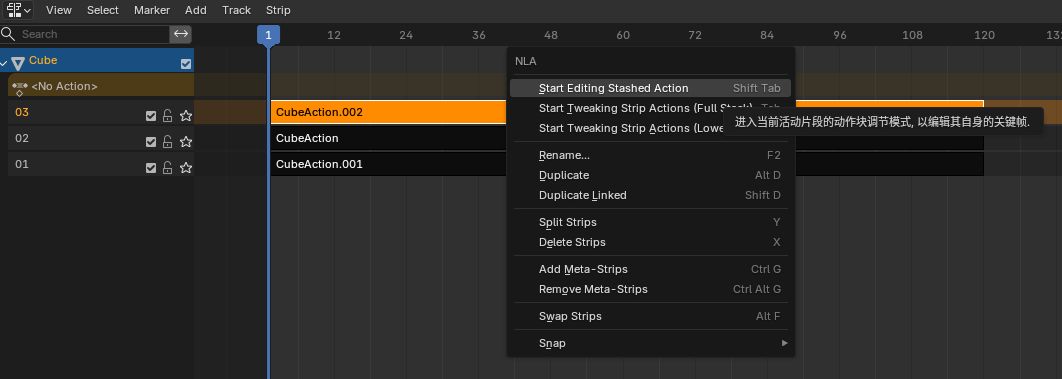
Once the animation is confirmed correct, push it to an NLA track. Then right-click the strip and duplicate it — duplicate once for each target clip. Name each strip with the intended clip name.
Right-click a strip and choose Edit Action. Pay attention to the Solo icon — enabling it prevents strips from interfering with each other during editing.
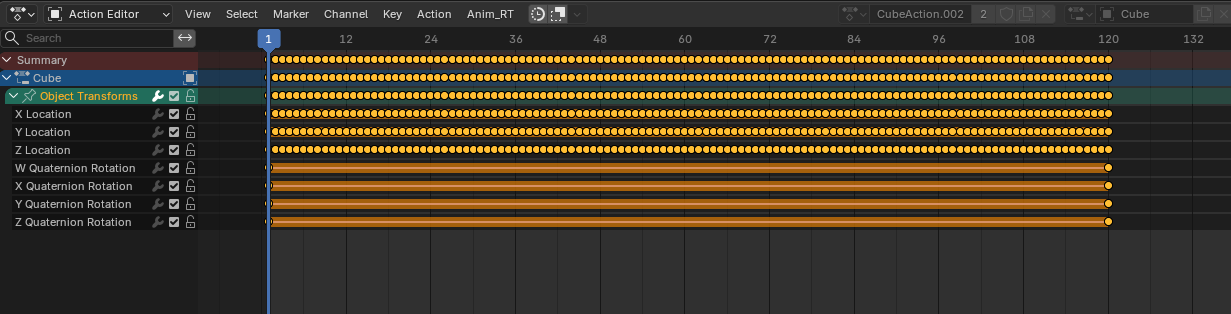
Switch to the Action Editor and delete the keyframes outside the desired range for this clip.
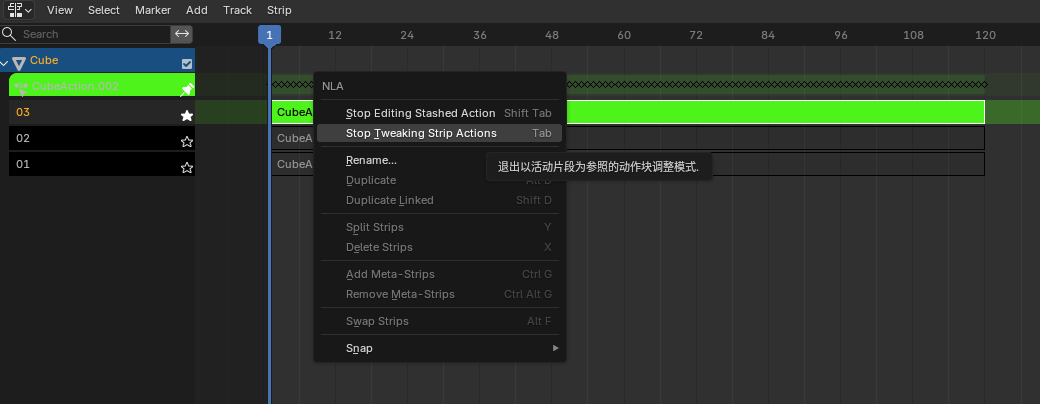
Switch back to the NLA Editor and right-click the strip → Exit Edit Mode. One clip is now split out. Repeat the same process for the remaining strips.
When exporting, select NLA Tracks as the Animation Mode to export all split clips as separate animations.