English
Appearance
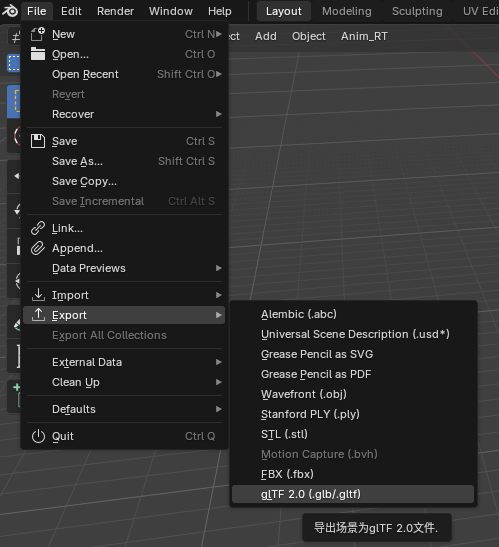
File ‣ Export ‣ glTF 2.0 (.glb, .gltf)
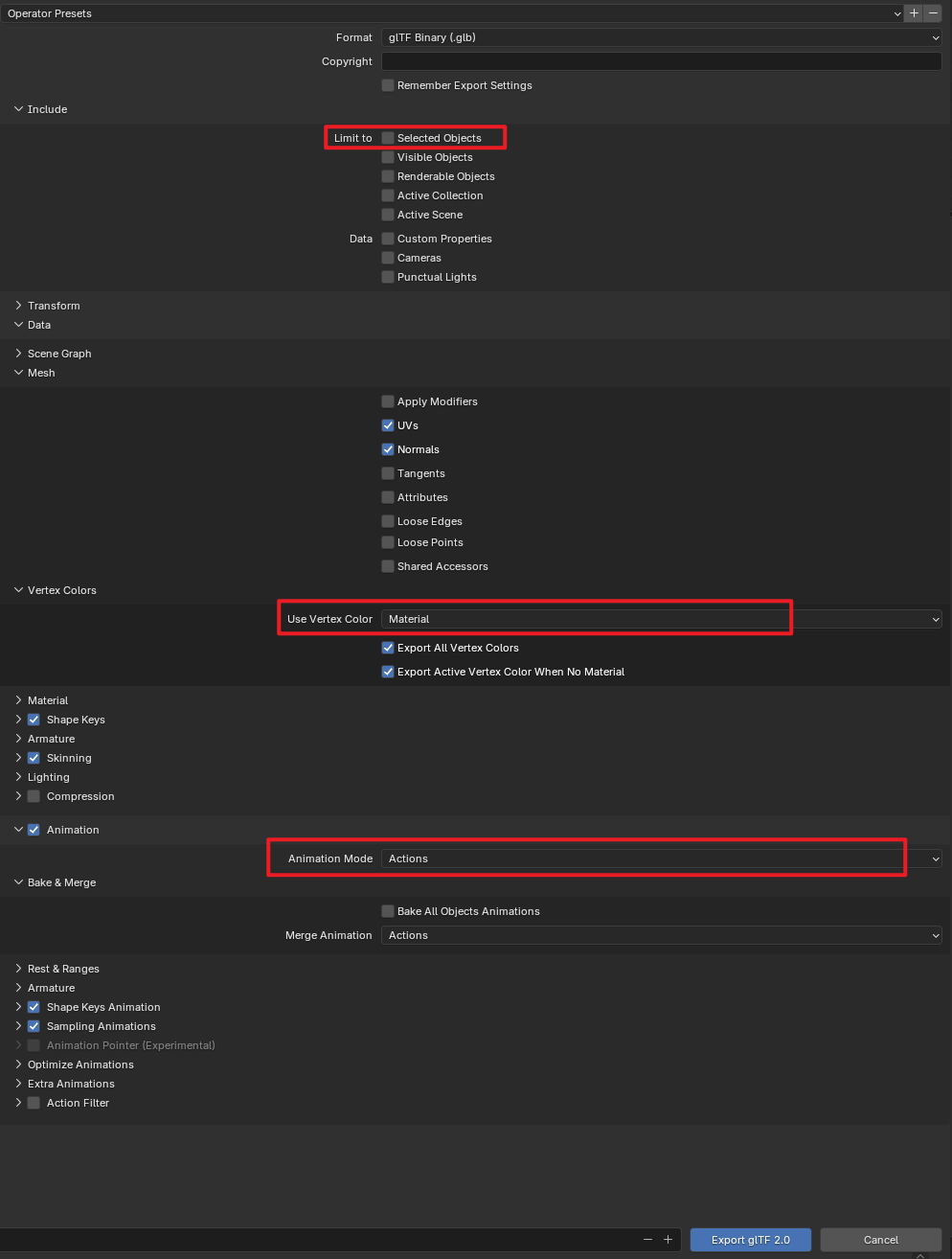
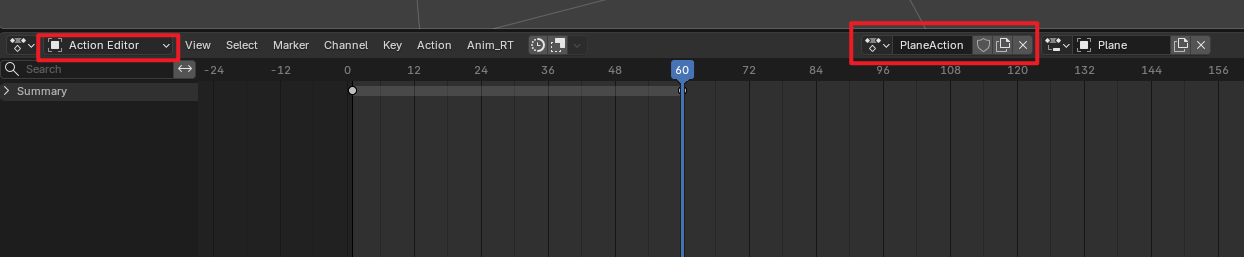
Active Actions Merged: In this mode, the active actions on all objects are merged and exported as a single animation clip. Useful when exporting only one animation. Active action: the action currently activated in the Action Editor.
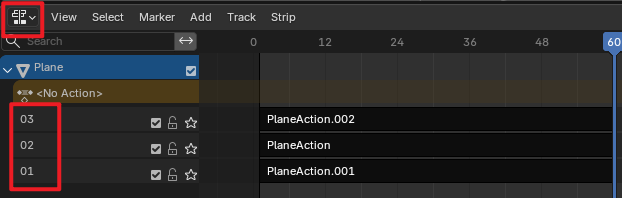
NLA Tracks: In this mode, each Non-Linear Animation track is exported as a separate glTF animation clip. Useful when exporting multiple animation clips.
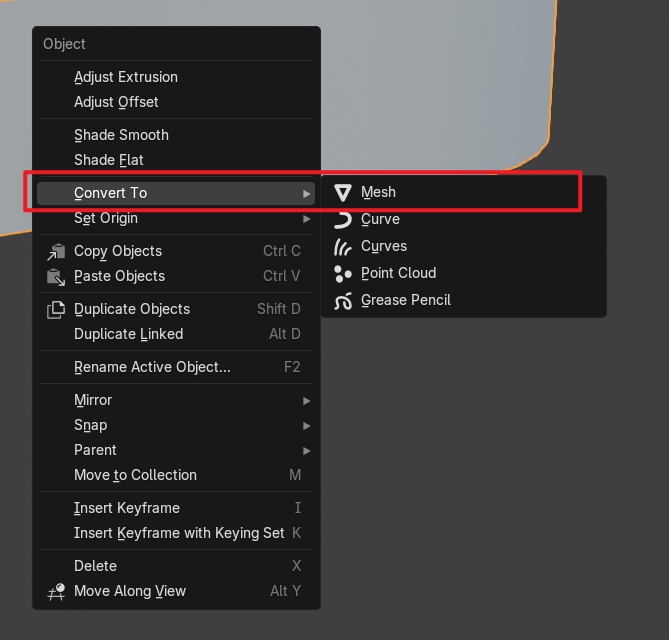
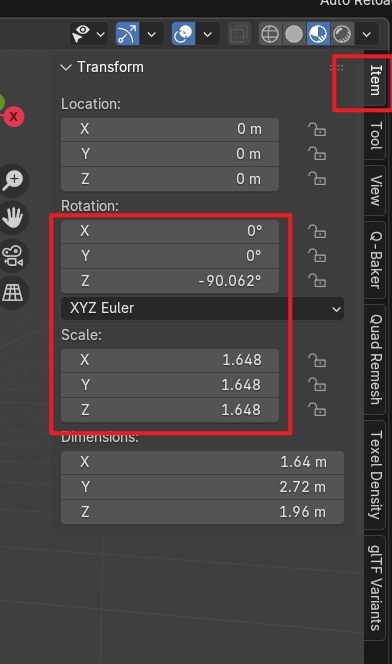
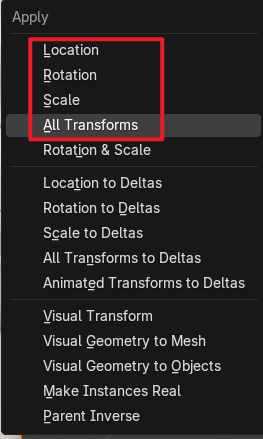
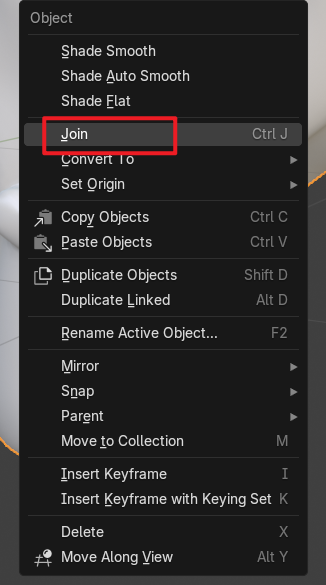
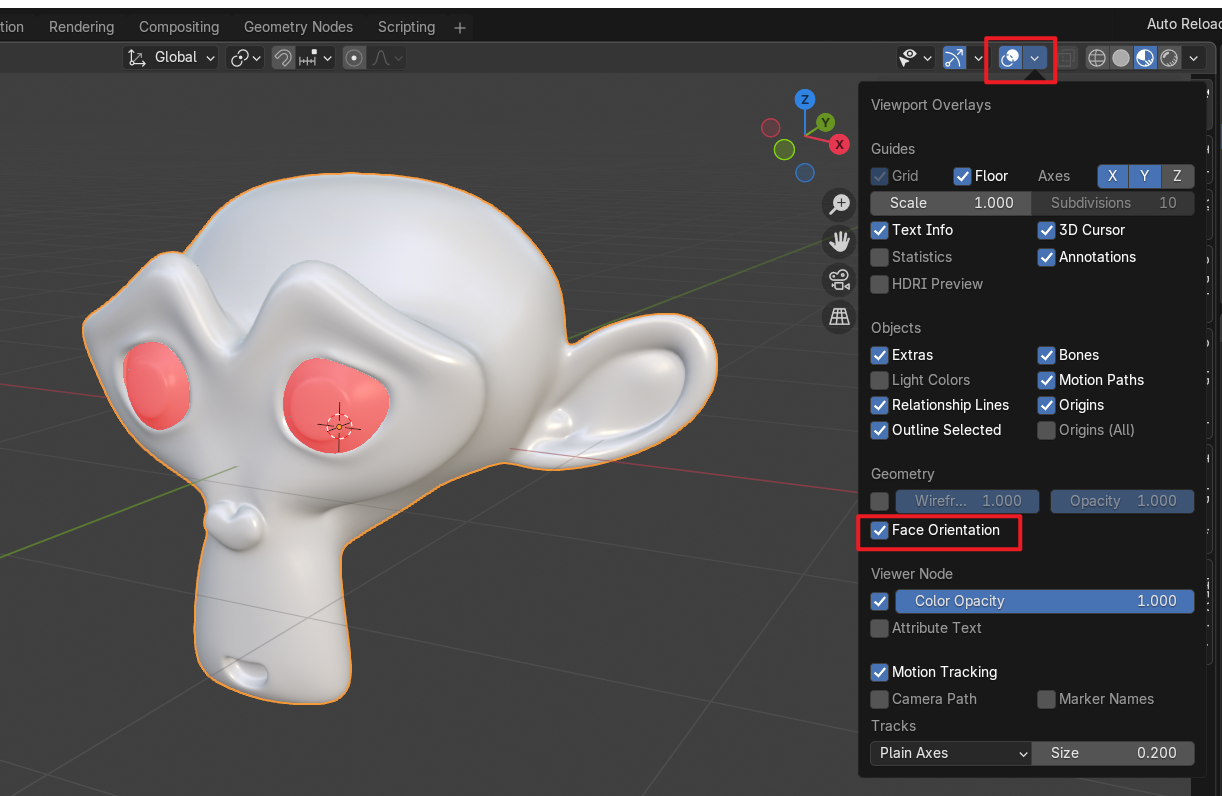
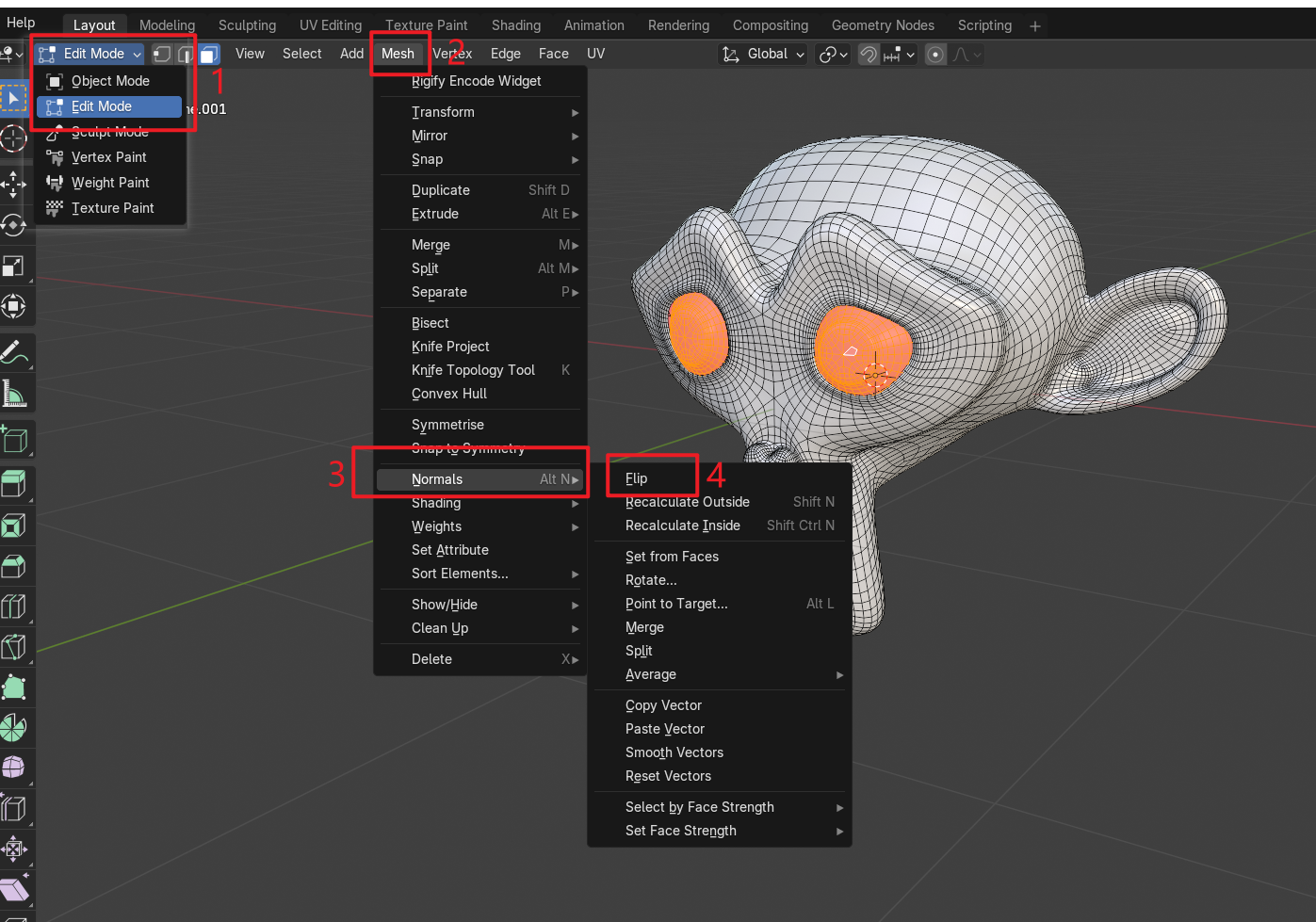
Enter Edit Mode, select the problematic faces, then go to Mesh → Normals → Flip.
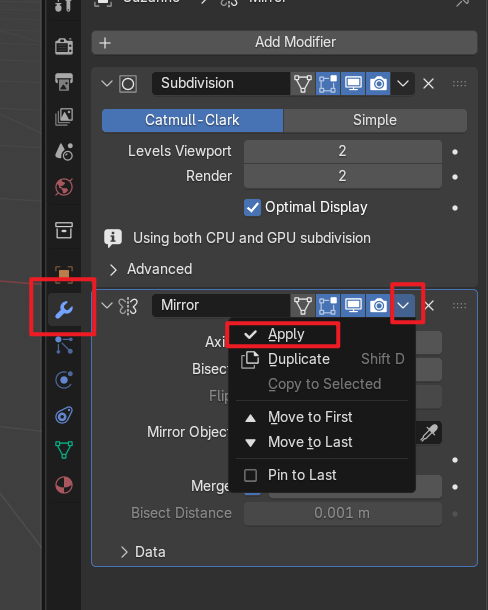
PBR Material
The core glTF material system supports the Metallic/Roughness PBR workflow via the following channels:
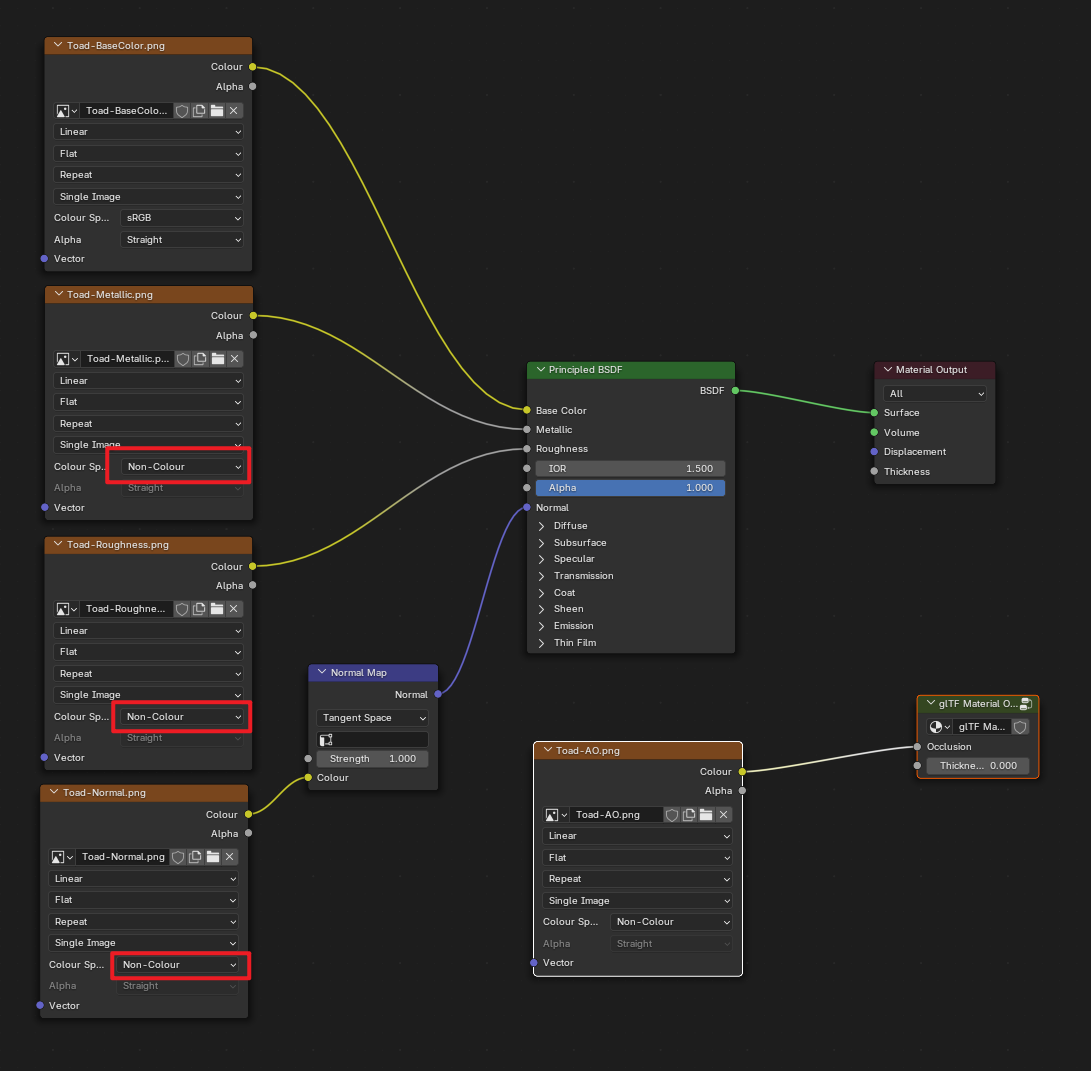
glTF Material Output.Unlit Material
To export an Unlit material, use a Camera Ray Mix shader as shown in the diagrams below.
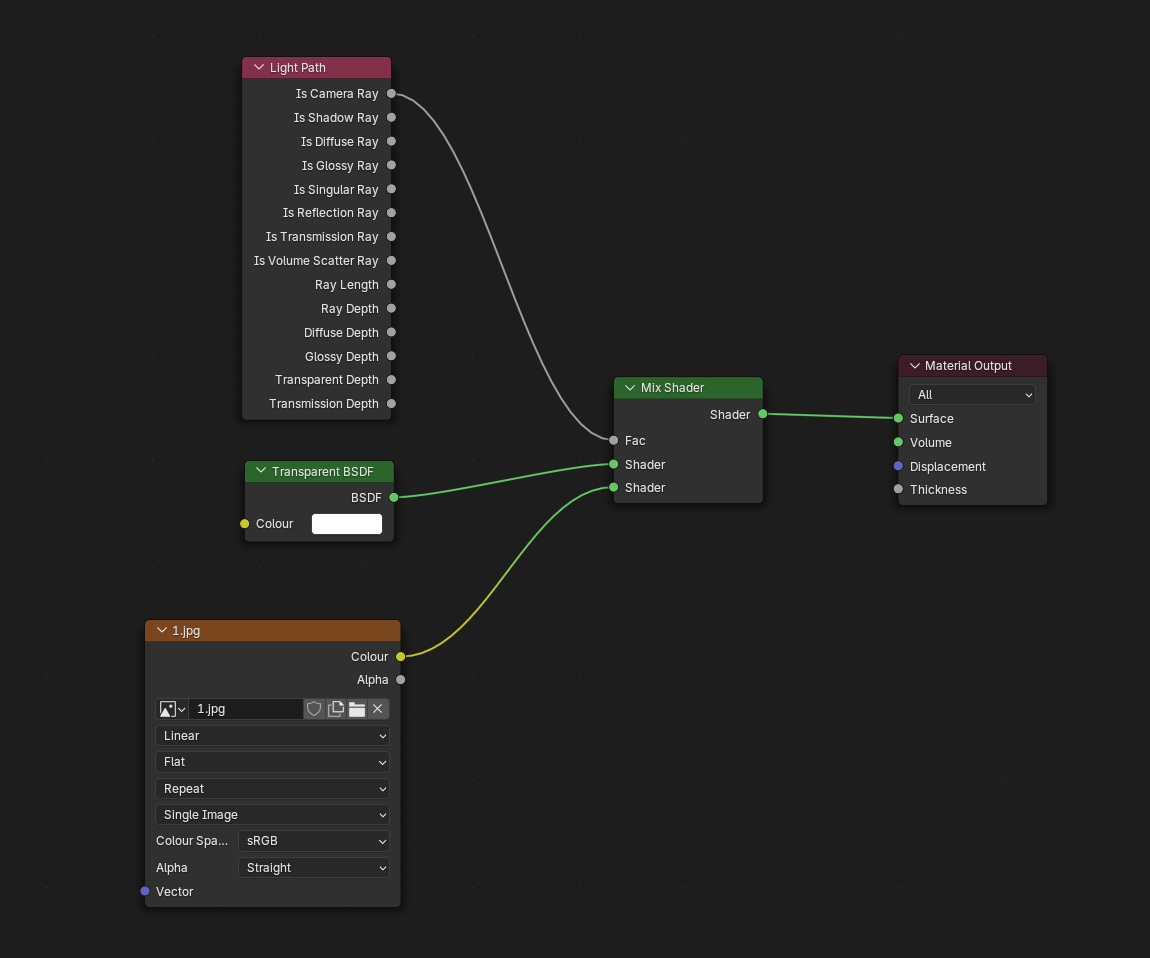
Standard Unlit material
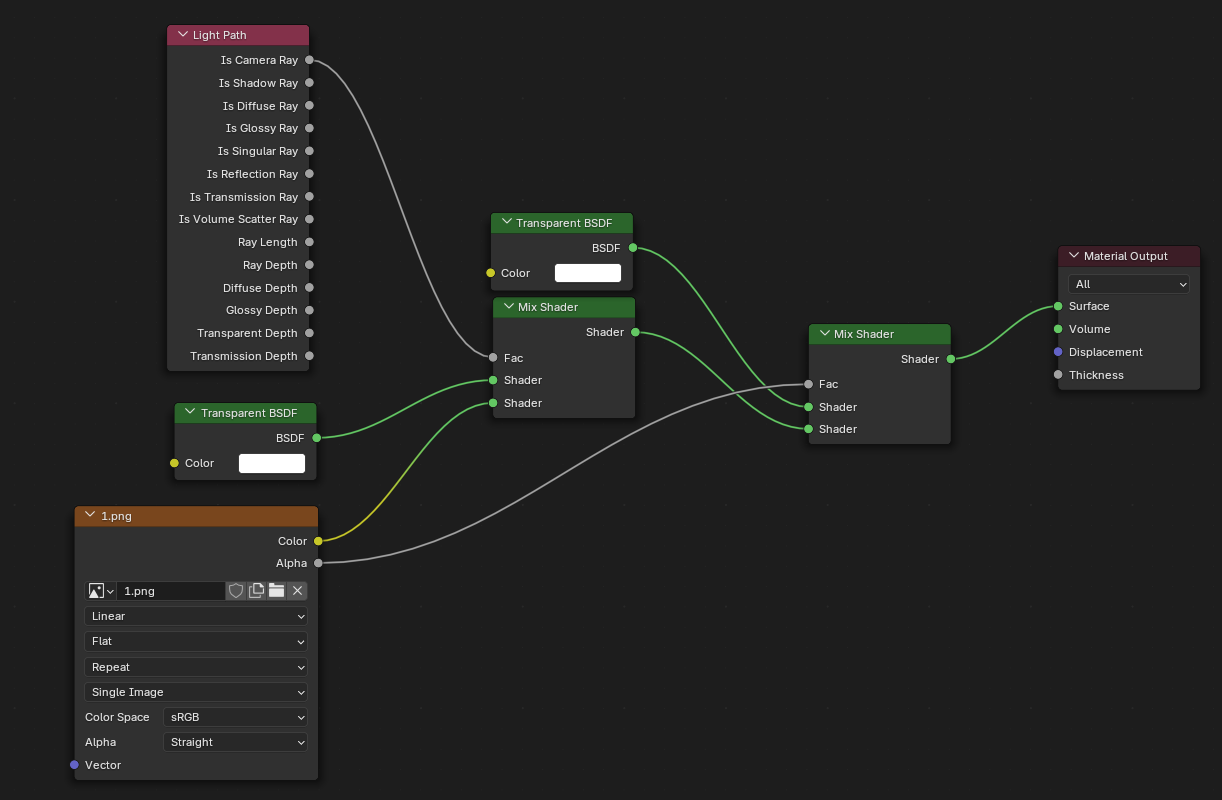
Unlit material with alpha transparency channel
File → Export → Real-Time Exporter, or alternatively File → Export → Export (Selected) → GLTF
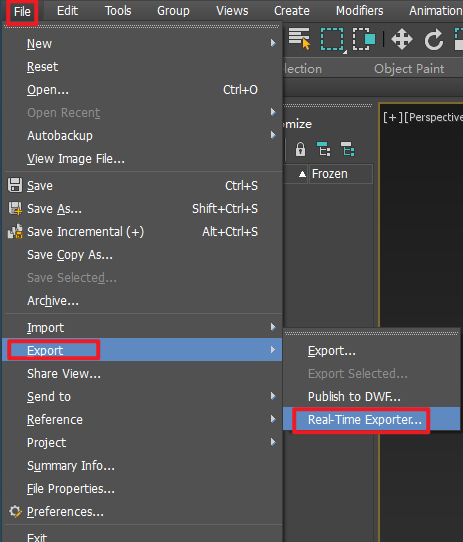

Modifiers are not supported at the modifier stack level. Convert all geometry to Editable Poly before exporting.
It is recommended to use the glTF Material: Material Editor → General → glTF Material.
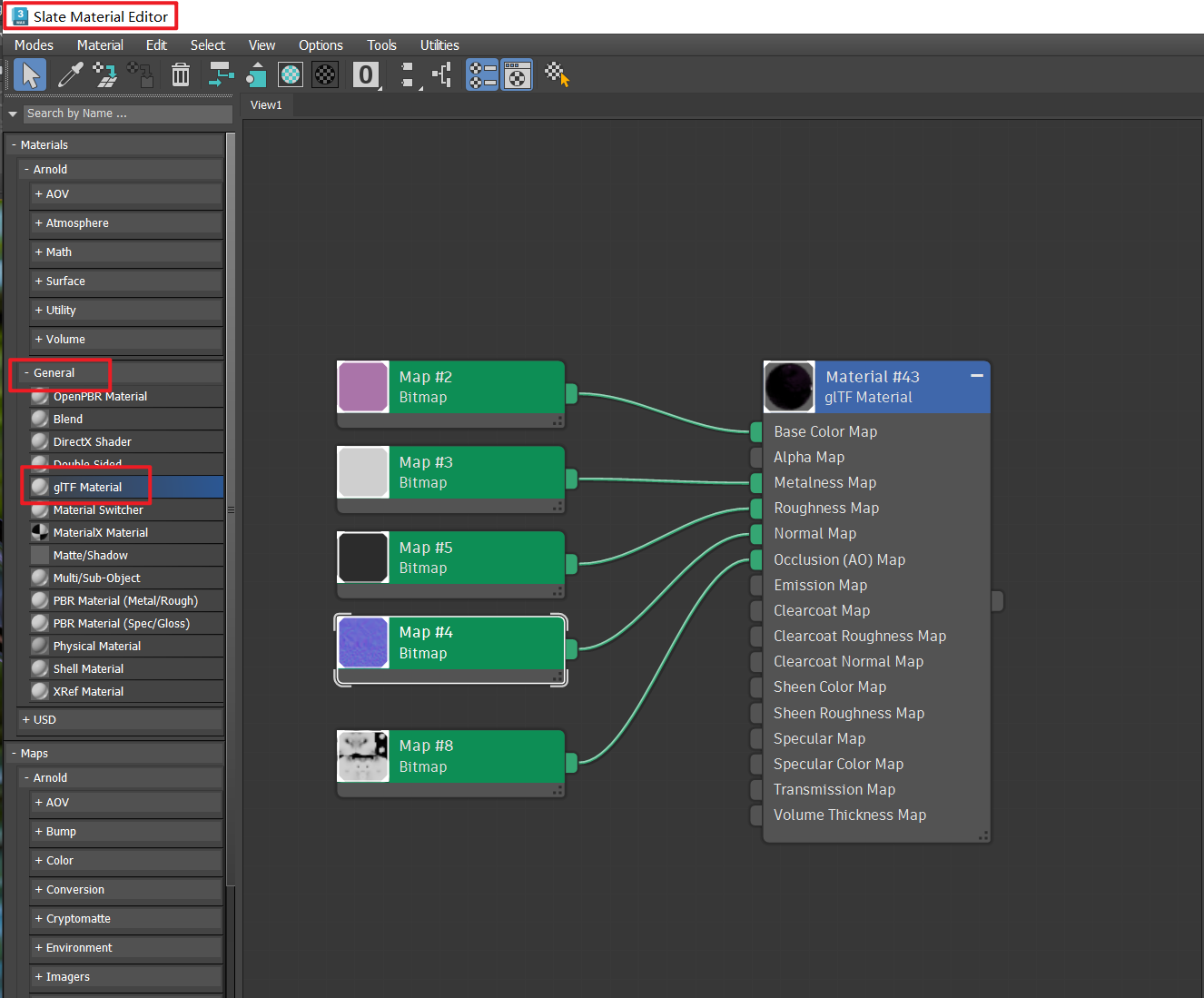
Known Limitations of the glTF Material
color.value or color.v).Not supported. Please refer to the FBX Export process.
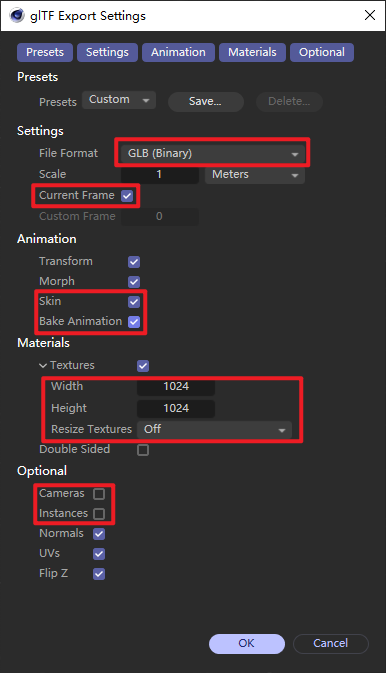
Effectors and MoGraph objects are not supported. Convert them to polygonal meshes before exporting.
Use Standard, Physical, or Redshift materials. Ensure textures are directly connected to the material.
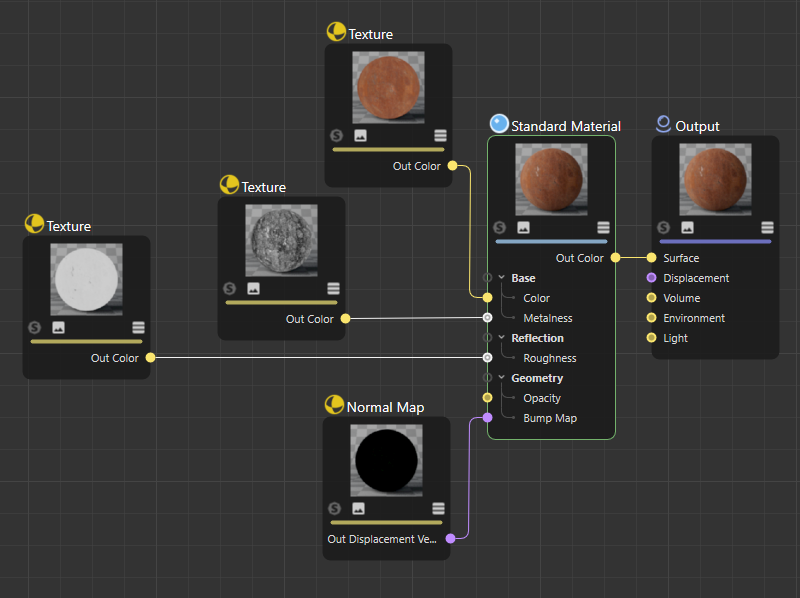
Not supported. Please refer to the FBX Export process.
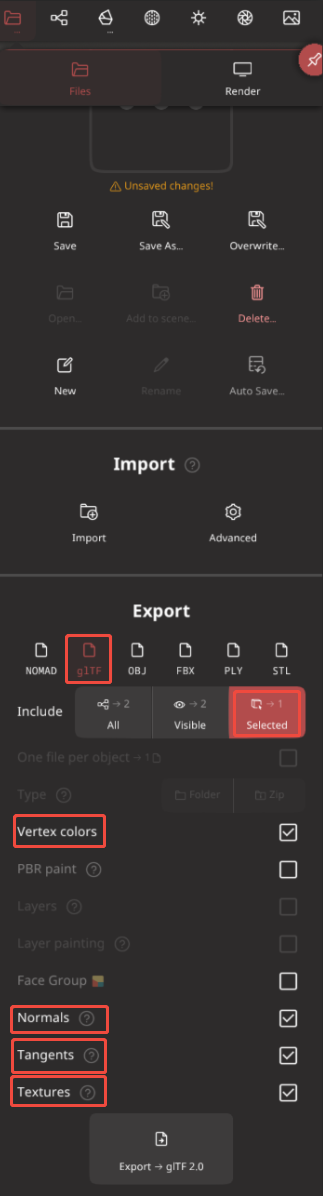
Use Decimate or Remesh to bring the polygon count within an acceptable range, then bake vertex color painting to a texture map.
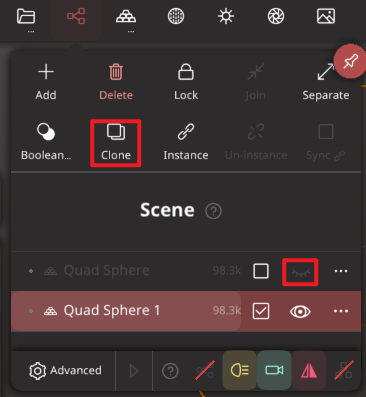
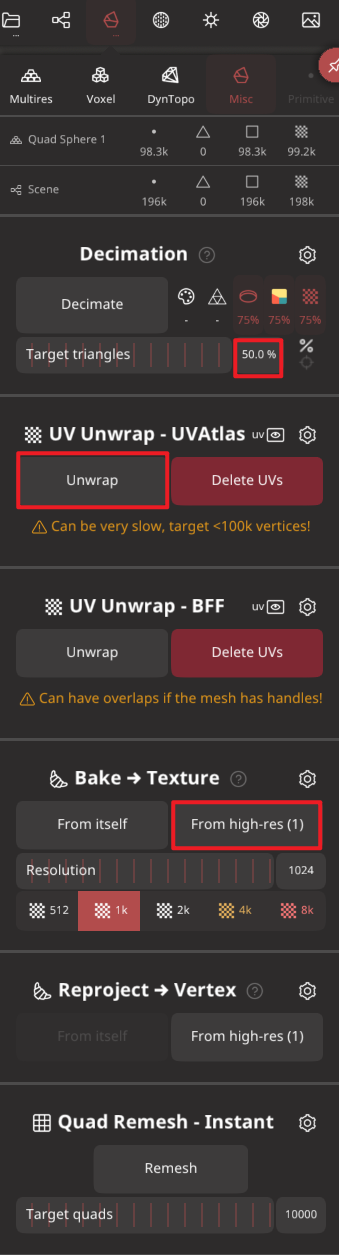
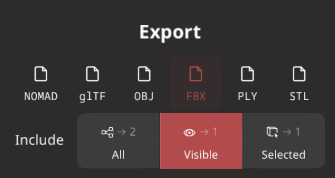
Procreate supports import/export as USDZ or OBJ only. glTF is not supported.
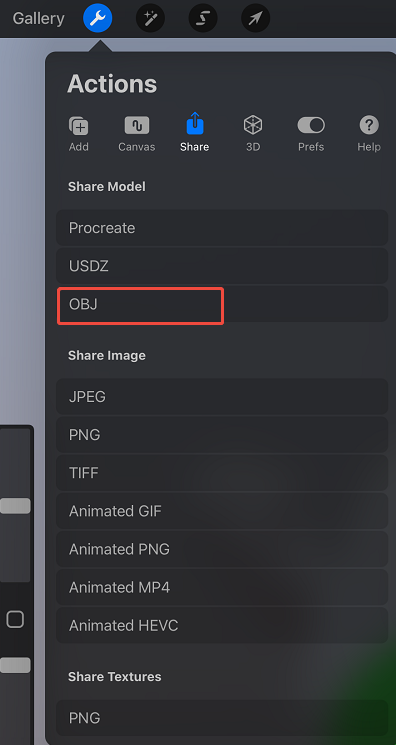
Share → OBJ
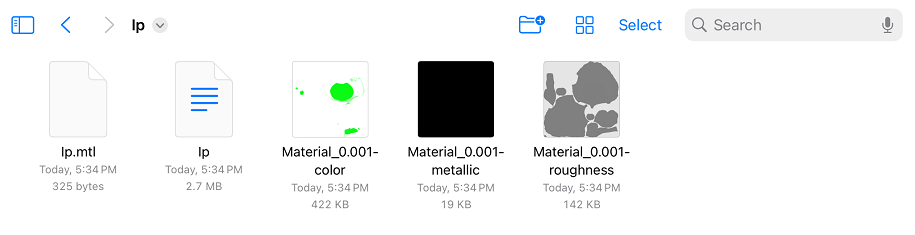
The exported package contains an **.obj** file, an **.mtl** file, and a **textures** folder. Zip the entire package and it is ready to upload.