English
Appearance
The Scene Editor is the core workspace where you build and configure your AR experiences. Here, you can create AR scenes in a visual, drag-and-drop workflow while adding interactions and animations to bring your content to life.
Once a scene is created, Kivicube will automatically open the Scene Editor, allowing you to start designing immediately.
Let’s walk through the main functional areas of the Scene Editor and what each section is used for:
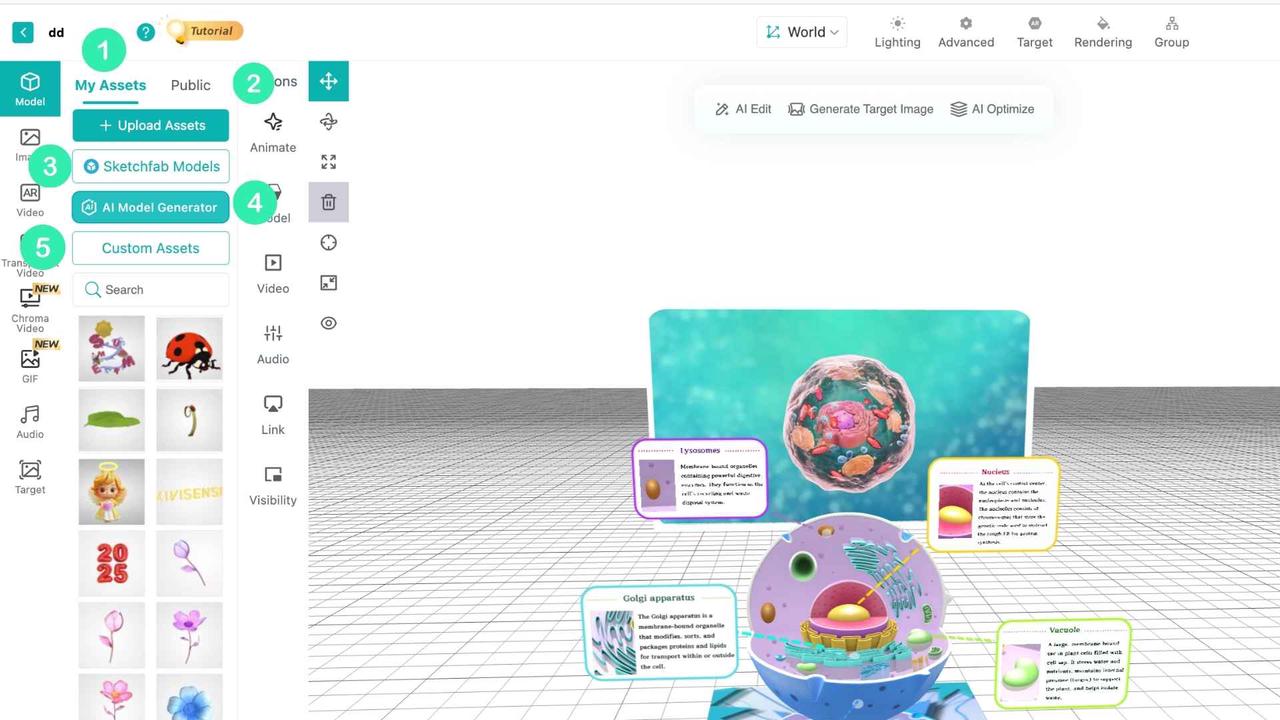
The Assets Library allows you to upload and manage various types of content, including: 3D models , Images , GIFs , Transparent videos ,Chroma Key videos ,Videos ,Audio and Tracking images.
My Assets: Upload and manage your own assets by type.
Public Assets: Access a large collection of ready-to-use assets provided by Kivicube, filterable by asset type.
Sketchfab Models: Browse and import models directly from Sketchfab, one of the world’s largest 3D asset libraries.
AI Model Generator: Quickly access Kivicube’s AI model generation tools. Currently supports Text to 3D and Image to 3D
Custom Assets: Kivicube provides hundreds of prebuilt model assets. You can customize them by editing materials, replacing textures, and more, making them suitable for your specific use case.
The 3D Canvas is your main canvas for building AR scenes. You can drag assets from the library into the workspace and perform layout design, interaction setup, and animation creation.
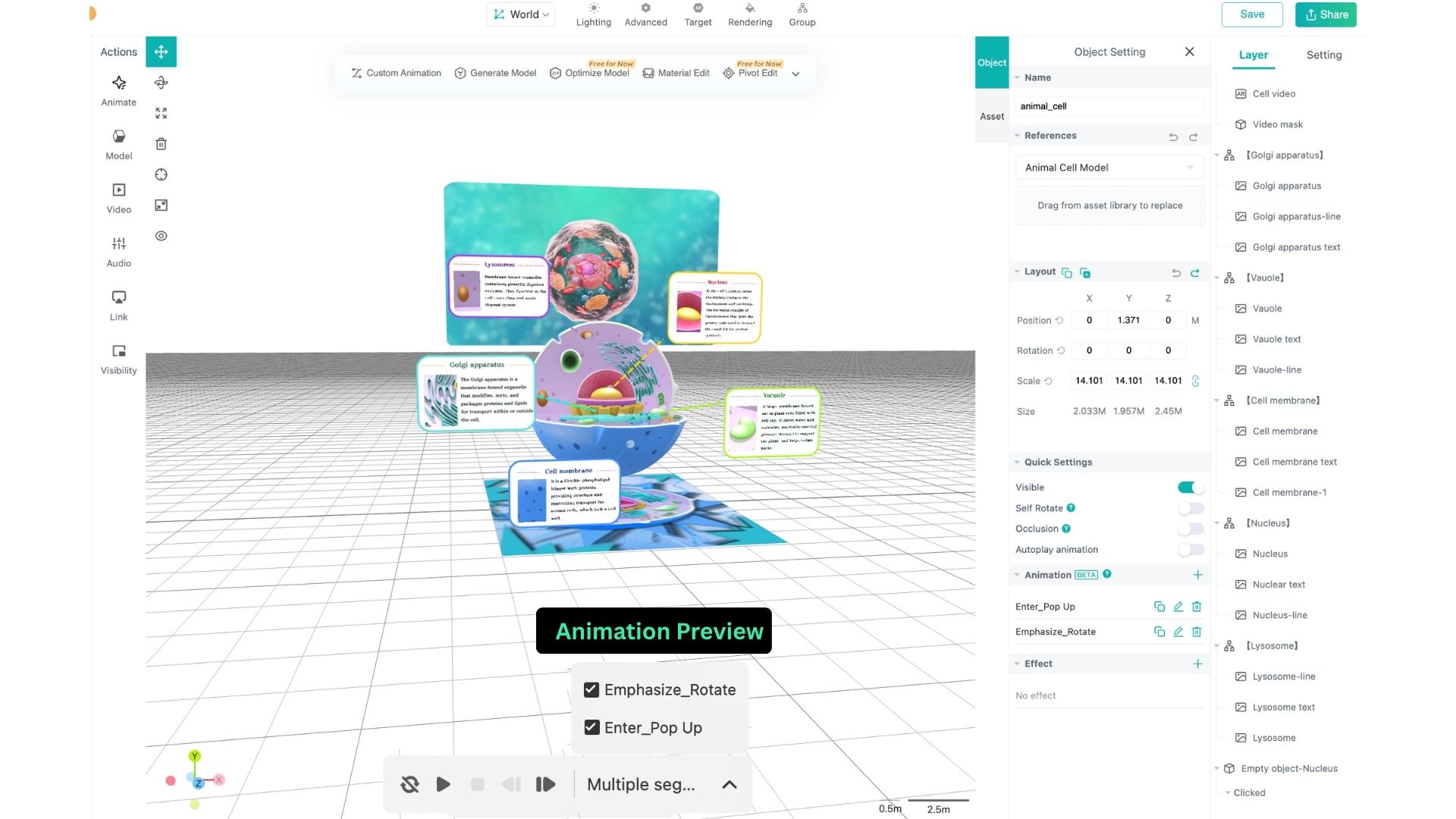
Select an asset in the canvas and click the Play button below to preview its animation. If multiple animations are applied, you can select other animations to preview them.
Kivicube provides several toolbars to support different types of operations within the 3D Canvas.
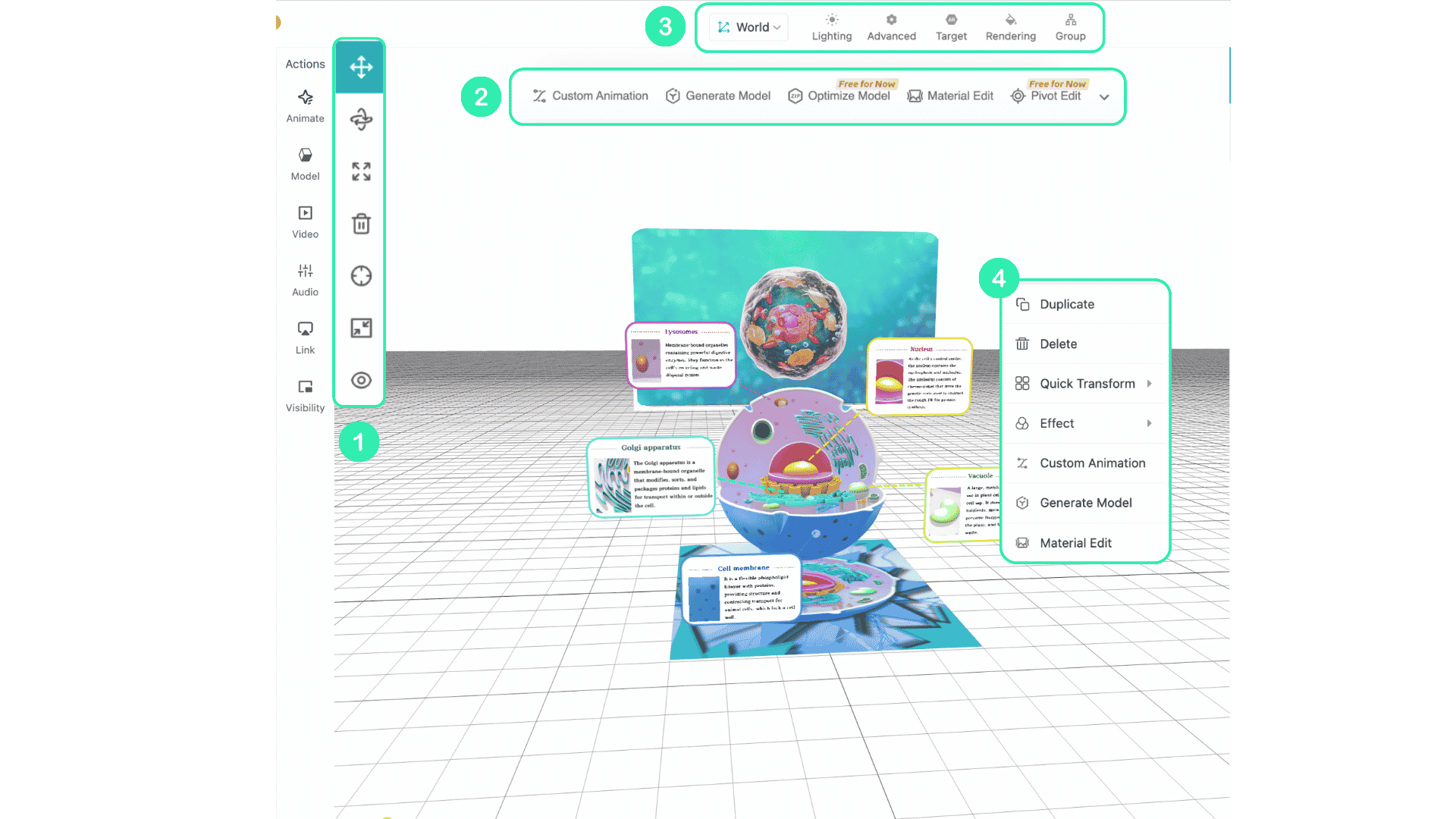
The Transform Tools are used for common layout adjustments. You can move, rotate, and scale assets to achieve the desired positioning and proportions.
To remove an asset, you can either click **Delete **in the toolbar or press the delete key on your keyboard.
The Reset button returns the canvas view to its default state, which is especially useful if you have zoomed in for precise adjustments.
You can also switch between** Portrait and Full Screen** modes.
When your scene becomes complex, you can hide selected assets using** Hidden in Canvas**.
The Floating Toolbar appears above the canvas when an asset is selected. From here, you can quickly access Kivi AI to generate images, models, or videos to speed up your workflow.
It also provides common asset-level operations such as trimming transparent pixels, adjusting the model’s pivot point, compressing models, applying effects, and adding animations.
The Top Toolbar is used for higher-level controls. It allows you to adjust lighting, switch AR tracking algorithms, change rendering engine versions, enable or disable hybrid tracking (for example, combining image tracking with gyroscope), and group assets.
The Right-click Toolbar allows you to quickly duplicate or delete assets. It also includes Quick Transform, which provides preset layout parameters for faster and more precise positioning. On tablet devices, this toolbar is triggered by a long press.
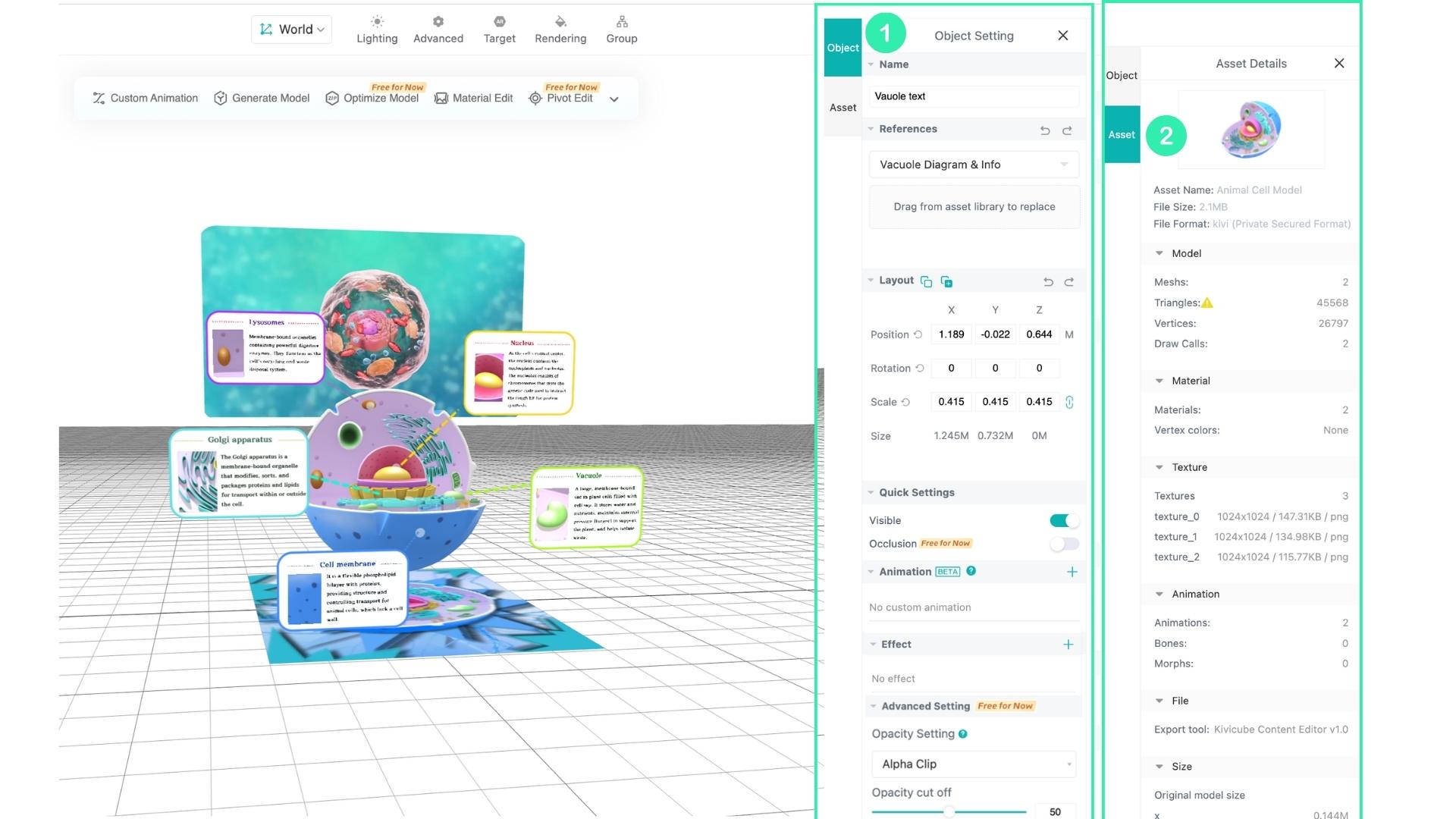
In the Object Panel, you can configure detailed settings for the selected asset.
Under Object Setting, the Name field allows you to rename the selected asset at any time.
The References feature lets you drag other assets into this area to perform replacement, reuse interactions, or inherit custom animations. This is especially useful when working with templates, as it enables you to quickly replicate interactions and animations while replacing content with your own.
The Layout section allows you to precisely adjust position, rotation, and scale using numeric inputs. You can also copy these values and paste them onto other assets, and undo parameter changes when needed.
Quick Settings provides fast configuration options such as enabling auto-rotation for models, auto-play for videos, toggling visibility, and quickly applying occlusion. These are shortcut settings intended for quick testing or simple scenes.
Note that the detailed interaction configuration can only be viewed in the Settings Panel after selecting the asset, and will not be displayed in the Layer panel.
In the Animation section, you can click the “+” button to add preset animations to the selected asset.
In the Effect section, clicking the “+” button allows you to apply visual effects such as toon outlines to model assets.
Opacity Settings (images only) allows you to enable Alpha Clip and adjust its parameters to prevent visual artifacts when multiple image layers overlap or intersect.
In Assets Details, you can view technical information about the selected asset, such as polygon count and vertex count for models, or format and file size for videos. Kivicube also performs validation checks on uploaded assets and provides error feedback when necessary.
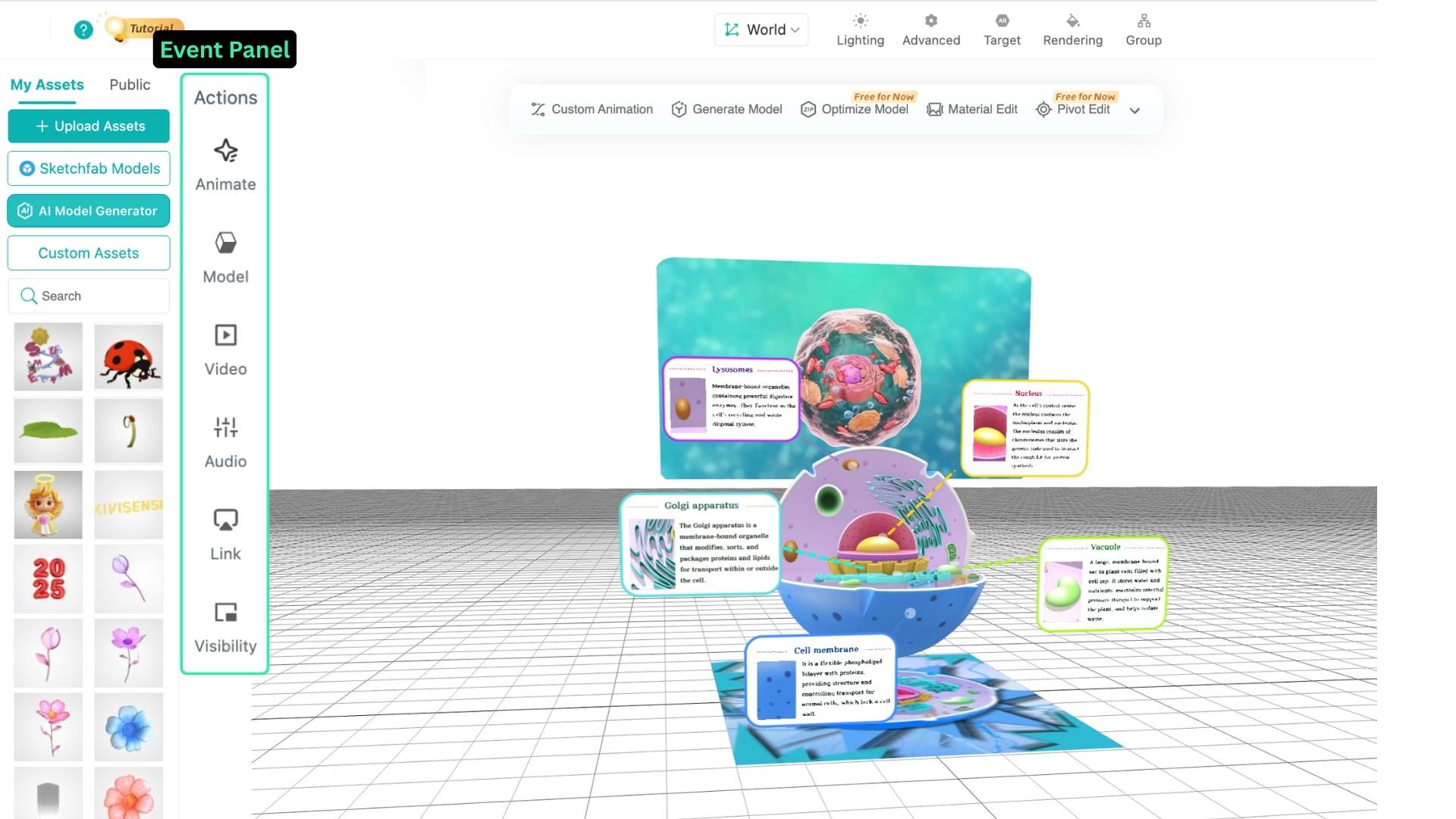
The Event Panel is where you define interactions within your scene. You can configure trigger conditions for models, videos, audio, and animations, as well as control when external links are opened.
It also allows you to define conditions for showing or hiding assets. This panel is essential for building interactive AR experiences.
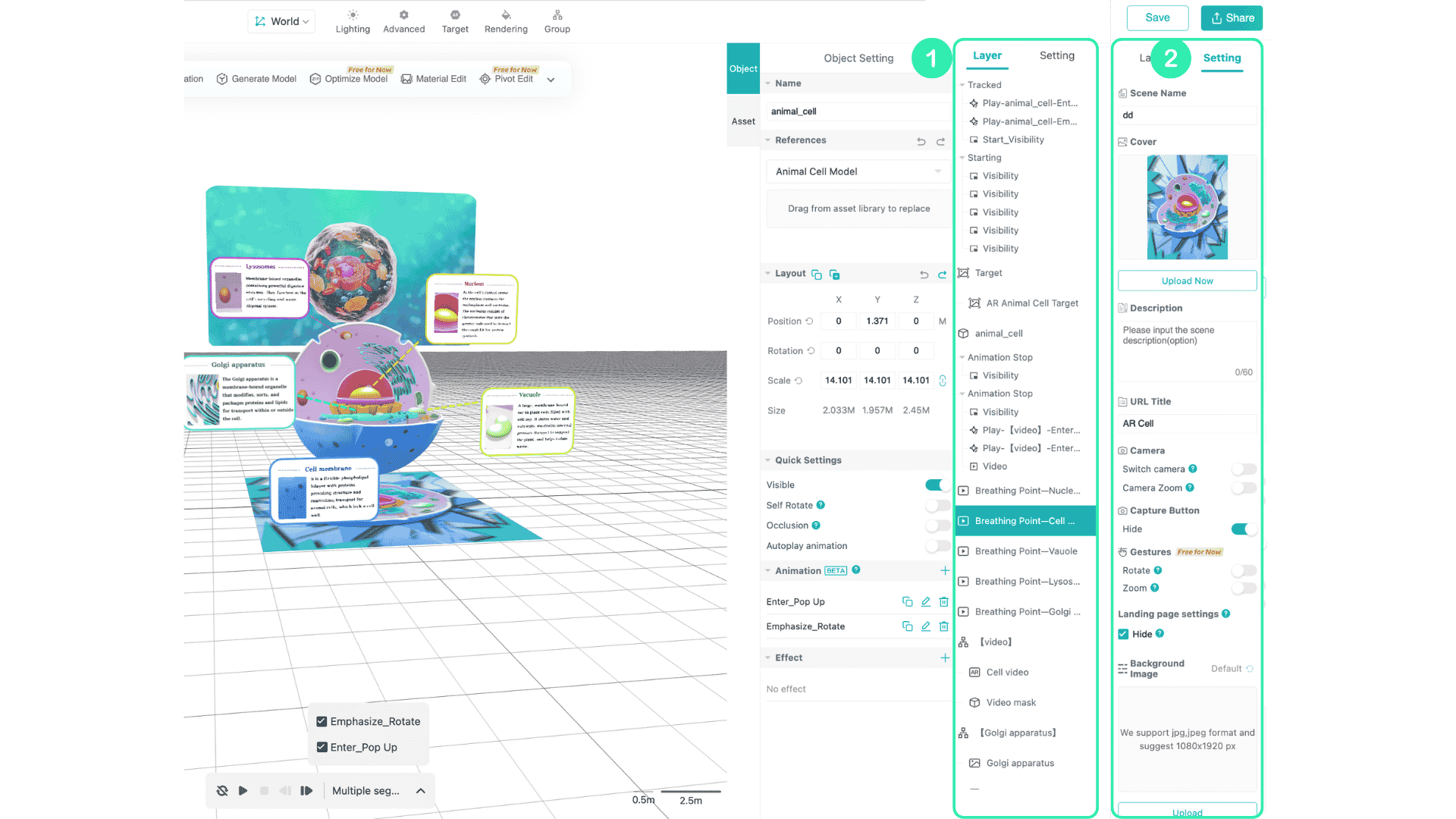
The Layer Panel displays all assets currently present in the 3D Canvas, along with any interactions and animations that have been added (excluding Quick Settings).
It is one of the most commonly used panels for debugging interaction issues. When your scene becomes complex and it is difficult to select objects directly in the canvas, you can use the Layer list to quickly locate and select assets.
In the Setting Panel, you can configure scene-level UI and experience settings. This includes customizing the landing page, setting the scan guide image, switching between front and rear cameras, configuring share text, and enabling gesture interactions.
This panel is where you refine and polish the overall experience.
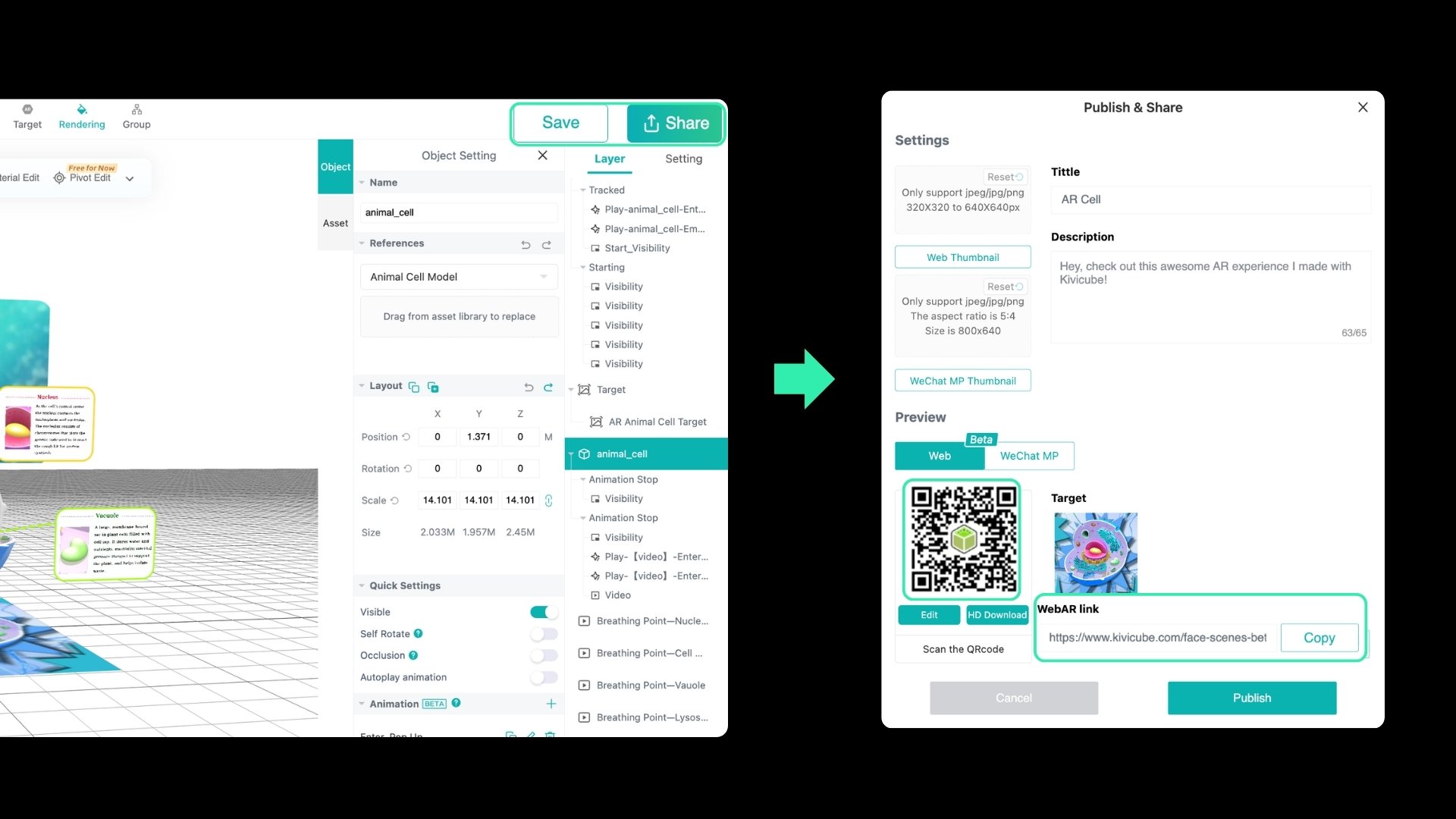
After completing your scene, make sure to click Save first to preserve your changes. Then click Share to generate a WebAR experience link and a QR code for easy access.