English
Appearance
Step 1: Ensure that the exported video includes an alpha channel
.BfTWFtyy.jpg)
WARNING
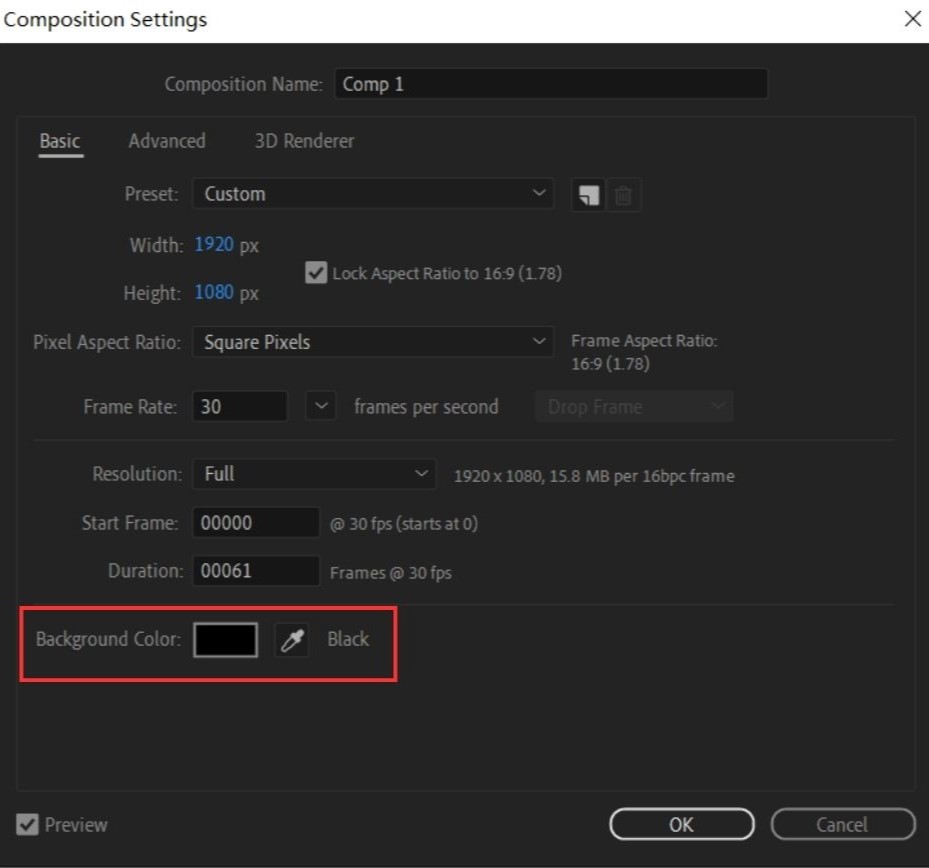
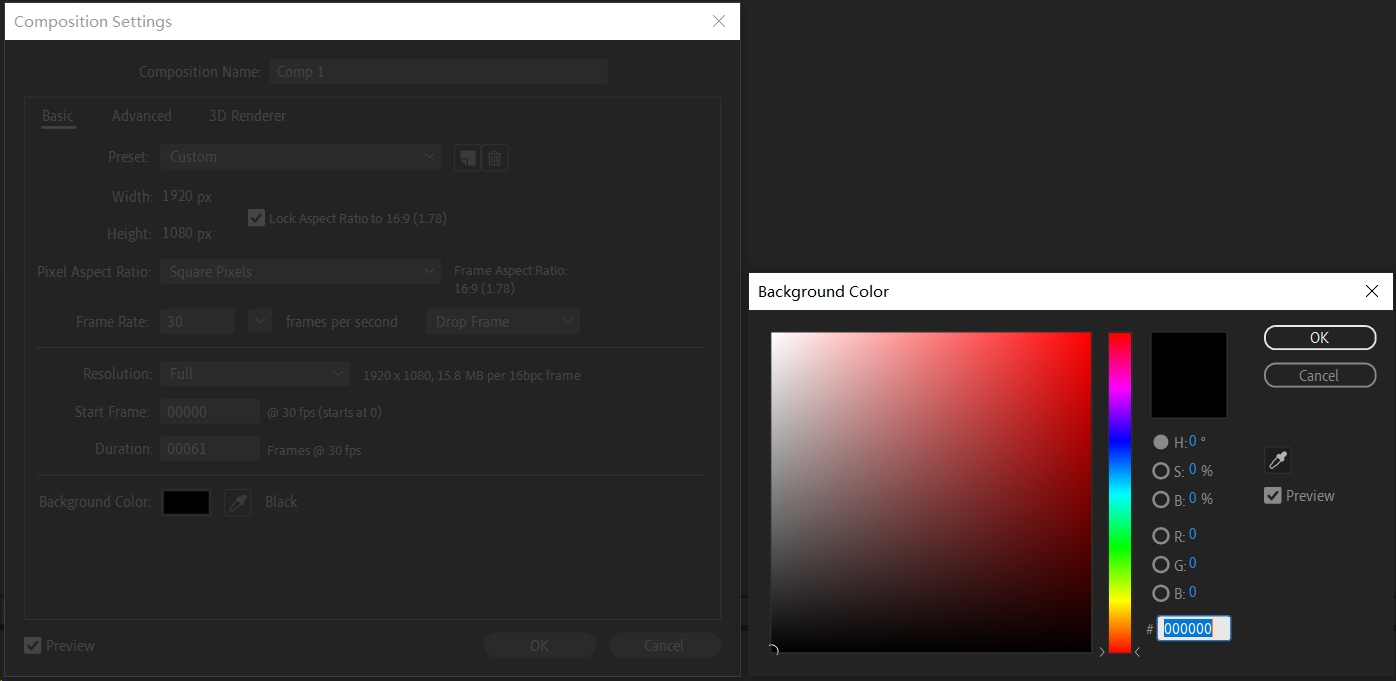
⚠️ When creating a new composition in After Effects, make sure to set the background color to pure black (RGB 0, 0, 0).
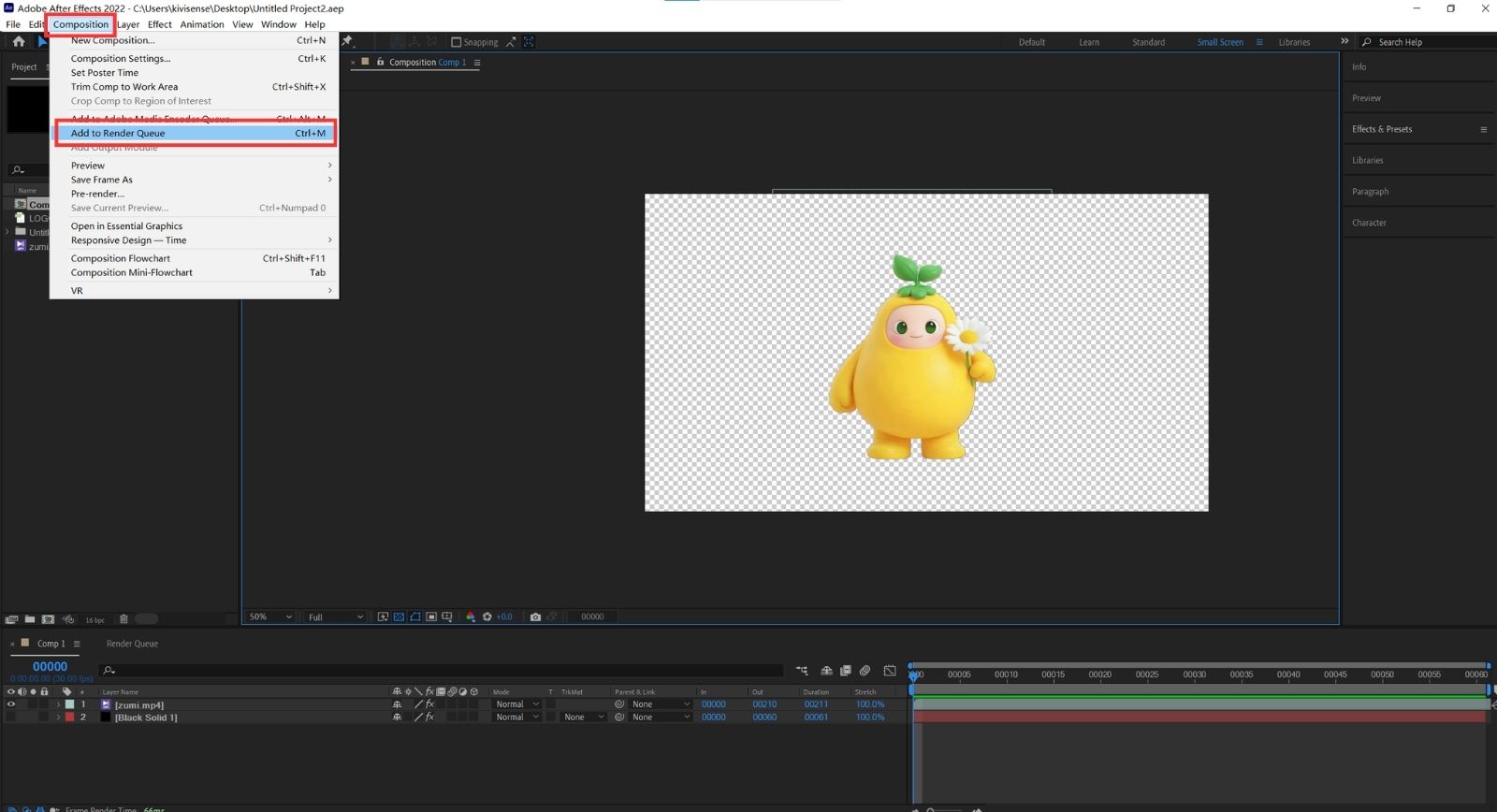
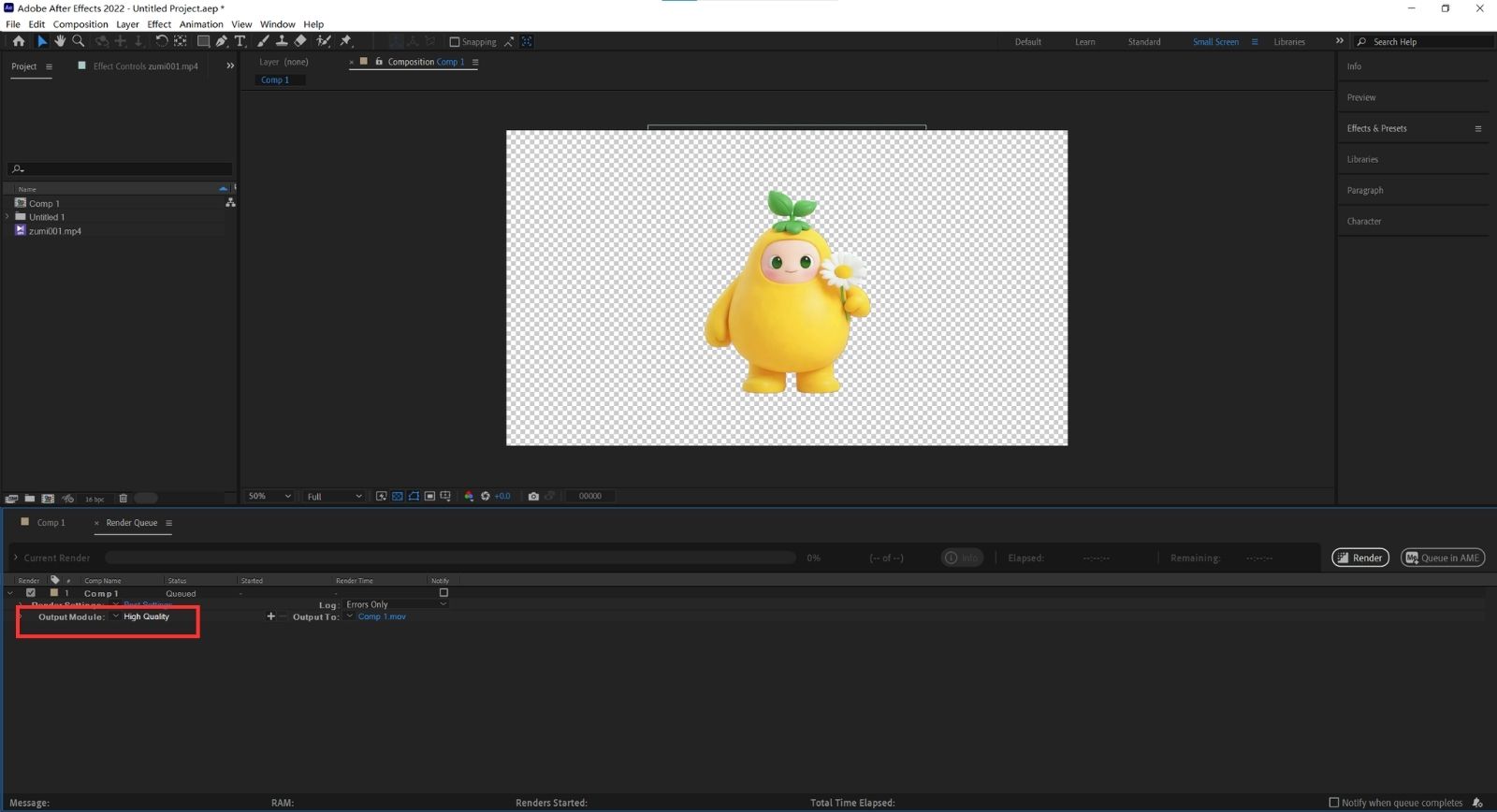
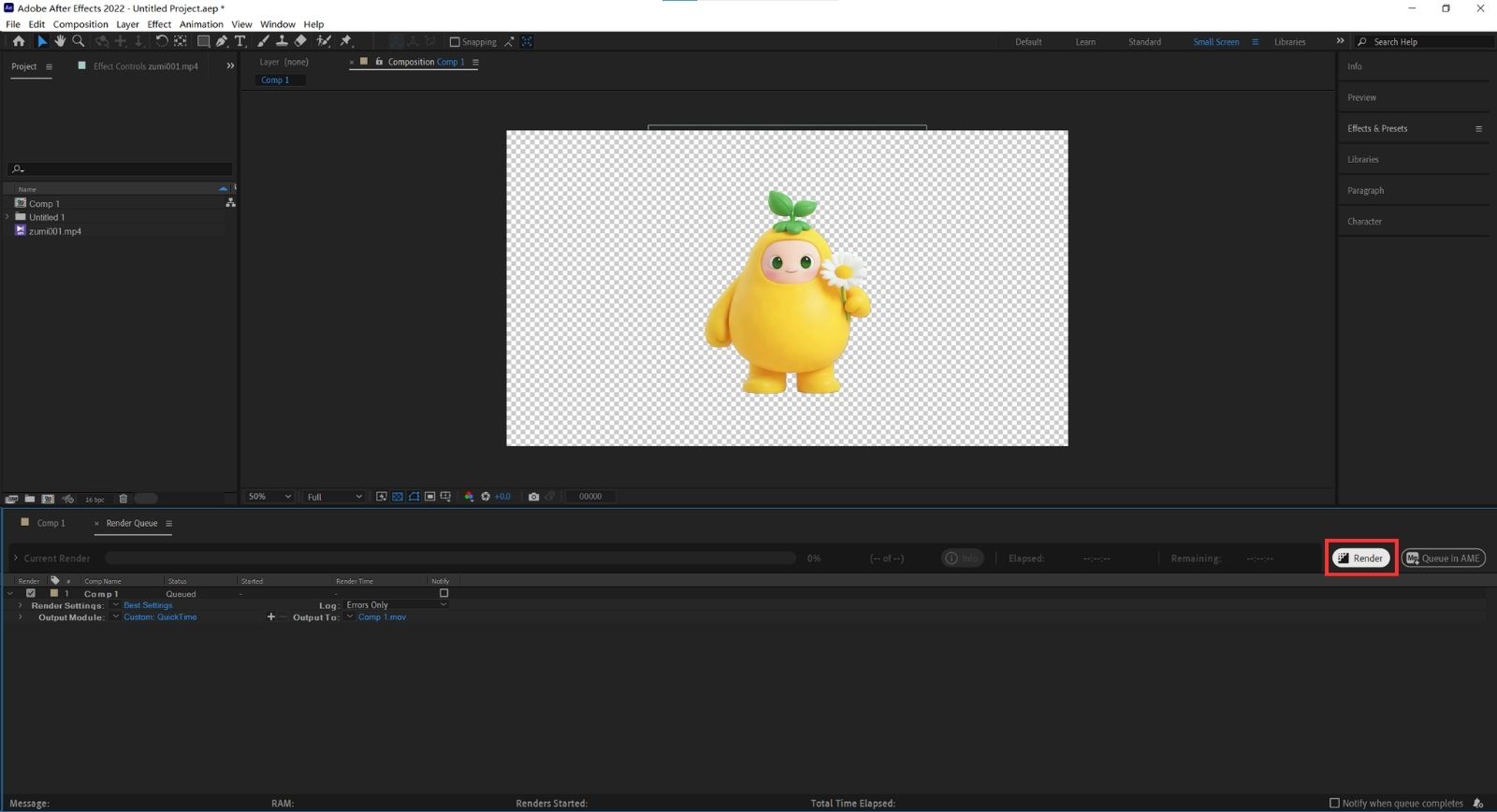
Choose "Quicktime" as Format
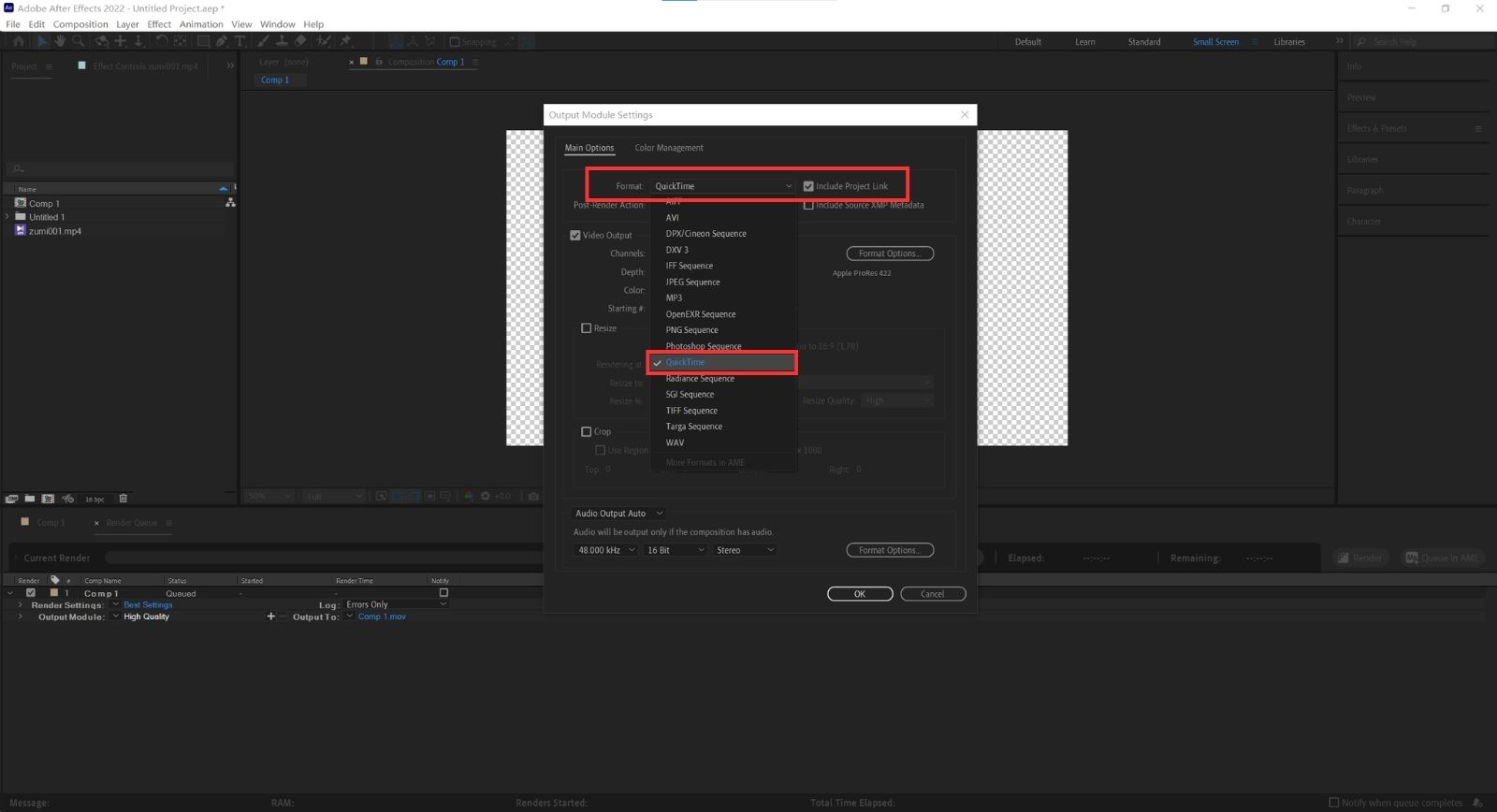
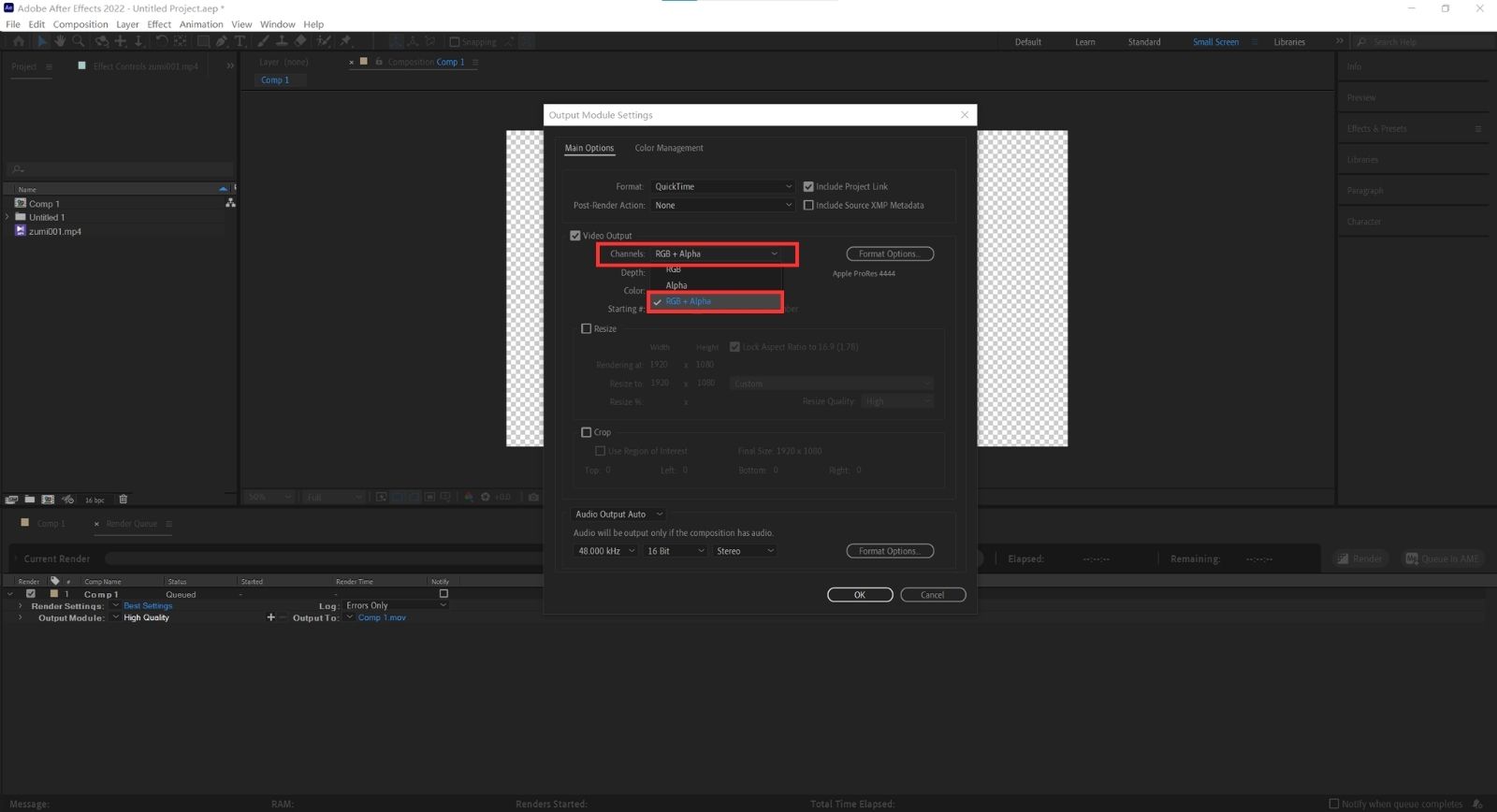
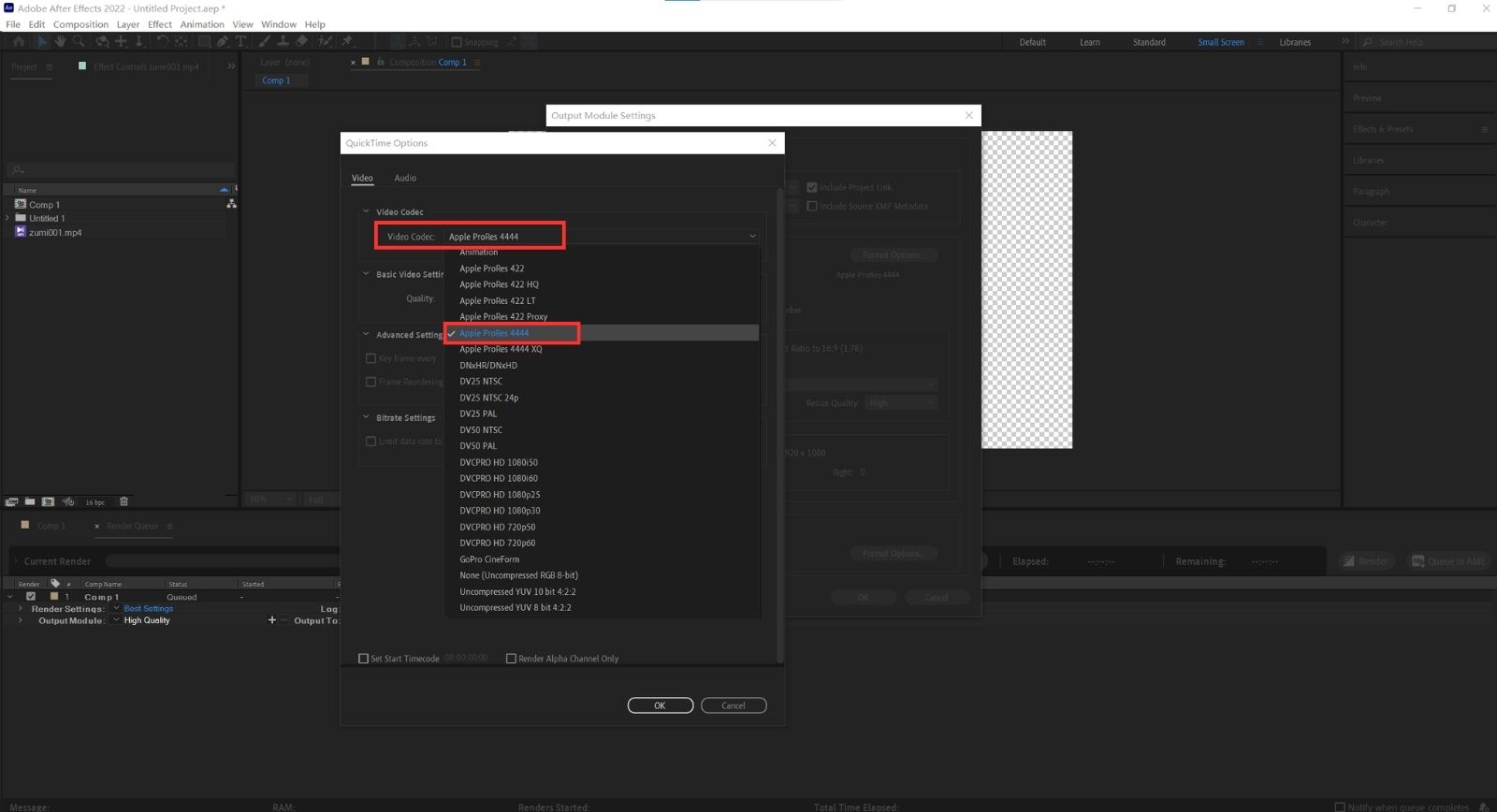
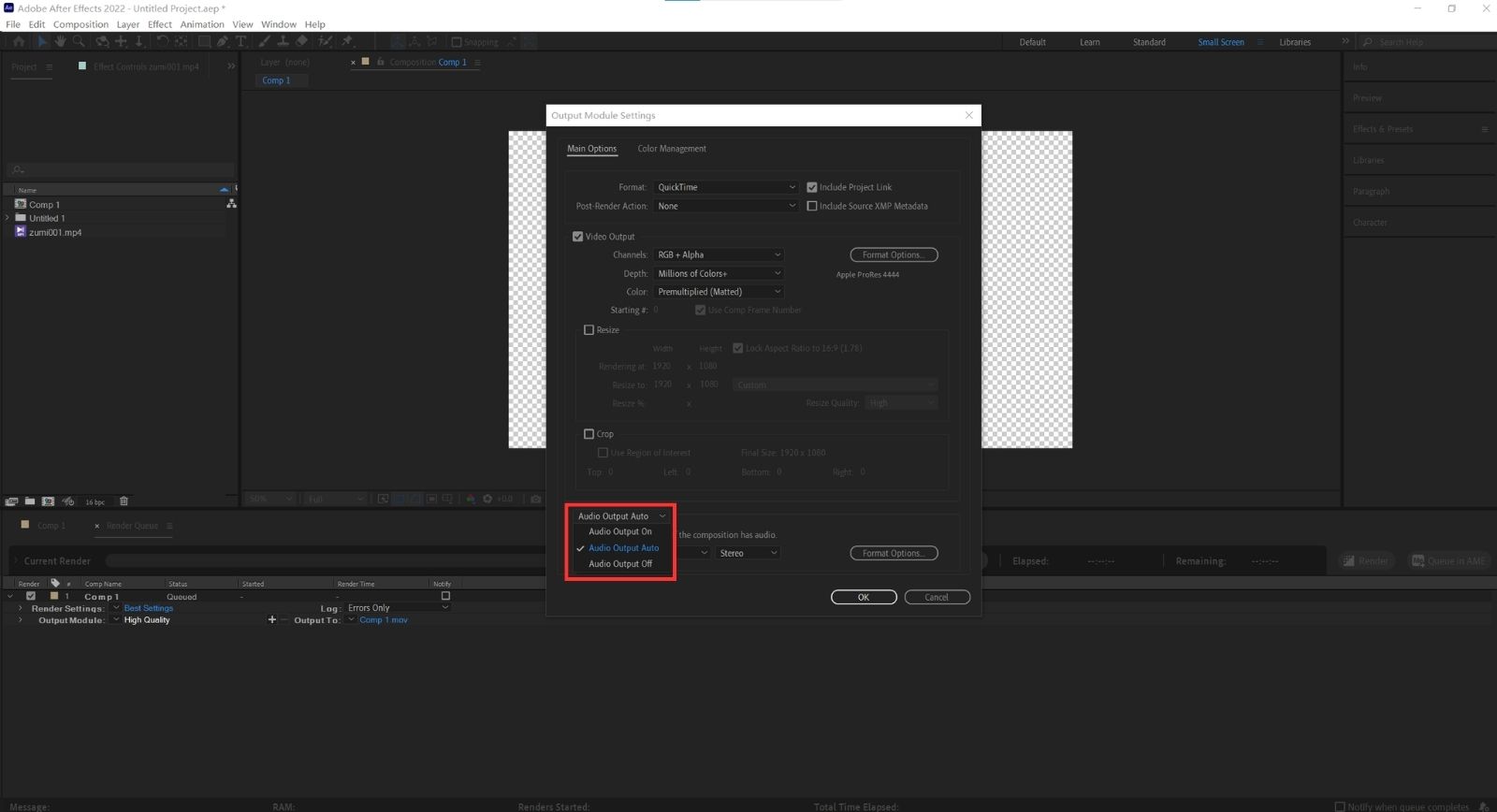
Click "Render" to export the .mov file, then upload it to the Kivicube platform.
The platform will automatically process it into a Kivicube-compatible transparent video.
💡 Kivicube transparent video does not refer to videos that contain an alpha channel (such as MOV/AVI files with embedded alpha). Instead, it is a special format that achieves transparency through a different method.
Download Sample File (Source: Adobe Character Animator — Example: Lower-Limb Rehabilitation Robot)
WARNING
Note: Before uploading a transparent video, the file must be formatted as shown below, with the video split into left and right sections.
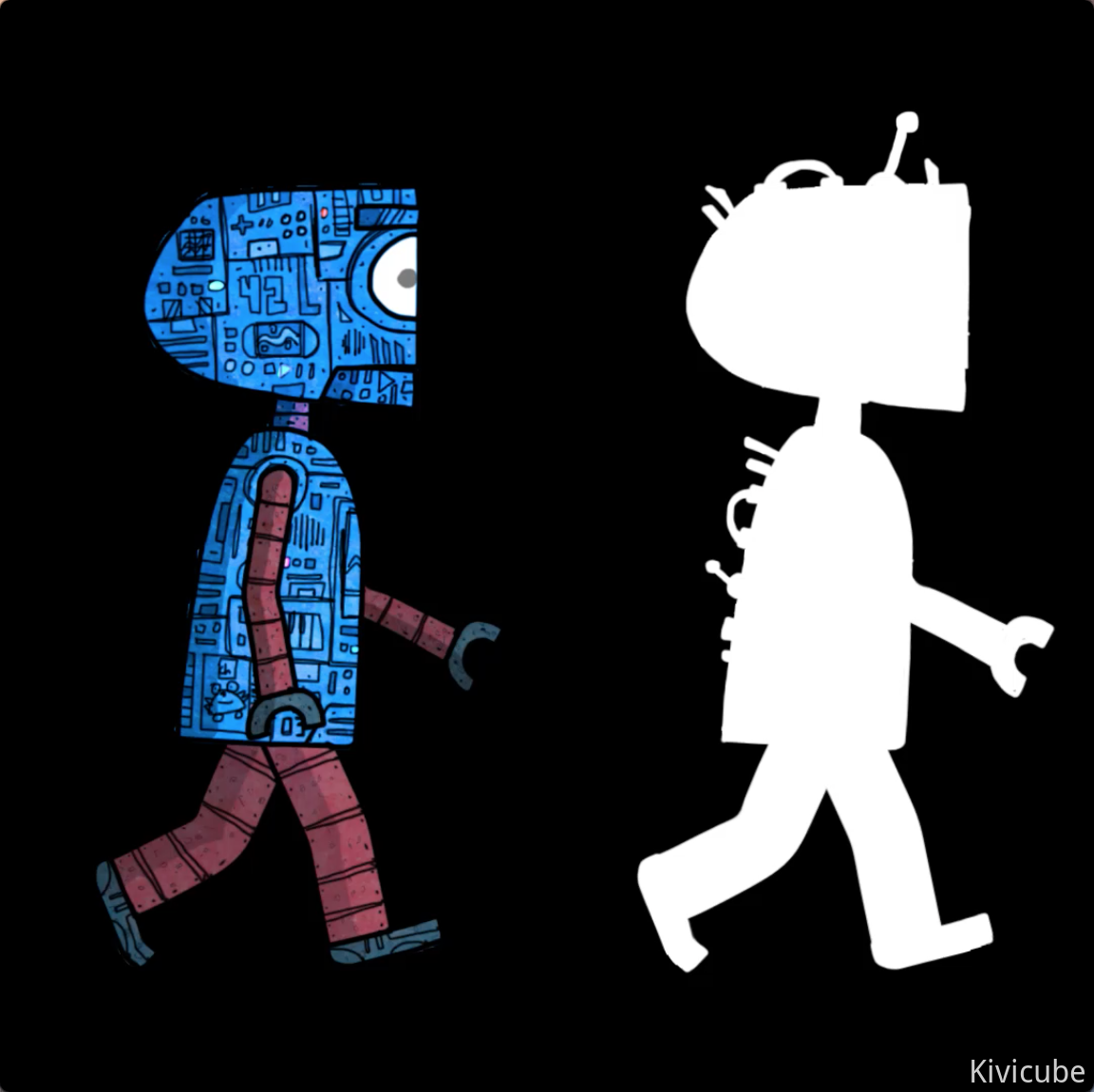
WARNING
After the video is processed into a transparent video (its width will be doubled), please ensure that it still meets the required size specifications.
Download ShanaEncoder:https://shana.pe.kr/shanaencoder_download
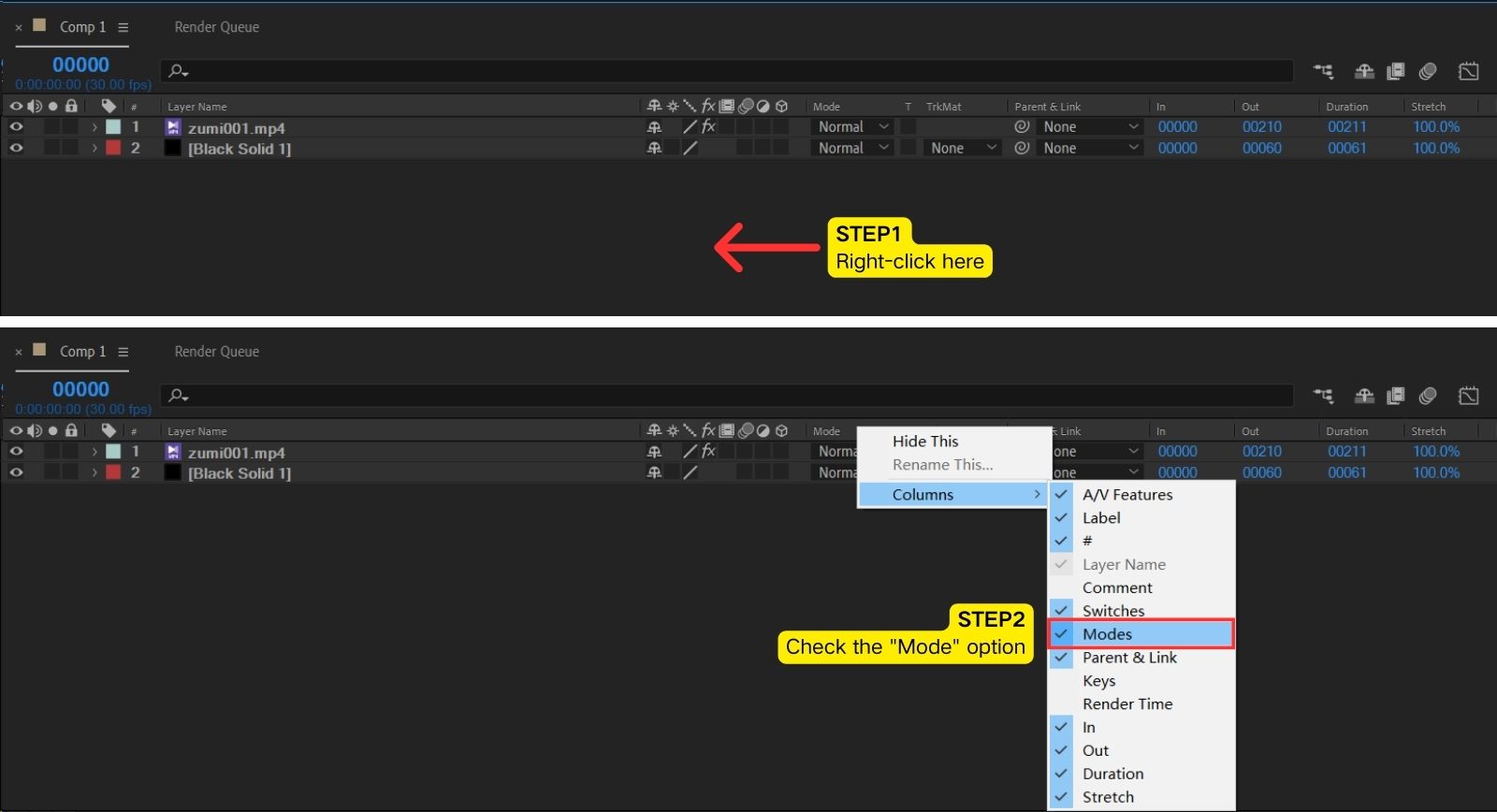
How to show the button "T"?
When intermediate files exported from After Effects (AE) appear incorrect on another user’s AE—such as glow effects turning dark, it is likely caused by version differences or platform differences (macOS vs Windows). To avoid compatibility issues, we recommend using an image sequence as the intermediate format.
Known issue:
A MOV file exported from AE 2020 v17.0.1 may cause glow effects to appear black when creating transparent videos in AE on certain Windows devices.
Example: If the video is meant to occupy half the screen width, the source video width can be set to 360 px.
❗ The error “The operation is not supported.” usually occurs when:
- The Video Level is higher than 5.2, or
- The Profile is higher than High.
.BAwiYzmG.png)