English
Appearance
After selecting an object, a floating toolbar will appear above the canvas. You can use the features in the toolbar to add custom animations to the object, edit or optimize the model, or quickly turn to KIVI AI to generate images, videos, and models.
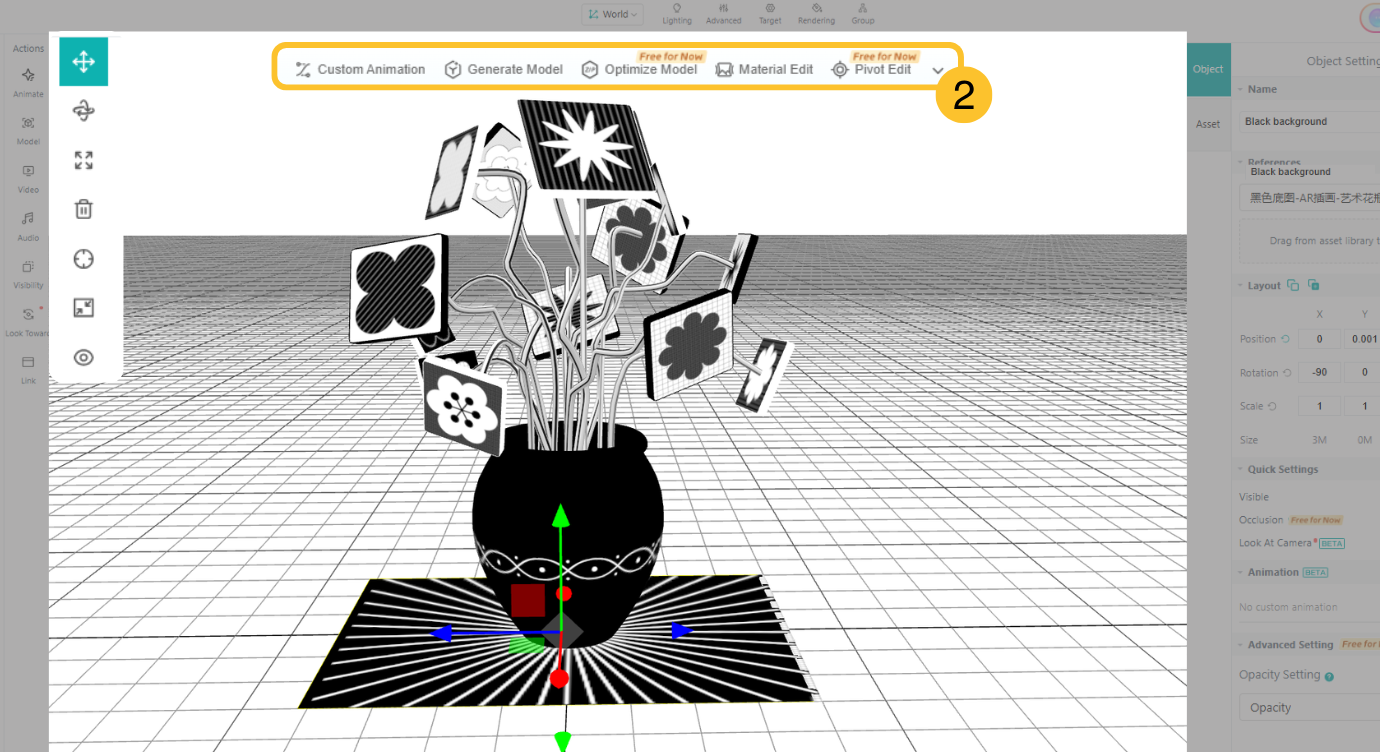
The functions in the floating toolbar automatically change based on the media type of the selected object.
For example:
Models: You can directly adjust the center point of the model, compress, or optimize it without switching back to the Content Editor.
Images: If there is much transparent area around an image, you can use “Crop Transparency” to automatically crop excess transparent pixels, reducing the impact of blank areas on subsequent interaction settings.
High-definition video link: https://www.youtube.com/watch?v=NVxNnDM2-0A&t=3s