English
Appearance
A cloud recognition target refers to an image that uses cloud-based image recognition.
In Basic AR, Gyroscope AR, Plane AR, and Walk-in AR scenarios, all uploaded target images are considered cloud recognition targets.
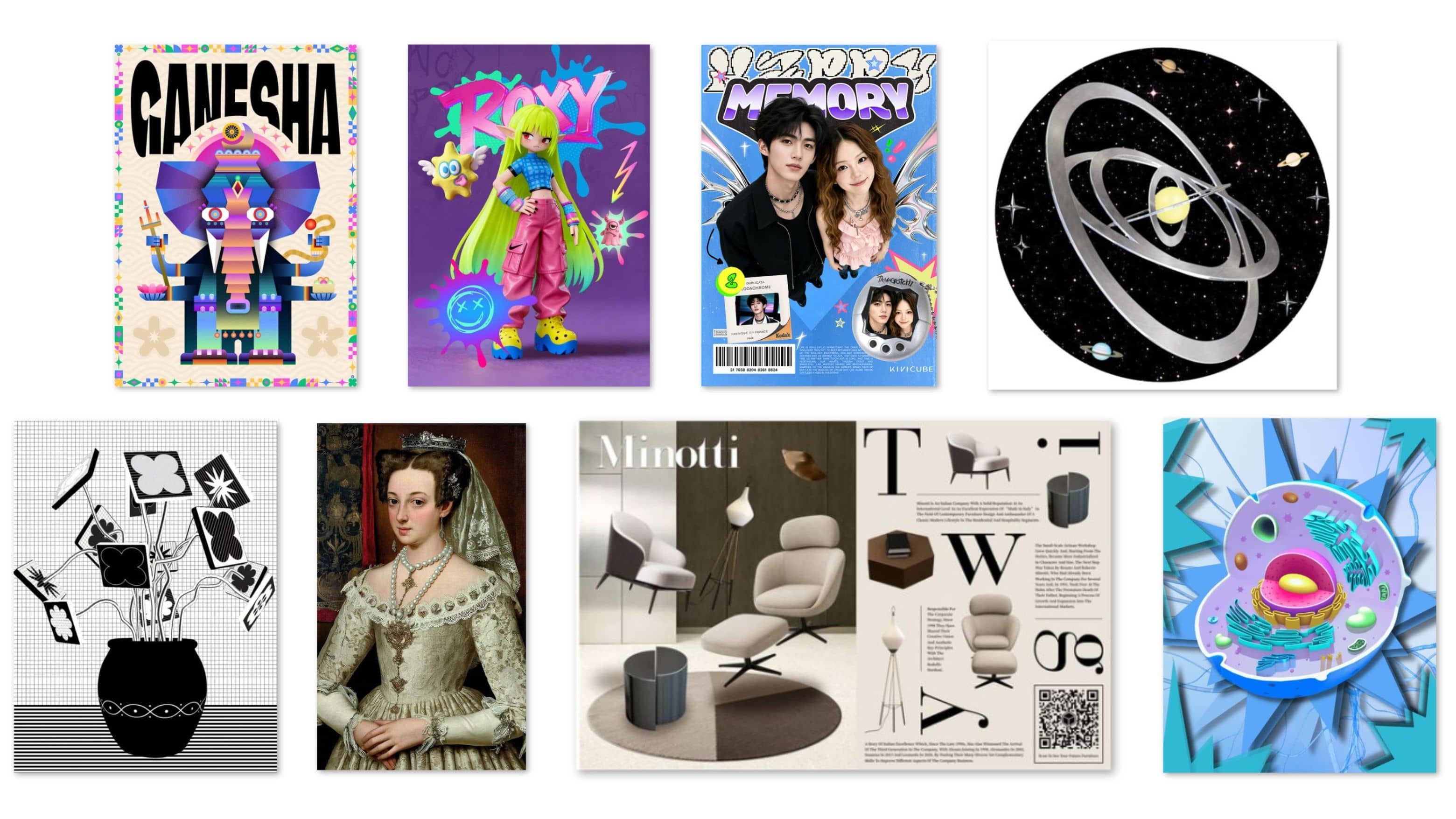
Images used as cloud recognition targets should have sharp and detailed features.
For example, a square may contain four feature points, while a circle contains no feature points at all.
When creating a target image, avoid using smooth or soft edges, and avoid images with large areas of solid colors or gradients.
Example of good marker images
Example of bad marker images
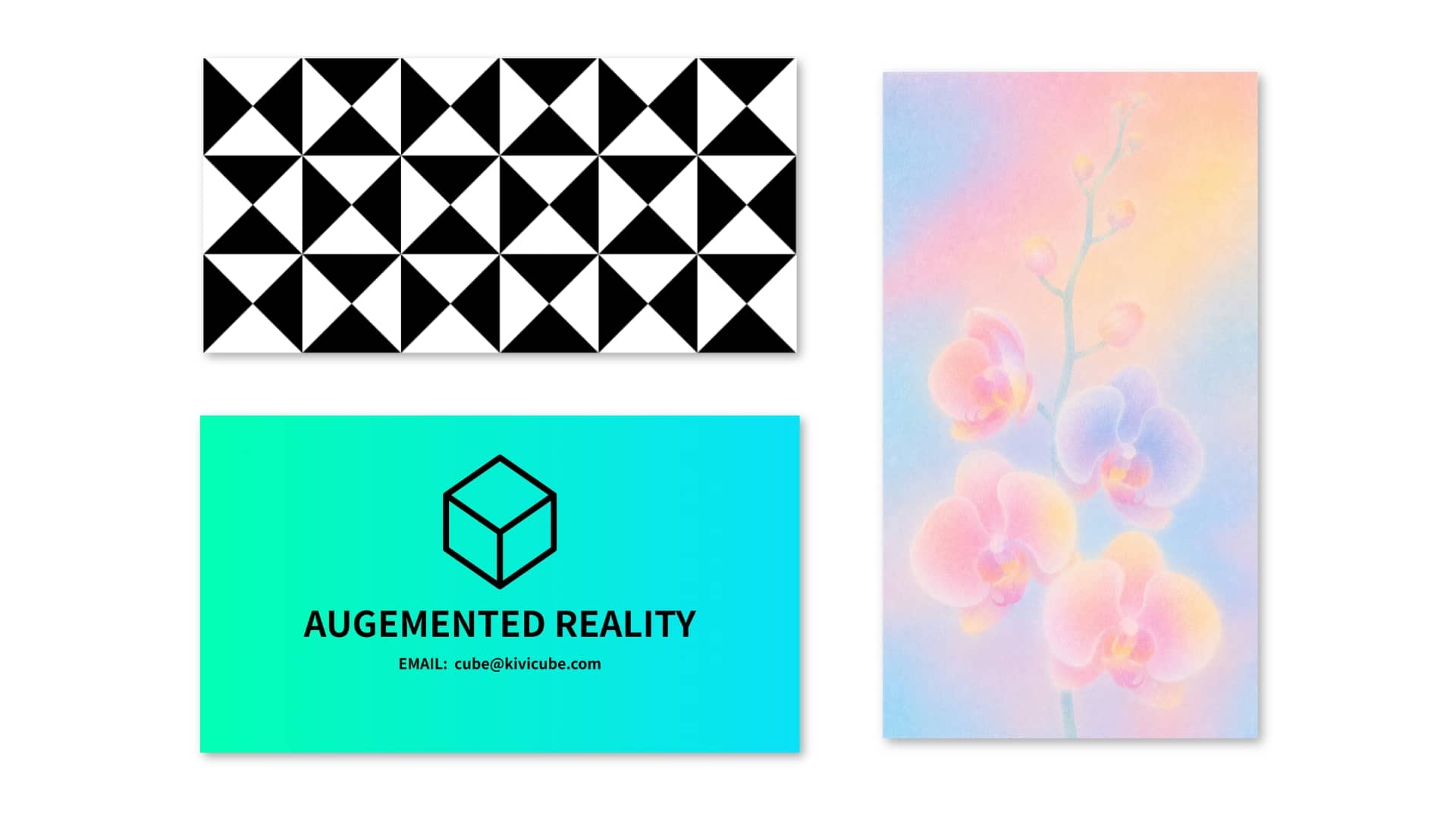
If the recognition material is a logo, gesture, color, numbers, or text, it may not be suitable for creating a compliant cloud recognition target image.
In this case, you can click here to contact us and request a custom AI recognition solution.
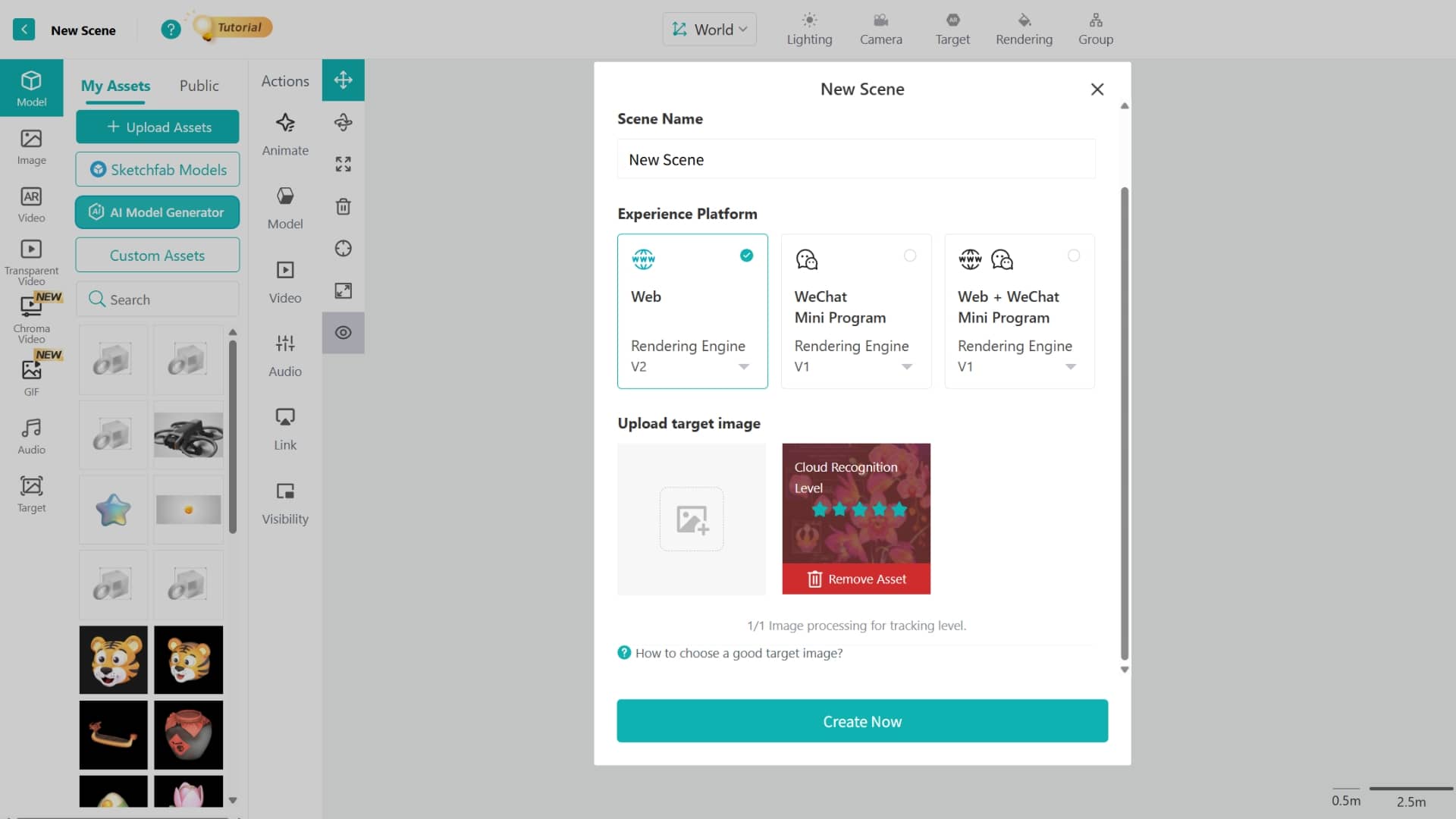
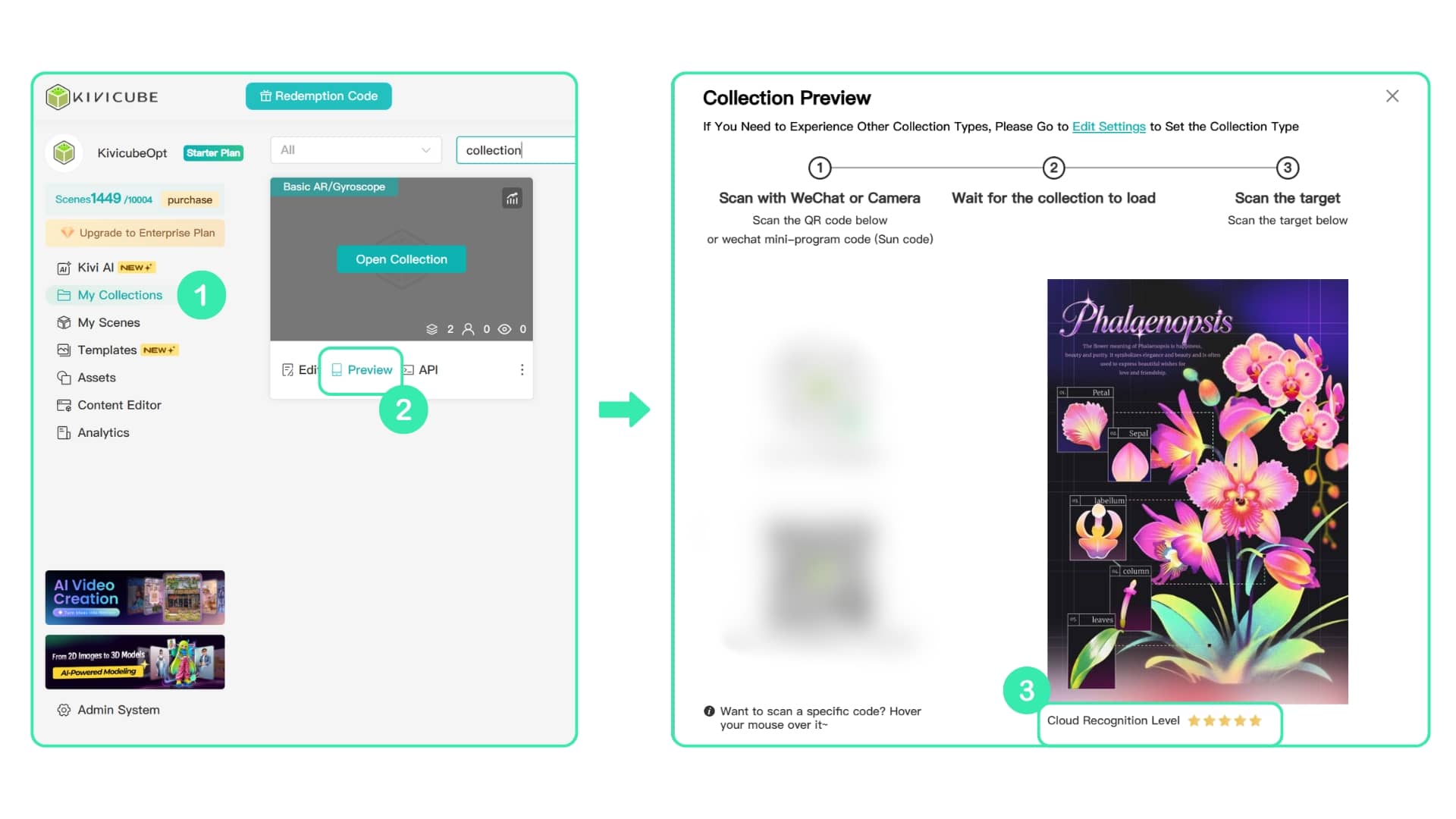
After you upload a cloud recognition target image in Basic AR, Gyroscope AR, Plane AR, or Walk-in AR, the system will automatically run a basic check and give a star rating. The star rating is only a rough reference. In general, a higher rating usually means more stable recognition and tracking performance.
You can also click here to upload an image and view the target star rating independently.
Move your mouse over the target image thumbnail to view its rating. If the rating is below 3 stars, it is recommended to optimize the image based on the cloud recognition target guidelines.
WARNING
The star rating is for reference only. Final performance depends on real-world testing.
In real use, recognition speed and accuracy can be affected by several factors:
Light around the environment
Reflections on the image surface
How clear and different the real object is compared to the uploaded image
Whether the target image is too big or too small
Differences in phone cameras and image quality
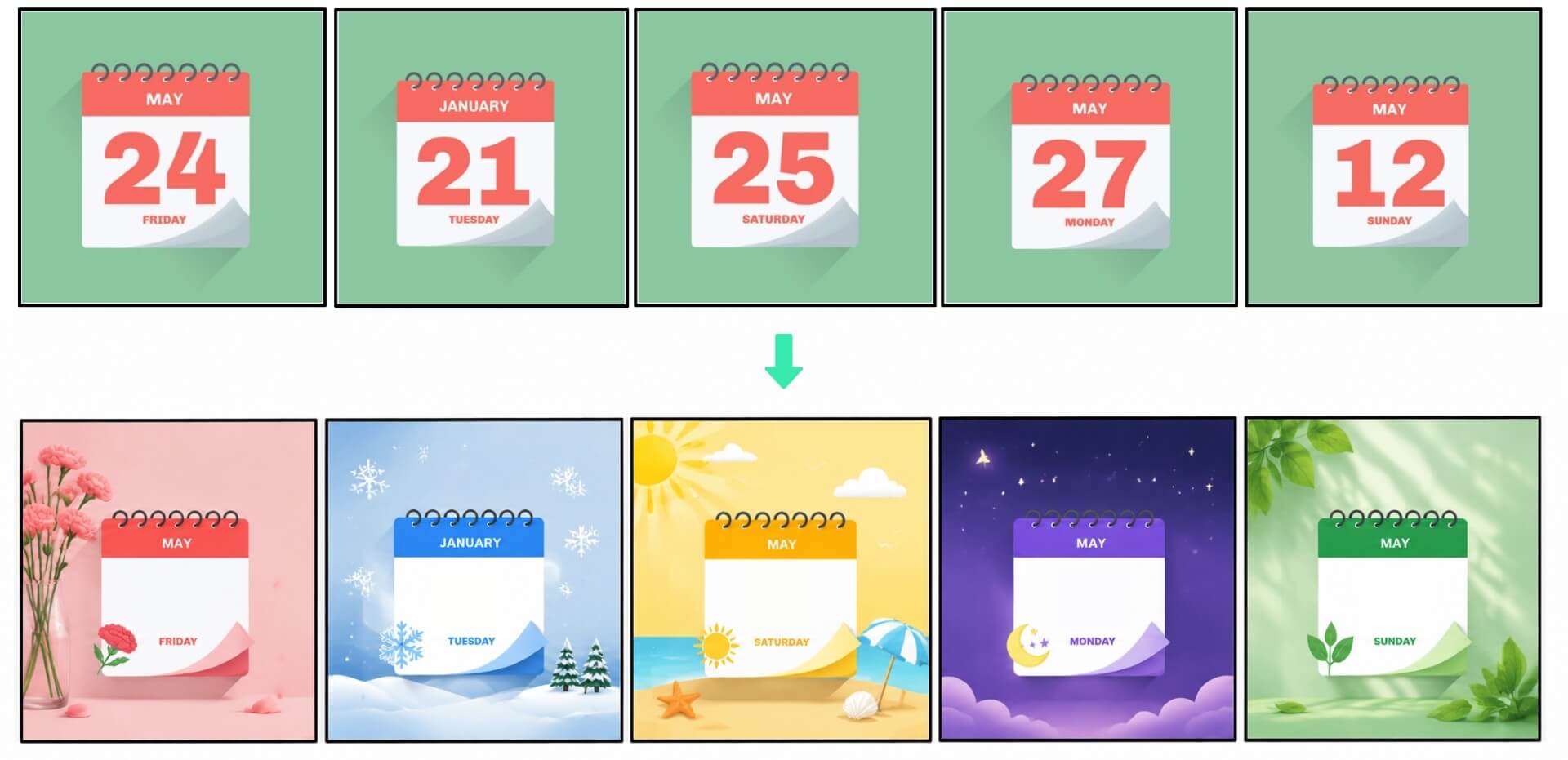
If the images are too similar, the system may not be able to determine which AR scene the scanned image belongs to.
For example
The five calendar images have very similar color block layouts, proportions, number shapes, and sizes.
If they are used as the target images for five different scenes in the same collection, it is very likely to cause wrong recognition when using the collection feature.

| Type | Description and Illustration |
|---|---|
| Valide Image Format | JPG/JPEG/PNG/WEBP/BMP/TIF/TIFF/HEIC |
| Valid Color Mode | Set the image to RGB to help detect any color deviation promptly.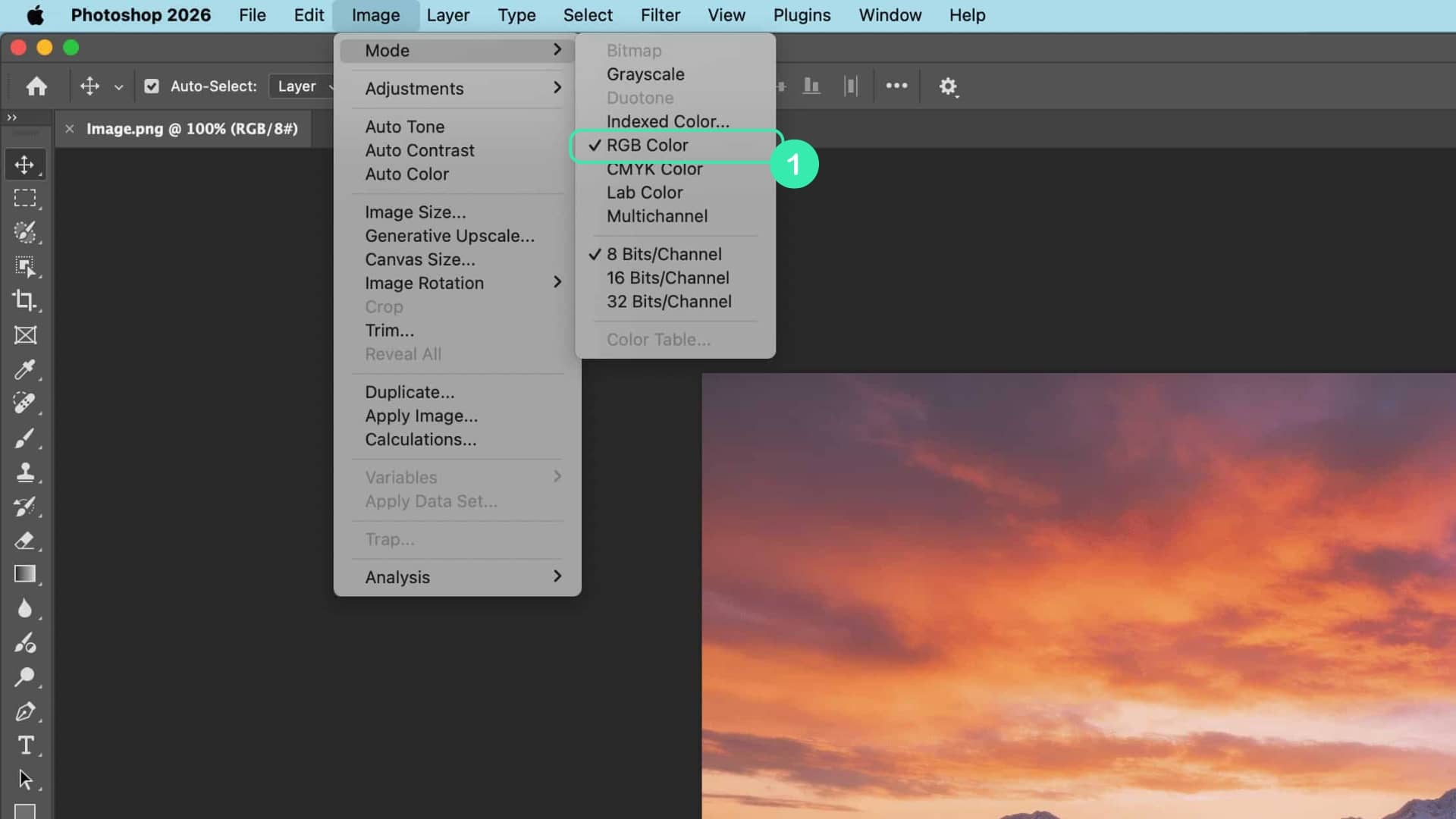 When exporting, check Color Space → Convert to sRGB, and verify after export to ensure no color deviation is present. 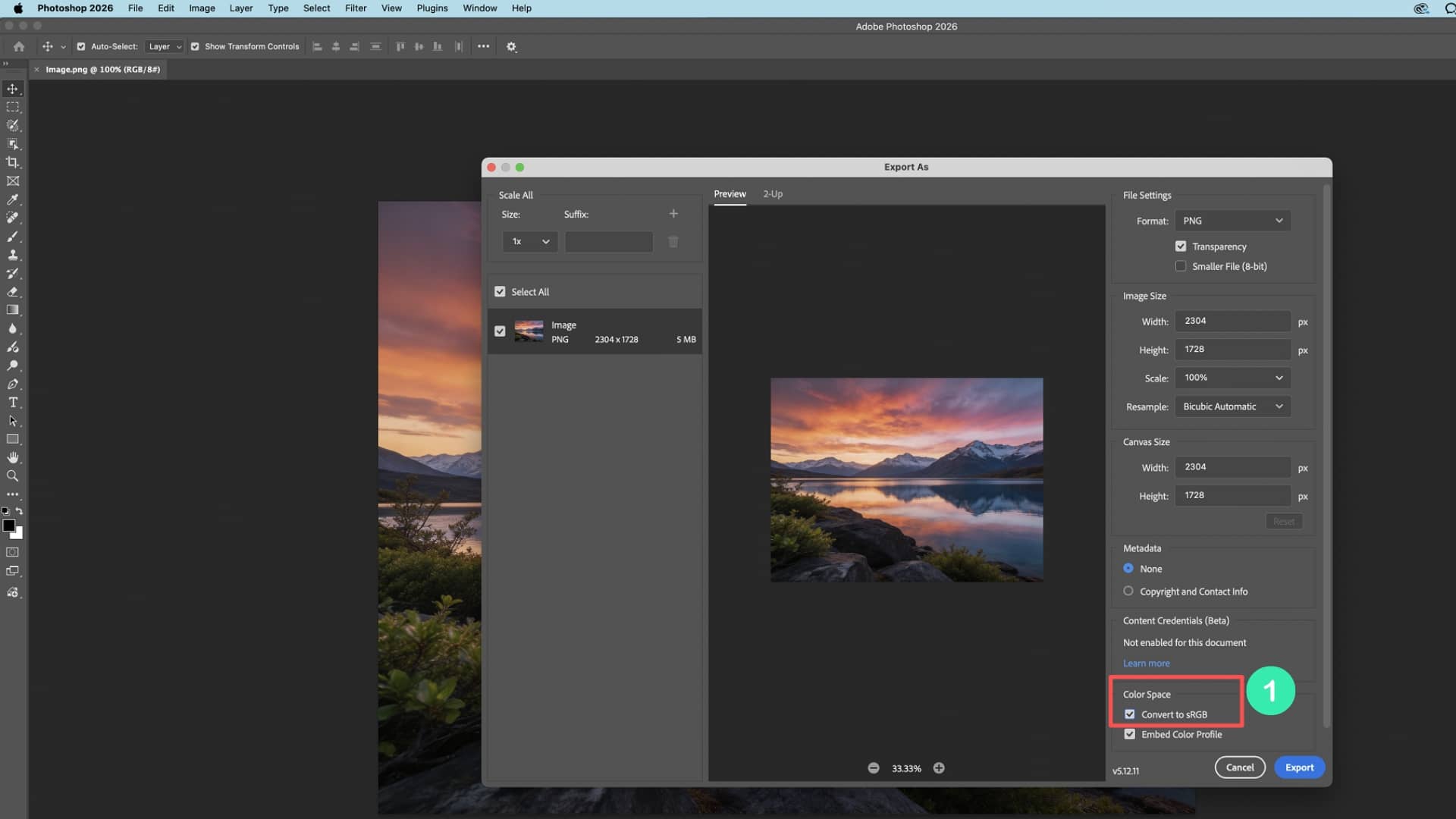 |
| Recommend Image Resolution | The target image size should be between 480 × 480 px and 1280 × 1280 px. It is recommended to use 800 × 800 px for better recognition results.  |
| Recommend Image Aspect Ratio | For landscape target images, the recommended aspect ratio should be between 1:1 and 16:9. The width divided by height should be in the range of 1 to 1.78. For portrait target images, the recommended aspect ratio should be between 9:16 and 1:1. The width divided by height should be in the range of 0.56 to 1. We strongly recommend using 1:1 square images. They are more balanced and usually have a higher recognition success rate than other formats. 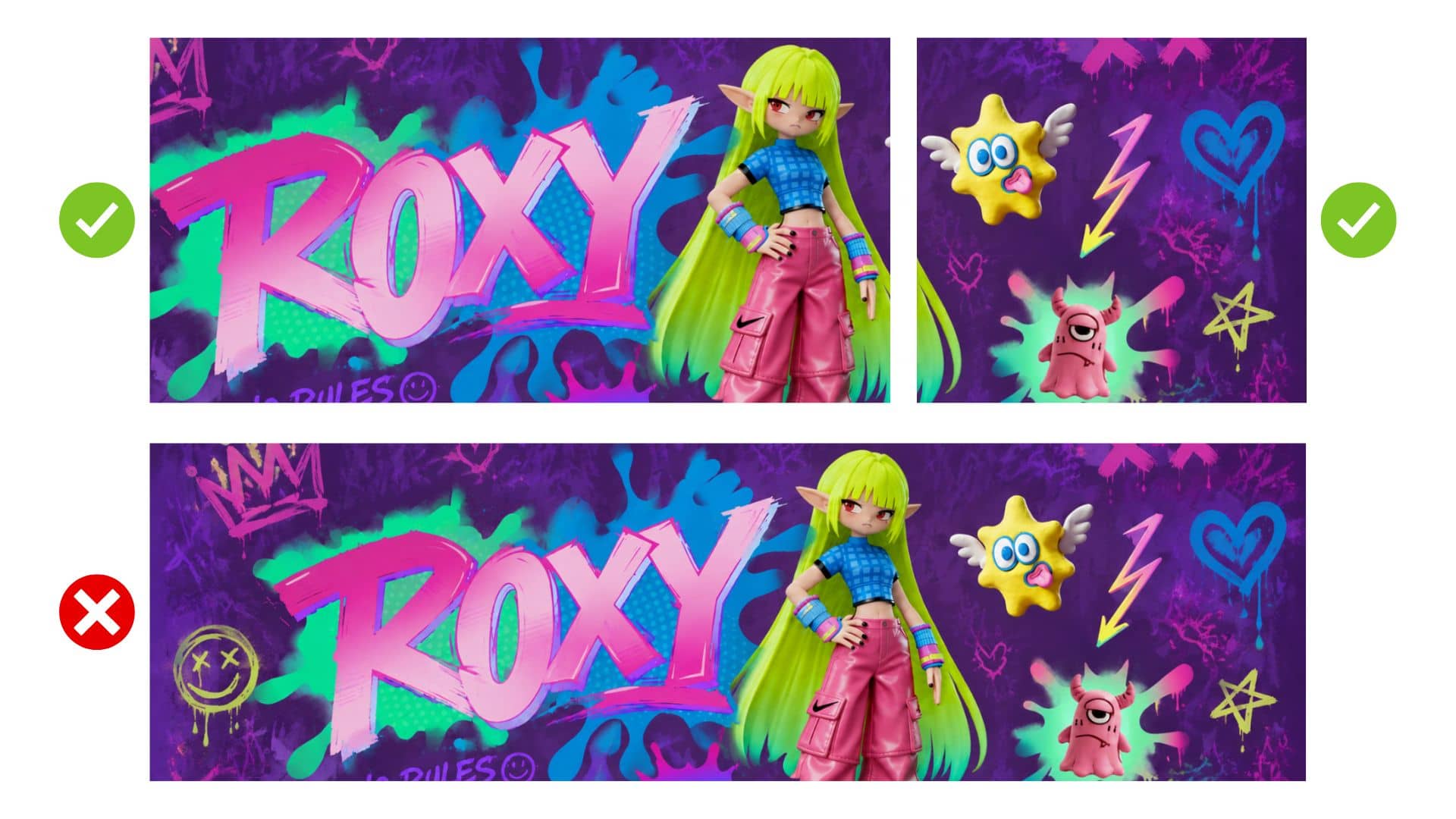 |
| Rich Detail | Cloud recognition target images should contain rich details. Avoid images with large areas of solid color or gradients, or images that are too simple or repetitive. 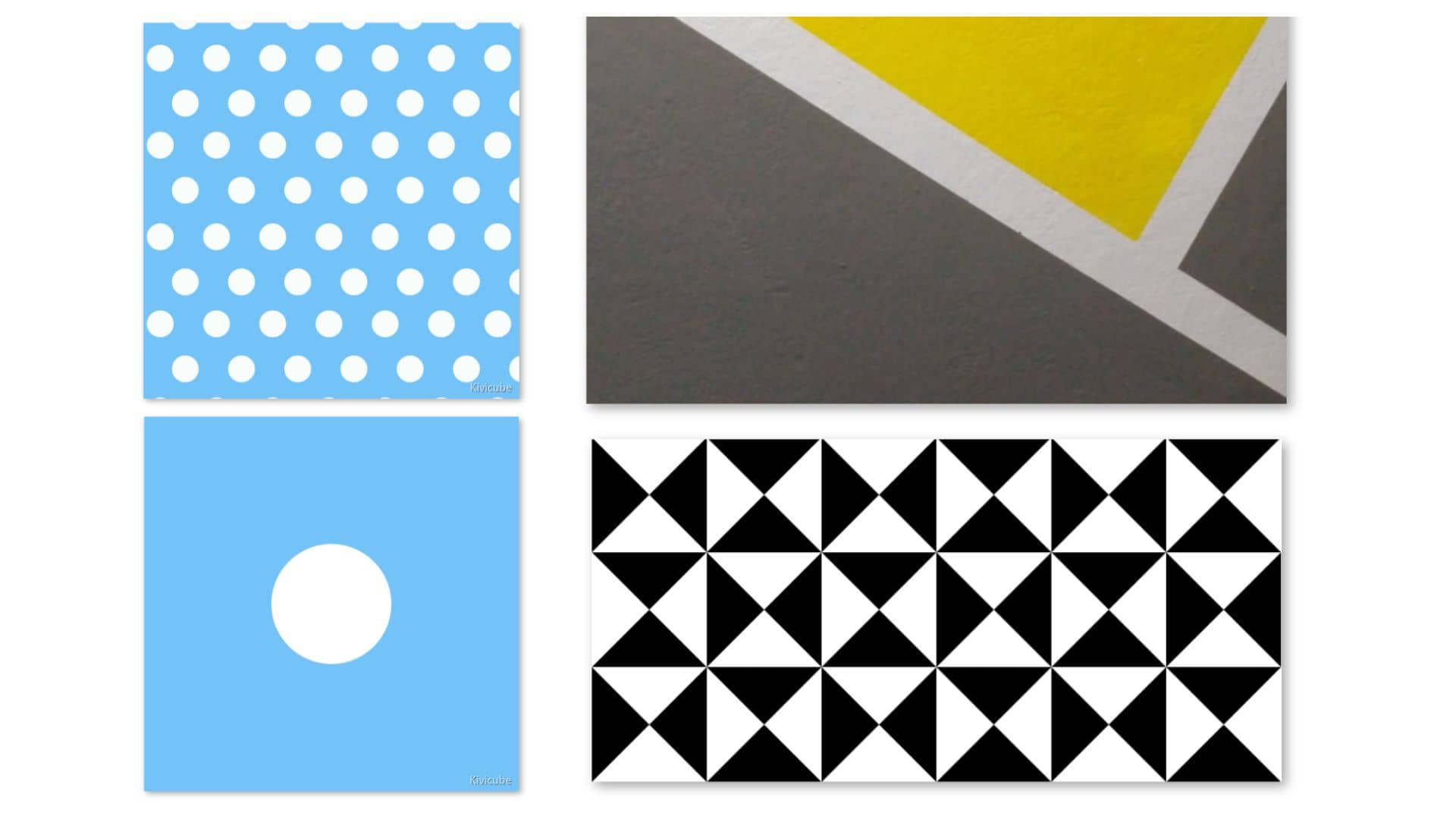 |
| Avoid extensive whitespace | When creating a target image, it is recommended to crop out large blank areas and low-contrast regions of the image.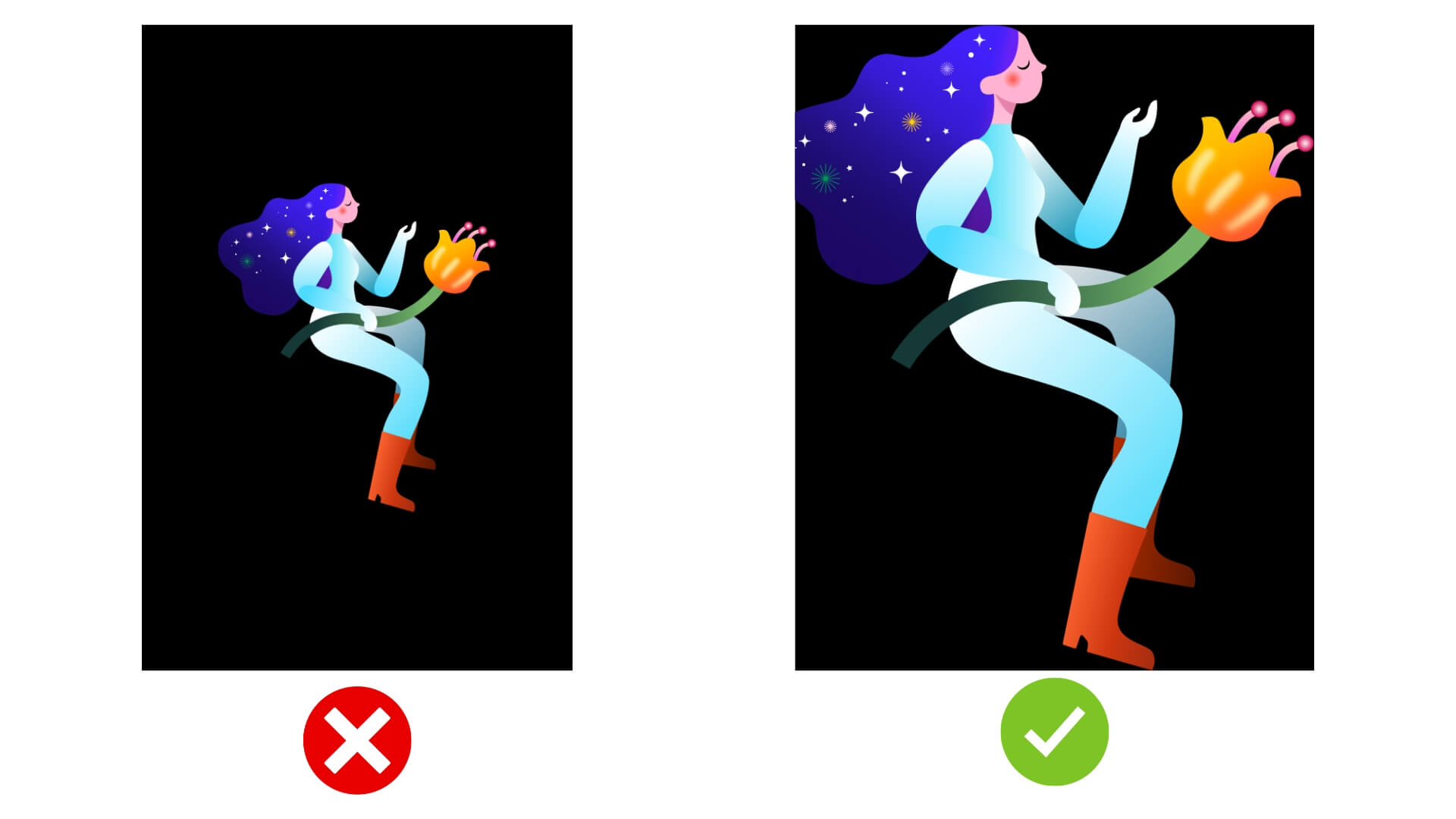 |
| Uniform Distribution of Feature Points | Feature points should be evenly distributed across the entire image. Do not let all feature points concentrate in a single area of the image. 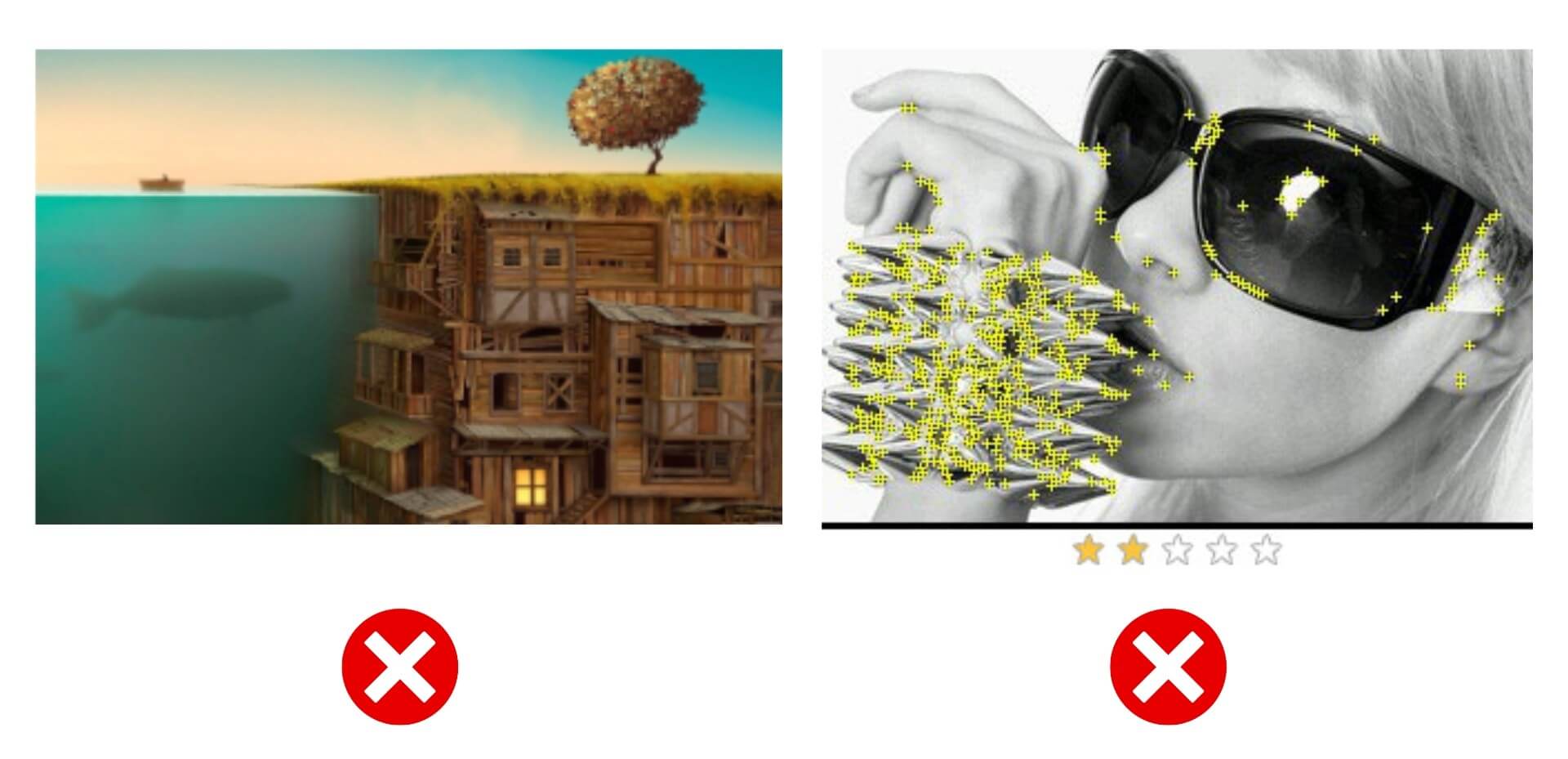 |
| High Contrast | Try to increase the contrast of the cloud recognition target image as much as possible.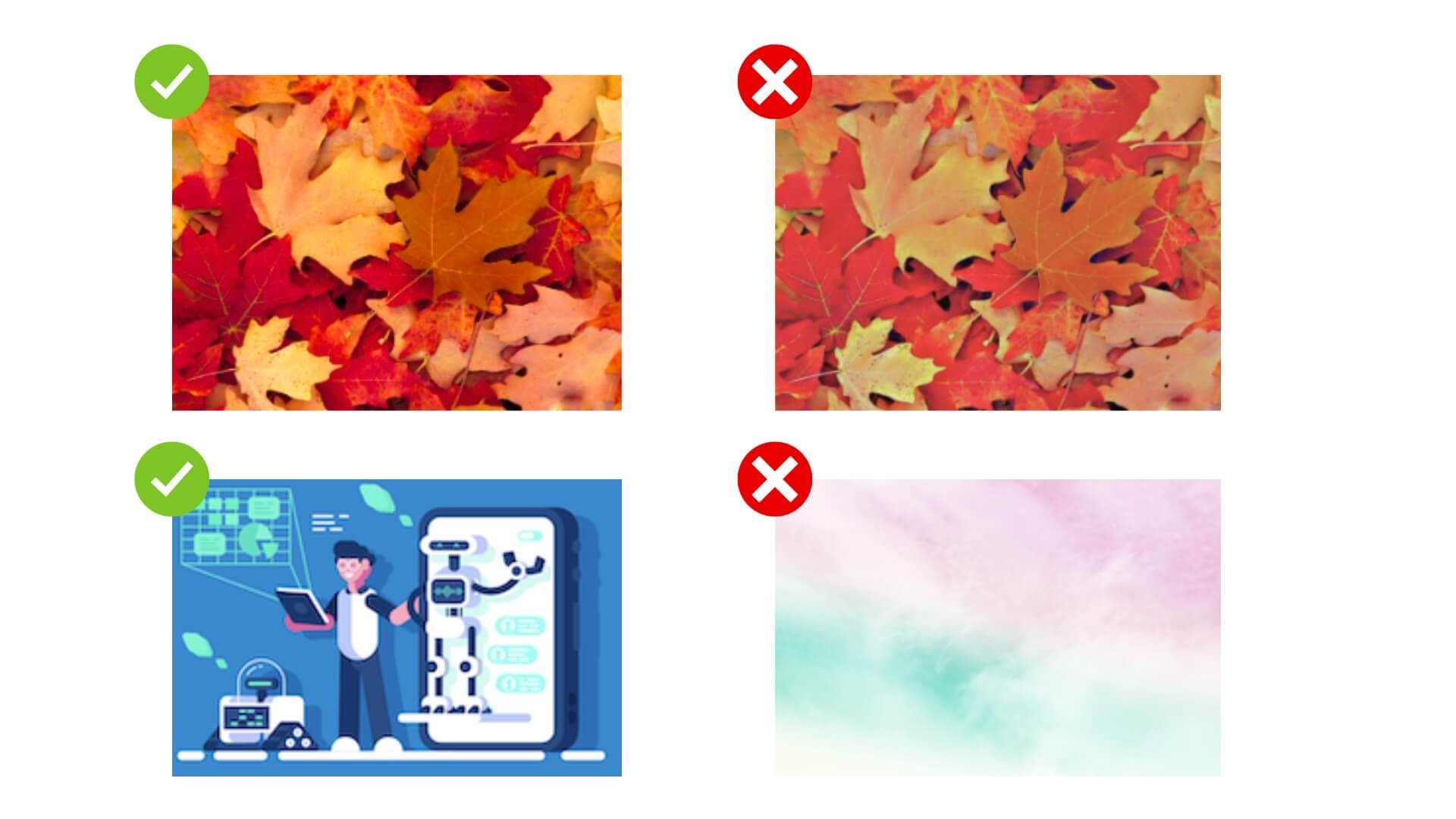 |
| Avoid Repetitive Pattern | Do not use repetitive or symmetrical patterns as cloud recognition target images. These images may still be recognized, but they can easily cause incorrect recognition or unstable results. In some cases, they may not be recognized at all. 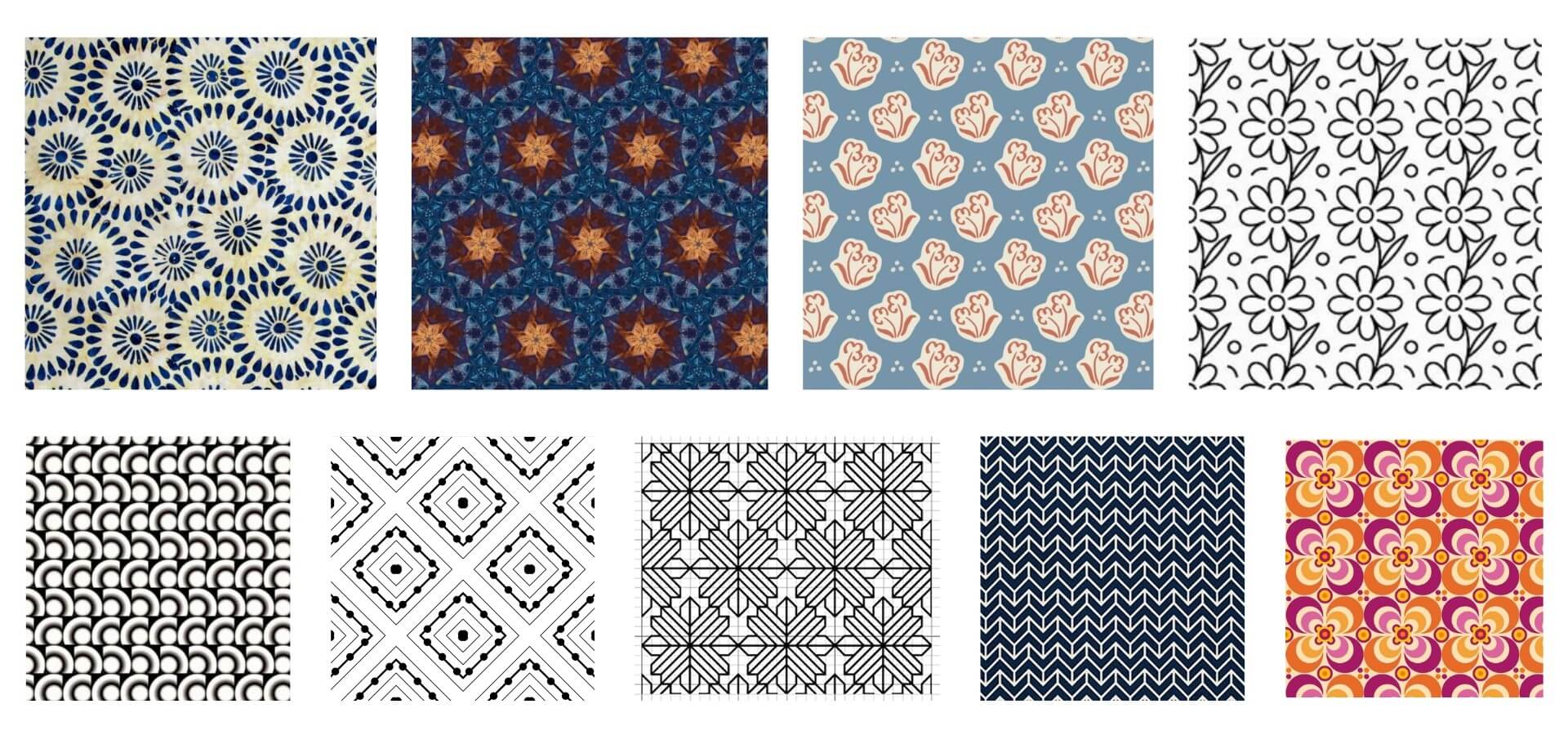 |
| Avoid Image Blur | Avoid designs with large blurred areas.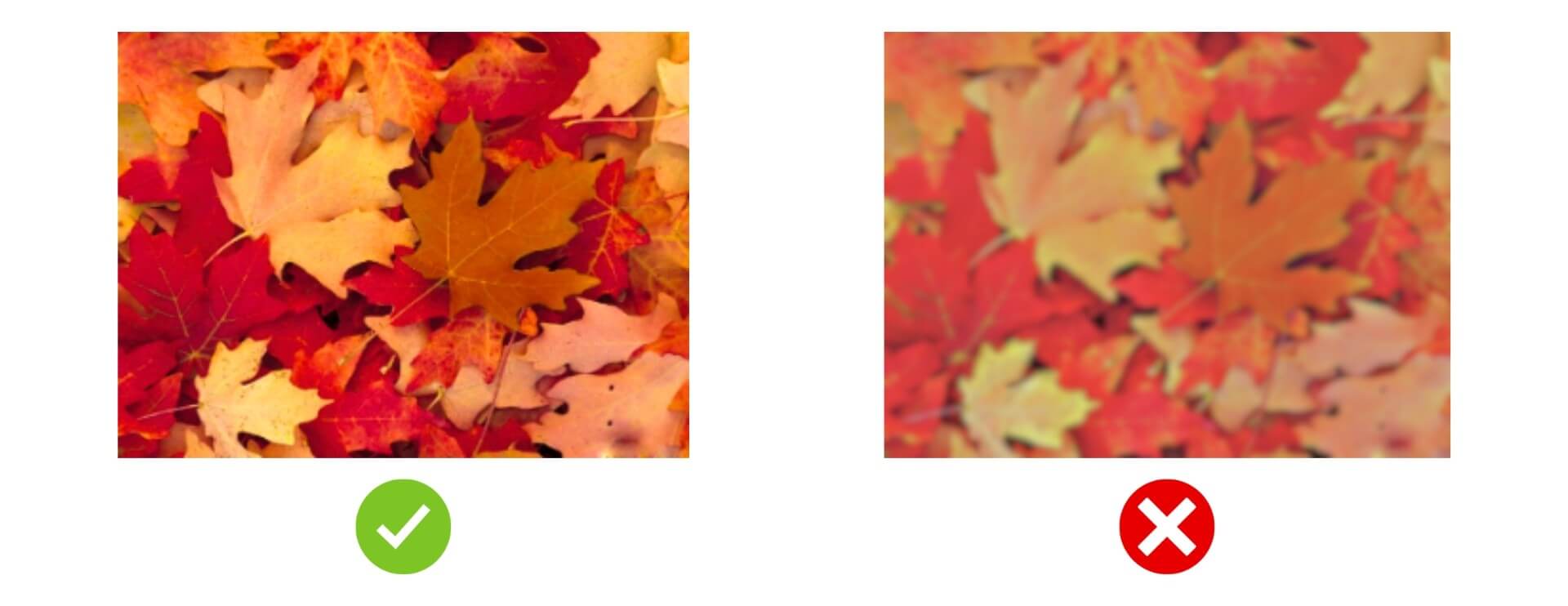 |
In Basic AR/Gyroscope, the AR scene appears even when the user is not pointing at the target image.
In Plane AR and Walk-in AR, scanning is completed even when the user is not pointing at the target image.
Solution
Improve the uploaded images based on the target image guidelines.
Basic AR, Gyroscope, Plane AR, and Walk-in AR all allow multiple target images in one scene. Please make sure every uploaded image follows the target image guidelines, and remove any unnecessary or distracting images.
TIP
If misrecognition still occurs, you can improve the result by increasing the Recognition Threshold.
This feature is available for Enterprise users. If you want to enable it, please click here to contact us.
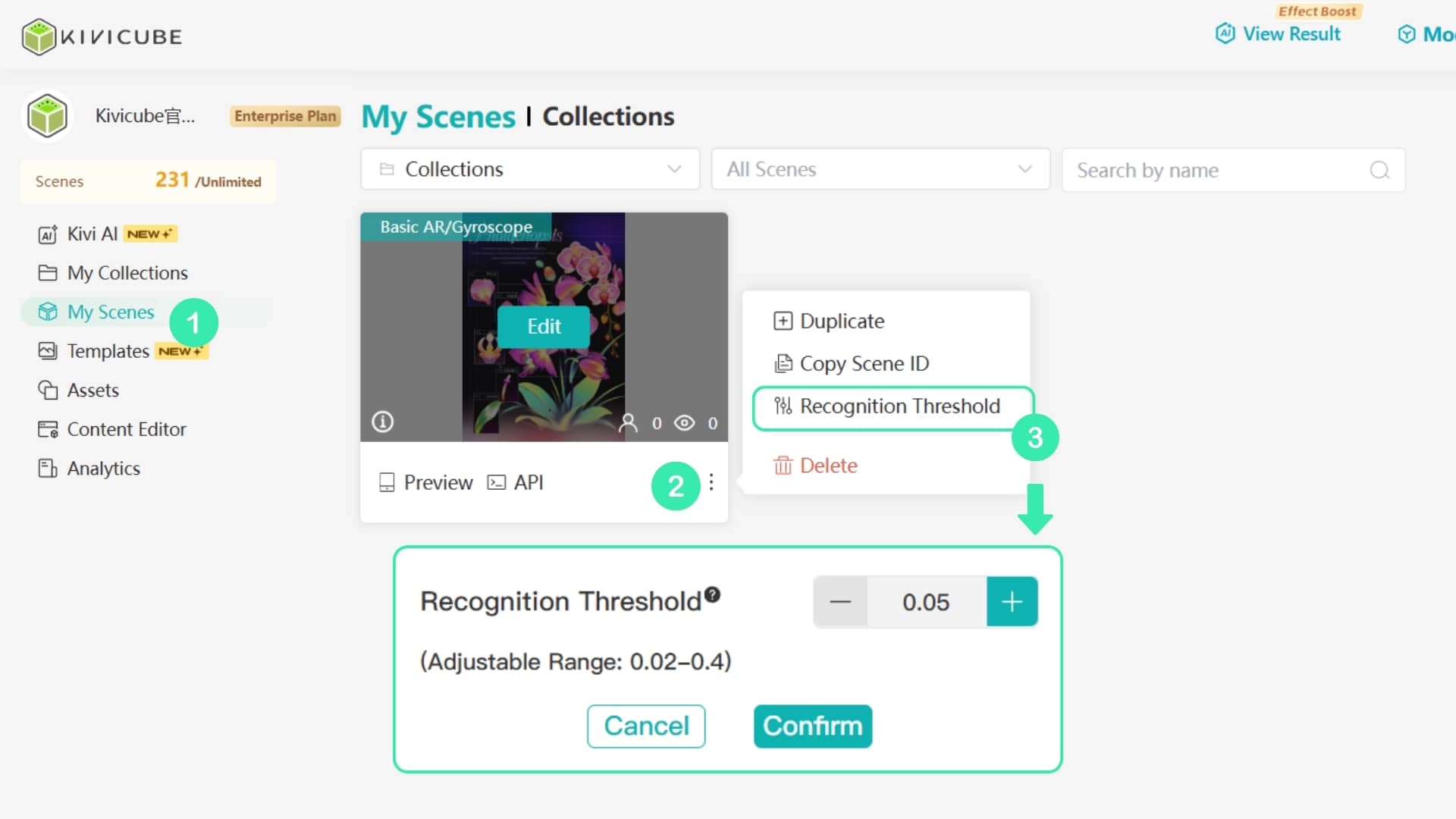
When testing a collection, the AR content of Scene B appears even though the target image of Scene A is scanned.
Solution
First check Scene B in the same collection. It may also have recognition problems. If Scene B is too easy to trigger, the system may not detect Scene A in time and may match Scene B by mistake.
Check if the target images of different scenes in the same collection look too similar. If they look almost the same, the system can get confused and mix them up.
For example, if these five images look very similar, you should add clear differences to each one and remove elements that are too similar. This helps prevent misrecognition from the root.
If misrecognition still happens after adjustments, you can increase the Recognition Threshold to further improve the result.
TIP
If you cannot change the target image due to business needs, you can click here to contact us to enable AI recognition (such as text or logo recognition). This helps the system better distinguish similar images. 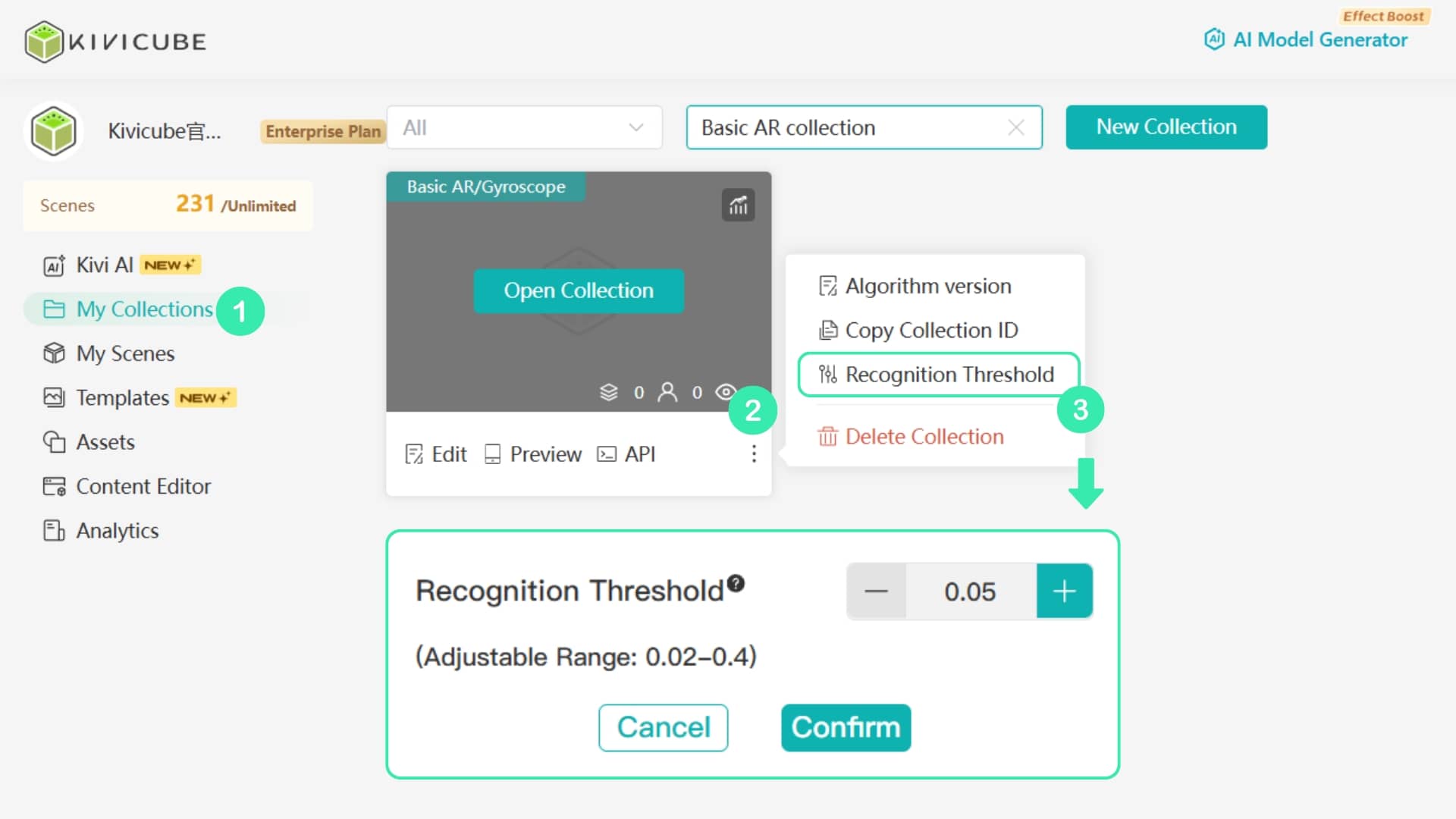
When you create a new Basic AR/Gyroscope, Plane AR, or Walk-in AR scene and upload a target image, the system will automatically check whether it is very similar to other images in the same collection.
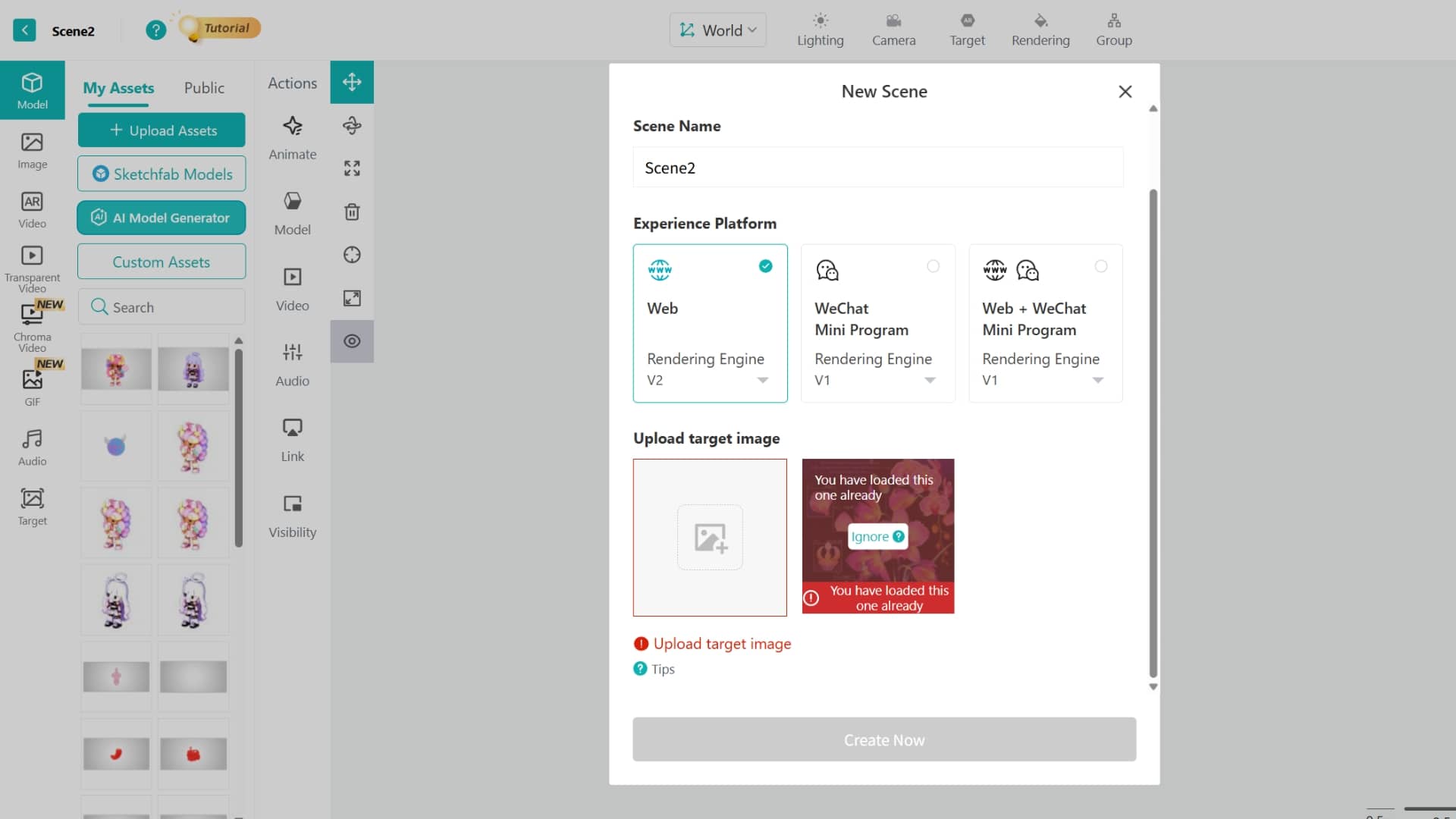
Solution
If you do not need the collection multi-image recognition feature, you can click Ignore.
If you need to use the collection feature, carefully check whether other scenes in the same collection have similar target images. If you find similar ones, edit or delete them, then upload them again.
Note
If you check and there are no similar images in the collection, you can click Ignore to finish uploading. After uploading, please test it in real use. The final result depends on real testing.