English
Appearance
The left toolbar on the 3D canvas helps you adjust and manage the currently selected objects, as well as control the viewpoints and display effects of the canvas.
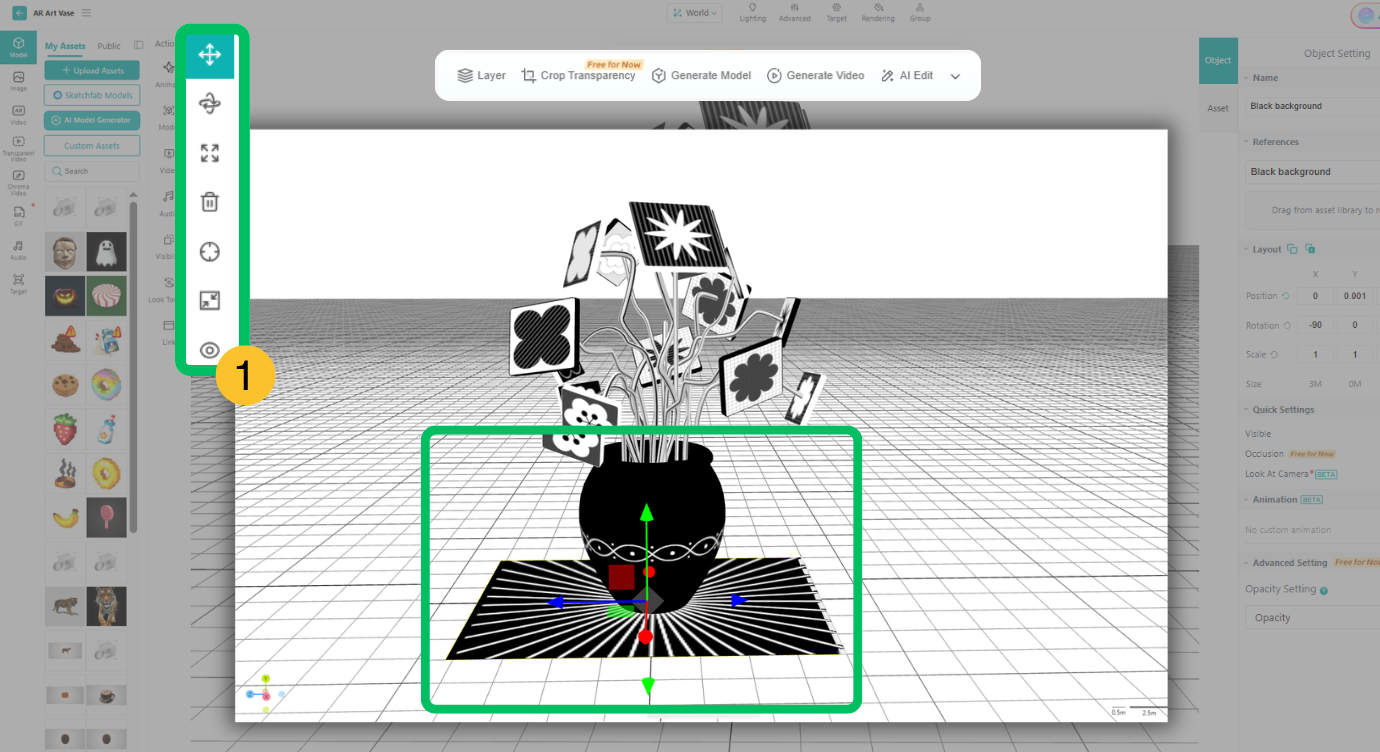
| Name | Icon | Function |
|---|---|---|
| Translate |  | Once selected, the object will display X, Y, and Z movement axes. Drag the corresponding movement axis to move the object in that direction. Shortcut: W |
| Rotate |  | Once selected, the object will display X, Y, and Z rotation axes. Drag the corresponding rotation axis to rotate the object in that direction. Shortcut: E |
| Scale |  | Once selected, the object will display X, Y, and Z scaling handles. Drag the scaling handles to enlarge or reduce the object proportionally. To adjust the size in a specific direction, you need to first unlock the scaling in the “Layout” settings, then drag the zoom slider in the corresponding direction. Shortcut: R |
| Delete |  | Click to delete this object. Shortcut: Windows Backspace;macOS-DEL |
| Reset |  | Quickly reset the 3D canvas's viewpoint to its initial state. |
| Portrait |  | Switching the 3D canvas from full-screen mode to portrait orientation is commonly used in Basic AR/Gyroscope and Web 3D scenes. |
| Hidden in Canvas |  | Hide the object on the canvas to make it easier for other operations. Note: This action does not affect the actual AR experience. To hide the asset during the AR experience, turn to the event panel on the left, select Visibility, and set it to "Invisible" to add a hidden event. |