English
Appearance
References in Kivicube are a powerful workflow tool designed to improve creation efficiency. With References, you can quickly transfer the position, interaction events, and custom animations of one object in the 3D Canvas to another object.
This feature is especially useful for beginners who rely on templates to speed up content creation, as well as for creators who need to produce multiple experiences with similar interactions but different assets.
To replace an object using References:
First select the object you want to replace. You can do this either directly in the 3D Canvas or from the Layer panel on the right side of the Scene Editor.
Next, choose the new asset from the asset library on the left and drag it into the editor. Drop the asset into the replacement area located at the bottom of the References panel on the right.
Once dropped, the replacement will be applied automatically. The new object will inherit the original object's position, interaction settings, and animations.
If you need to revert the change, you can click the Undo button next to the References panel to restore the previous state.
Please note that References currently support replacement only between the same asset types. For example, models can replace models, images can replace images, and videos can replace videos.
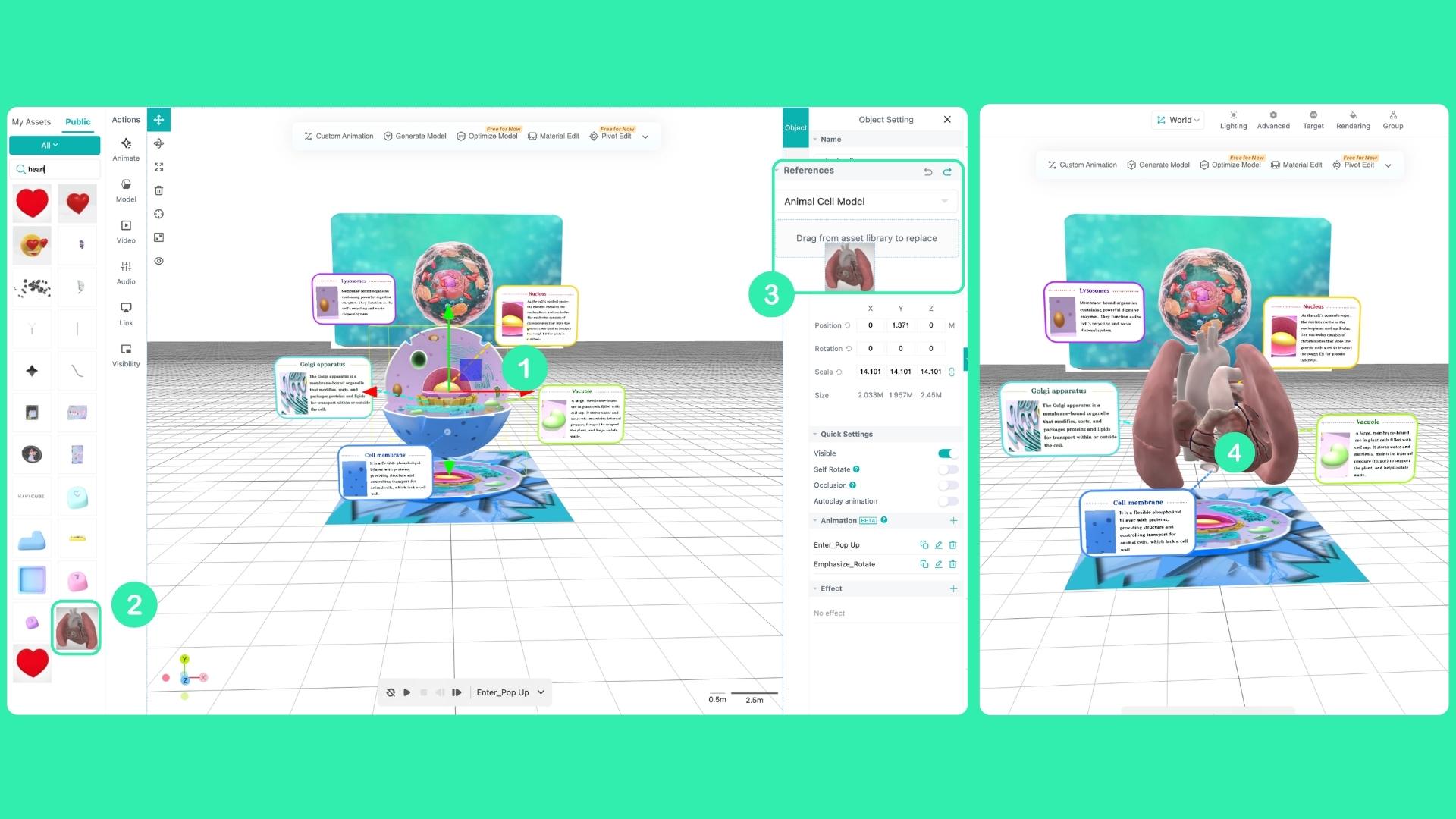
Different models have different default scales. After replacement, the new model may appear too large to be fully visible in the 3D Canvas, which can make it seem like it is not displayed.
To fix this, go to the Object Settings panel on the right and adjust the Size parameter. Try reducing the value until the model becomes visible in the scene.
In the References panel, you will find both Undo and Redo options. These allow you to easily revert or reapply replacement actions.