English
Appearance
Kivicube AR Agent is an AI-powered tool that turns your ideas into complete interactive AR experiences.
By simply describing the AR experience you want, the system can generate landing pages, share pages, animations, and interactive elements — all ready to use.
It is designed for both creators and businesses to quickly build production-ready AR content, whether for product showcases, marketing campaigns, or creative projects.
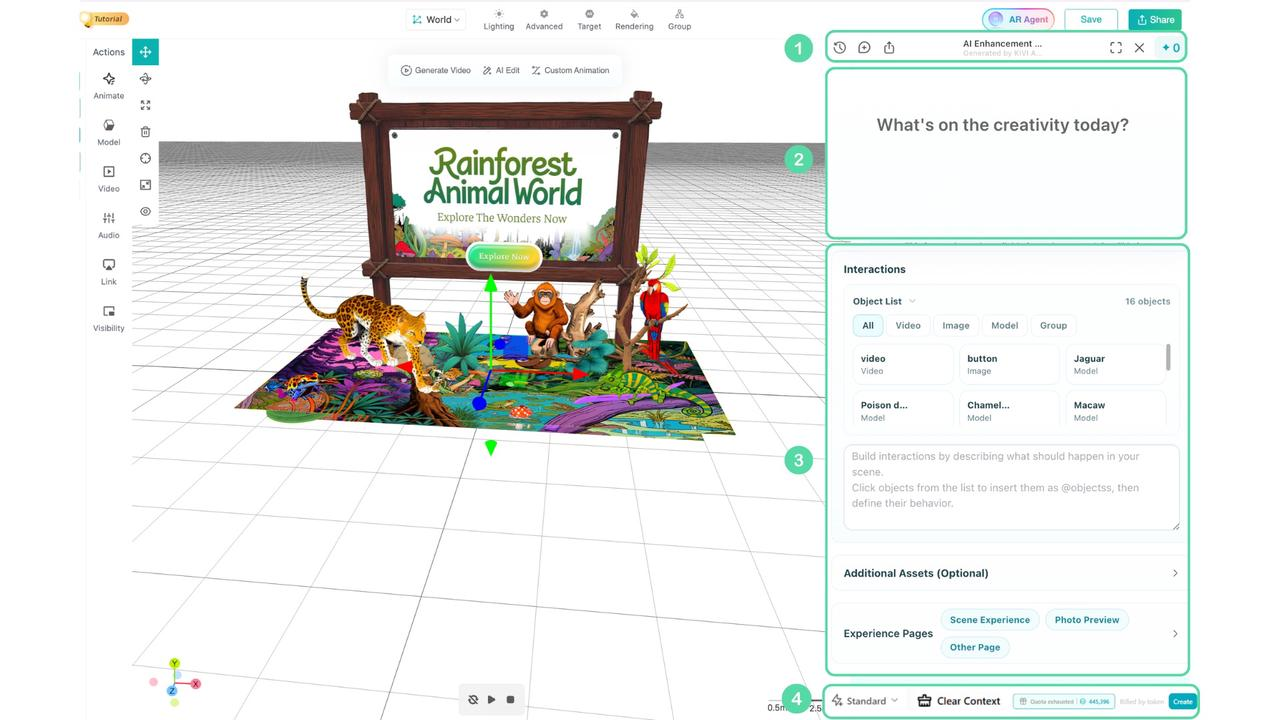
Below is an overview of AR Agent's main functional modules:
From left to right: Tap the clock icon to view the generation history
Tap the speech bubble to add a new generation task
Click the share button to view the link to the final version of the AI-generated AR experience
Tap the square button on the right to switch to full-screen mode for a larger editing window.
The far right shows the remaining generation credits.
Shows how the AI interprets your prompt and delivers the generated AR experience.
Reasoning — See AI's step-by-step thinking as it builds your scene.
Preview — Access the interactive result instantly via link and QR code.
Refinement — You can view the AI's reasoning process to help you adjust the prompt and get better results.
The AR Agent in Kivicube generates AR interactions and all the pages of the AR experience primarily through prompts.
Use Interactions to tell AI how users can interact with your AR experience and you don’t need to set up triggers or animations manually.
You can describe things like:
What happens when users tap or click an object
Which animations should play
When content appears or disappears
Adding simple logic or random effects
For Example: When users tap the planet, show its name and play a rotation animation.
Here, you can upload additional materials that you need for reference, like: product images, logos, 3D models, videos or other media.
Use Experience Pages to describe how your AR experience looks across different stages.
You can customize:
Landing Page (before entering AR)
Scene Experience Page (main AR view)
Photo Preview (The share poster page generated after you click to take a photo)
Other Page (Any other pages you'd like to add, such as product detail pages, portfolio pages, etc.)
Based on your description, AI will automatically create like page layout, text content, visual style and UI structure.
Instead of designing pages manually, just describe what users should see and feel.
For Example: Create a clean landing page with a product title, short intro, and a start button.
From left to right:
Click here to switch models, Kivicube supports both standard and enhanced versions of the model.
The standard model is primarily suited for code-oriented tasks and consumes fewer tokens.
The enhanced model is better suited for more visual tasks, such as generating a more visually appealing landing page or creating an animation that users will find more engaging.
Click the “Create” button next to it to start the AI generation process.
This eliminates the problem of inconsistent AI-generated results caused by multi-round conversations.
This feature may delete too much of your chat history, so please use it with caution.
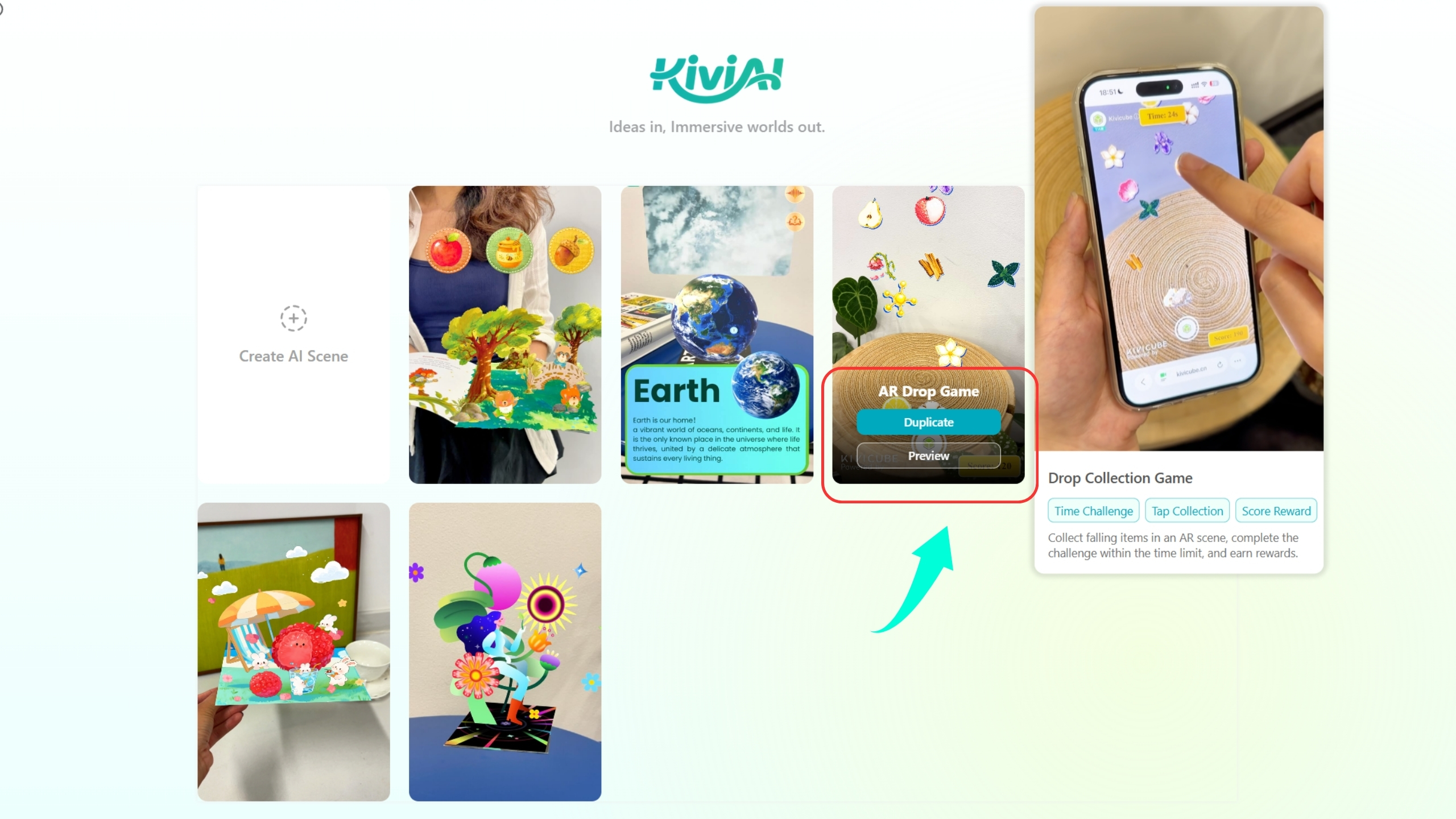
Browse AR experiences created by the Kivicube team and community using the AR Agent. Pick any experience, duplicate it in one click, and tweak the prompt to generate your own AR scene.
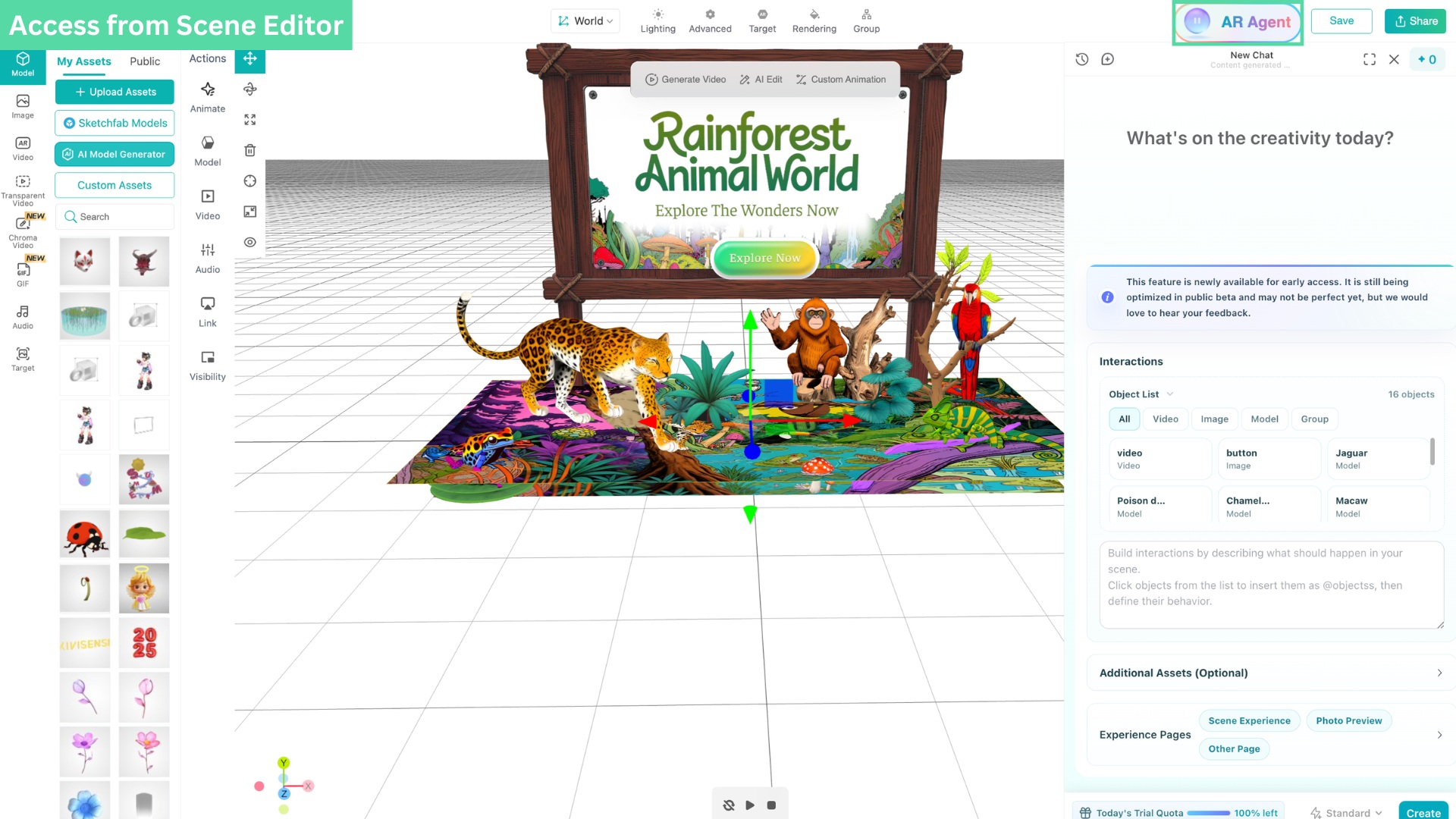
Entry 1: You can access AR Agent directly from the Scene Editor by clicking “AR Agent” in the top-right corner.
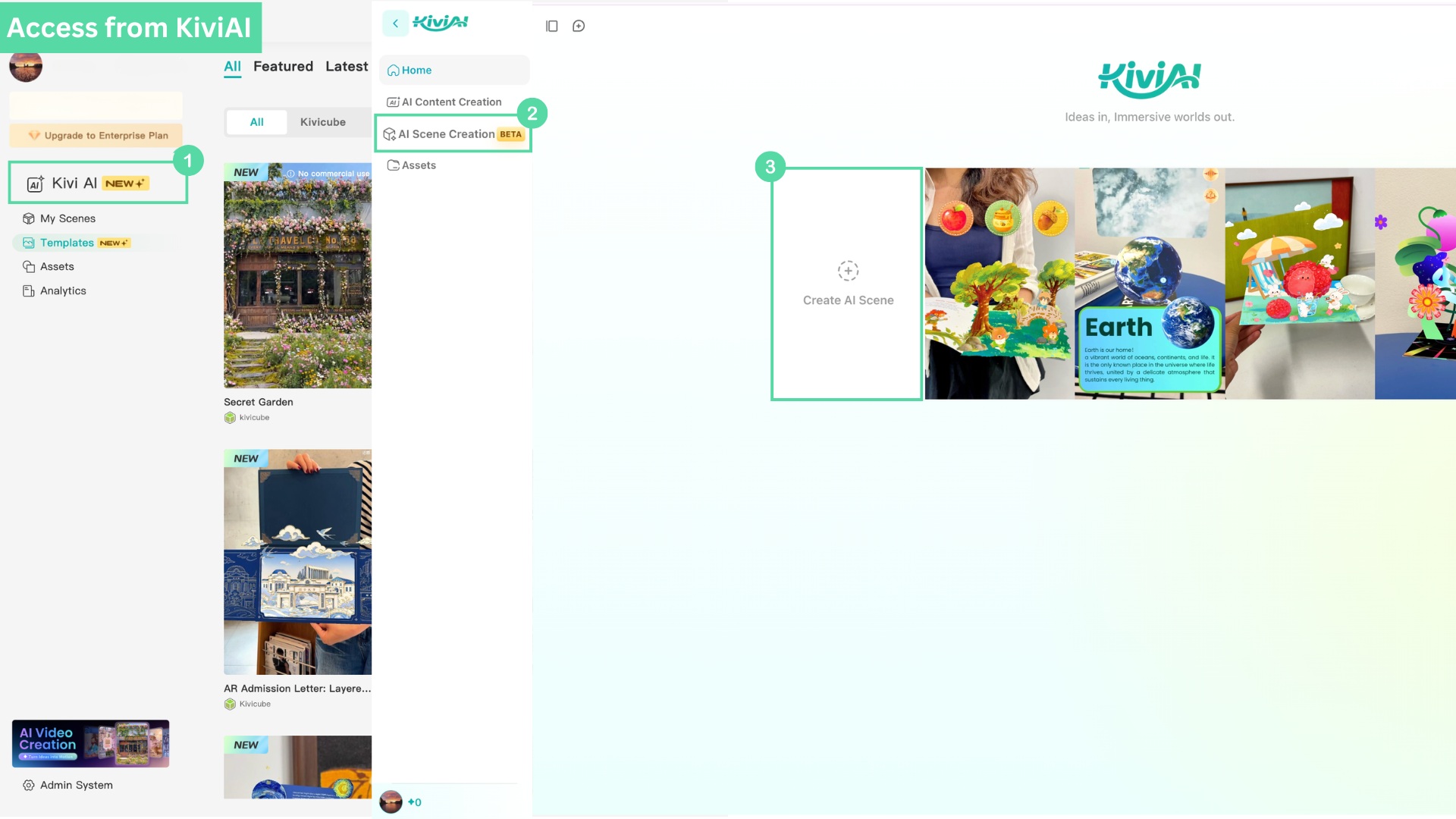
Entry 2: Log in to the Kivicube dashboard, click “Kivi AI” in the left sidebar, and select “AI Scene Creation”. Then click “Create AI Scene” to enter AR Agent.
| Scene Name | Marker | QR code |
|---|---|---|
| AR Headphone e-commerce poster | 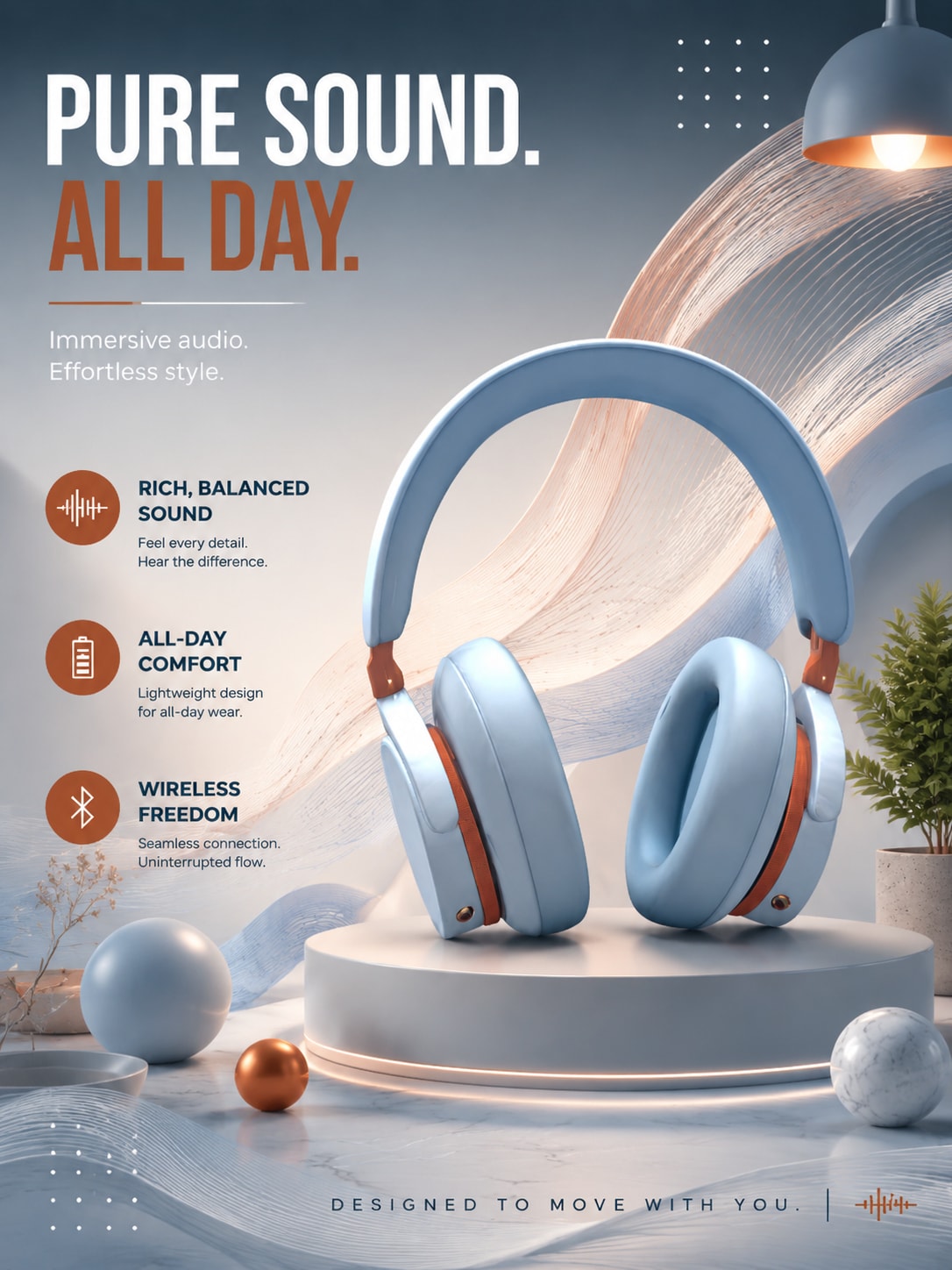 |  |
| AR Packaging experience |  |  |
| AR Applications of game |  |  |