English
Appearance
Kivi AI supports multiple AI image generation methods, including text-to-image, single-image-to-image, and multi-reference image generation.
With Kivicube, you can quickly create a wide range of visual assets for different creative needs, including transparent-background assets for UI design, landing page designs, posters, and illustrations.
Kivi AI offers a selection of AI image generation models, allowing you to choose the one that best suits your needs and generate images that match your creative vision.
This guide introduces Kivi AI’s image generation features, helping you create visual assets efficiently and prepare them for further editing, such as image layering, video generation, and 3D model generation.
Kivi AI offers two ways to access the AI image generator. Choose the entry point that best fits your workflow.
Option 1: From the Homepage
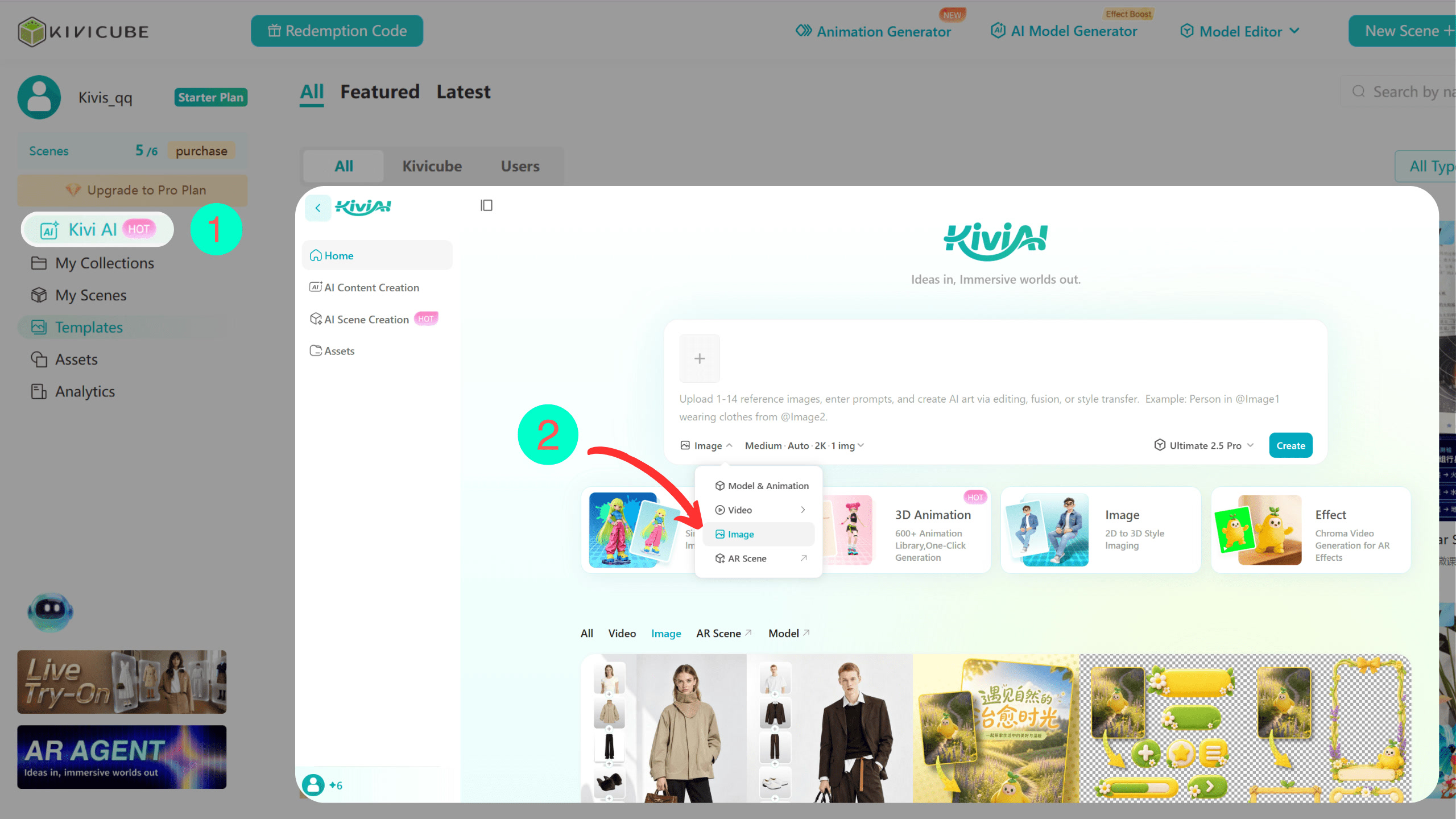
On the Kivicube homepage, click Kivi AI to open the AI creation workspace. Select Image to start generating images.
Option 2: From the Scene Editor
In the Scene Editor, select any image asset, then click Smart Edit in the floating toolbar. This opens Kivi AI’s image generation page, where you can start creating or editing images.
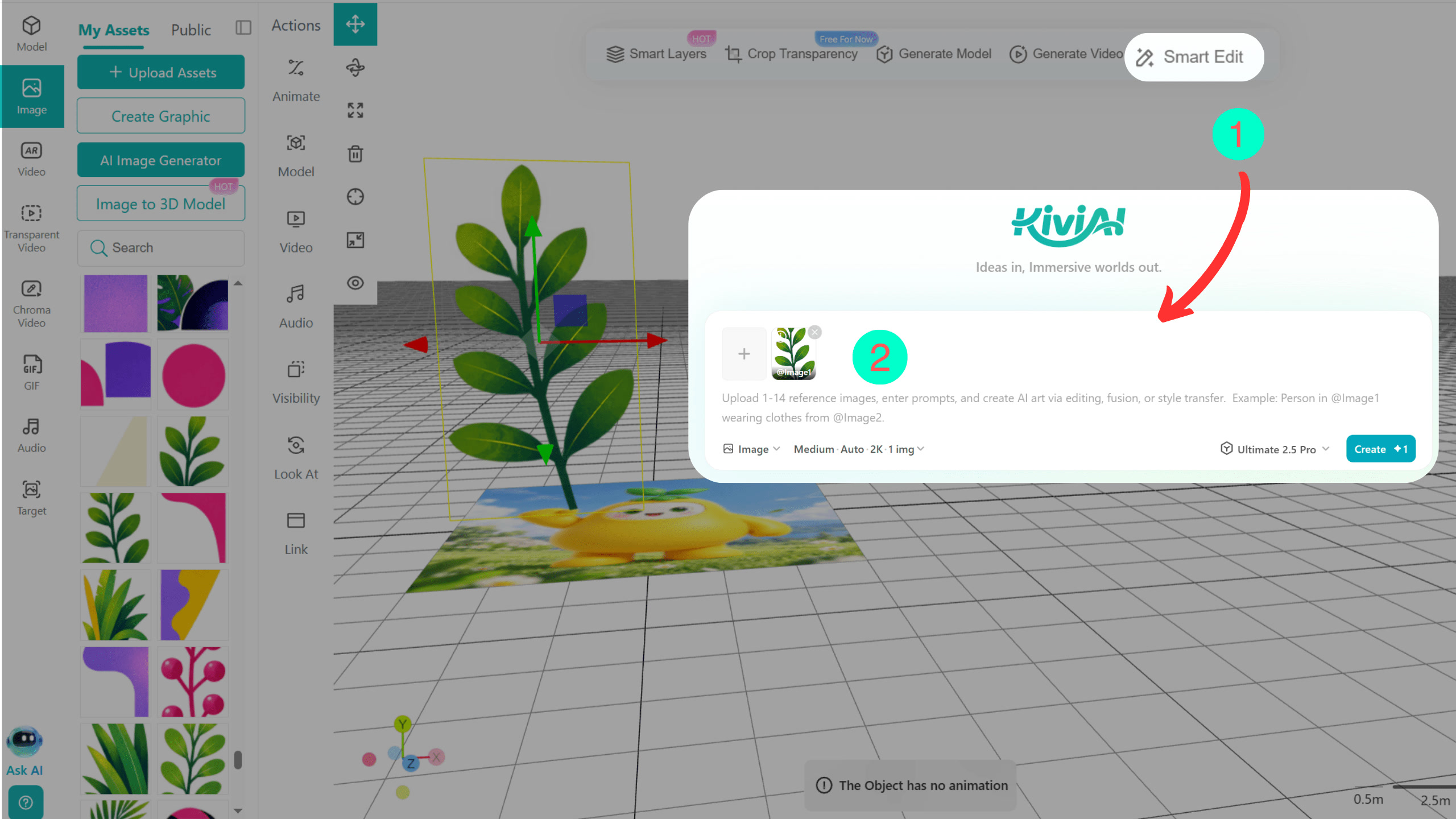
Kivi AI supports multiple AI image generation methods, including text-to-image, single-image-to-image, and multi-reference image generation. You can enter a prompt to create images from scratch or upload one or more reference images to guide the results.
Once you’ve entered your prompt and added any reference images, choose an AI image generation model that best fits your creative needs.
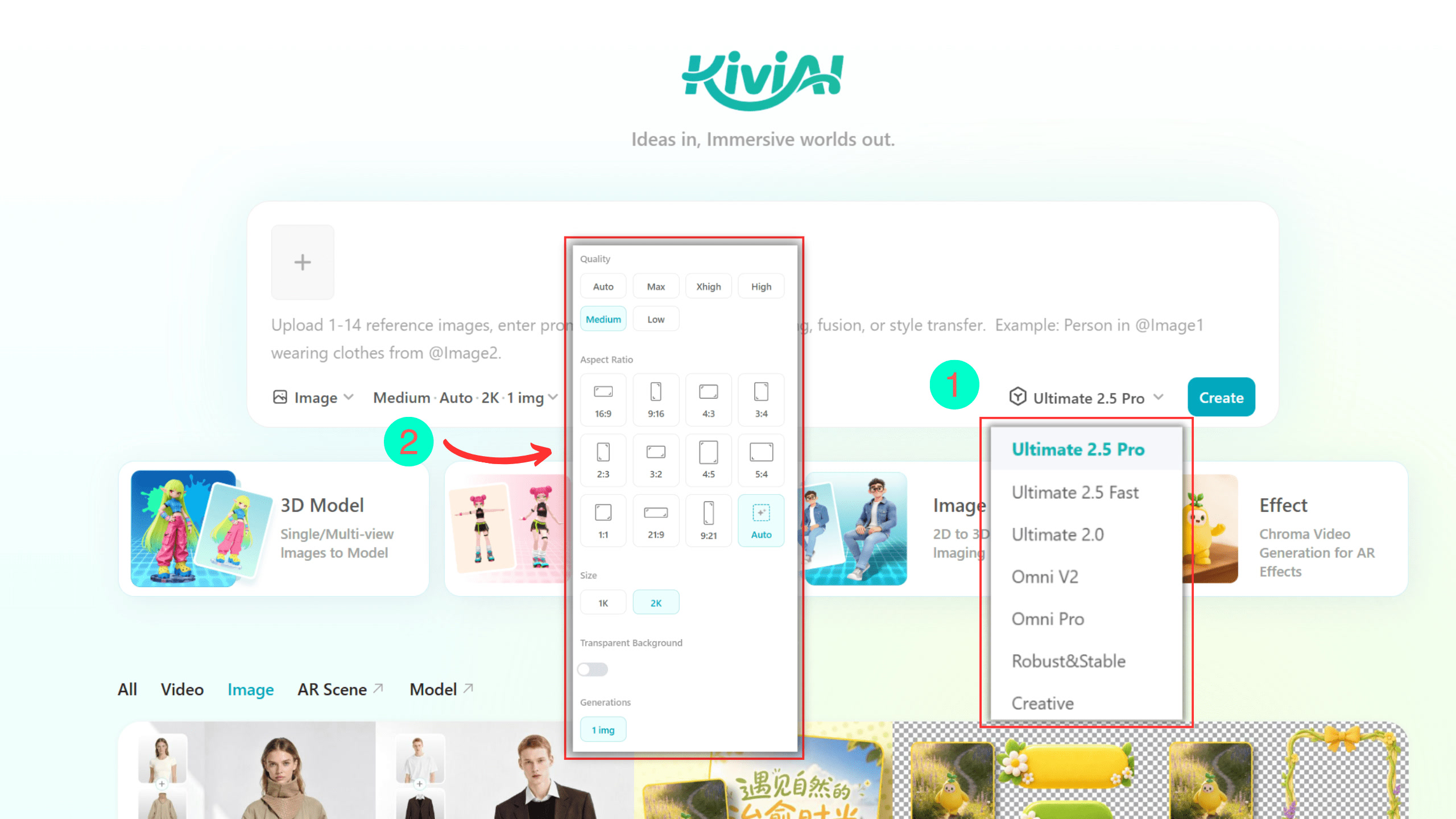
Kivi AI offers a range of AI image generation models, each with different strengths in image quality, generation speed, use cases, and Token consumption. Select your preferred model at ① in the image below.
2.1.1 Ultimate Models
Available models: Ultimate 2.5 Pro, Ultimate 2.5 Fast, andUltimate 2.0
The Flagship series is ideal for projects that require fine details, accurate text and logo rendering, polished visuals, and high-quality results. The 2.5 series also supports transparent backgrounds, allowing you to generate UI elements and other assets with transparency that are ready to use.
Flagship 2.5 Pro: Best for projects that demand high image quality and refined visual details.
Flagship 2.5 Fast: Balances image quality and generation speed. It generates images approximately 30–40% faster than Flagship 2.0.
2.1.2 Omni Models
Available models: Ultimate Pro and Ultimate V2
The Omni series is designed for a wide range of image creation tasks. If you’re not satisfied with the results from a Flagship model, try an Omni model to explore alternative visual directions.
2.1.3 Robust&Stable and Creative Models
These models offer a cost-effective option and support the largest number of images per generation. They are ideal for everyday image creation, creative exploration, and batch asset generation. Experiment with different prompts and visual directions at a lower generation cost while creating image assets more efficiently.
After selecting an AI image generation model, customize the output settings at ② to control the image quality, dimensions, and generation options.
Quality: Sets the quality of the generated image. Higher quality settings generally take longer to generate. Currently, only Ultimate models support quality selection. The Ultimate 2.5 series offers multiple quality levels. In most cases, Medium provides good image quality while balancing results and efficiency. Choose a higher level when finer details are required. Higher settings generally produce better image quality.
Aspect Ratio: Sets the width-to-height ratio of the output image. Multiple options are available for different creative needs. To match the output to the composition of an uploaded reference image, select Auto. This option adapts more flexibly to the subject's composition and reduces the limitations of fixed aspect ratios. It is recommended for image generation tasks such as AI virtual try-on.
Size: Sets the resolution of the output image. Higher resolutions generally take longer to generate.
Transparent Background: Determines whether the generated image has a transparent background. Currently, only Ultimate 2.5 and later models support transparent image generation.
Generations: Sets how many images are generated at a time. Robust&Stable and Creative models generate four images per request, while other models generate one image per request.
3.1.1 Designing a Reusable Logo
Input Image:
Prompt:
Comparing Results Across Models
| Ultimate | Omni | Robust&Stable and Creative |
|---|---|---|
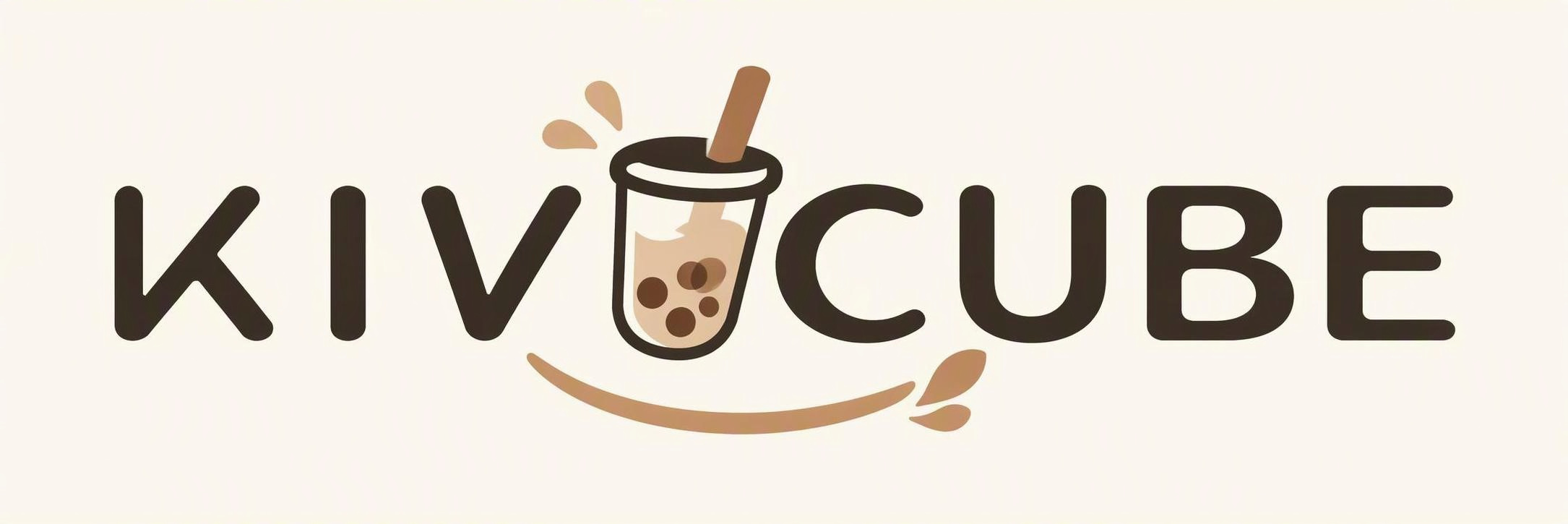 | 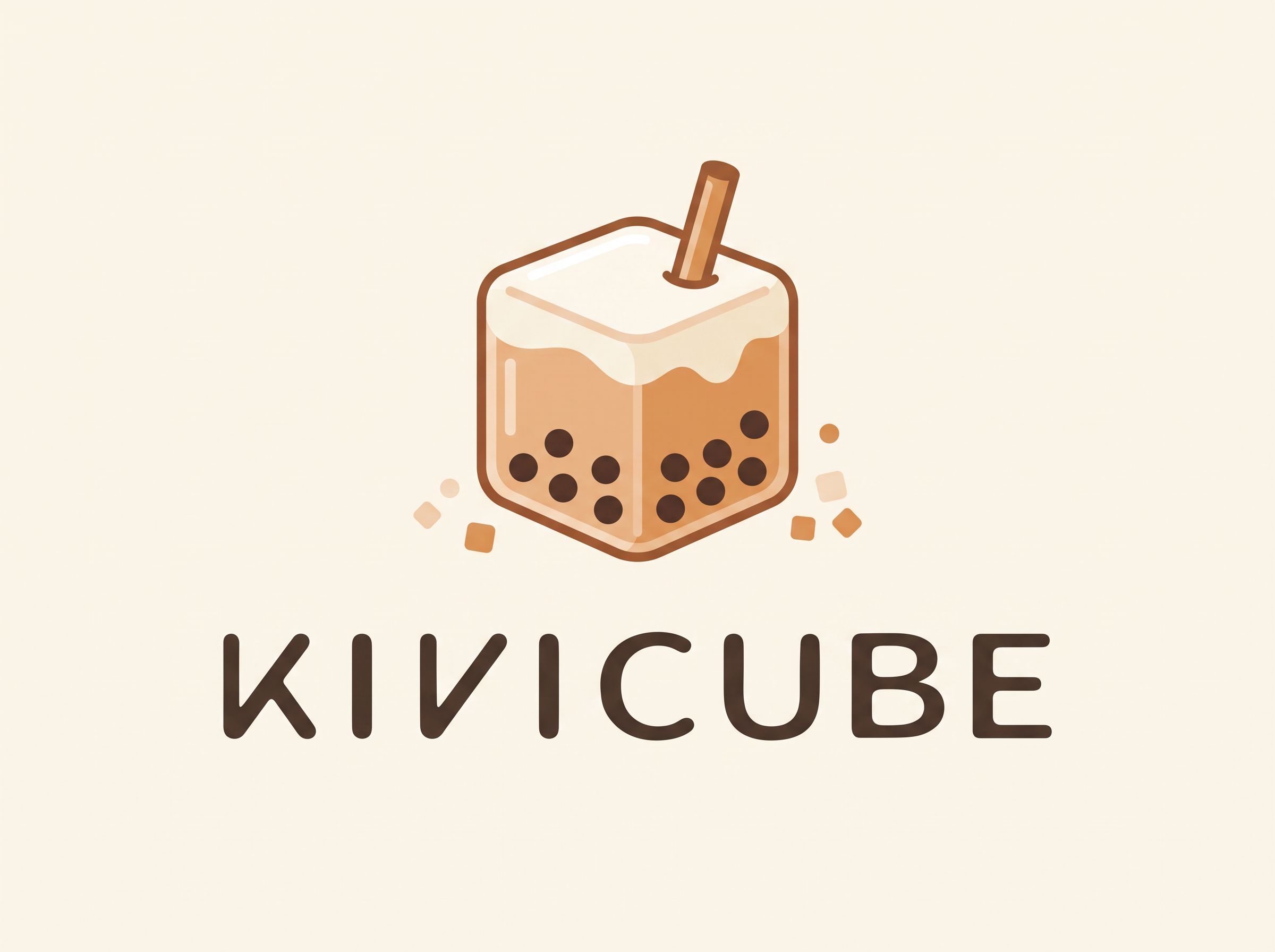 | 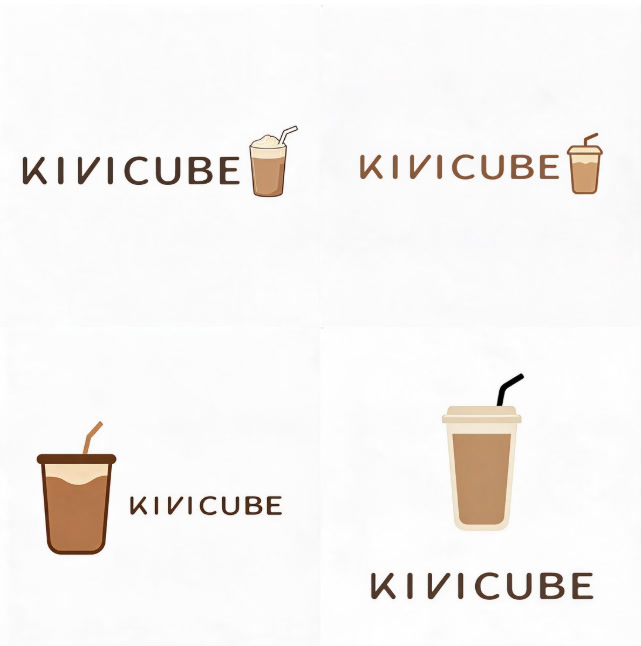 |
| Better text accuracy and design fidelity, with balanced compositions and refined details. | Emphasizes graphic creativity and visual appeal, ideal for exploring different styles. | Generates diverse concepts, ideal for exploring logo variations and layouts. |
| Model Category | Results |
|---|---|
| Ultimate | Better at reproducing text and following design requirements, with a strong focus on brand recognition, text accuracy, and overall polish. Best for designs that require a high level of fidelity and completeness. |
| Omni | Produces balanced compositions with more complete details. Suitable for exploring graphic concepts while maintaining relatively accurate text and logo reproduction. |
| Robust&Stable and Creative | Focuses on graphic creativity and visual exploration. Generates multiple design variations quickly, making it useful for exploring different logo concepts, combinations, and layouts as inspiration. |
3.1.2 Turning a Story into a Comic
Prompt:
Comparing Results Across Models
| Ultimate | Omni | Robust&Stable and Creative |
|---|---|---|
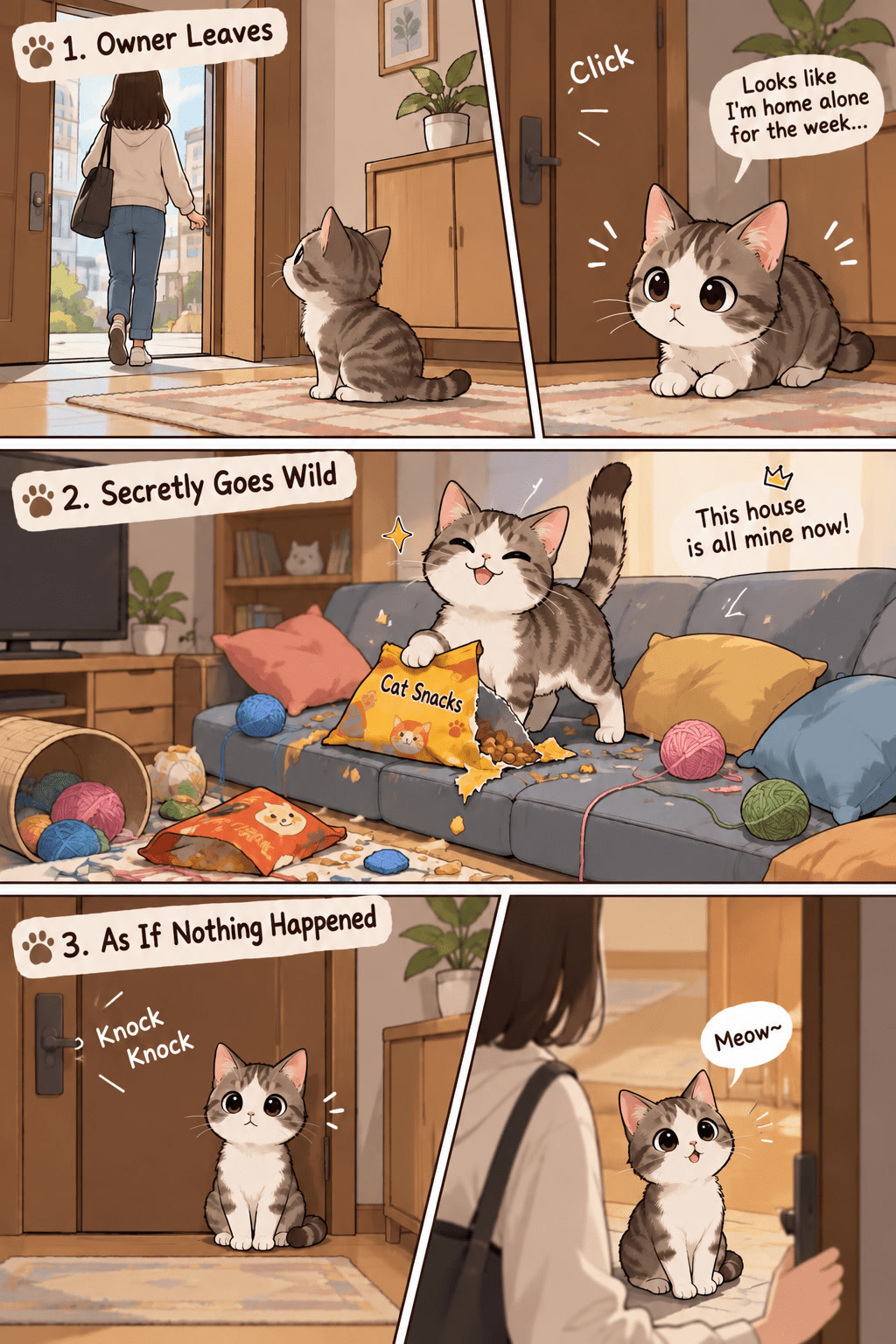 | 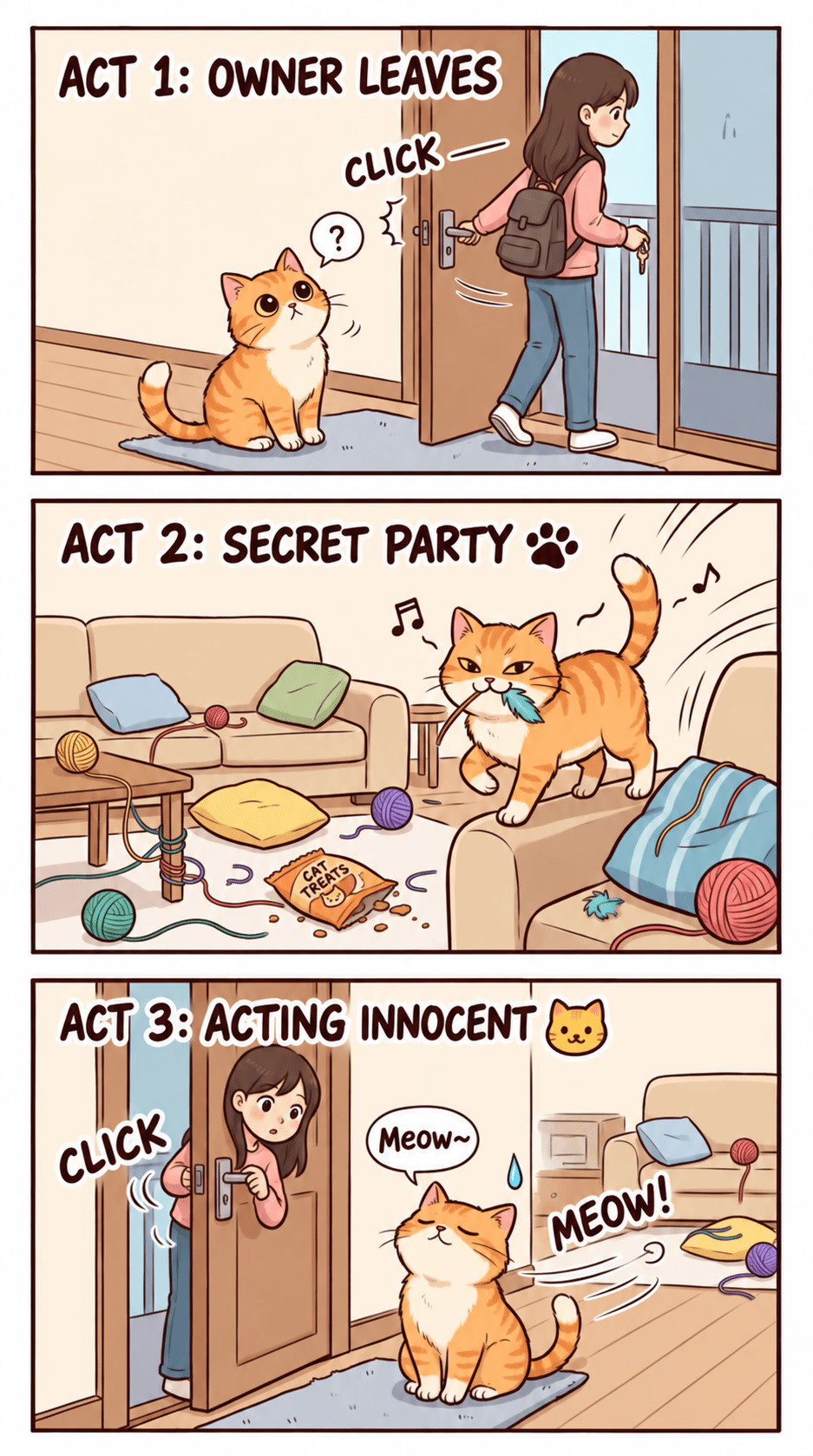 | 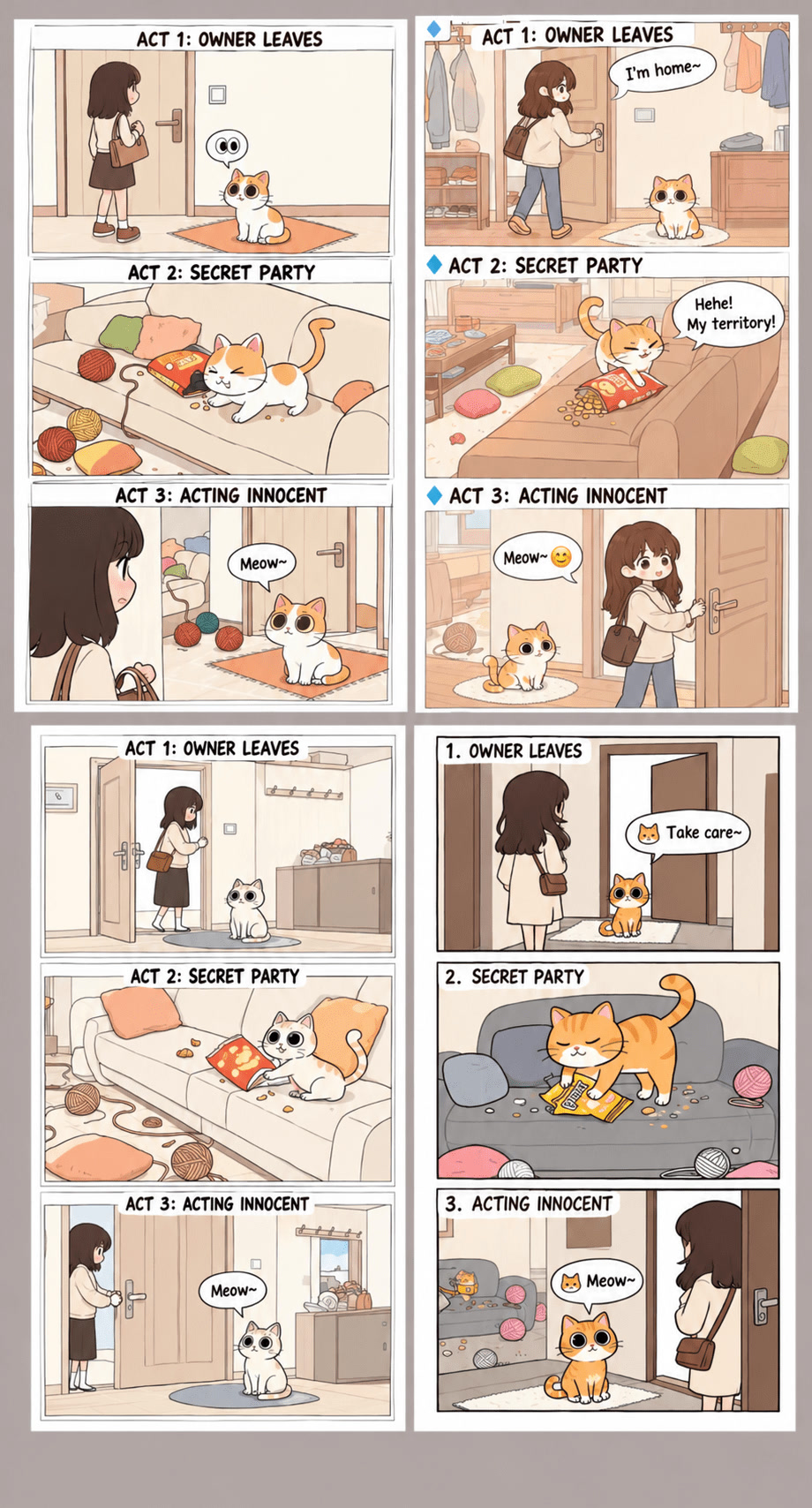 |
| Model Category | Results |
|---|---|
| Ultimate | Excels at rich visual details, expressive cat movements, and immersive storytelling. |
| Omni | Clearly conveys the main storyline with simple panels, prominent subjects, and easy-to-follow actions. |
| Robust&Stable and Creative | Ideal for exploring diverse comic layouts and visual arrangements. |
| Use Case | Model | Prompt | Input Image | Output Image |
|---|---|---|---|---|
| General Images | Omni | 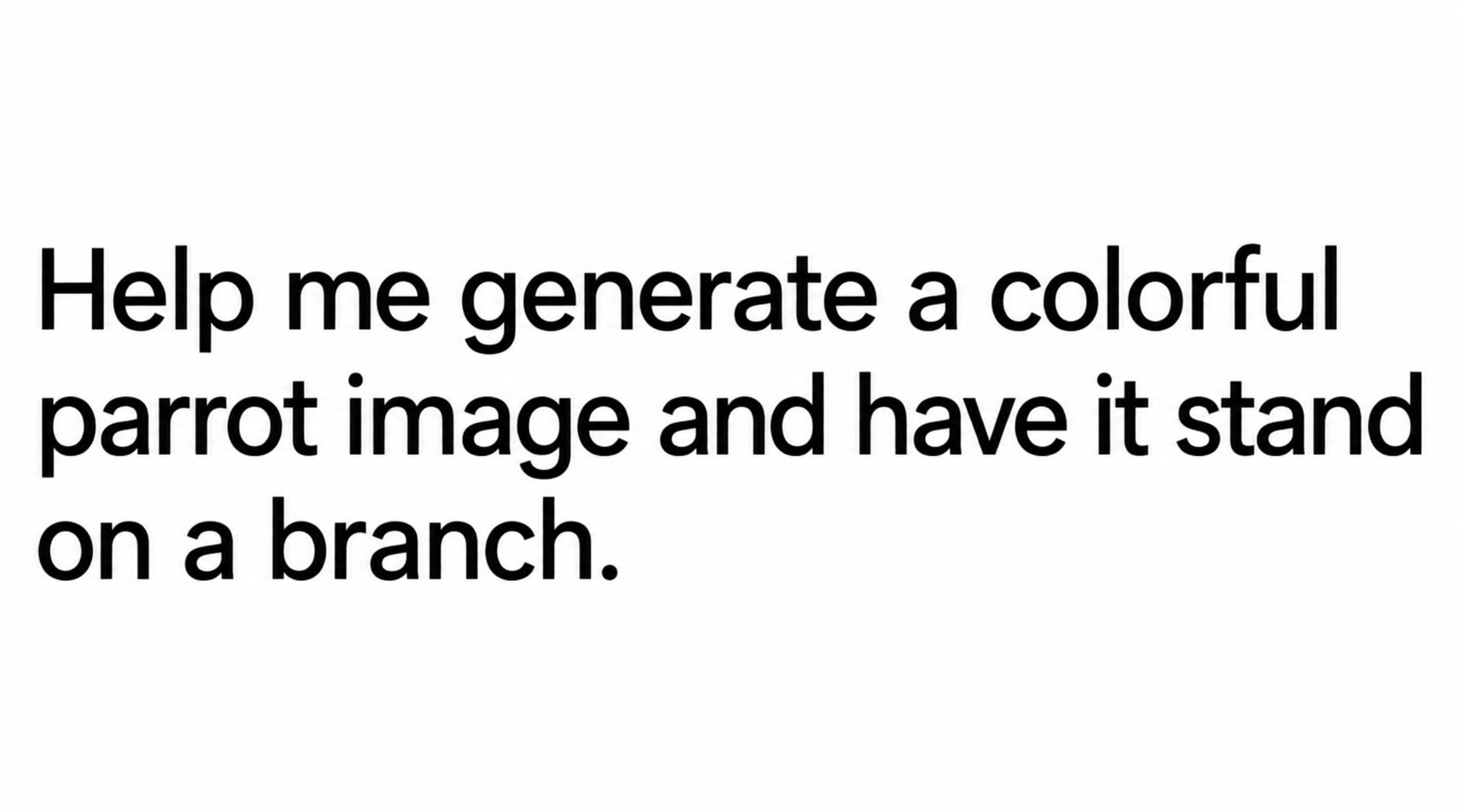 | 无 | 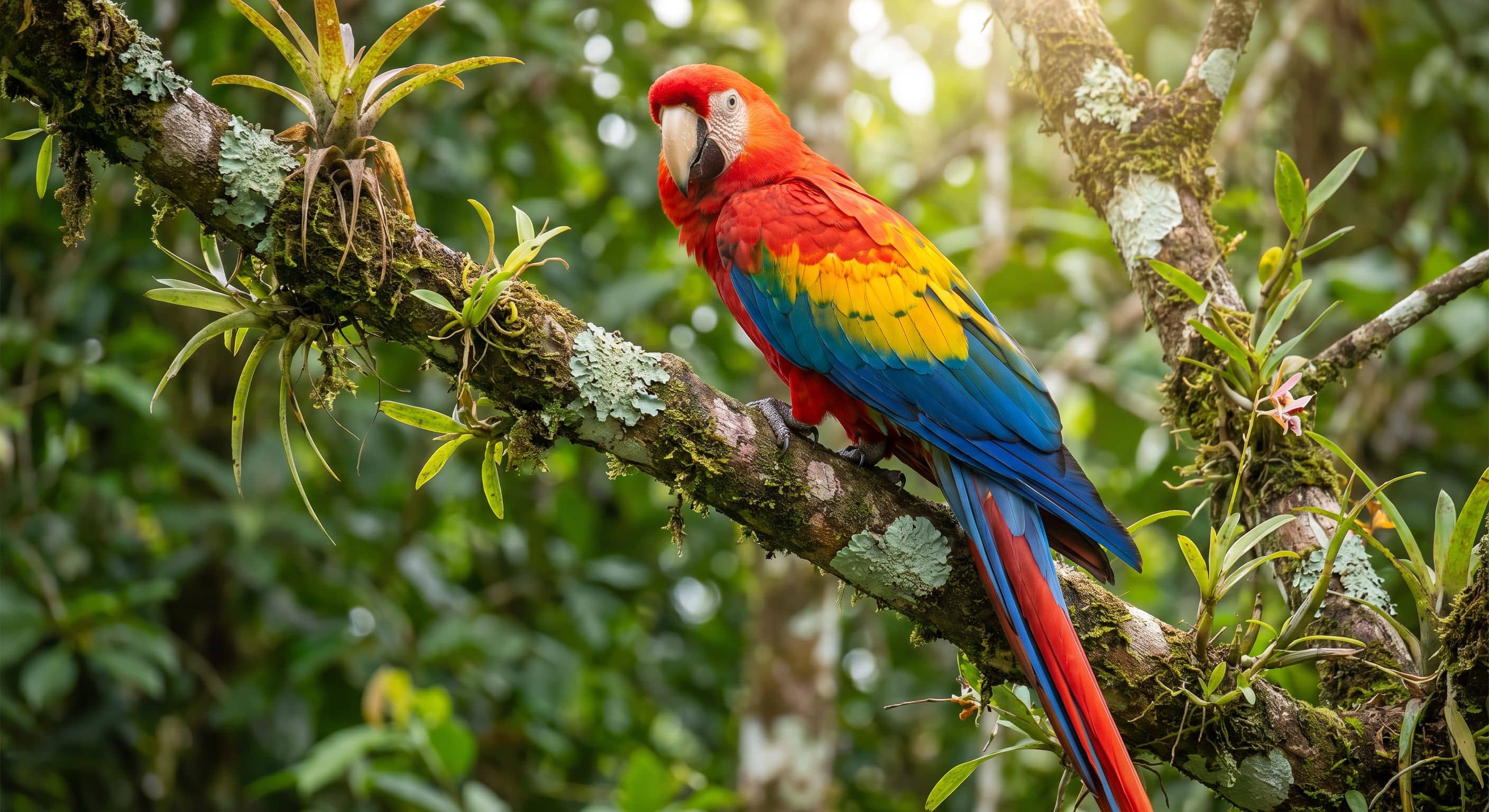 |
| Educational Illustrations | Omni | 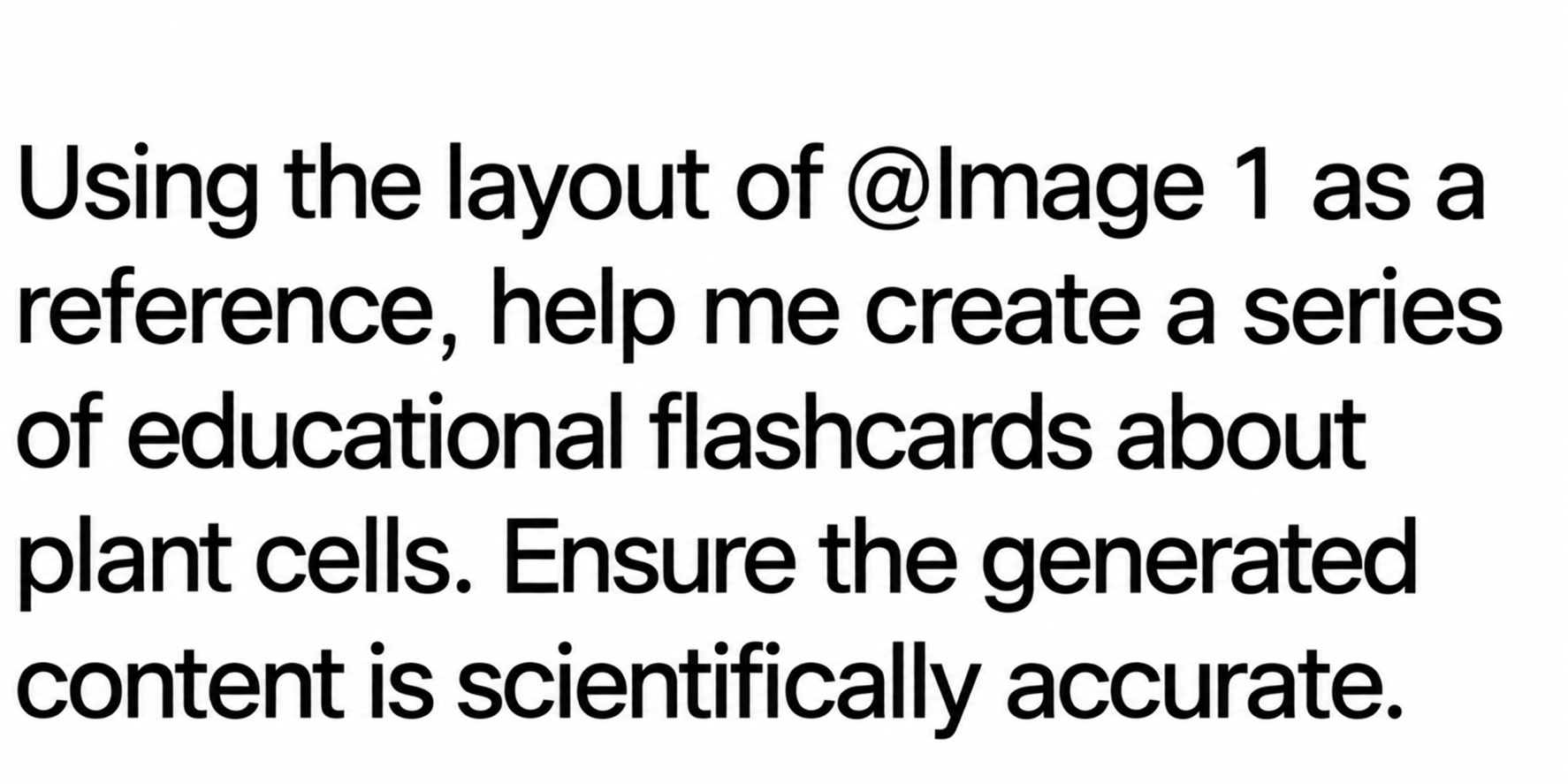 | 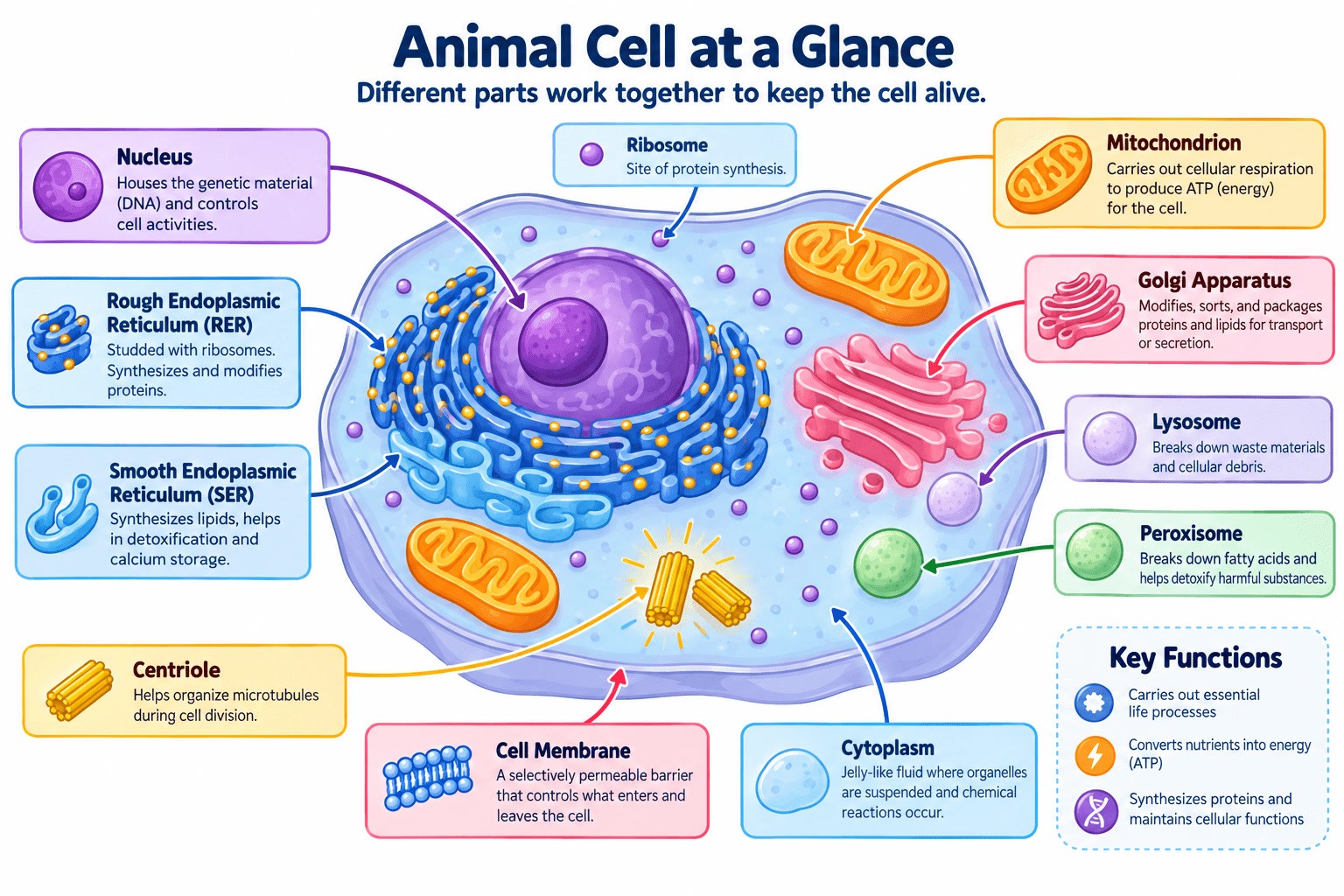 | 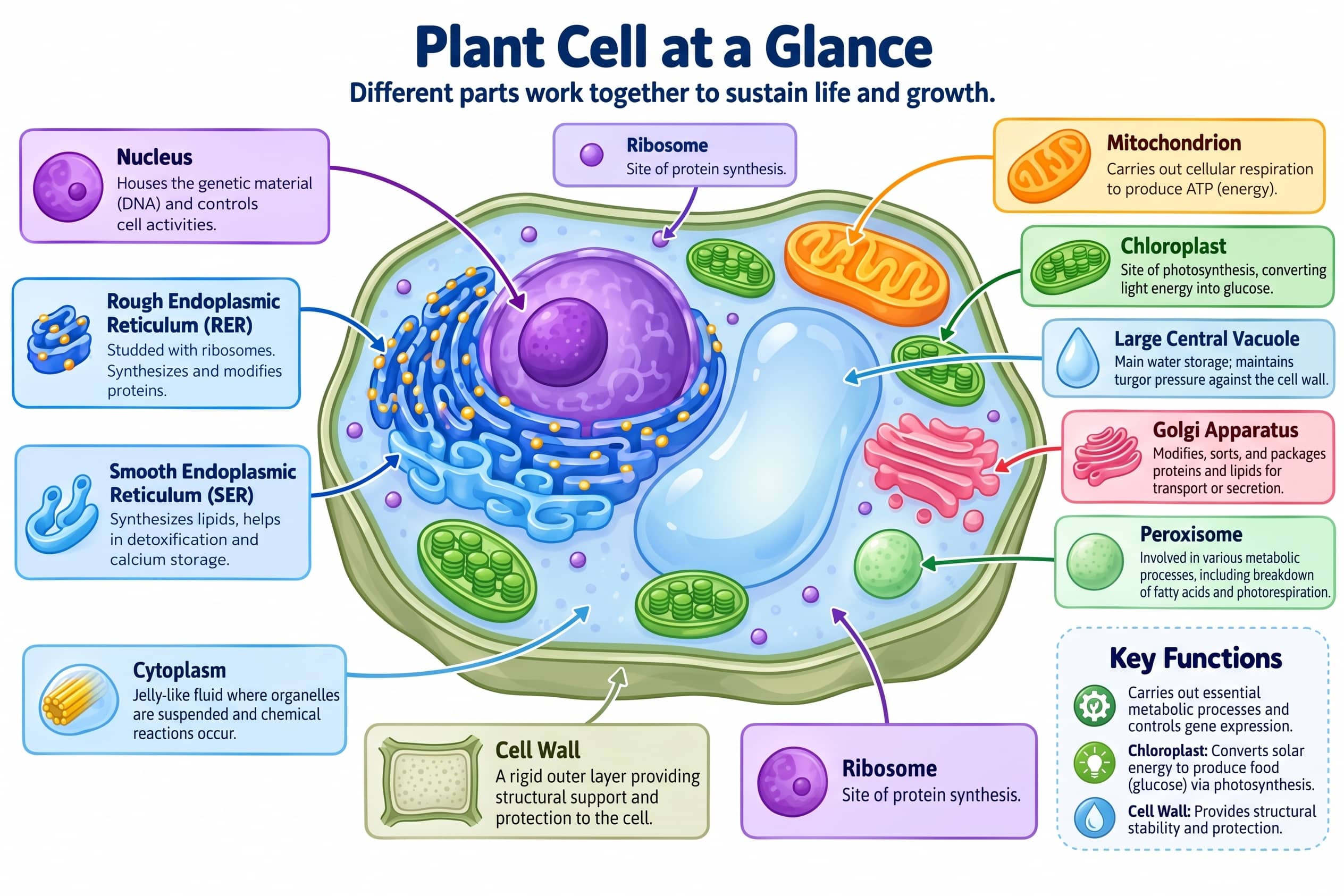 |
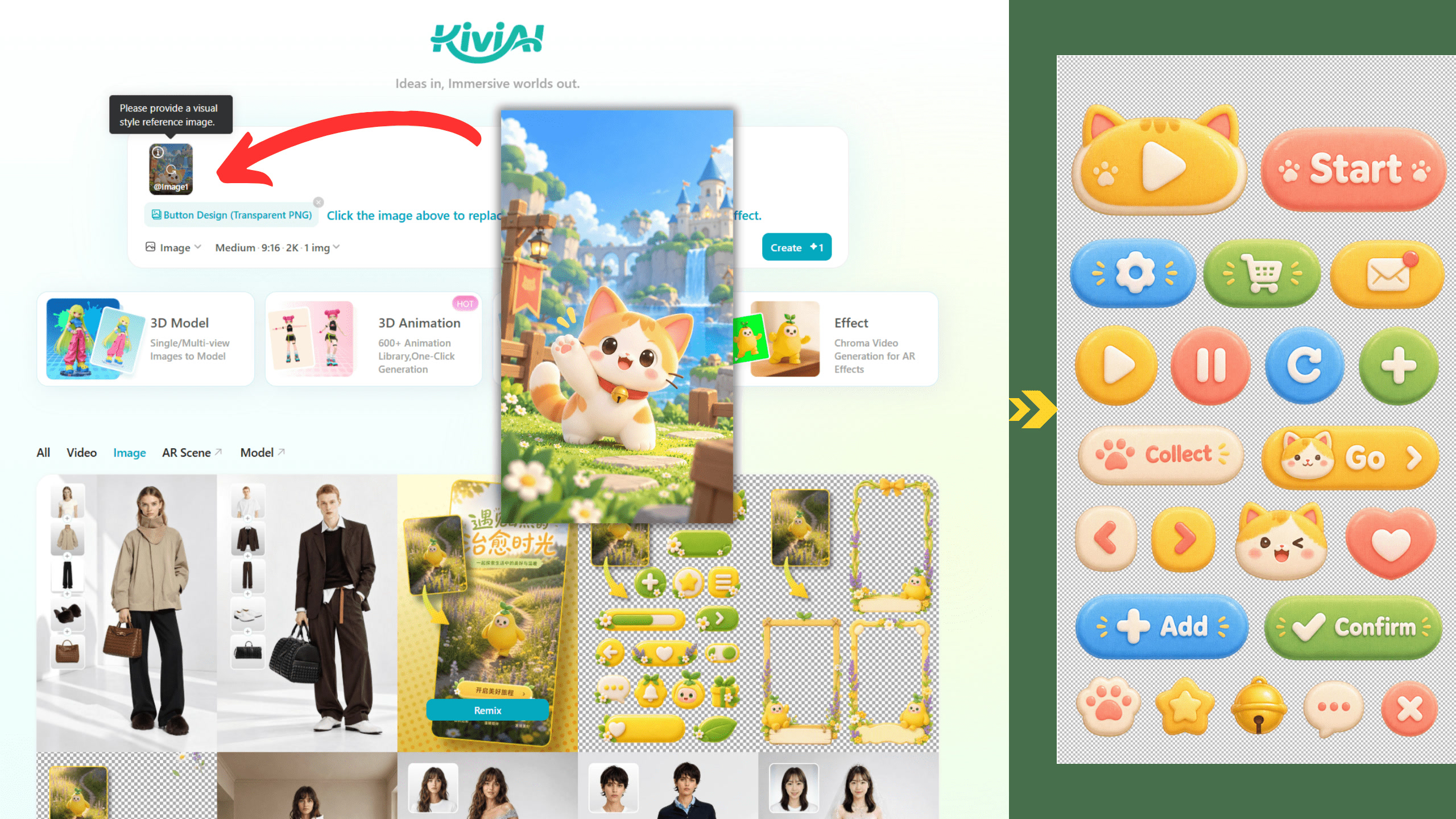
| Transparent UI Elements | Ultimate 2.5 | 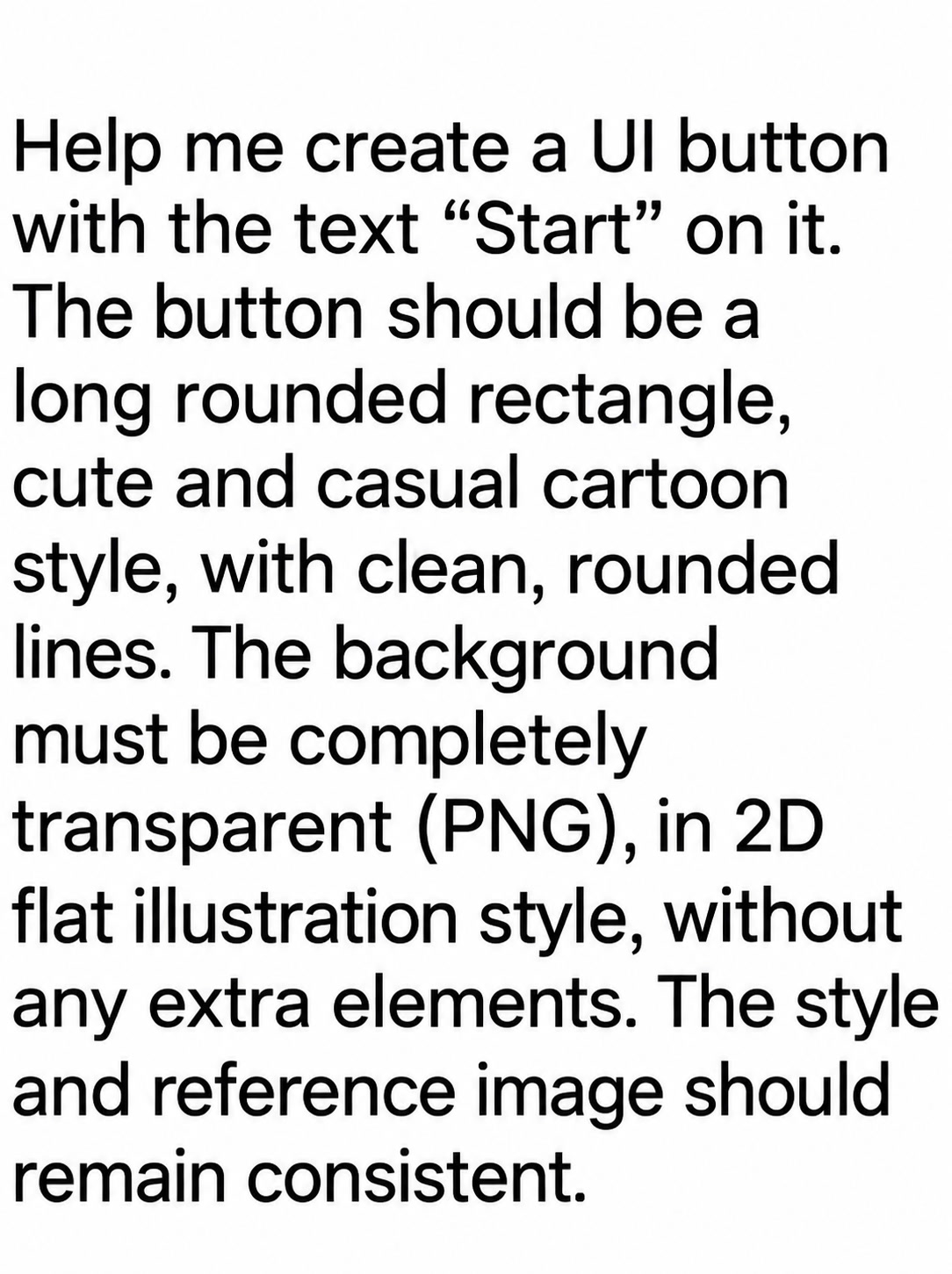 | 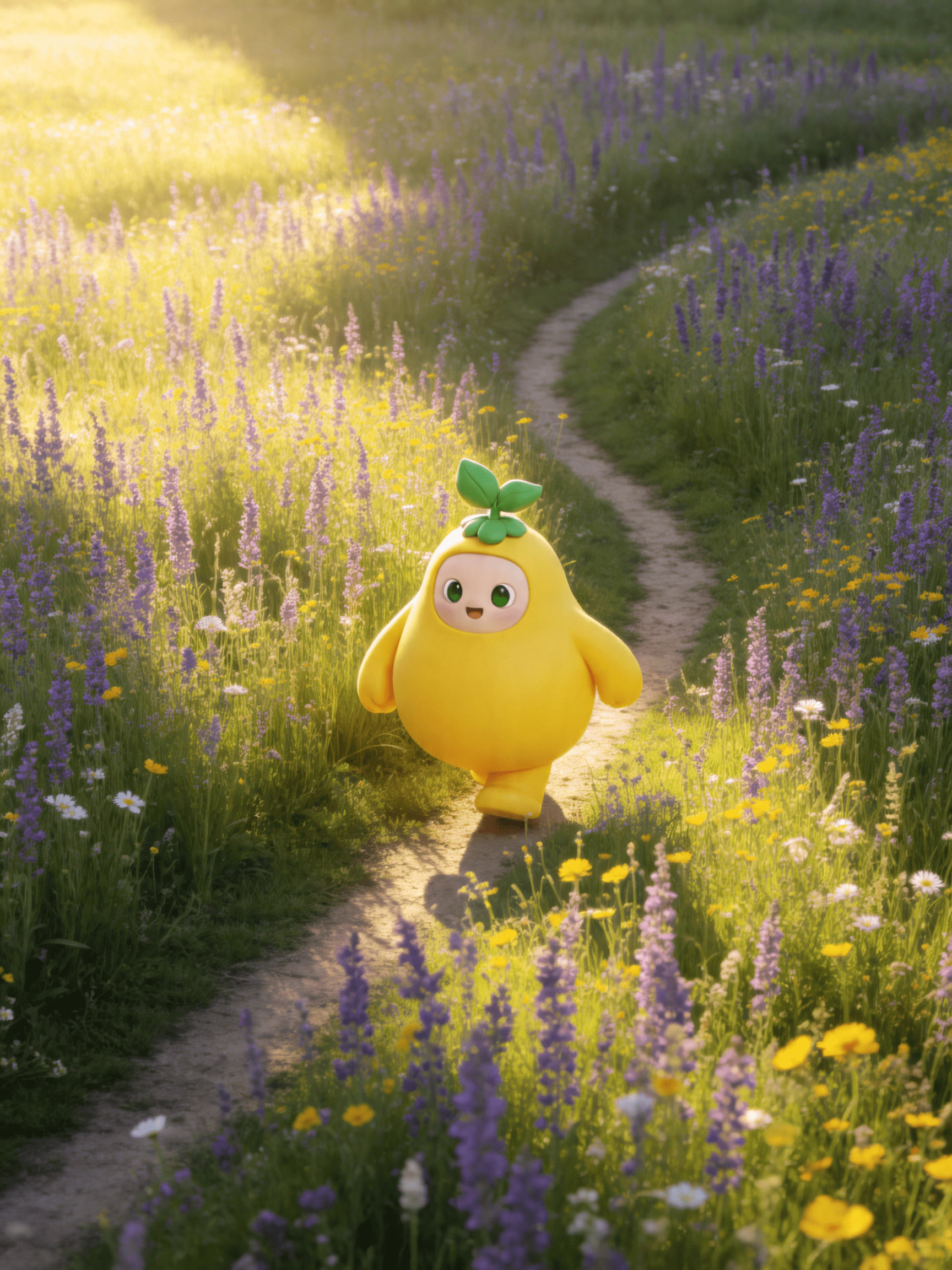 | 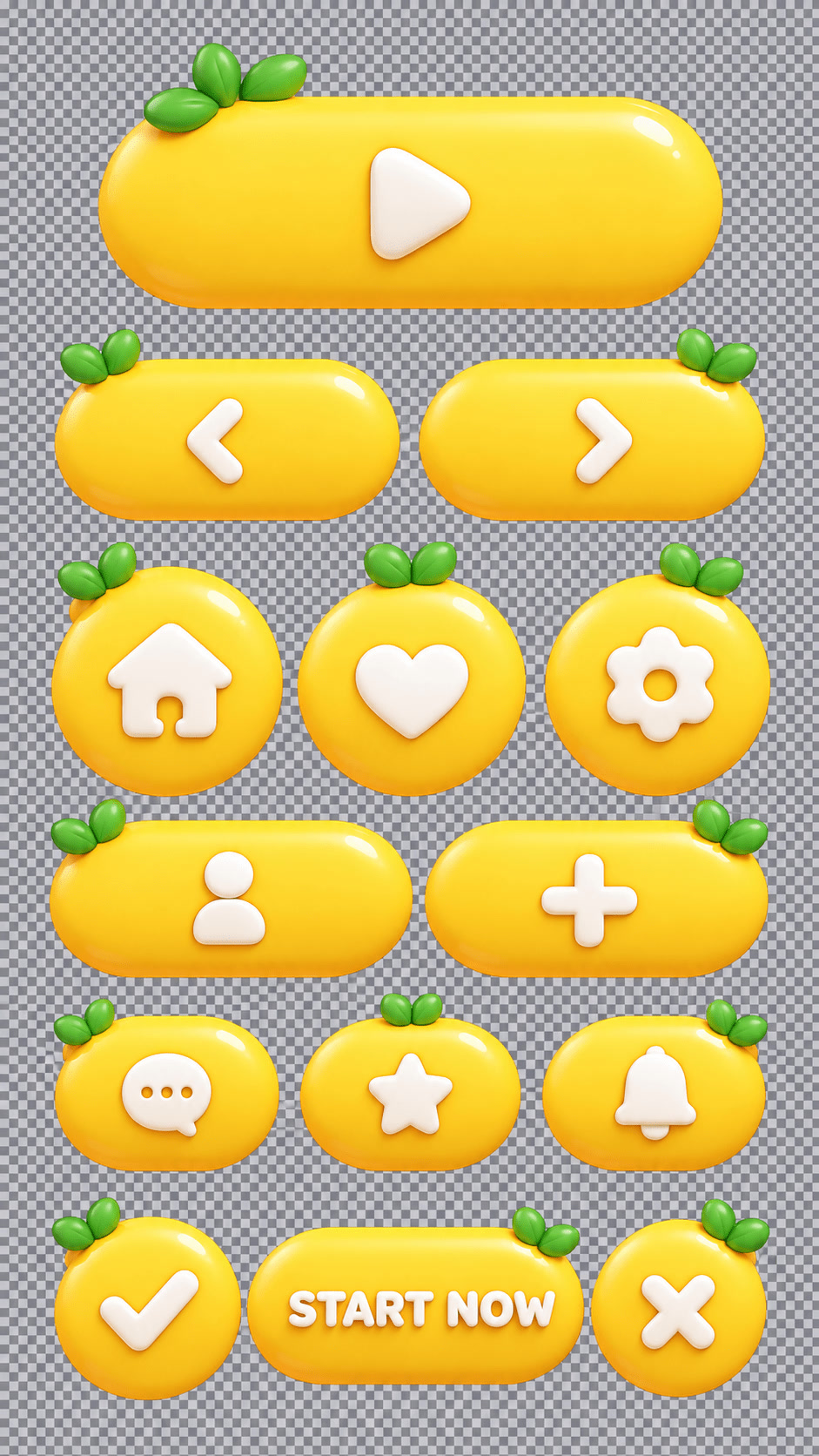 |
| Picture Frames | Ultimate 2.5 | 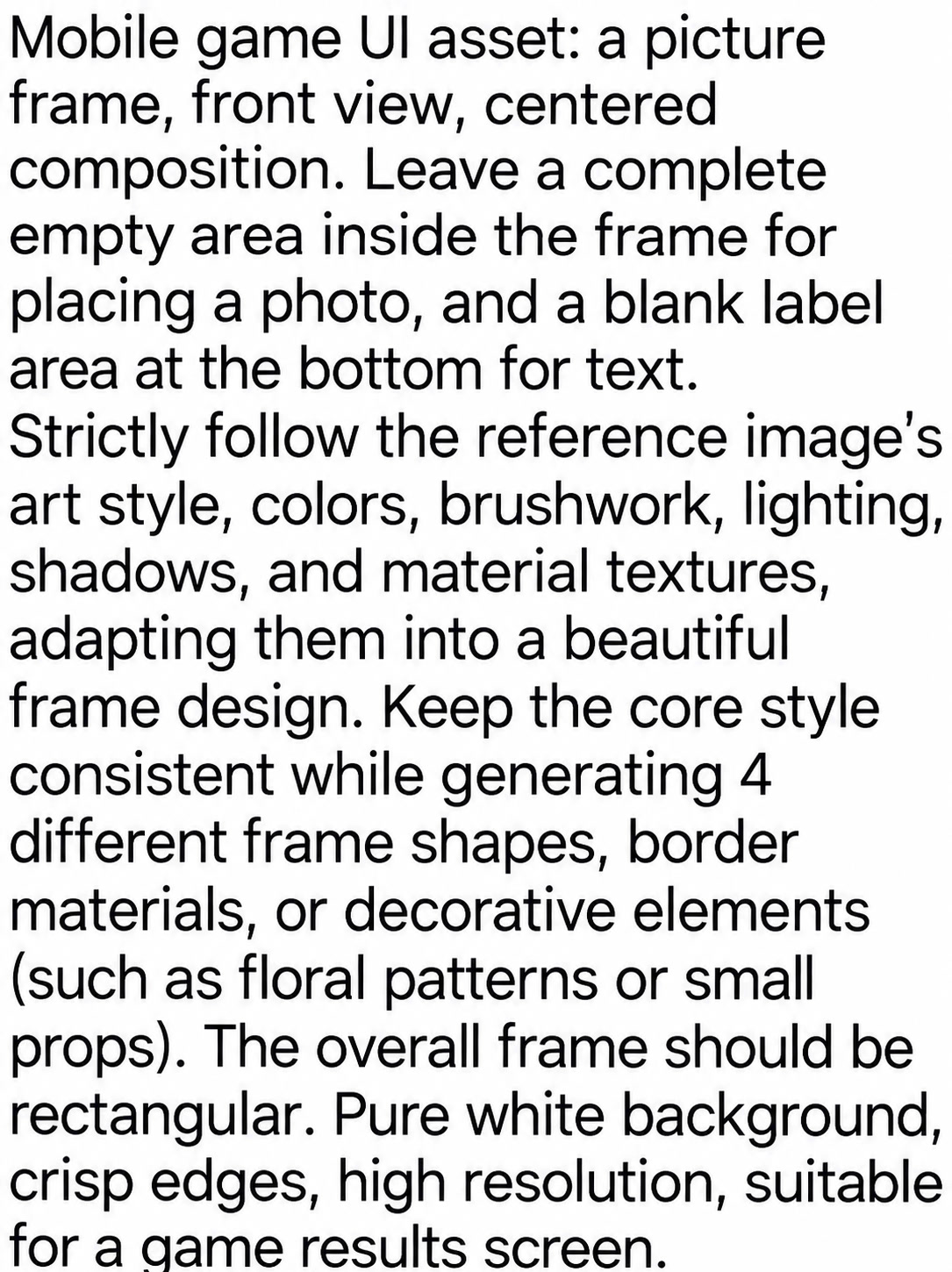 | | 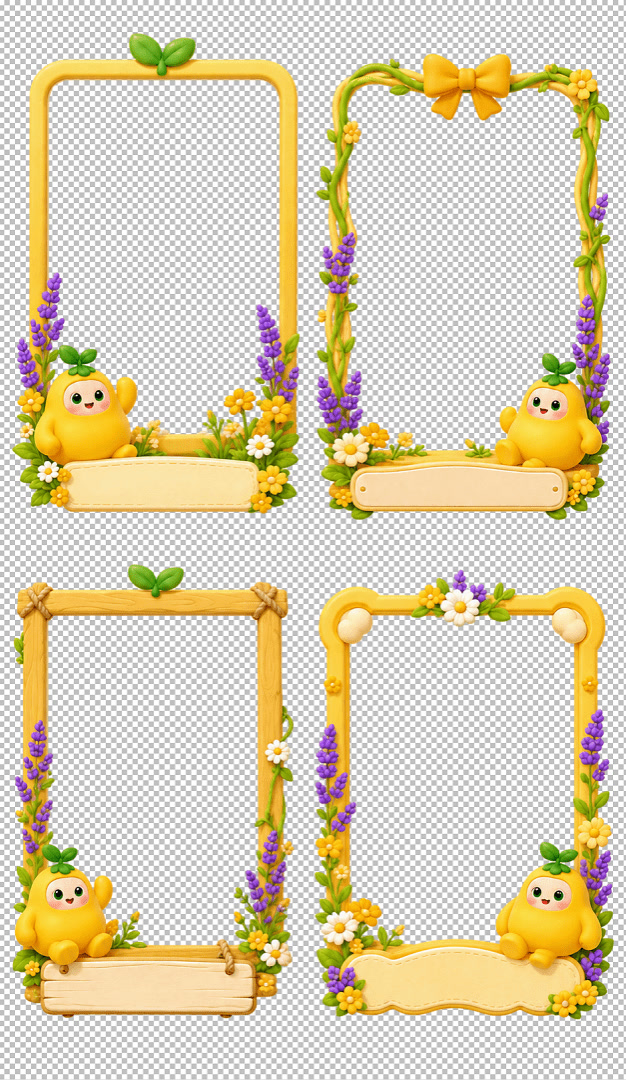 |
| Transparent Elements | Ultimate 2.5 | 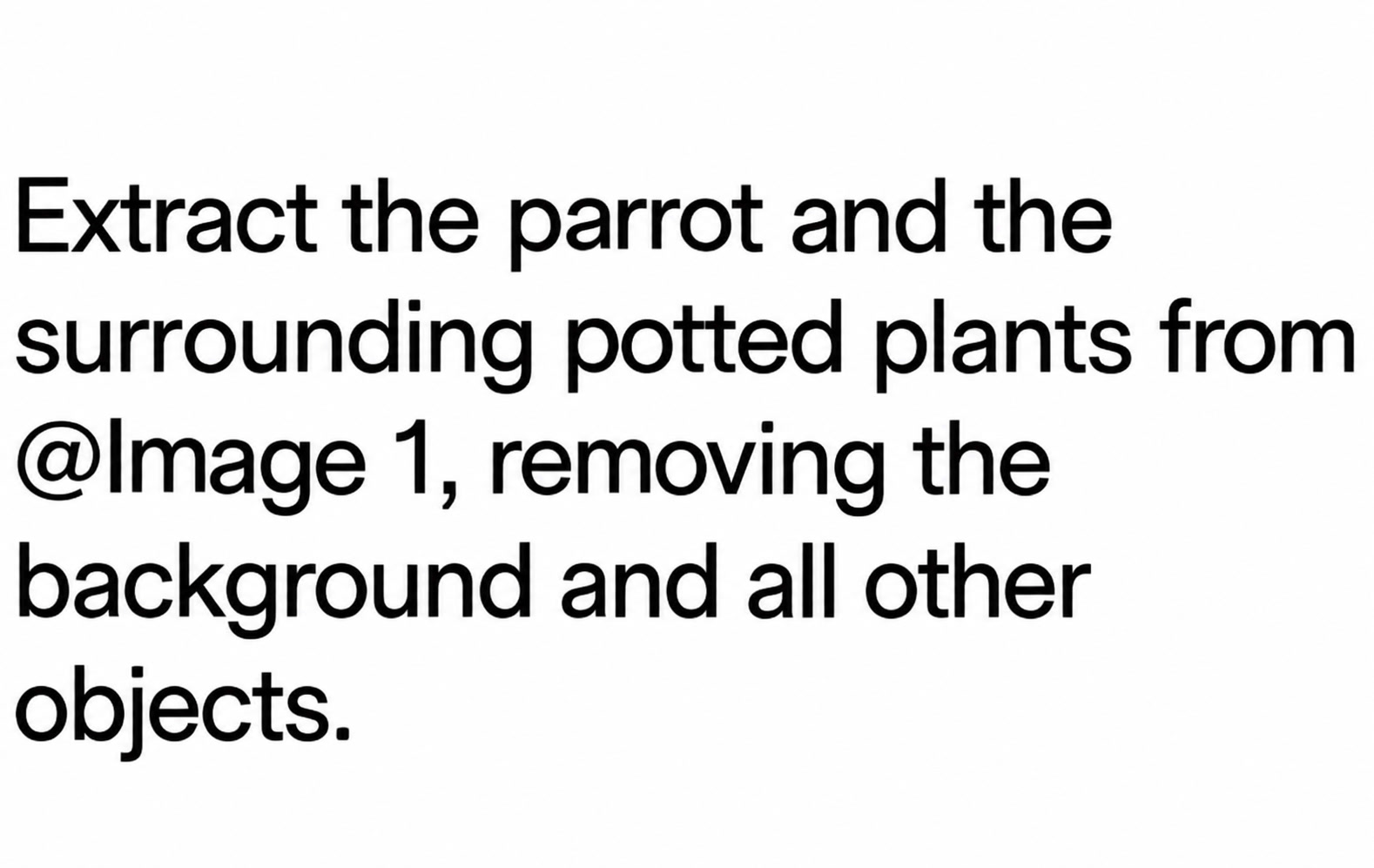 | 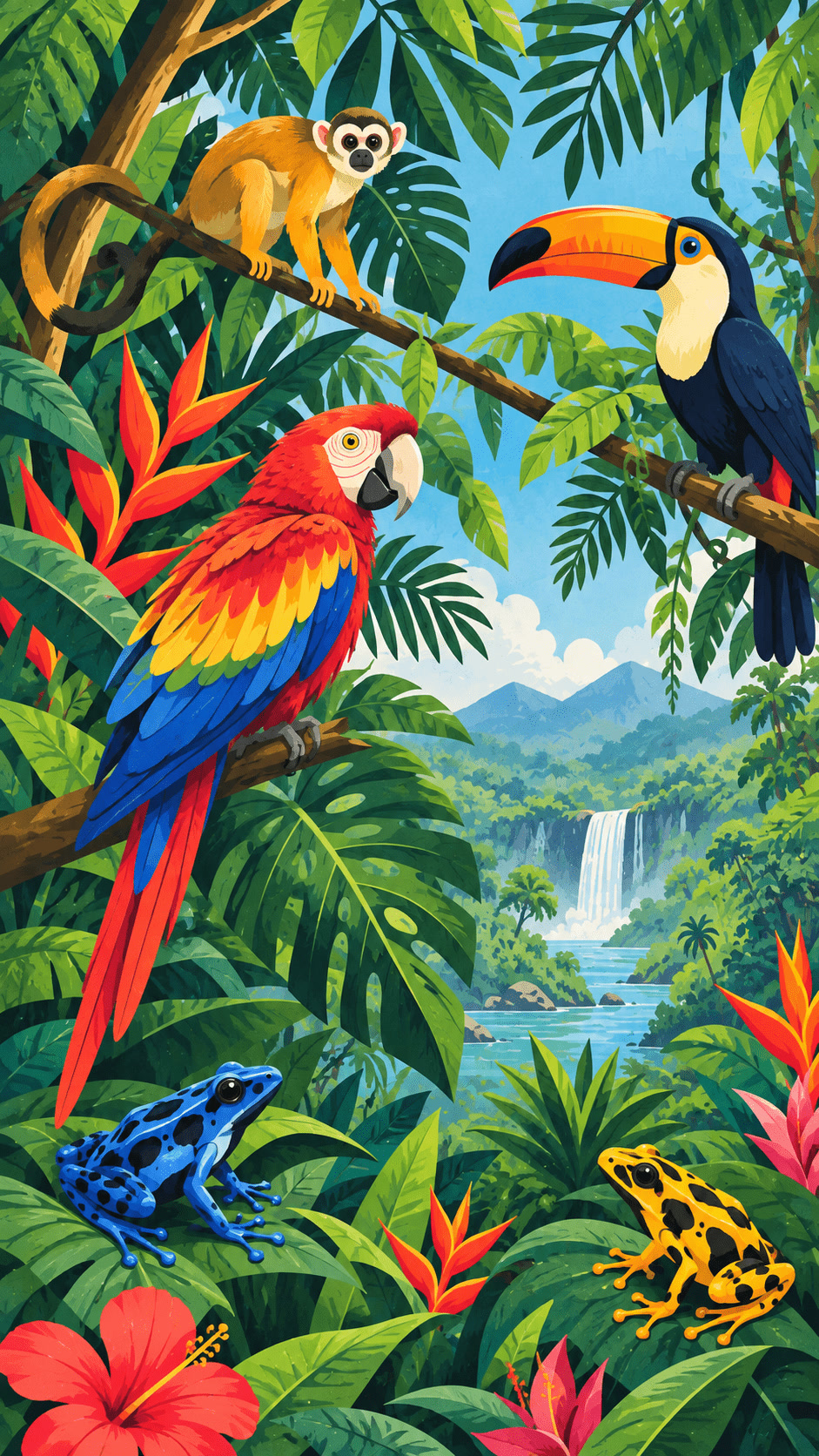 | 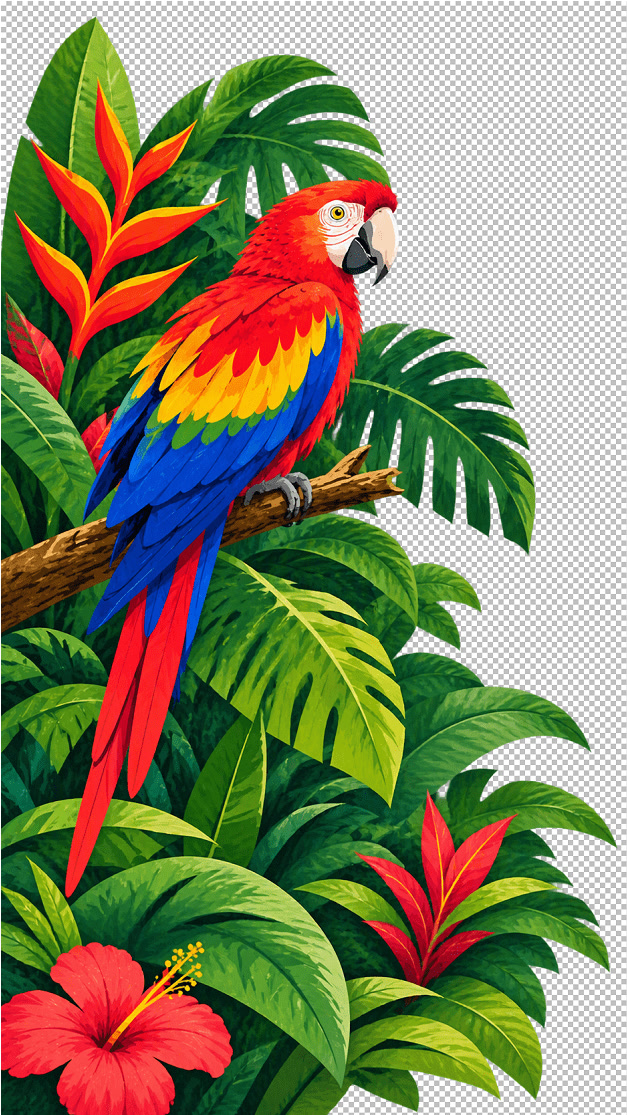 |
| Virtual Try-On | Omni | 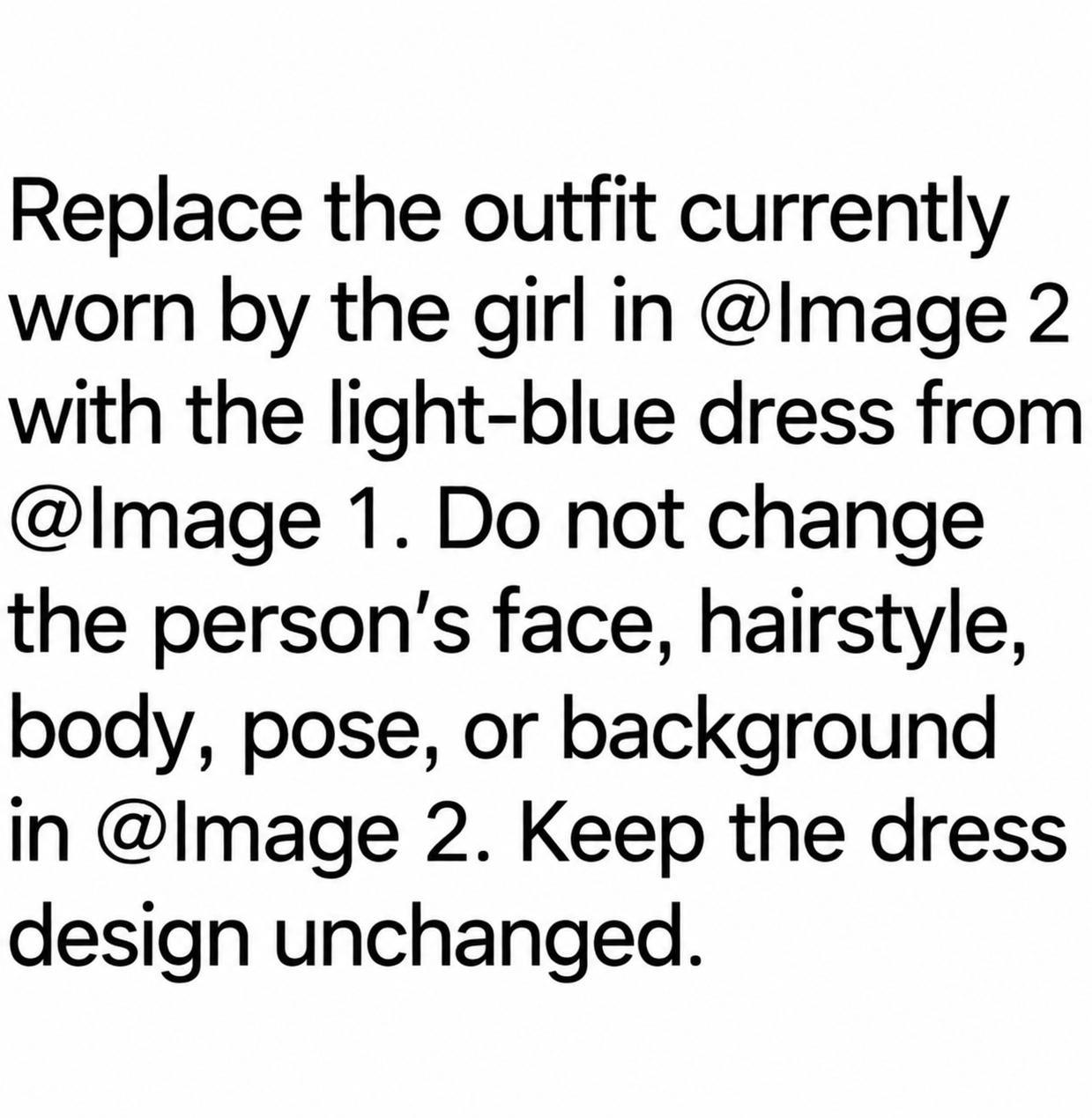 | 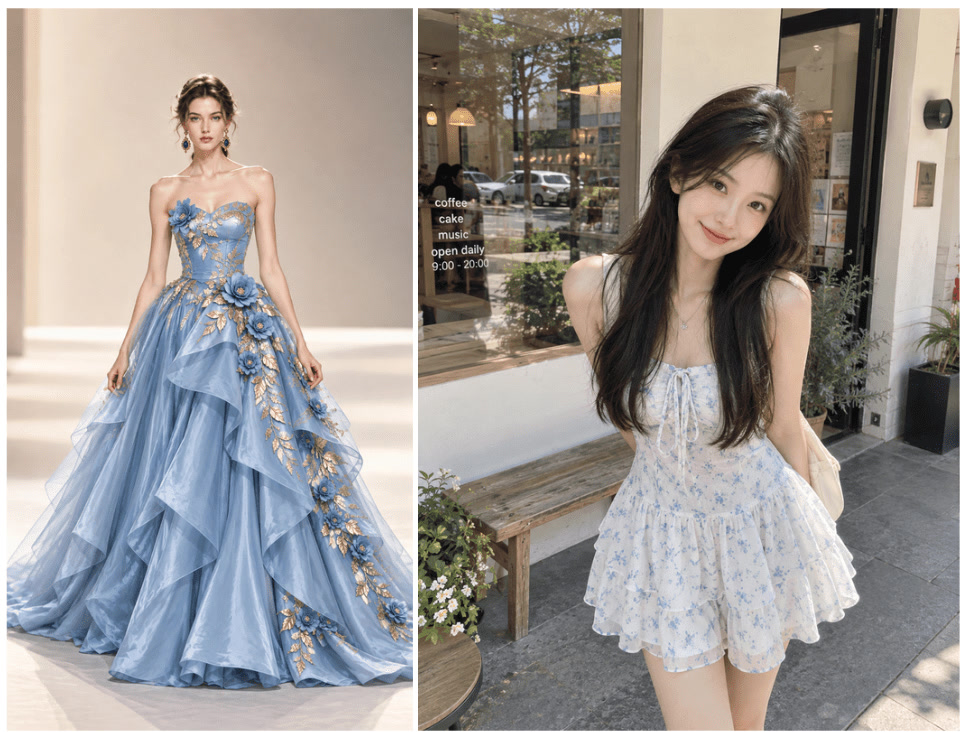 | 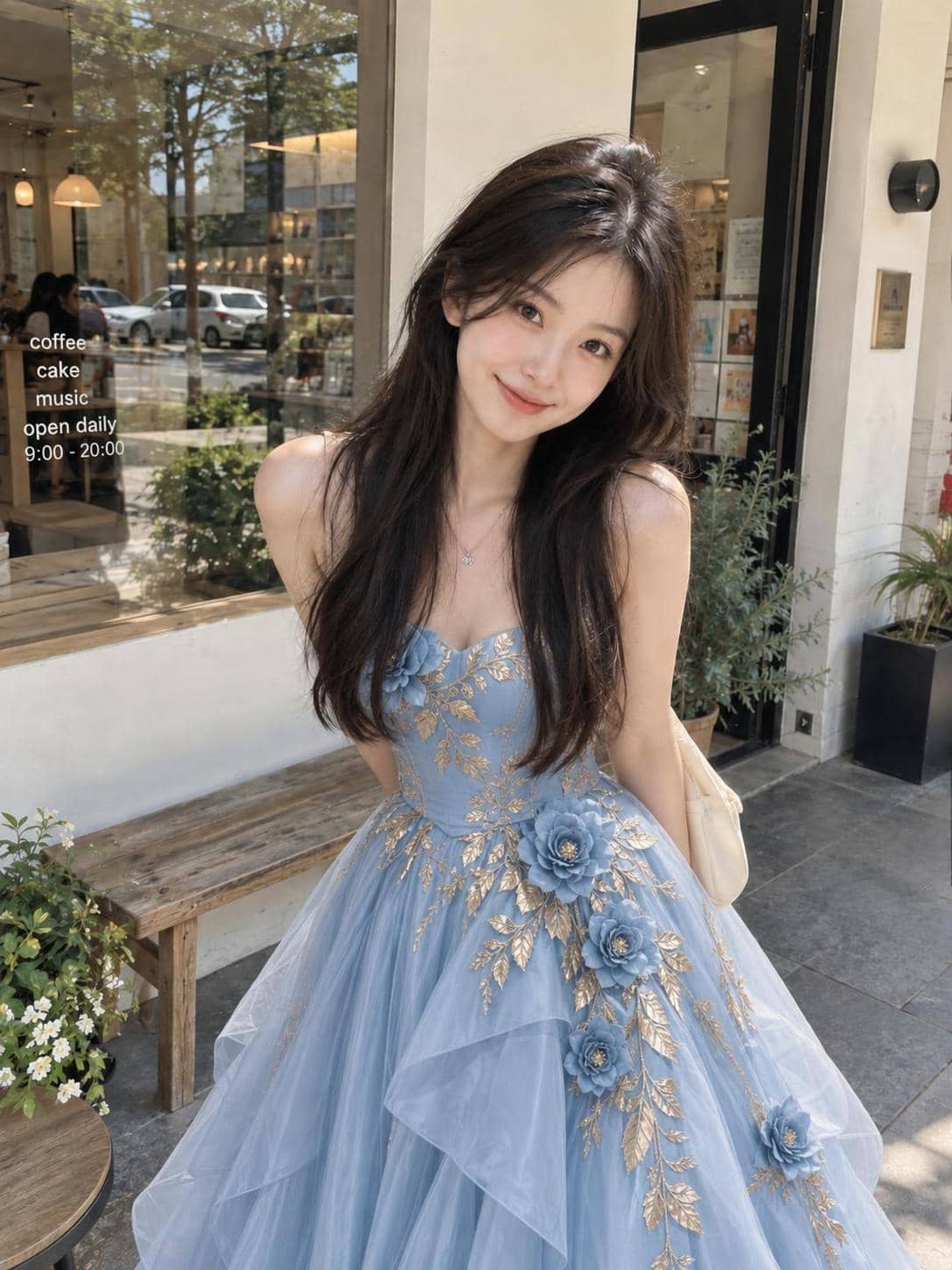 |
| Landing Pages | Ultimate | 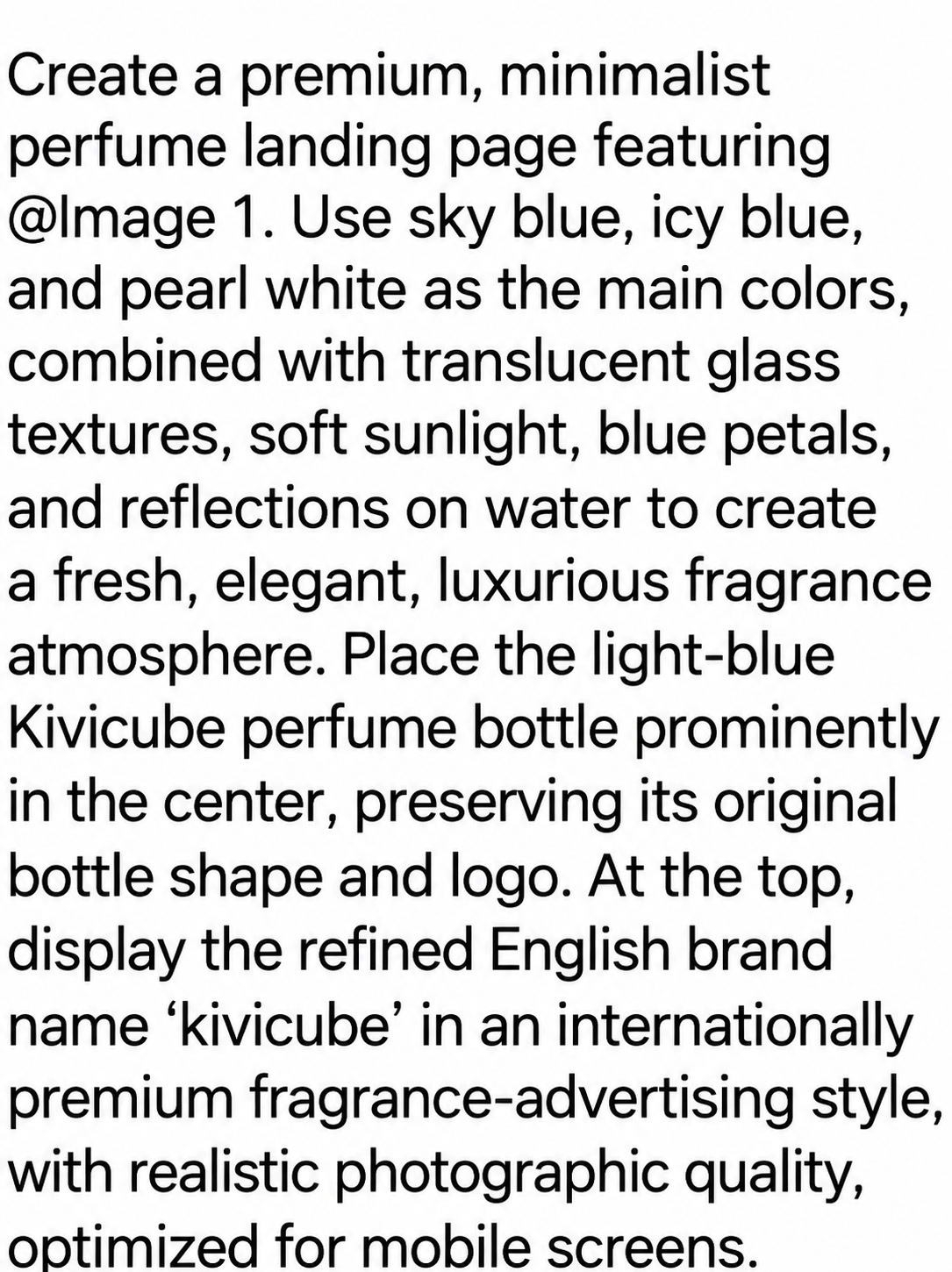 | 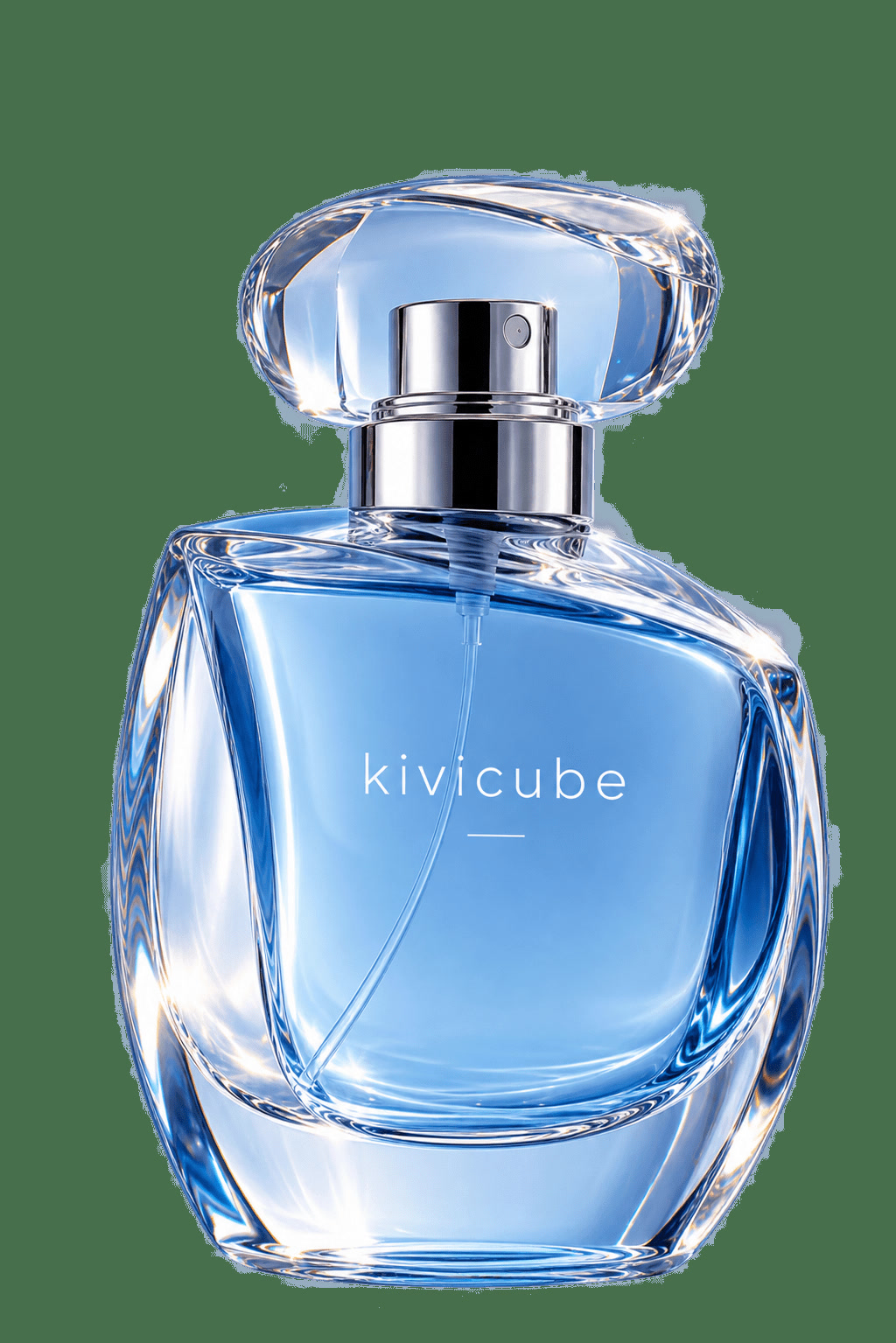 | 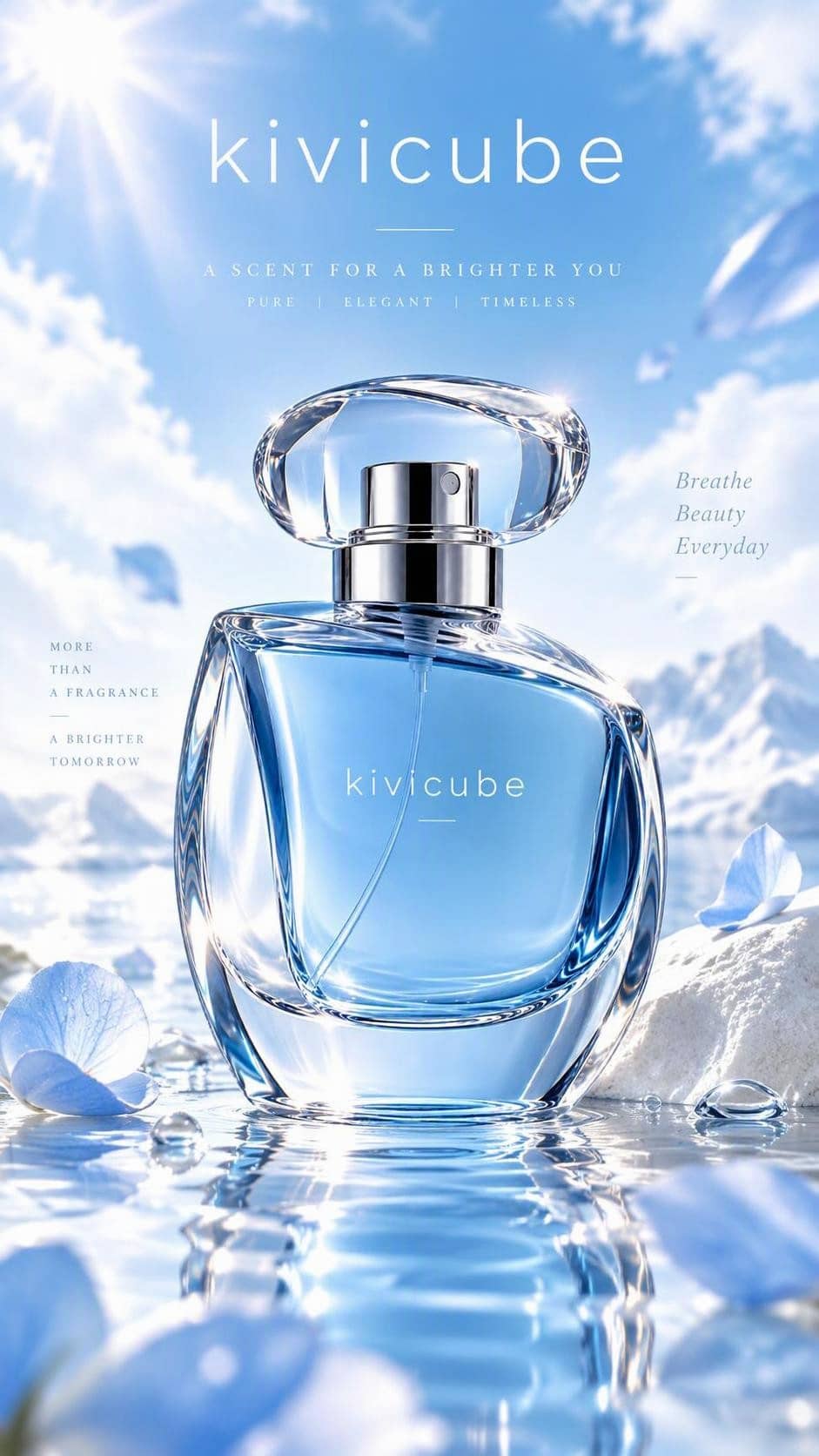 |
| Portrait Photography | Omni | 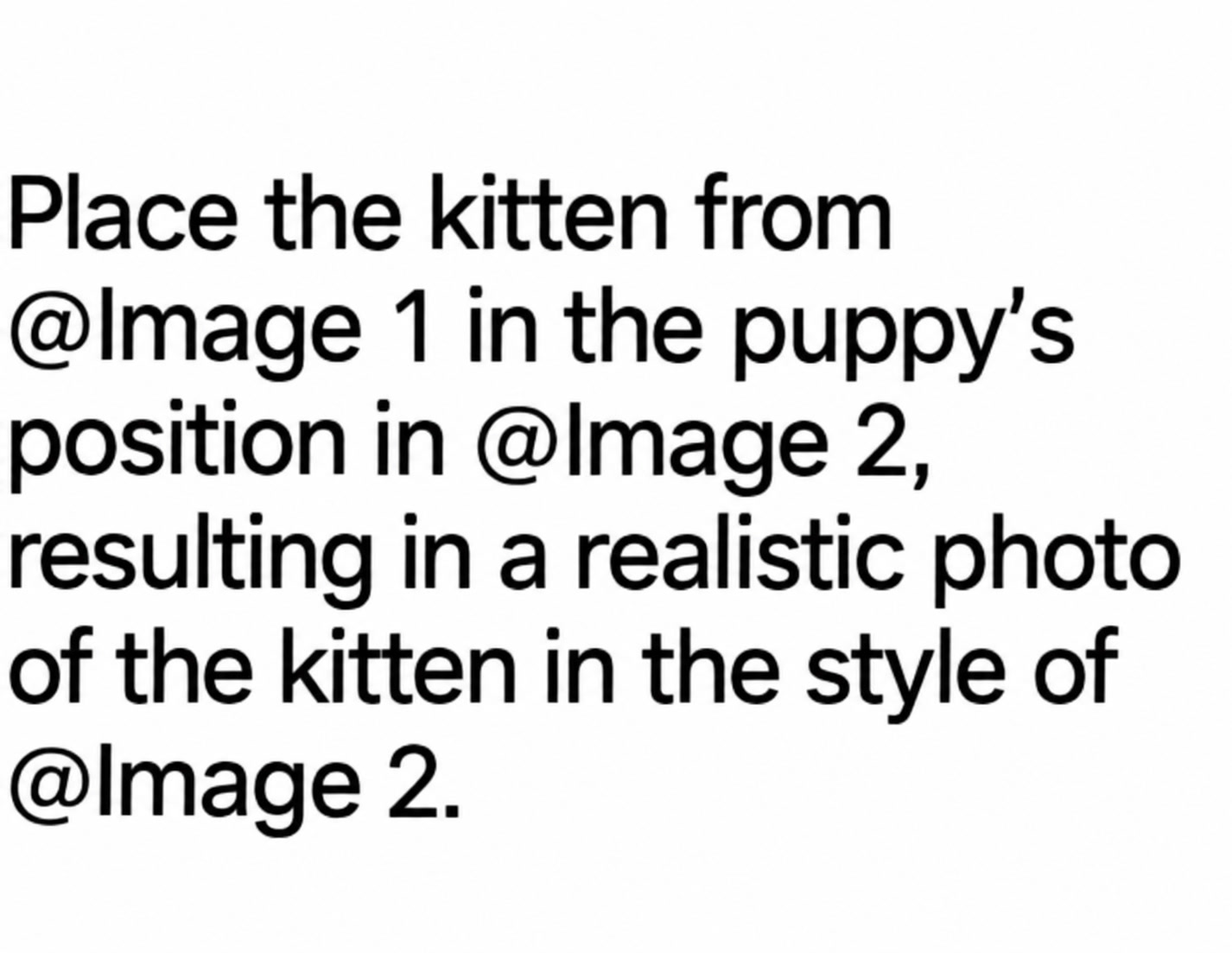 | 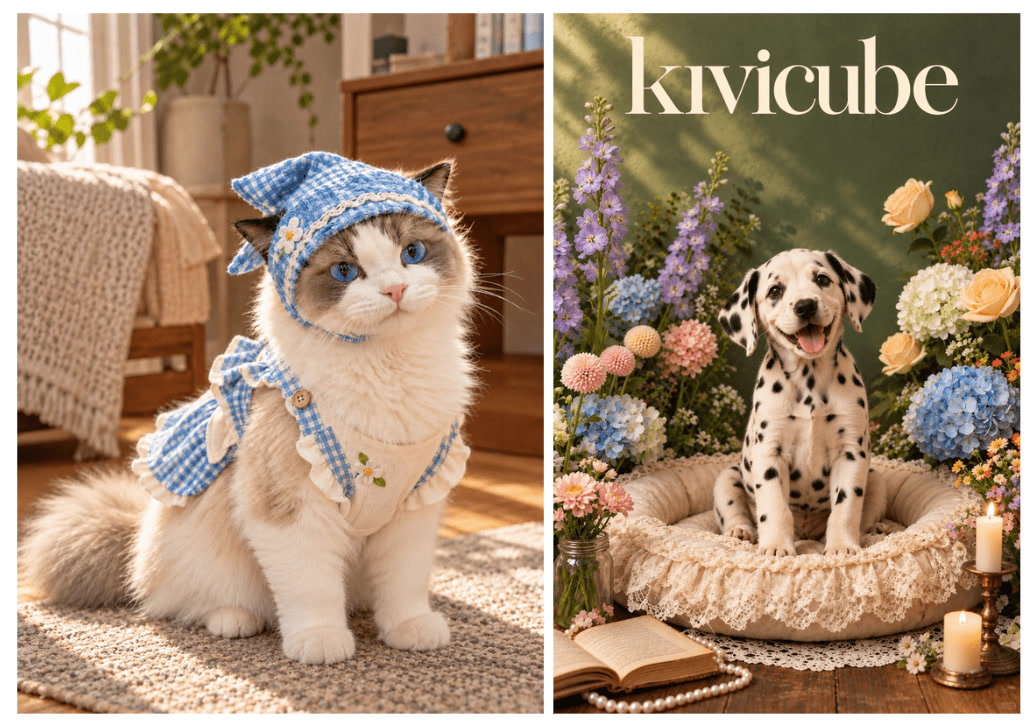 | 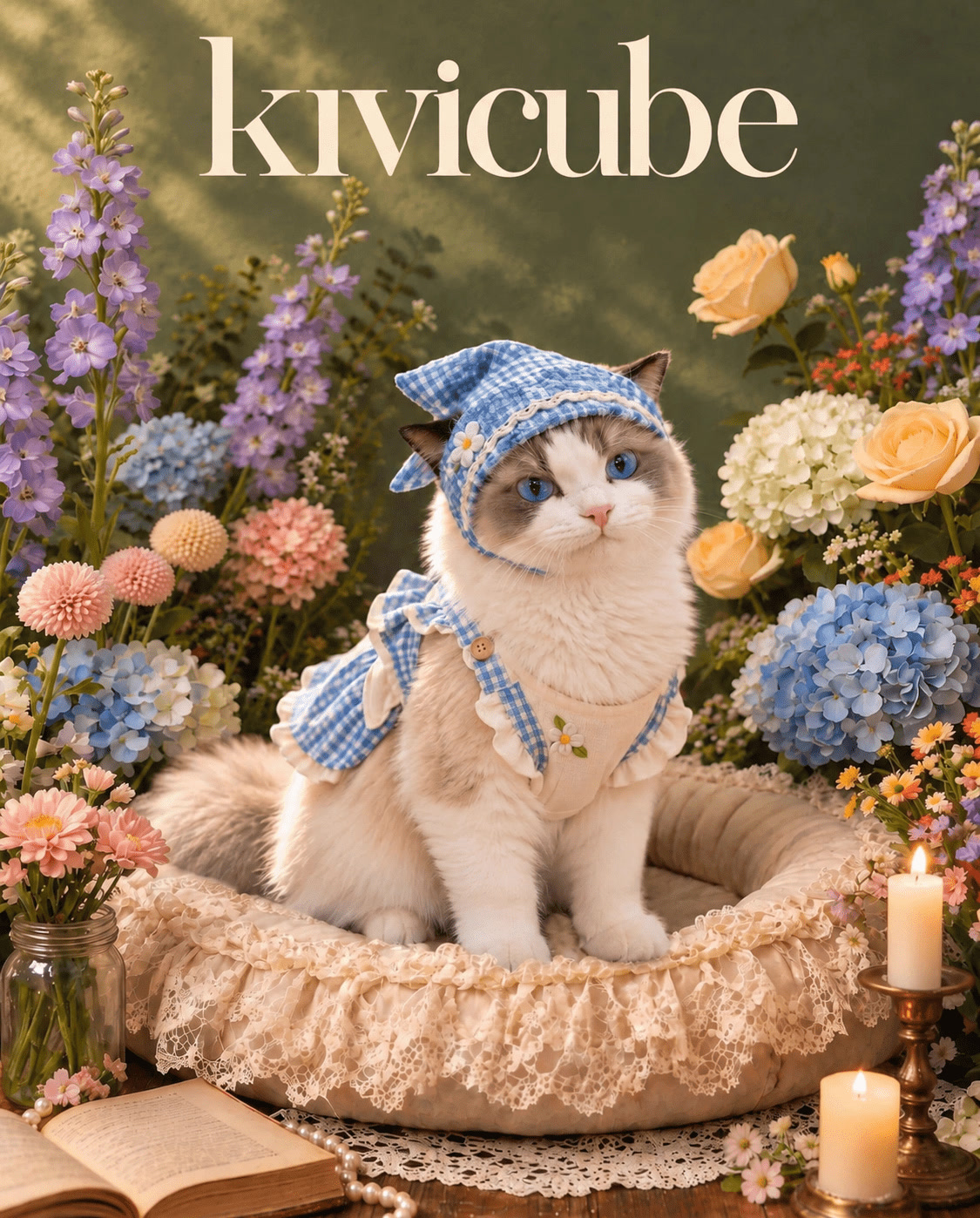 |
| Simple Images | Creative | 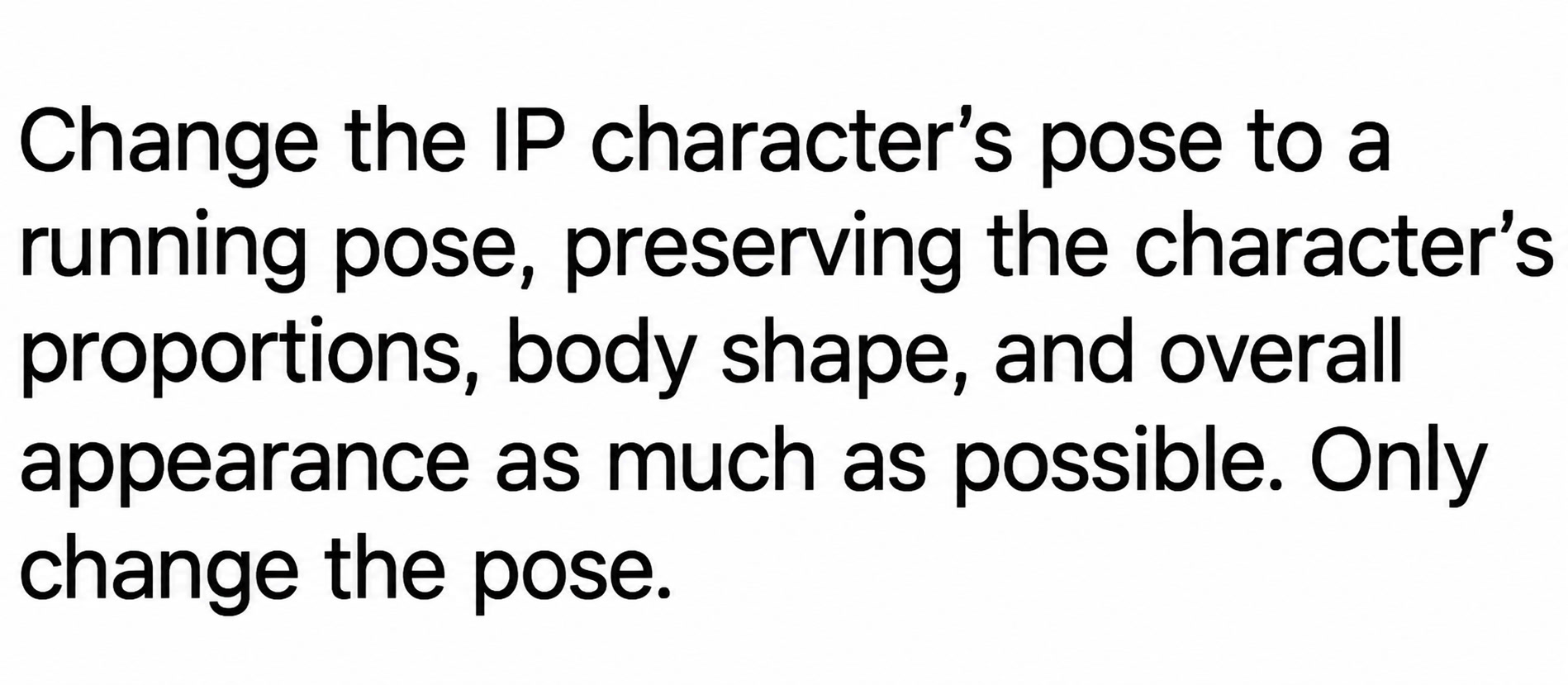 | 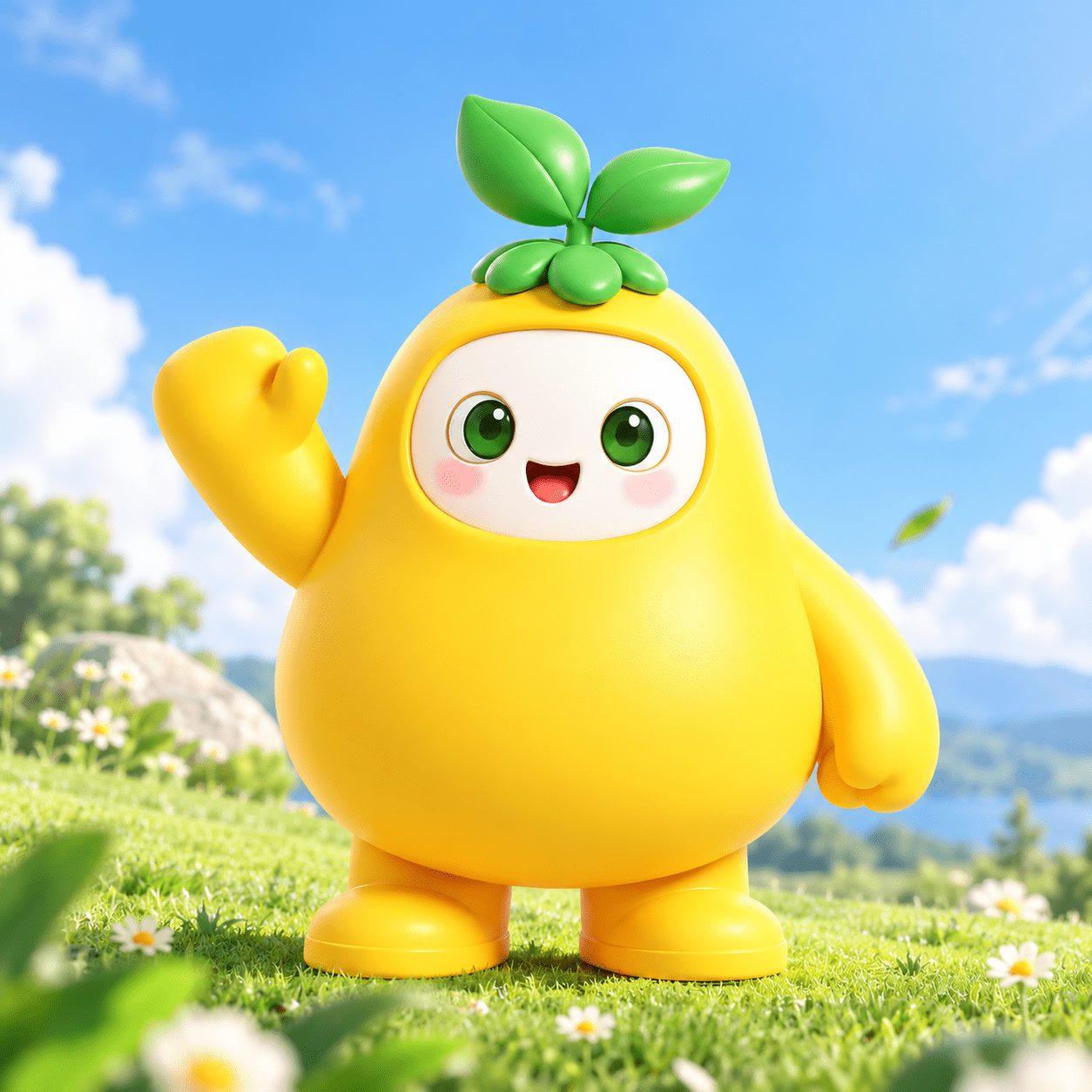 | 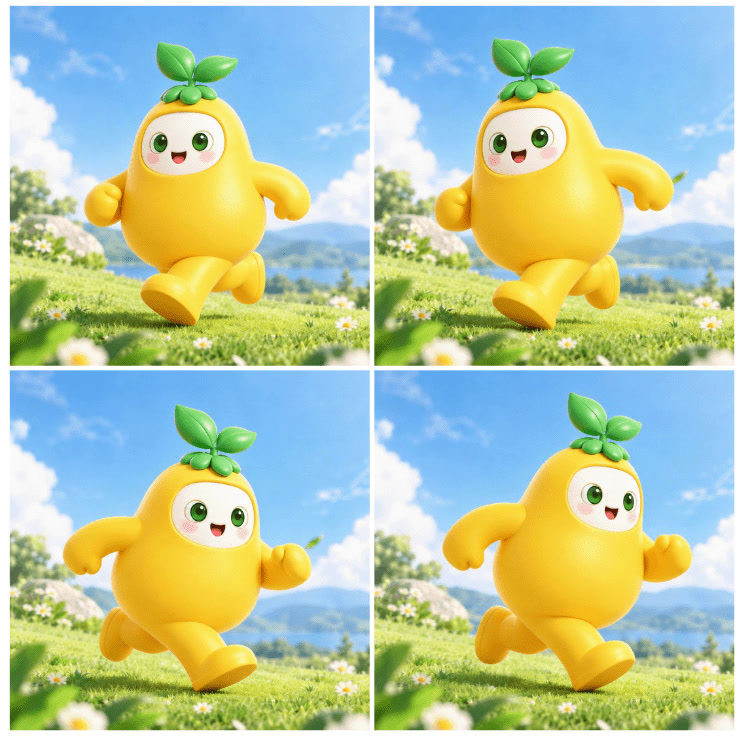 |
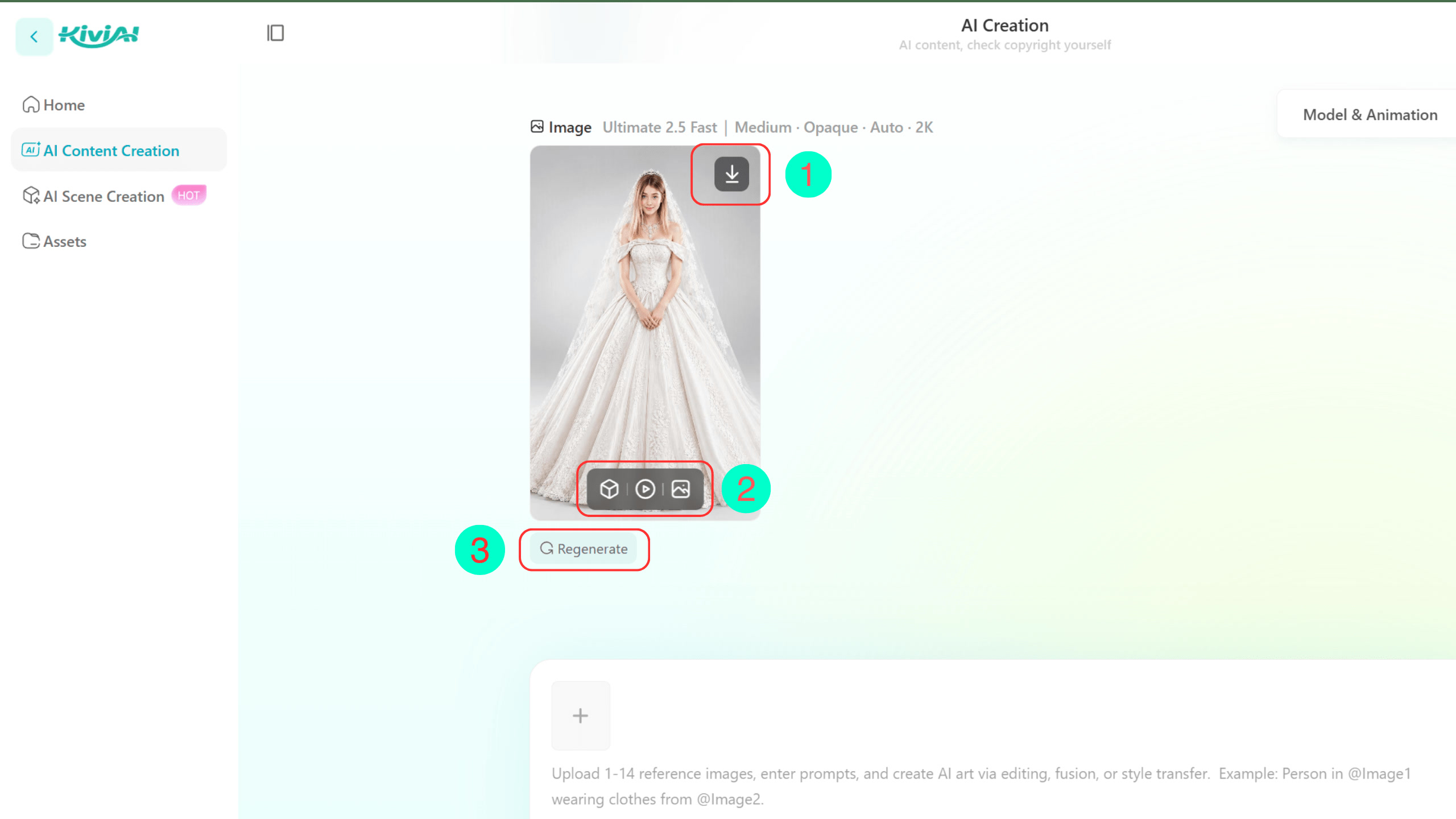
After generating an image, you can use the following options to further work with your results:
① Download Image: Download and save the generated image.
② Convert to Another Asset Type: Convert the image into a video, 3D model, or other asset to expand your creative possibilities.
③ Refine and Regenerate: If you’re not satisfied with the result, refine the prompt and generate the image again.
If you prefer not to start from scratch, you can use the image generation templates provided by Kivicube.
First, select Image Templates at ① in the image below to browse the available options. Hover over a template and click Use This Template at ② to get started.
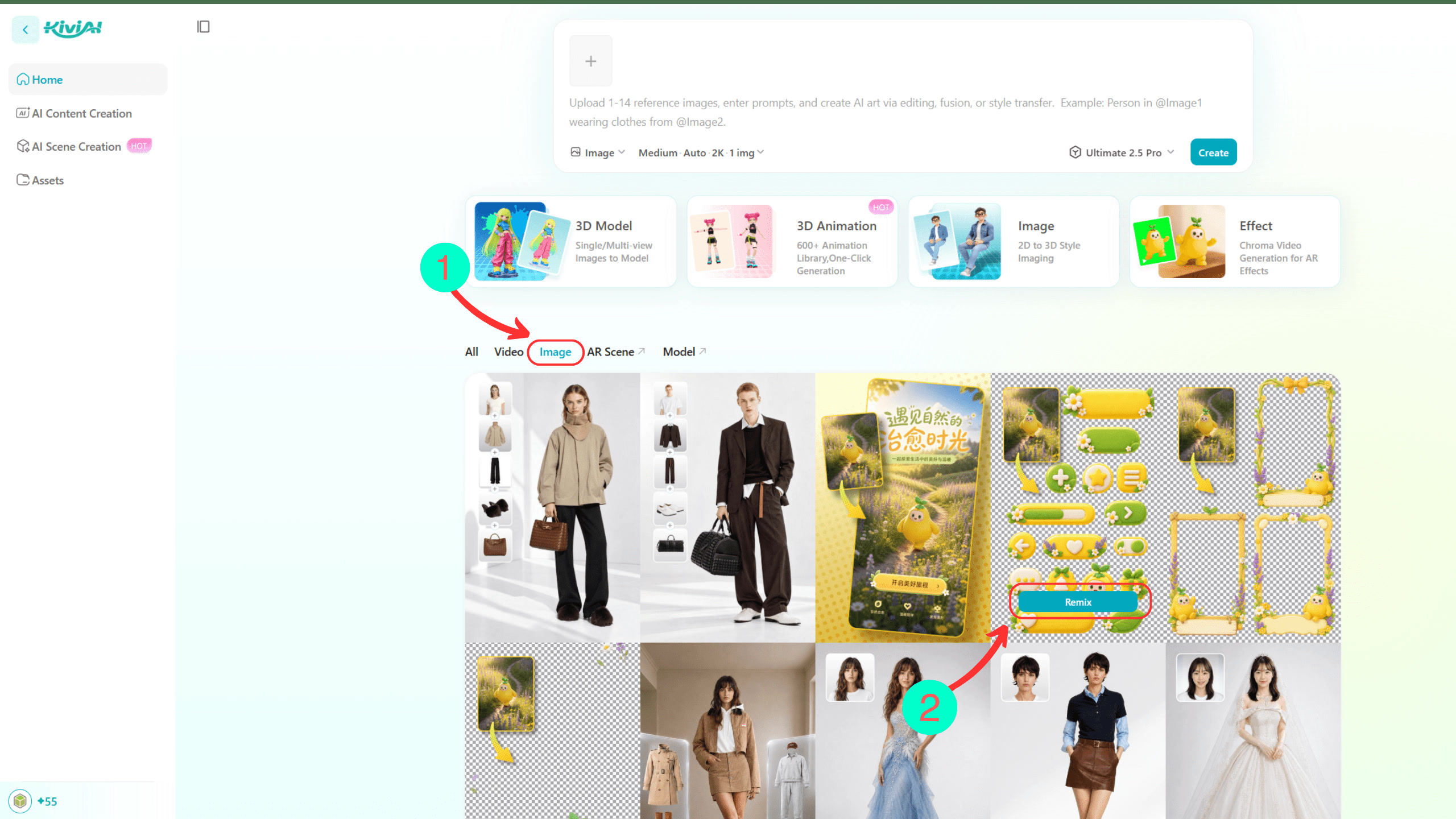
Click + to upload your own asset. There’s no need to write a prompt or select a model. Then click Generate Now to quickly create an image in a similar style to the template.