English
Appearance
Smart Layers is an AI-powered feature in Kivicube that analyzes an image, separates its individual elements into editable layers, and reconstructs areas hidden behind objects.
With Smart Layers, you can independently adjust, arrange, and animate each generated layer on the canvas, giving you more flexibility when creating and editing AR experiences.
Stable Layering: Stable Layering faithfully reproduces the original image and automatically splits it into layers based on the selected layer count (with 4 layers by default and up to 8 layers available). It preserves the original image content while separating the background and individual elements into editable layers.
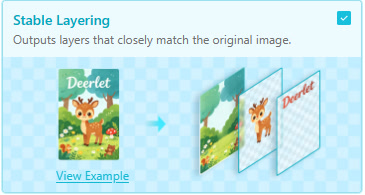
Note
Stable Layering is only available for opaque images. If you select a transparent image, this option will be grayed out.
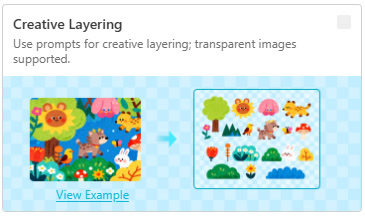
Creative Layering: Creative Layering uses AI to understand the image content, intelligently identify and split individual elements into separate layers, and regenerate them as required. Unlike fixed layer counts in Stable Layering, it supports an unlimited number of layers, giving you greater flexibility to create personalized layered effects. You are also allowed to add prompts to define how specific elements are extracted and modified with AI. It supports both transparent and opaque images.
It’s simple to split an image into layers. Upload the image you want to use in your AR experience, then drag and drop it onto the grid editor.
Select the image on the canvas. A floating toolbar will appear above the canvas, where you can find the Layer function. Click Layer in the floating toolbar, then select Stable Layering or Creative Layering.
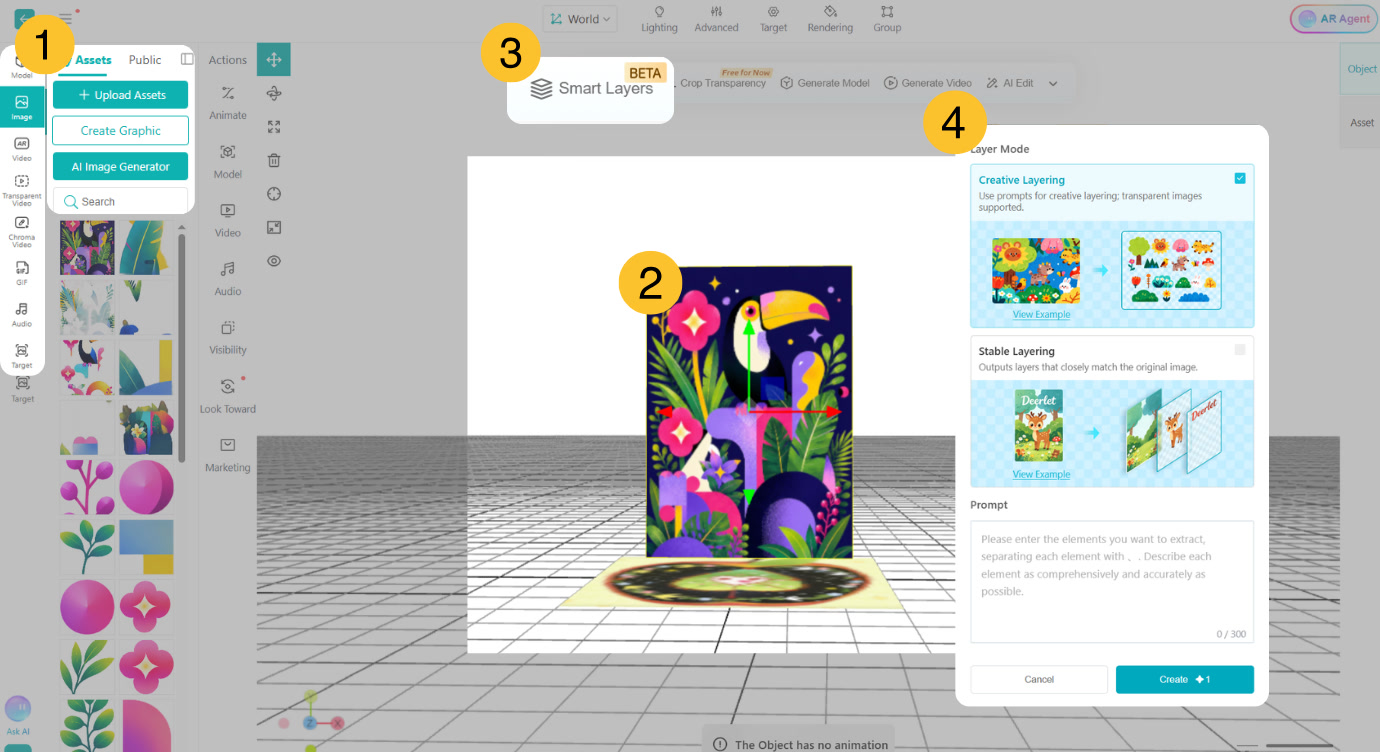
If you want to get more precise control over individual elements, or if the target image is transparent, Creative Layering is much more helpful.
Select “Creative Layering” and click “Confirm”. AI automatically analyzes the image, extracts individual elements, places them on a transparent background, and arranges them in a grid layout.
You can also enter a prompt in the text box below to customize the layer extraction or regenerate specific elements based on your requirements.
For Stable Layering, set the layer count and choose the desired number of layers.
Click “Confirm” to split the image into layers. For layers that have already been created, you can edit, adjust, and add animations to them using the left toolbar, floating toolbar, and right-click toolbar.
Does Smart Layers work just like a background remover?
Not exactly. A background remover typically separates the foreground from the background. Smart Layers can separate multiple elements into individual layers, reconstruct hidden areas behind objects, and create an editable layer stack for further WebAR editing on the canvas.
How do I layer a complex image?
Start with Stable Layering to divide the image into multiple layers. You can then select a complex layer and split it further into sub-layers as needed. Repeat the process to refine the layer structure further. If you want to automatically extract multiple elements at once, use Creative Layering instead.
What should I do if the layer separation is not accurate?
Layer separation may be less accurate due to blurry element boundaries, overlapping objects, low resolution, and other unclear visual details in the original image. In these cases, you can try Creative Layering. The AI can understand the image content and intelligently identify and separate individual elements into layers.