English
Appearance
When built-in scene animations cannot meet more advanced creative needs, you can use AR Agent to add personalized animations to your assets, allowing static assets to move naturally based on your creative ideas.
Dynamic and engaging effects can better capture users’ attention, improving the interactivity, immersion, and conversion of your AR experiences.
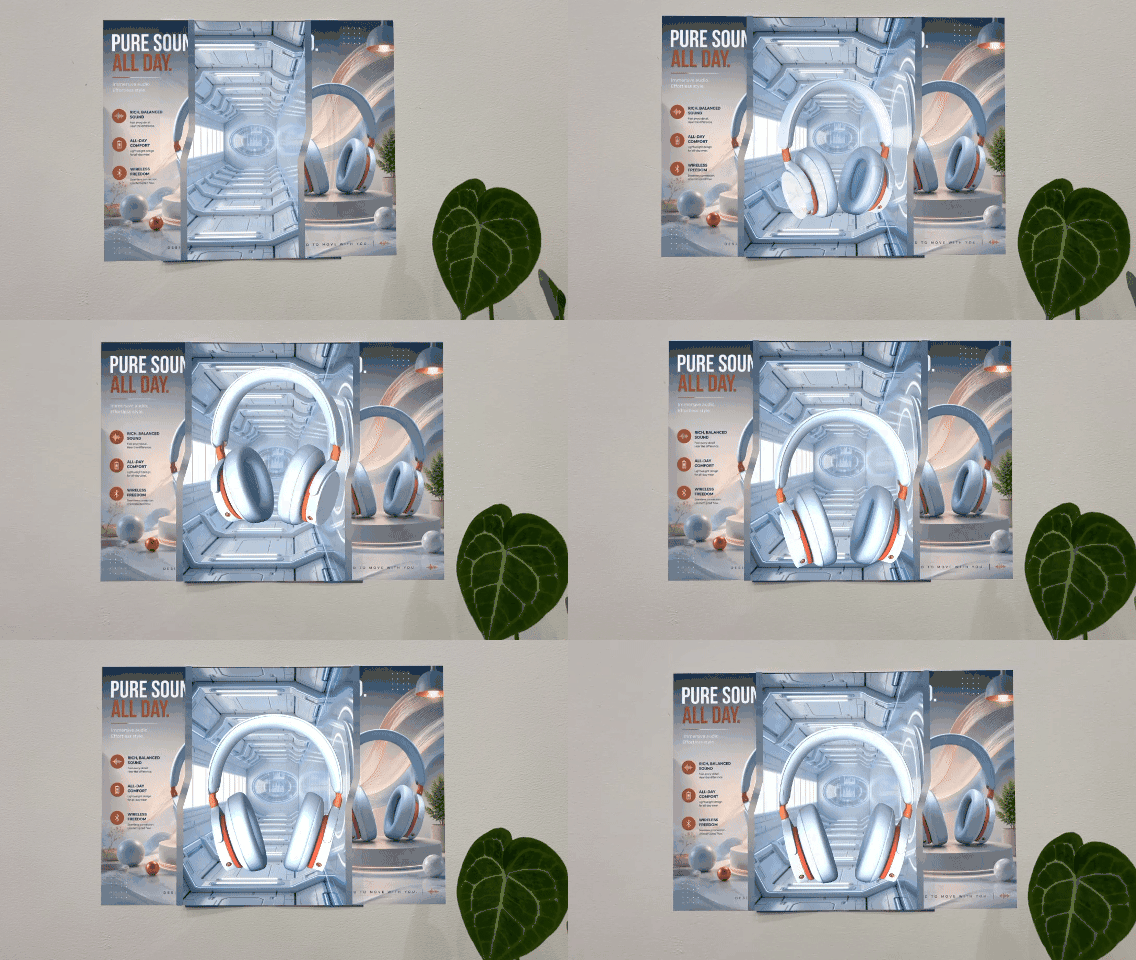
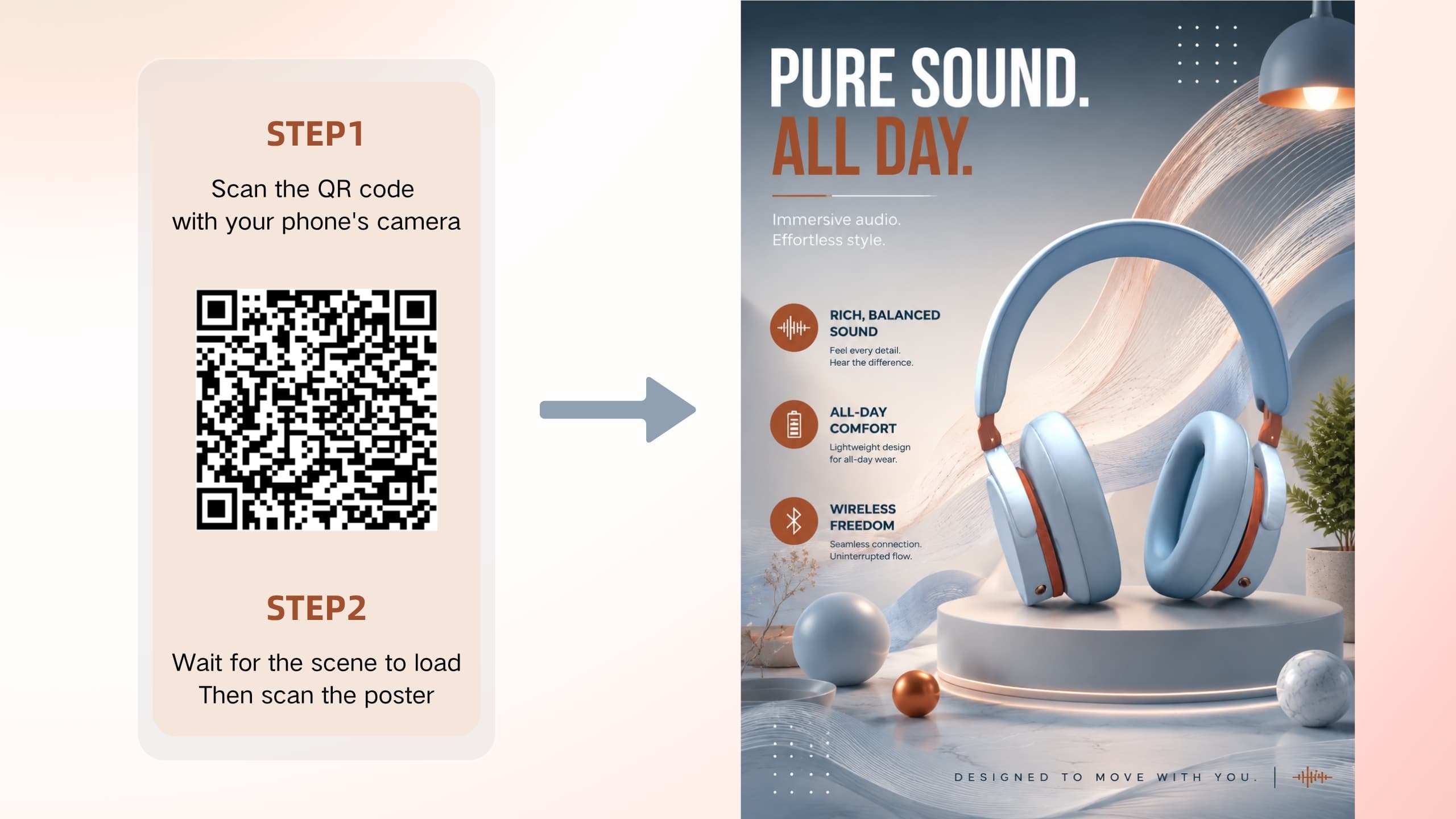
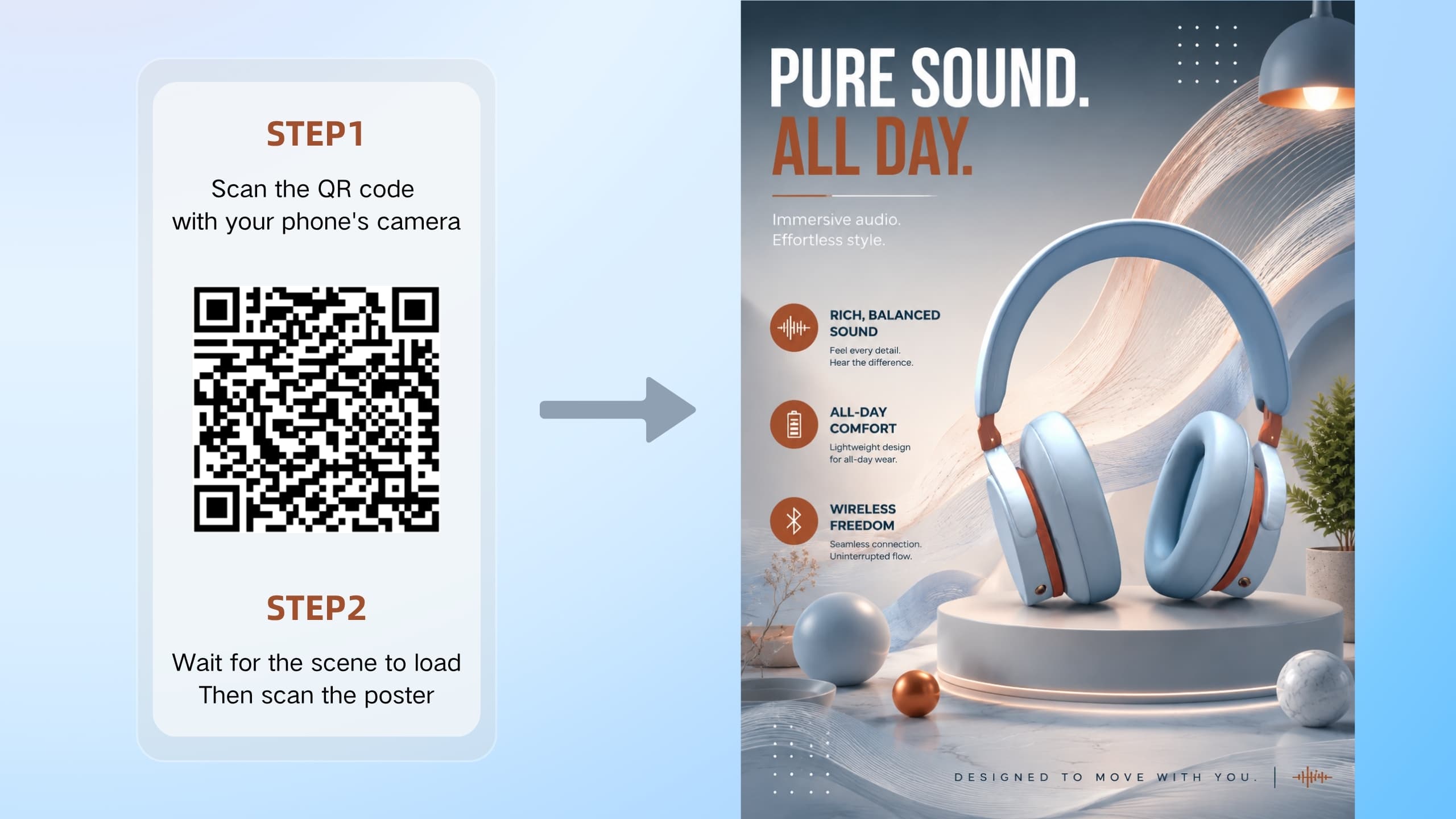
For an AR headphone e-commerce poster, I want the headphones to fly out and then continuously float outside the poster, creating a dynamic product showcase effect.
Interactions Prompt:
After the zoom-in animation of @Headphones ends, I want @Headphones to keep floating. Please add a floating animation around the Z-axis for @Headphones. During the floating animation, @Headphones should slightly tilt left and right. The overall movement should feel natural and dynamic.
Final Result:
If you are not satisfied with the generated animation, you can continue refining the prompt based on AI’s feedback.
AI feedback
Generated animation parameters for @Headphones:Floating along the scene Z-axis, Amplitude 1.5, Speed 2.
Optimized prompt based on AI feedback
Please slow down the floating animation of @Headphones. Keep @Headphones floating along the scene Z-axis, and change the floating amplitude to 0.5 while keeping the speed at 2.
AR Agent can not only add basic animations to assets, but also create spatial movements such as position changes and rotations in 3D space.
These effects add more depth and dynamic movement to your AR scenes, helping you create more immersive and interactive experiences.
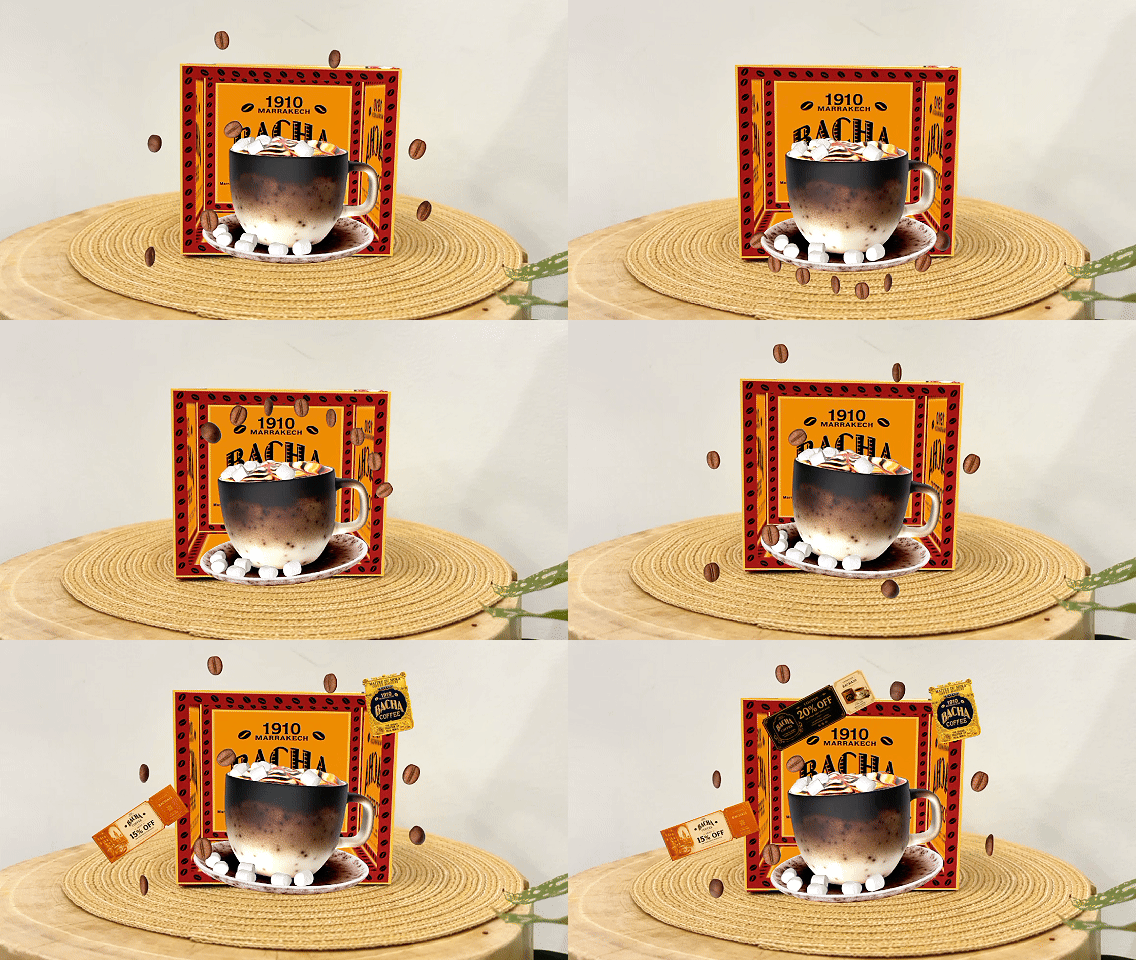
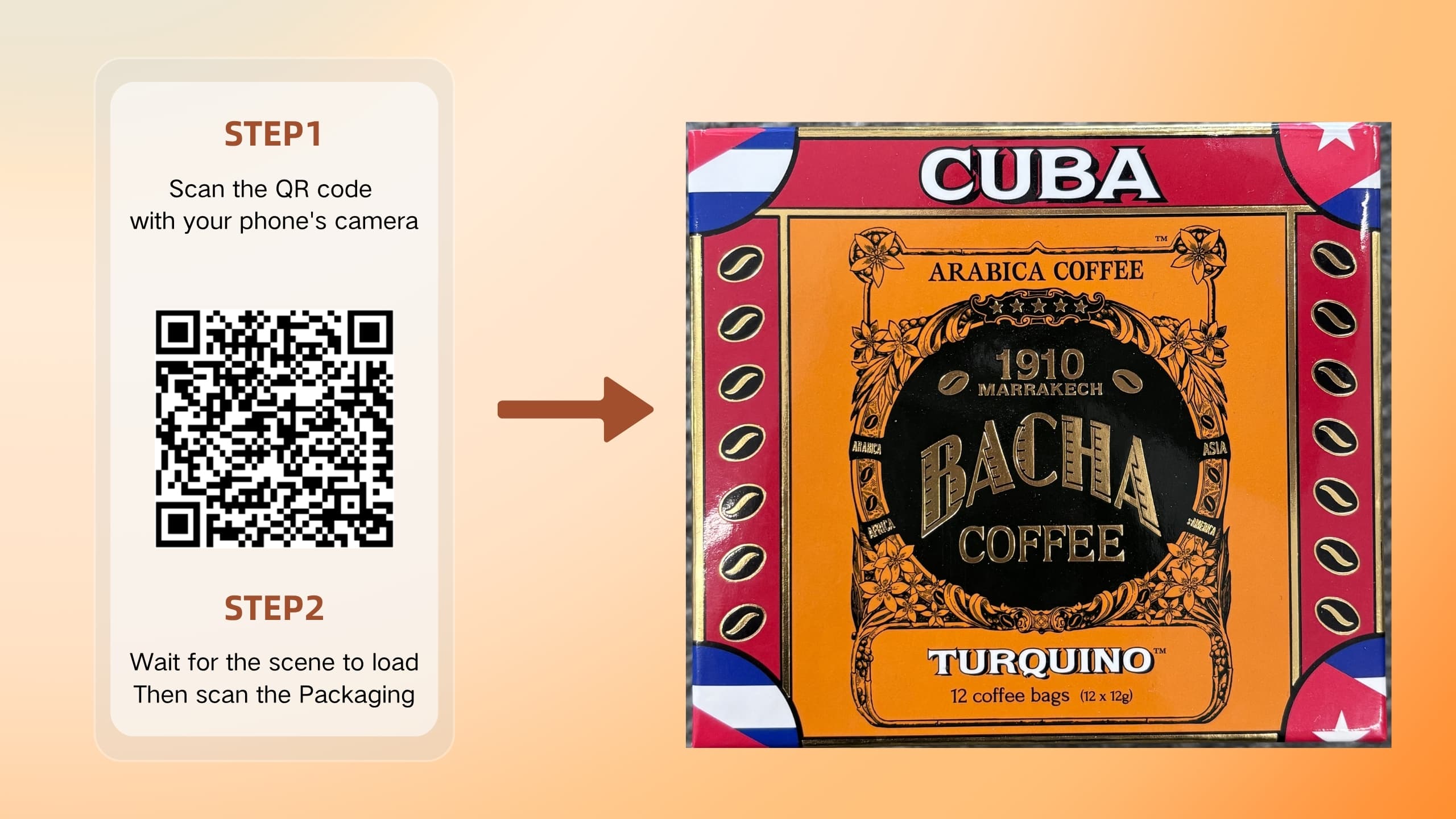
In a coffee AR packaging experience, I want the coffee beans around the scene to form a curved path, rotate around the coffee cup twice, and then spread back to their original positions.
Interactions Prompt:
After the coffee cup rotates upward from the bottom and starts floating, arrange @Coffee Bean 1, @Coffee Bean 2... @Coffee Bean 8 into a curved line around the coffee cup and make them complete two full rotations.
During the third rotation, move each coffee bean back to its original position based on the distance between its current position and original position. The farther coffee beans should return first, followed by the closer ones. Coffee beans that have not returned should continue rotating around the coffee cup until all coffee beans return to their original positions.
Final Result:
After users interact with a specific object, you can randomly display one item from a group of assets, adding more fun and exploration to your AR experience.
This effect is suitable for various scenarios, such as AR lucky draws, blind box experiences, product recommendations, and interactive marketing campaigns, helping create more engaging and interactive user experiences.
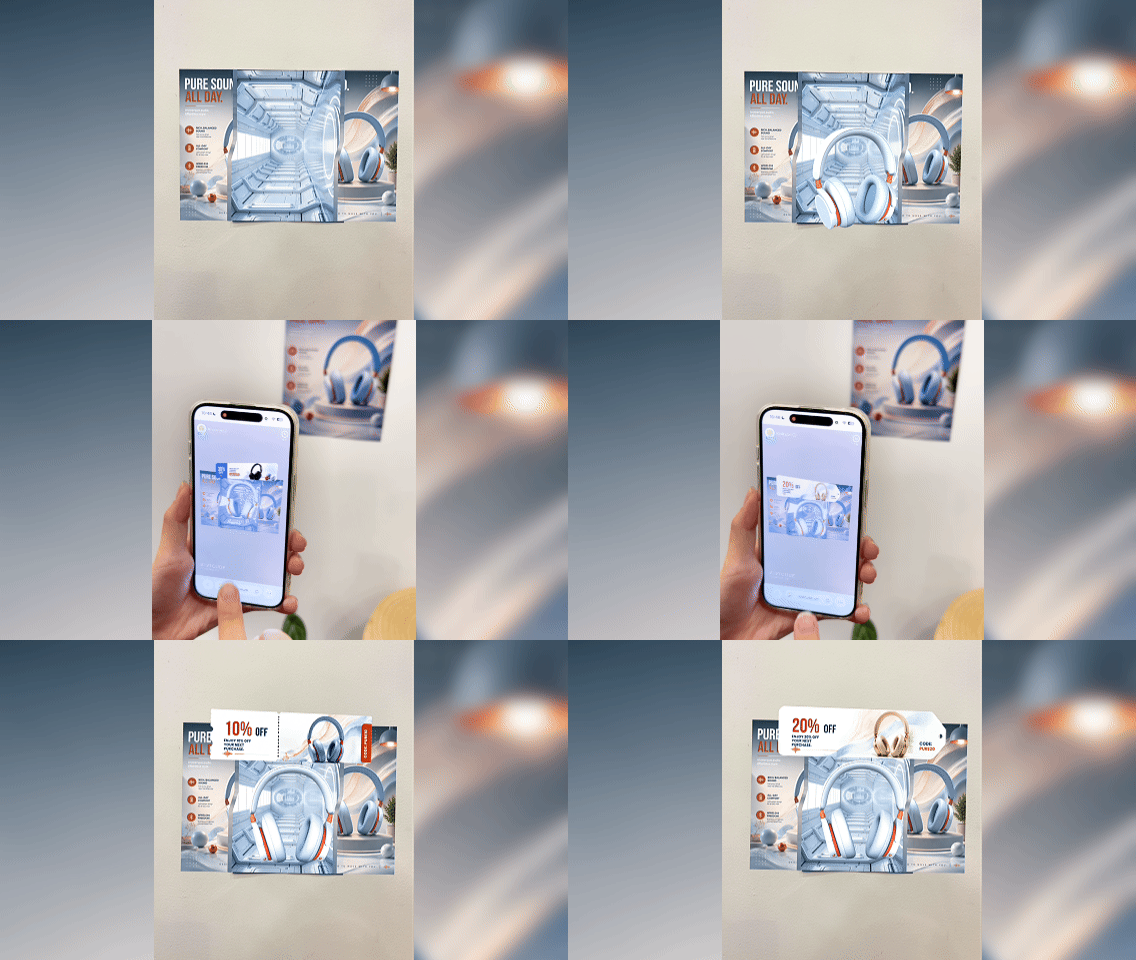
When users tap the headphones, one of the four coupons appears randomly.
Interactions Prompt:
When users tap @Headphones, randomly display one of the following assets: %Coupon 1.png, %Coupon 2.png, %Coupon 3.png, %Coupon 4.png, %Coupon 5.png.
After an asset is displayed, it should be removed from the random selection pool. Continue randomly selecting from the remaining assets until all assets have been displayed once. After all assets have appeared, reset the selection pool and start a new random cycle.
In a lucky draw campaign, users can click a product or button to randomly receive different rewards.
For brand marketing, this interaction can be used to randomly display coupons, hidden surprises, or limited-time offers.
For product showcases, it can also be used to randomly recommend different product combinations or product information, creating a more engaging AR experience.
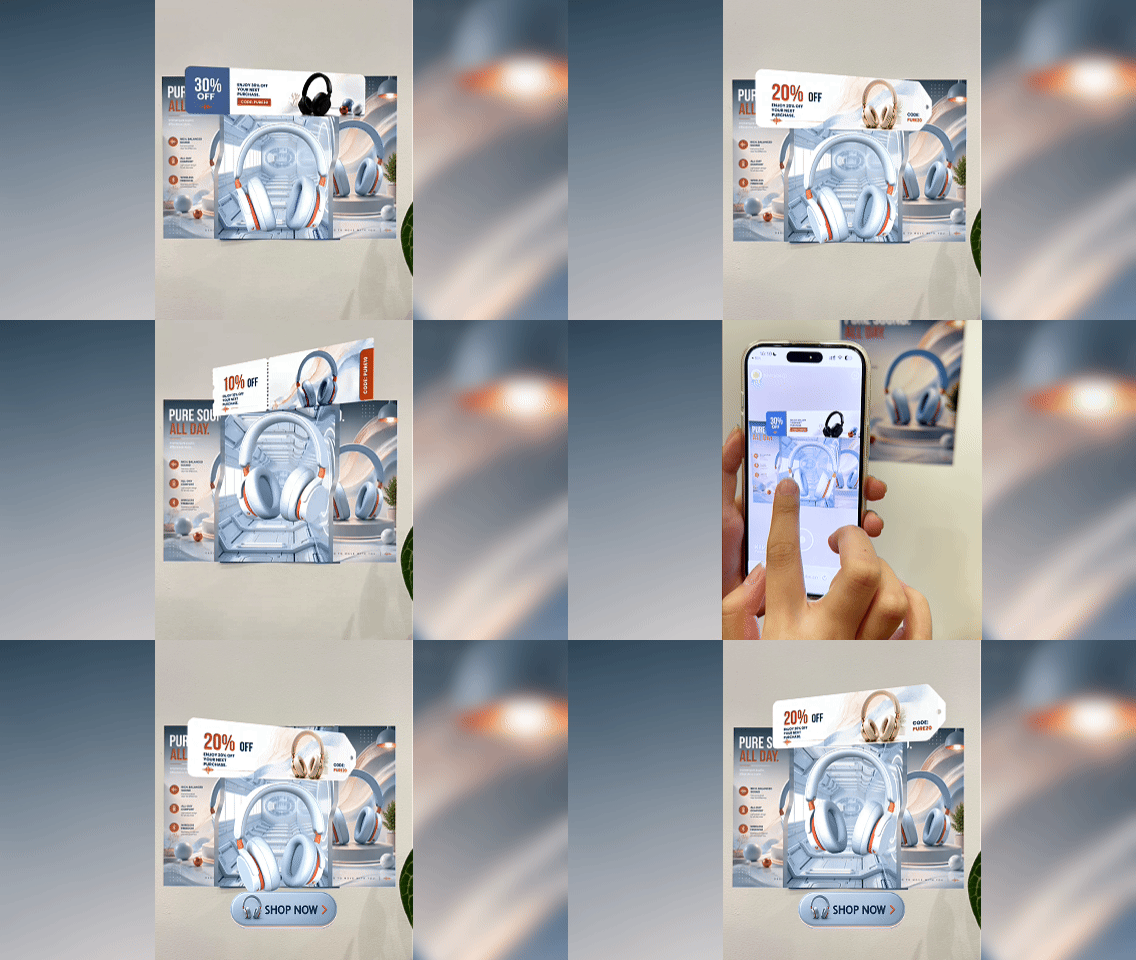
After clicking the Start button, coupons are randomly displayed above the headphones with a fast-to-slow switching effect.
When users click the headphones, the switching stops and the currently displayed coupon is selected.
Clicking the Buy button redirects users to the product page.
Interactions Prompt:
When users click the %Start Button, hide %Start Button and %Rule Popup from the screen.
After %Rule Popup disappears, randomly switch and display one of the following coupons above @Headphones:
%Coupon 1.png
%Coupon 2.png
%Coupon 3.png
%Coupon 4.png
%Coupon 5.png
At the beginning, each coupon should display for 0.03 seconds. As time passes, increase the display duration by 10% every second until each coupon displays for 0.5 seconds. After reaching 0.5 seconds, keep the display duration unchanged.
When users click @Headphones again, stop the coupon switching and keep the coupon currently displayed at the moment of clicking.
Then, display the %Buy Button at the bottom center of the screen. When users click %Buy Button, redirect them to:https://www.kivicube.com/
Final Result:
With AR Agent, you can quickly add game-based interactions to AR experiences, such as falling objects, click-to-collect gameplay, and real-time score systems.
Users can collect falling objects by clicking them and receive instant score feedback, making AR experiences more interactive, engaging, and rewarding.
Combine countdown and real-time scoring features to create an interactive AR game.
After the game starts, multiple objects randomly fall from the top of the screen at different speeds and disappear when reaching the bottom.
Users can collect positive objects to gain points and click negative objects such as bombs to lose points.
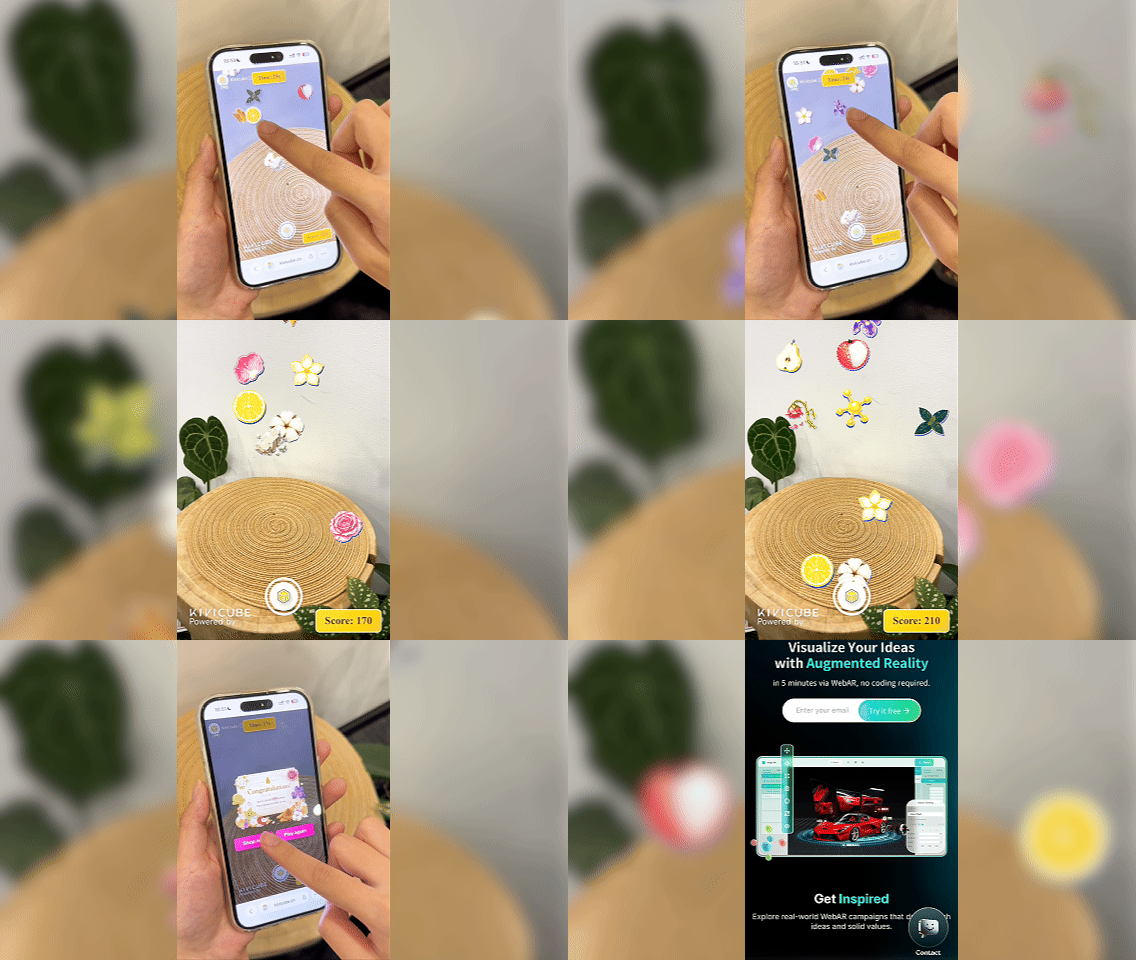
Interactions Prompt:
Create an item falling game. The following objects, @Iris @Cedar @Citrus @Lemon @Mint Leaf @Rose @Lychee @Pear @Petal @Kapok @Jasmine @Wilted Rose @Rotten Leaf @Rock, randomly fall from the top of the screen at different speeds and disappear when they reach the bottom. Each object should have a different random falling speed.
The display size of each falling object should be smaller, approximately one fifth of the entire screen width. Objects can overlap in position but should not visually intersect with each other.
When clicking @Iris @Cedar @Citrus @Lemon @Mint Leaf @Rose @Lychee @Pear @Petal @Kapok @Jasmine, the object disappears. A @Scent Molecule appears at the click position, rotates once, and then disappears.
When clicking @Wilted Rose @Rock @Rotten Leaf, the object disappears. A @Poison Gas appears at the click position, sways left and right once, and then disappears.
Clicking @Citrus @Lemon adds 30 points. Clicking @Pear @Mint Leaf adds 35 points. Clicking @Lychee adds 40 points. Clicking @Petal adds 50 points. Clicking @Jasmine adds 60 points. Clicking @Rose @Iris adds 70 points. Clicking @Cedar @Kapok adds 90 points.
Clicking @Rock @Wilted Rose @Rotten Leaf deducts 100 points.
Display the score board in the bottom right corner of the screen. When the score reaches 500 points, the game ends. Display %popup.png at the visual center of the screen. Add a semi-transparent dark overlay behind %popup.png. Do not automatically add any other marketing copy such as “Congratulations, you won a coupon.”
Place two game buttons, “Shop now” and “Play again”, below %popup.png. Clicking “Play again” restarts the game. Clicking “Shop now” redirects to: https://www.kivicube.com/en/
Start the timer after the scan recognition is completed. Display a countdown card at the top of the screen. If the player does not reach 500 points within 30 seconds, the game is considered failed. Show a popup with “Time's up!”. Clicking the “Try Again” button below allows the player to restart.
As the game progresses,it increases the falling speed of all objects. By 25 to 30 seconds, the falling speed should increase to 3 times the original speed.
Allow slightly more objects to fall simultaneously on the screen.
Use gold or pink color schemes for the score board and all buttons.
Final Result: