English
Appearance
It is used to preview videos, custom animations, or model animations in the Scene Editor. You can play the selected animation or audio/video clip once, loop it, pause it, or stop it.
Note
The preview shown here is only for checking effects while editing and does not affect the actual AR experience. To play a video or animation within the AR experience, please configure the playback rules separately.
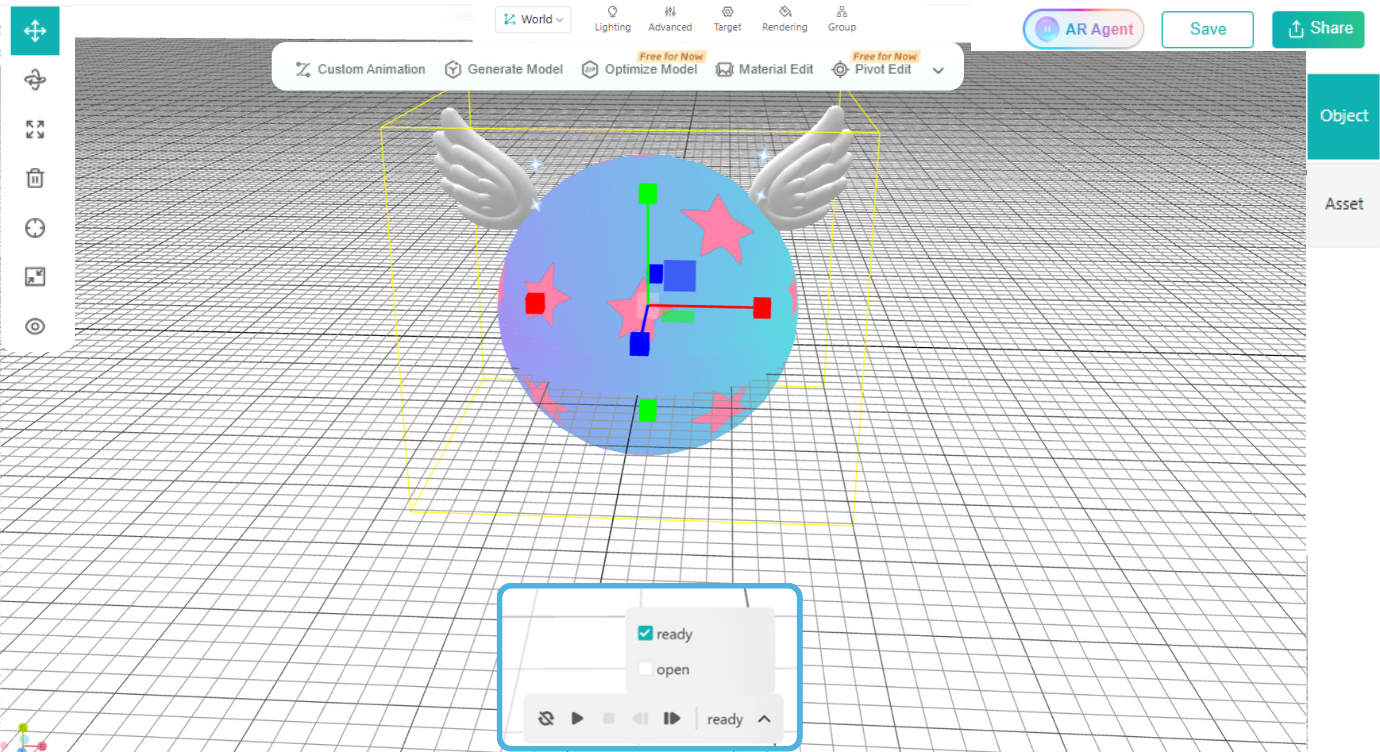
After selecting a model with animations, you can preview the animations here. If the model contains multiple animations, click the small arrow to select the animation you want to preview, or check multiple animations to play them simultaneously.
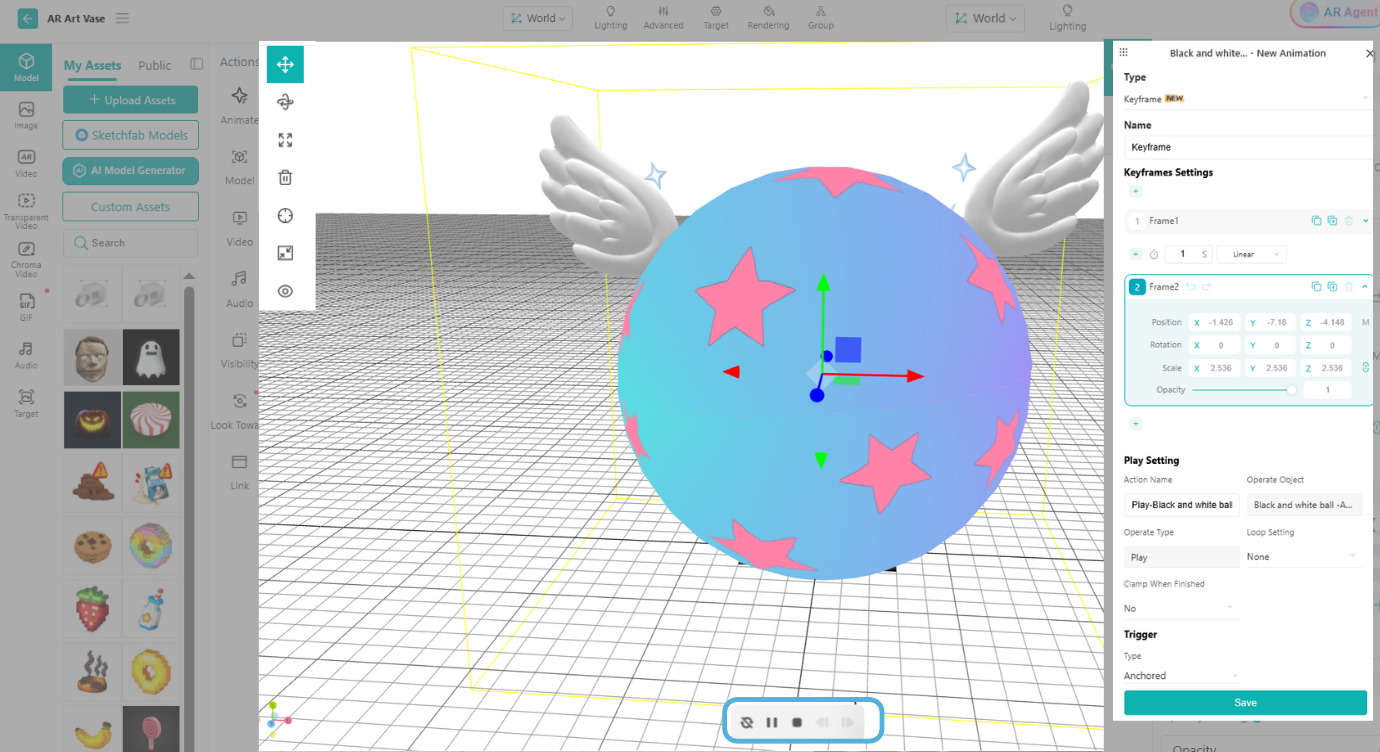
When adding custom animations to objects in the scene, you can preview the animation effects in real time here and make adjustments as required. Be sure to save the animation once you’ve finished the adjustments. You can also preview the effects at any time after the animation has been added.
You can preview the video right here.
If the video contains custom animations, uncheck "Animation" to preview the video itself separately.
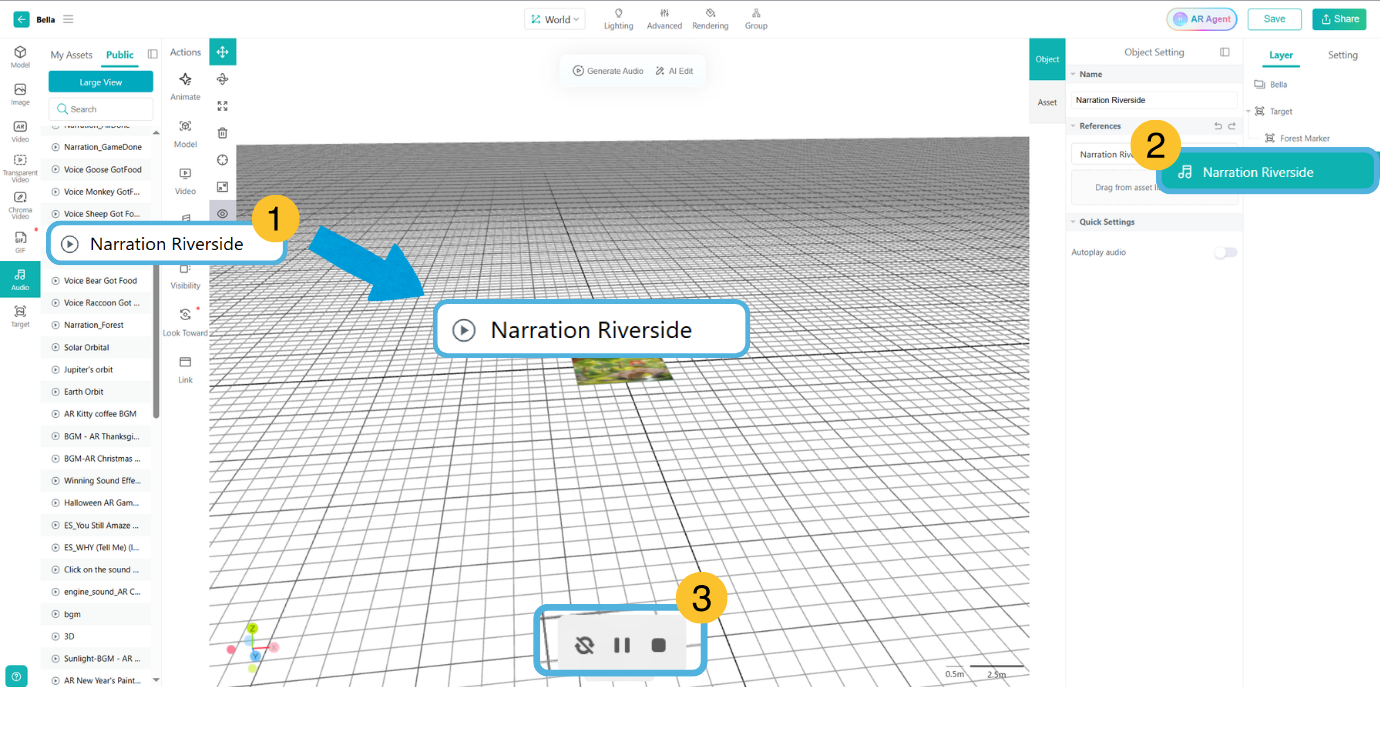
After uploading the audio to the asset library, drag it onto the 3D canvas to preview it at the bottom of the canvas. Audio already added to the canvas can be found and selected in the scene structure list on the right.